
📍 Custody Locations Tab
Esta página aún no está disponible en tu idioma.
The Locations view on a job’s Custody tab lists every storage location the job has used: what is stored in each one now, what has moved on, and for how long, with each location’s photos and notes.
🧭 Summary
Section titled “🧭 Summary”The Custody tab has two views, switched with Labels / Locations in its toolbar. Labels is the label table (see Managing Custody Labels). Locations turns the same labels around and answers where is this job’s stuff, and since when?
-
One row per location the job has used — a truck, a cleaning room, an ozone room, a vault — with its photo, site, what is stored there now, how many labels have been there and left, and the dates it was in use.
-
Current locations first, then the ones the job has finished with, under a Previously used band.
-
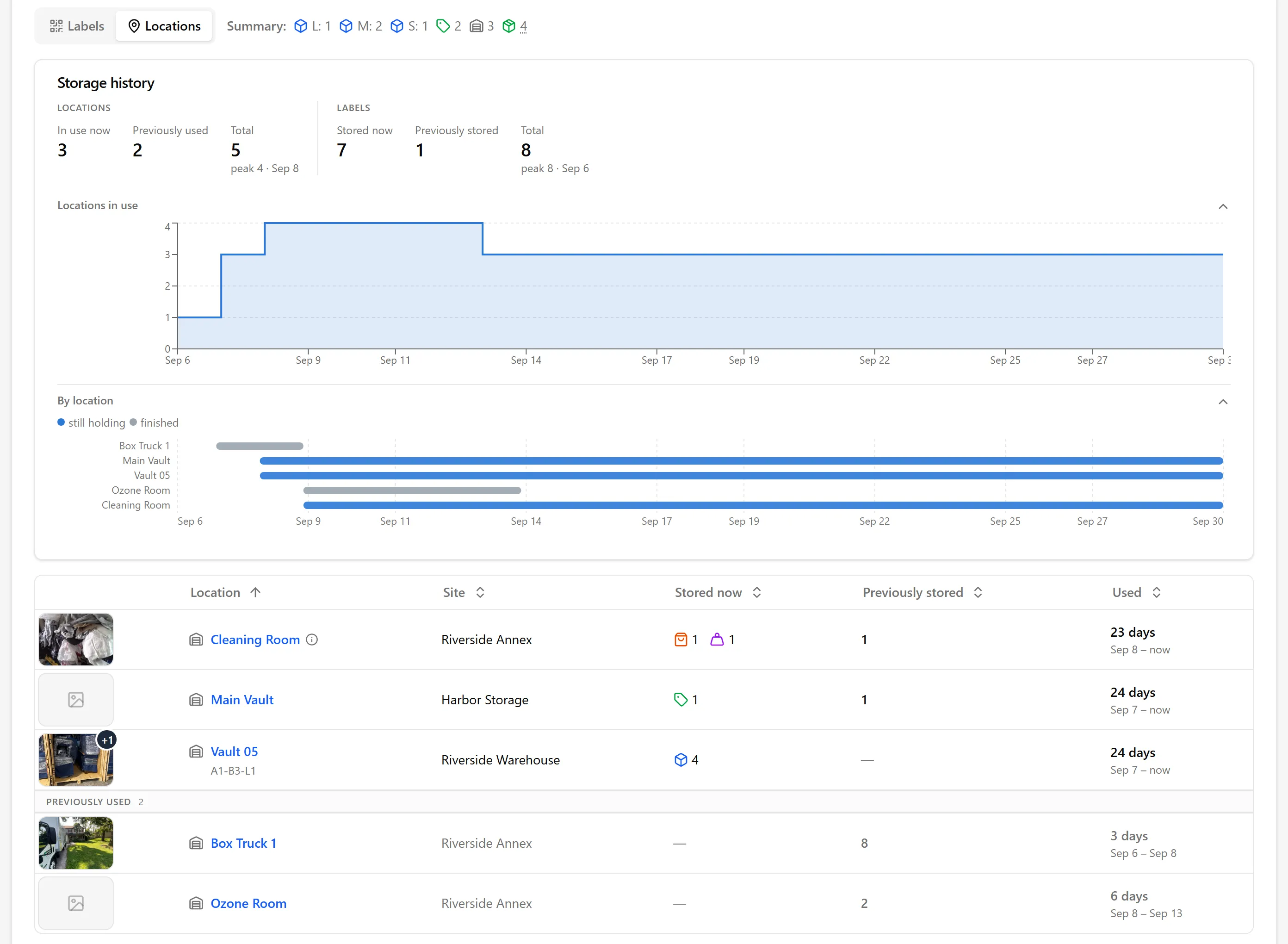
A storage history card above the table charts how many locations the job has used over time, and when each one was in use.
-
Click a location to see its photos, where it sits in the site, the labels in it (and the items in each label), the labels that have since moved on, a chart of its occupancy, and this job’s notes about it.
Locations and their placements come from your team’s work in the field: labels are placed in a location by scanning in the mobile app (see Moving Labels Between Locations (Mobile) and Warehouse Mode) or by setting a label’s location on the web. This view is read-only for placements — it shows where labels have been, it doesn’t move them.
⚙️ Prerequisites
Section titled “⚙️ Prerequisites”-
A job with custody labels — the Labels / Locations switch appears once the job has at least one label
-
Storage locations set up for your organization (see Setup Locations)
-
Labels placed in a location — until then, the Locations view shows Make your reports harder to argue with and nothing is listed
🚀 Step-by-Step Instructions
Section titled “🚀 Step-by-Step Instructions”1. Open the Locations View
Section titled “1. Open the Locations View”-
Open the job and click the Custody tab.
-
Click Locations next to Labels in the toolbar.
The view loads the job’s labels, sites, location photos and notes before it shows anything, so a large job may show Loading locations… for a moment. The page address ends in ?sub=locations, so a reload or a shared link opens the Locations view again.
The Summary next to the switch is the same as on the Labels view: a count of the job’s labels by type.
2. Read the Storage History
Section titled “2. Read the Storage History”The Storage history card sums up where the job has been stored.
-
Locations — In use now (locations holding any of the job’s labels today), Previously used (locations the job has finished with) and Total, with the most locations in use at once (peak) and the date of that peak.
-
Labels — Stored now, Previously stored (labels that were in storage and are no longer) and Total, with the peak number of labels stored at once.
Below the figures are two charts. Click a chart’s heading to collapse or expand it — your browser remembers the choice.
-
Locations in use — how many locations the job was using each day. Hover over it to see the date, the locations in use and the number of labels stored that day.
-
By location — a bar for each stretch of time a location held the job’s labels. Blue bars are locations still holding labels; grey bars are finished. Hover over a bar to see the location, its dates and duration, how many labels have been there, its peak, and how many are there now. Hover over the space between bars to see which locations were in use on that date.
A label that is delivered leaves storage, so the counts drop when labels go back to the customer.
3. Read the Locations Table
Section titled “3. Read the Locations Table”Each row is one location the job has used.
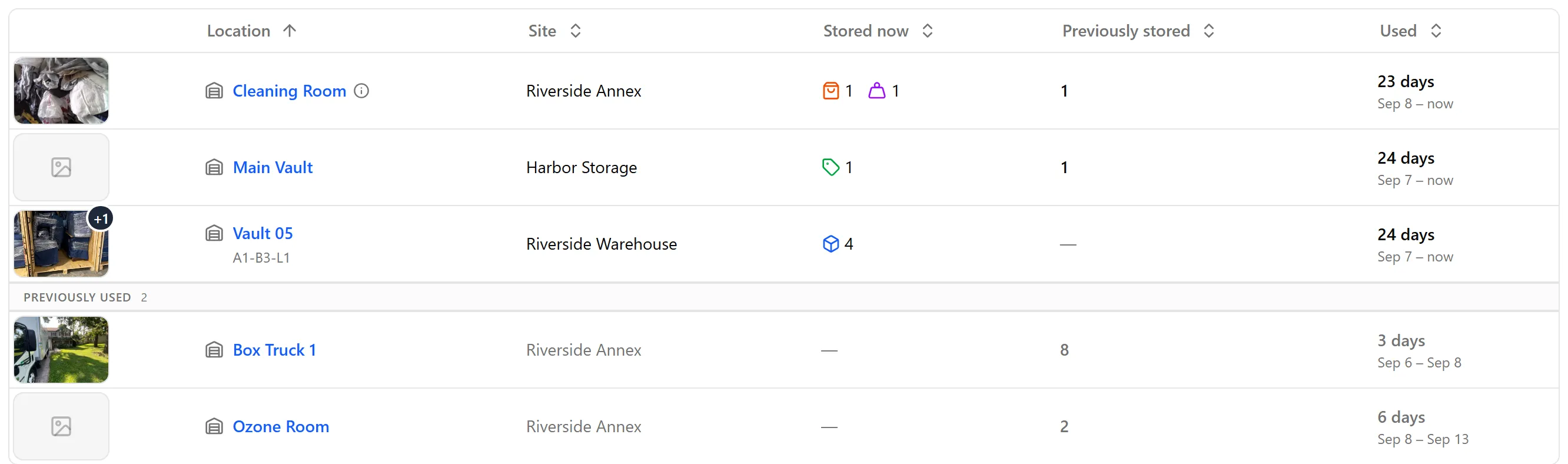
| Column | What it shows |
|---|---|
| Photo | The first photo of this location taken for this job. A +N badge means there are more; click the photo to open them all. A grey placeholder means no photos yet. |
| Location | The location’s name — click it to open the location. A coordinate like A1-B3-L1 (aisle, bay, level) appears underneath when the location has a place on the site grid. An ⓘ icon shows the location’s own note from site setup; hover over it to read it. |
| Site | The site the location belongs to. |
| Stored now | What is in the location now, by label type — an icon and a count for boxes, tags, garment bags, bulk textiles, and so on. A dash means nothing from this job is there now. |
| Previously stored | How many of the job’s labels were in this location and have since left. A dash means every label that has been there is still there. |
| Used | How many days the location held any of the job’s labels, and the dates — from the first day to now, or to the day the last label left. |
-
Current locations come first. Locations the job has finished with are listed under a Previously used band (with their count), greyed out.
-
Sort by any column header except the photo. Sorting orders the locations within each group, so a current location is never pushed below the previously used ones.
-
Grouping labels (pallets, crates, racks) aren’t counted as containers here — the boxes in the group are. See Grouping Custody Labels.
-
A location that has since been deleted from your sites is listed as Deleted location.
4. Open a Location
Section titled “4. Open a Location”Click a location’s name to open it.
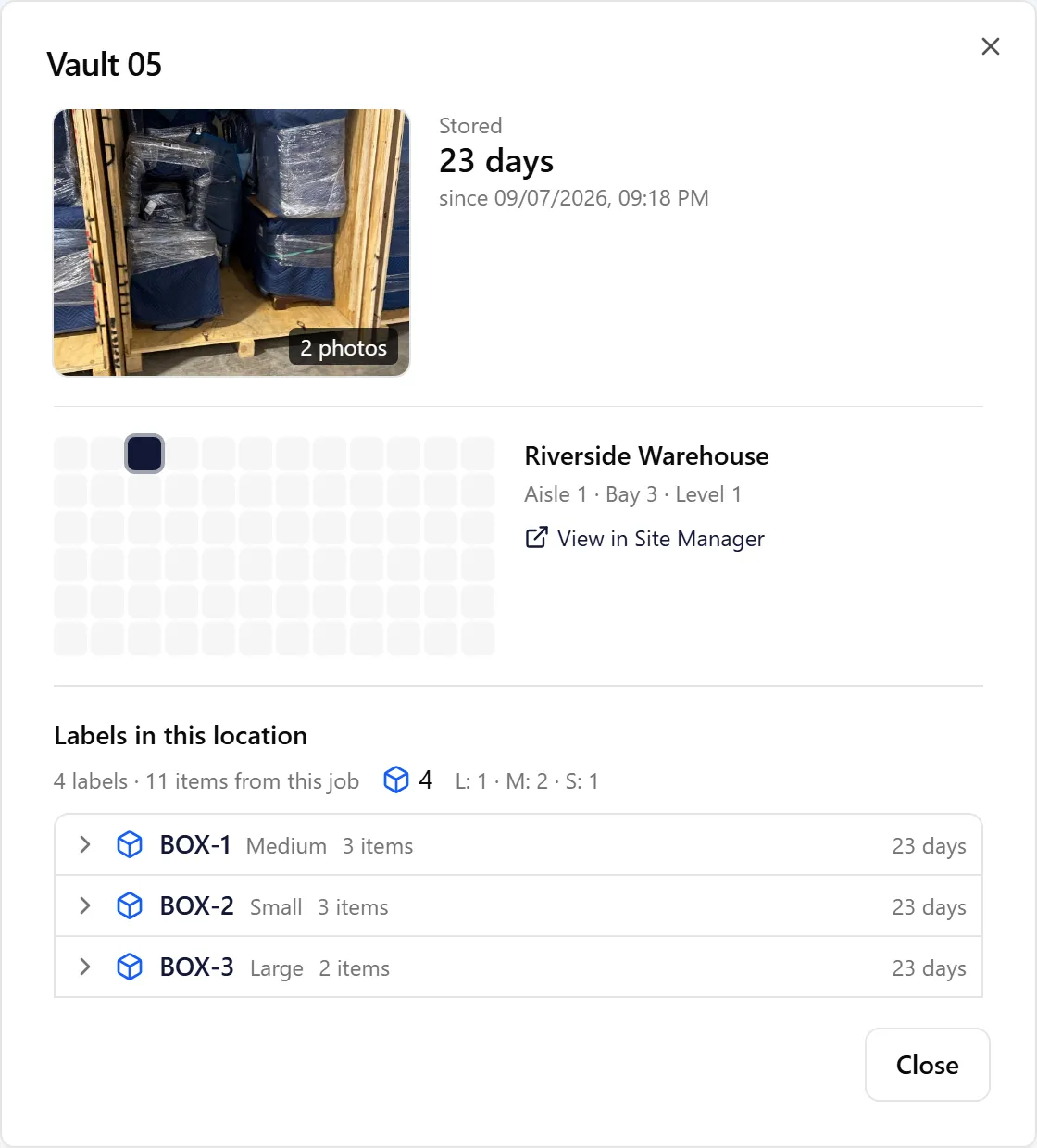
The dialog shows, from top to bottom:
-
Photo — the location’s first photo for this job, with a count when there are more. Click it to open the photo viewer and browse them all.
-
Stored — how long the labels have been in this location, counted from the earliest arrival of the labels there now, and the date and time they arrived. A location the job no longer uses reads Unknown.
-
Site — the site’s name and the location’s aisle, bay and level. When the location has coordinates on the site grid, a small map of its level highlights its spot. View in Site Manager opens the site on the Sites page (Site Management), with the location highlighted.
-
Labels in this location — how many labels and items from this job are there, by type (with box sizes), then a row per label with its type, box size, number of items and how long it has been in this location.
-
Previously stored here — labels that were in this location and have moved on, each with the date it left.
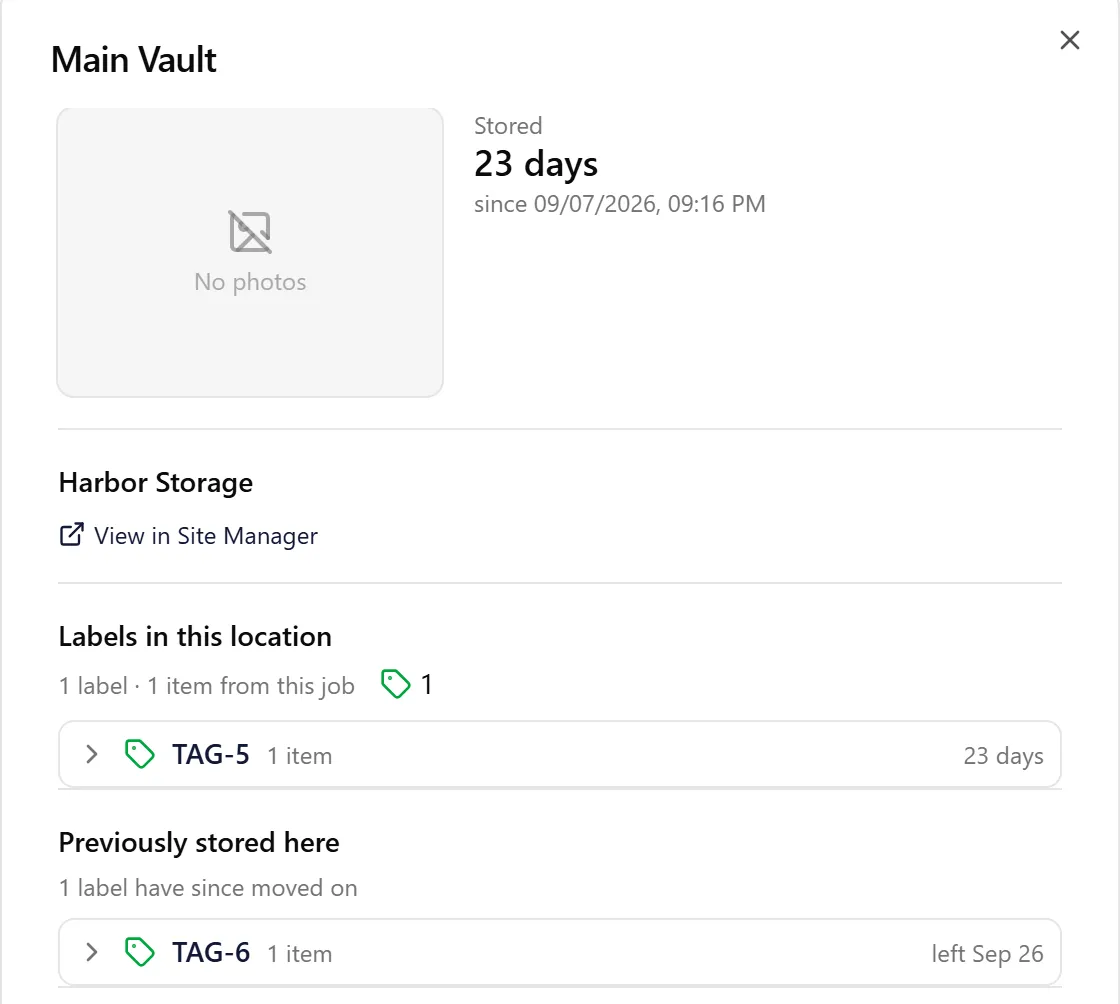
See the items in a label
Section titled “See the items in a label”Click the arrow at the start of a label row to list the items packed in it, with their item numbers and quantities. Click it again to hide them.
Jump to a label
Section titled “Jump to a label”Click a label’s name to open its label dialog over the location — the same dialog as on the Labels view, with its Label, Contents & Images, Consumables, Location (current location and full history) and Metadata tabs. Click Cancel to go back to the location.
5. See a Location’s History and Notes
Section titled “5. See a Location’s History and Notes”Scroll down in the location dialog.
-
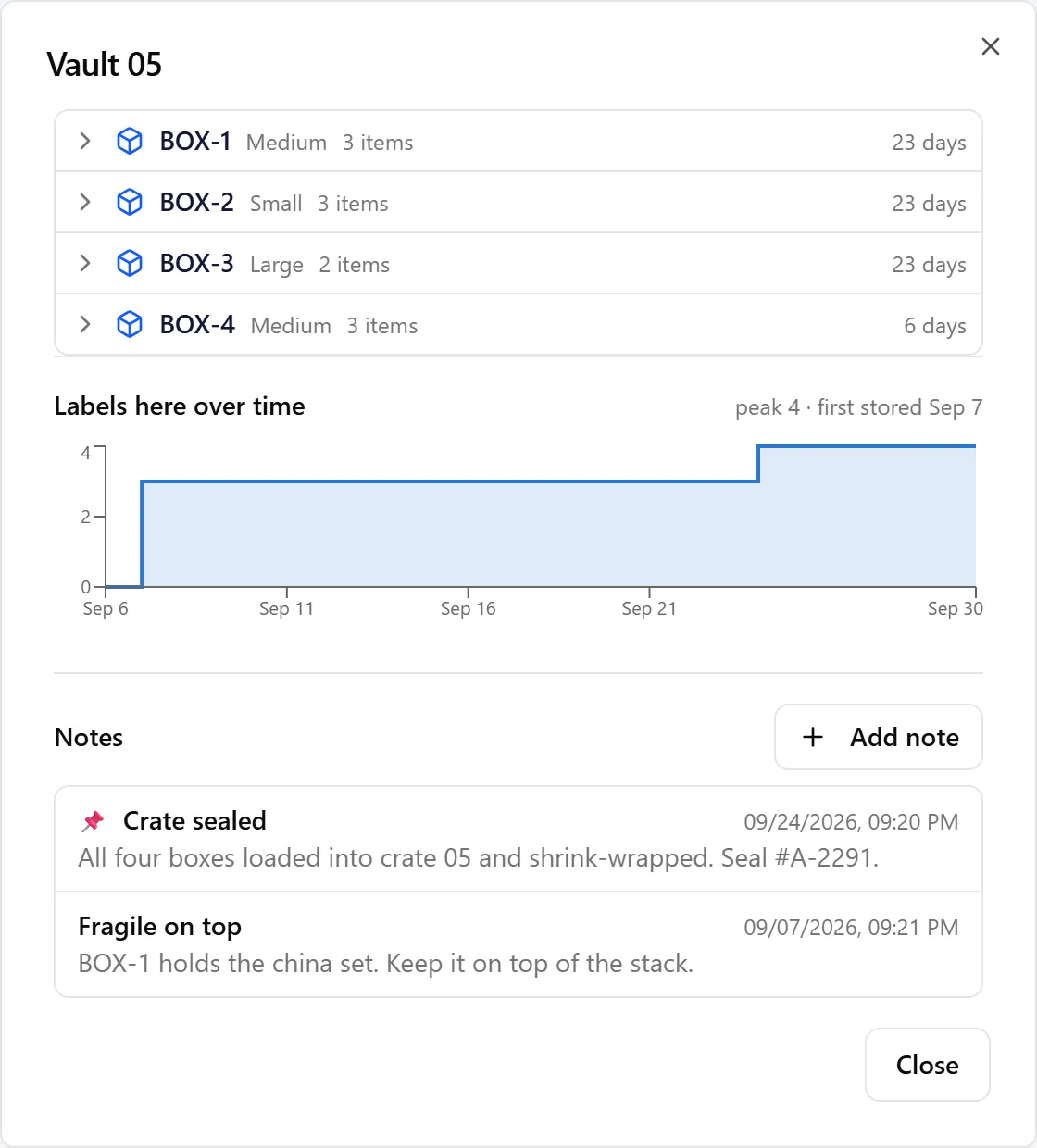
Labels here over time — how many of the job’s labels were in this location each day, with its peak and the date it was first stored.
-
Notes — this job’s notes about the location, newest first, with pinned notes 📌 at the top.
Add or edit a note
Section titled “Add or edit a note”-
Click Add note.
-
Enter a Title (optional) and the note’s Content.
-
Tick Pin this note to keep it at the top, and add any Attachments (images, PDFs or documents).
-
Click Save.
Click a note to open it, edit it, or Delete it. Notes about a location belong to the job: they also appear under the location in the Documentation tab’s Locations list, and other jobs stored in the same location don’t see them.
Add note isn’t available on a locked job, or for a location that has been deleted.
6. Location Photos
Section titled “6. Location Photos”The photos on this view are the job’s location photos — pictures taken of a location for this job, as proof of how the contents were stored. Only photos taken for this job are shown, even when the location holds other jobs too.
-
Take them in the mobile app: open the location from Custody → Locations and tap Add Photo under Vault Photos, or tap Add Photo when the app offers it right after a move — see Location (Vault) Photos.
-
Or add them on the web: open the job’s Documentation tab, switch the side list to Locations, pick the location and add photos there.
🔁 How It Fits With Moving Labels
Section titled “🔁 How It Fits With Moving Labels”The Locations view is the record of your moves; it doesn’t make them. To put labels in a location or move them on:
-
In the field — open a location from the mobile app’s Custody → Locations tab and scan labels into it, or move labels from the Labels tab. See Moving Labels Between Locations (Mobile).
-
On the warehouse floor — scan a location, then the labels going into it, in Warehouse Mode. Scanning a grouping label moves every label in the group. See Warehouse Mode.
-
On the web — set a label’s location on its Location tab, or for several labels at once with Edit Labels → Batch Edit on the Labels view. See Managing Custody Labels.
Every move adds to the label’s location history, and the Locations view picks it up: the label’s row moves to its new location, and the old location counts it as Previously stored — or moves under Previously used once its last label has left.
✅ Best Practices
Section titled “✅ Best Practices”-
Set up every stop in your process as a location — trucks, cleaning rooms, ozone rooms and vaults — so the job’s history shows where its contents went, not just where they ended up.
-
Scan at every move. Each scan becomes a dated step in the history; a skipped scan leaves a label in its old location on this view.
-
Take a location photo when you store a job’s contents, and again when you add to the location, so each location has proof of its condition.
-
Use location notes for things the next crew needs to know — seal numbers, fragile boxes, handling instructions — and pin the important ones.
-
Give locations coordinates on the site grid to get the map and the aisle/bay/level in the dialog. See Setup Locations.
🧩 Troubleshooting
Section titled “🧩 Troubleshooting”The Locations view says “Make your reports harder to argue with”: None of the job’s labels have been placed in a location yet. Scan them into a location in the mobile app, or set a location on the label’s Location tab.
A location I expected isn’t in the list: The view lists locations from the labels’ location history. A label that was never scanned into that location — or a move that was made on paper only — doesn’t show up.
The location shows no map: The map needs the location to have coordinates and its site to have a grid. Locations created in bulk don’t get coordinates — give the location a spot on the site grid on the Sites page. View in Site Manager still opens its site.
A location’s “Stored” says Unknown: The job no longer has any labels in that location. Its dates are in the Used column and in the Labels here over time chart.
There’s no Add note button: The job is locked, or the location has been deleted.