
Job Summary Report
Esta página aún no está disponible en tu idioma.
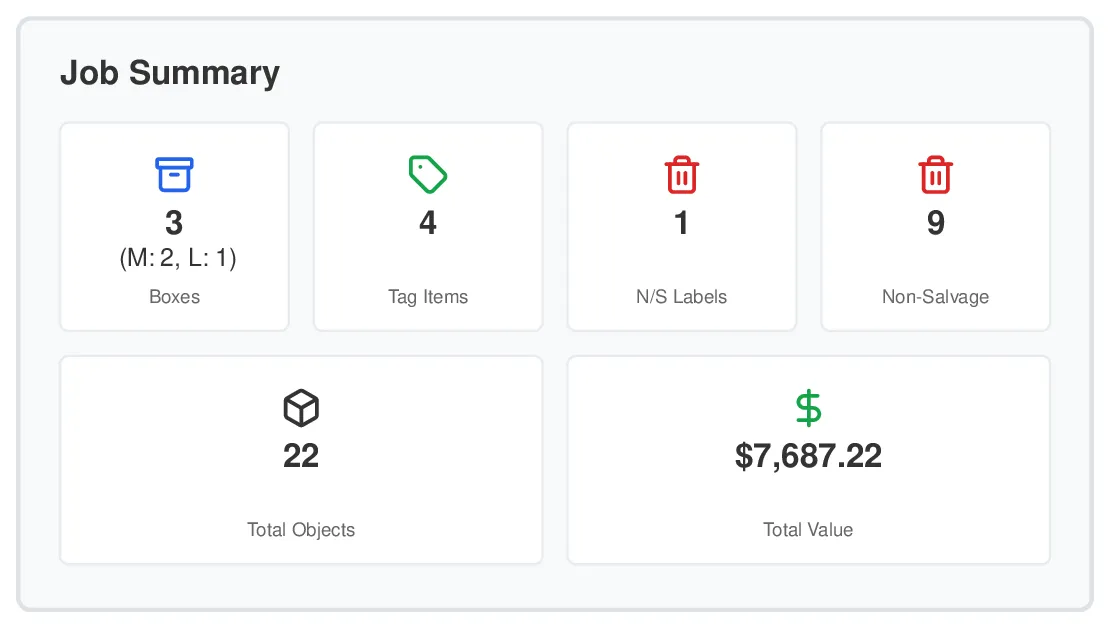
A high-level snapshot of the job, including box counts, tagged items, and non-salvageable totals—broken down by room.
What’s Included
Section titled “What’s Included”The Job Summary Report provides:
-
Cover Page: Job name, address, and claim details, with job photos and a loss-location map on the new cover (see Report Cover Page)
-
Total Counts: Total items, boxes, tag items, textiles, non-salvageable labels, and non-salvageable items
-
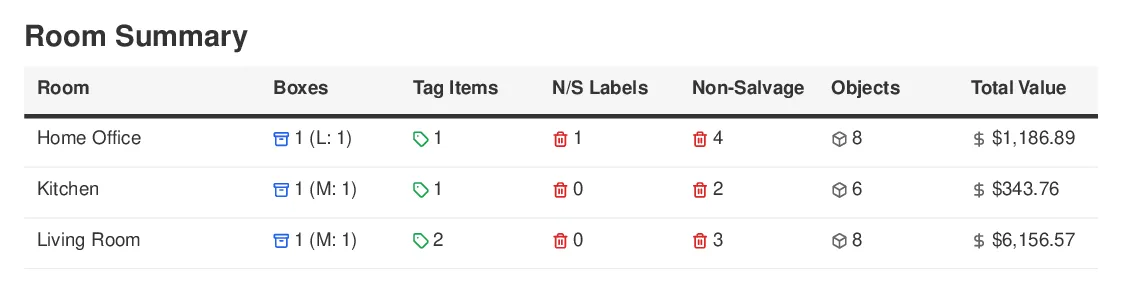
Room Breakdown: Optional detailed statistics for each room showing item counts and totals
-
Total Value: Optional total value of the items (off by default)
This report gives stakeholders a quick overview of the job scope without diving into individual item details.
Textiles: Jobs that use Textiles Mode also get a Textiles total, broken down into Bulk, Single and Garment Bag counts — shown in the report as Bulk, Single and Garment. It appears in the summary and in the room breakdown only when the job has textile labels, so reports for jobs without soft goods are unchanged.
Available as: PDF only
When to Use This Report
Section titled “When to Use This Report”Best for:
-
Quick overviews to share with adjusters or clients
-
Understanding job scope at a glance
-
Building initial estimates
-
Providing high-level summaries to stakeholders
Not ideal for:
-
Detailed item lists (use Salvageable or Custom Inventory Report)
-
Visual documentation (use Photo Report)
-
Replacement pricing details (use Replacements Report)
How to Generate
Section titled “How to Generate”-
Open your job in the web app
-
Click the Reports tab (top right)
-
Click Generate Report
-
Select Job Summary Report from the list
-
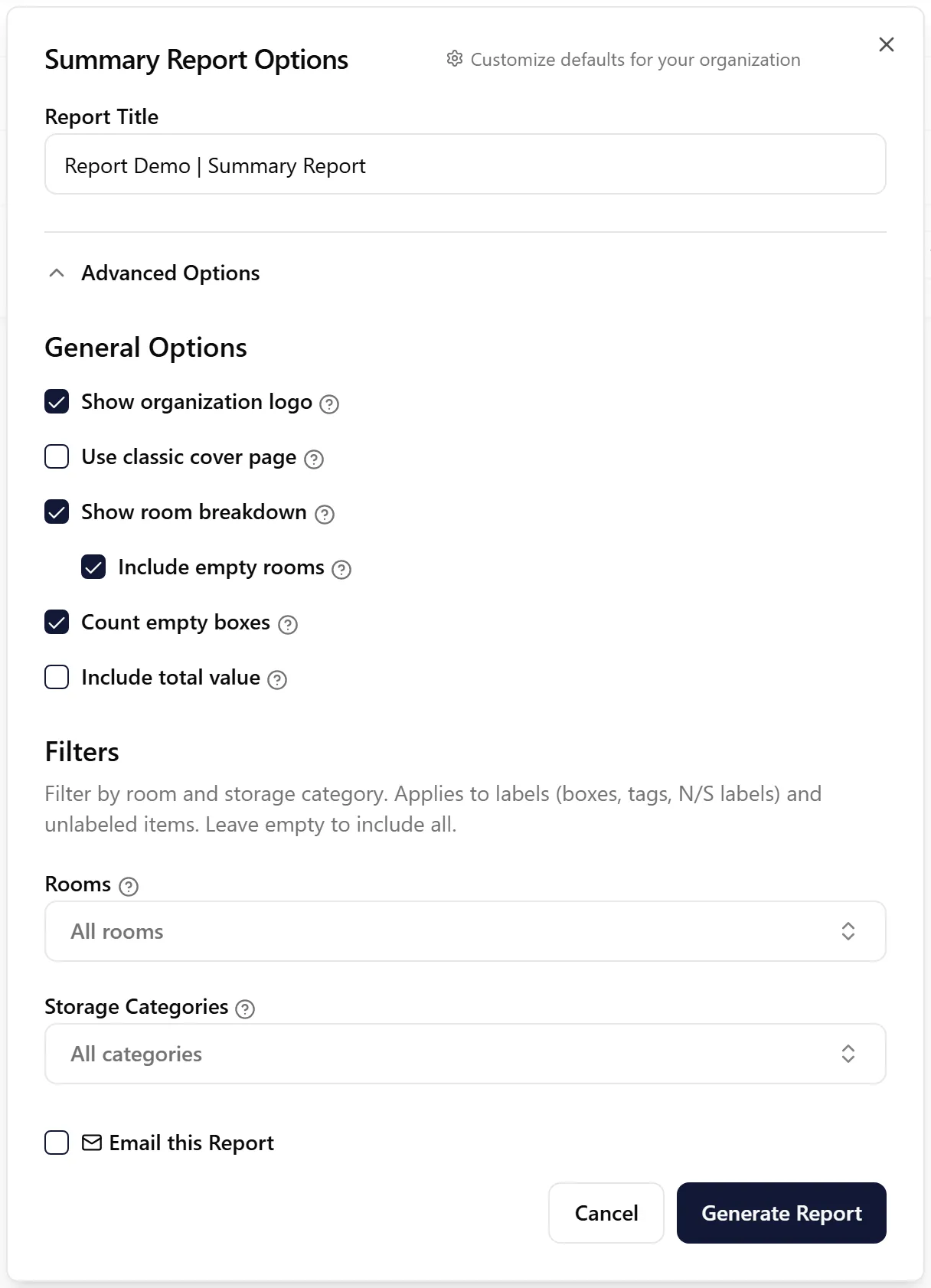
Customize your options under Advanced Options (see below)
-
Click Generate Report
Note: The Job Summary Report always downloads immediately, whatever the size of the job.
Customization Options
Section titled “Customization Options”Include Organization Logo
Section titled “Include Organization Logo”Default: Enabled
Adds your organization’s logo to the report header.
Cover Page
Section titled “Cover Page”Default: Your organization’s cover setting
Under Cover page, tick Use classic cover page for the previous job details page, or choose which sections the new cover shows. See Report Cover Page for details.
Show Room Breakdown
Section titled “Show Room Breakdown”Default: Enabled
When enabled, the report includes detailed statistics for each room:
-
Item counts per room
-
Box, tag and textile counts per room
-
Non-salvageable item counts per room
When disabled, you get only job-level totals.
Include Empty Rooms
Section titled “Include Empty Rooms”Default: Enabled (when room breakdown is shown)
Controls whether empty rooms appear when showing room breakdown:
-
Enabled: Shows all rooms, even if they have no items
-
Disabled: Only shows rooms that contain items, boxes, tags or textiles
Count Empty Boxes
Section titled “Count Empty Boxes”Default: Enabled
Includes boxes and other labels that have no items scanned into them in the counts. The Boxes count shows how many of its boxes are empty, for example Boxes: 20 (3 empty; S: 12, M: 8). Turn it off to count only labels that hold items.
Include Total Value
Section titled “Include Total Value”Default: Disabled
Controls whether the total replacement cost is shown in the report:
-
Enabled: Shows the total value of all items in the summary
-
Disabled: Hides pricing information
Filters
Section titled “Filters”Default: All rooms and storage categories
Limit the report to specific Rooms (choose “No Room” for unassigned items) and Storage Categories. The filters apply to labels (boxes, tags, N/S labels) and to unlabeled items. Leave them empty to include everything.
Viewing Report History
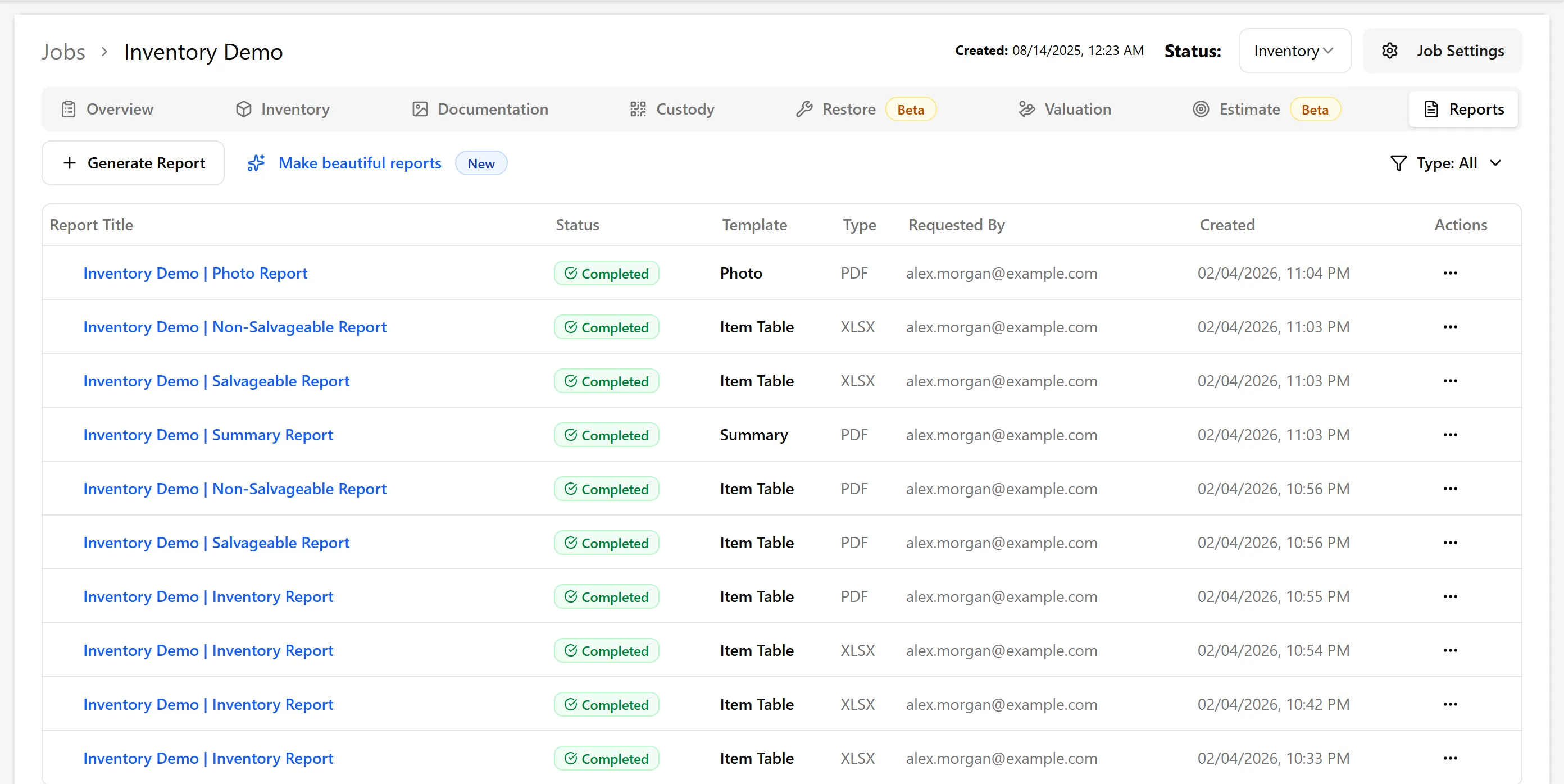
Section titled “Viewing Report History”All generated reports are stored in the Reports tab of your job where you can:
-
View past reports
-
Download reports again anytime
-
See generation status
-
See who requested each report and when
-
Use room breakdown for large jobs to understand item distribution across locations
-
Disable room breakdown for a concise single-page summary
-
Combine with detail reports: Use this for overview, then generate Salvageable or Photo reports for specifics
-
Leave “Include Total Value” off if you want to share counts without pricing information
Troubleshooting
Section titled “Troubleshooting”Report takes a long time to generate
-
Large jobs take longer, as every item and label is counted
-
Keep the dialog open until the report opens — Job Summary Reports aren’t sent to your email automatically
-
Tick Email this Report before generating if you also want a copy sent by email
Report shows unexpected totals
-
Verify that all items in your job have been properly inventoried
-
Check that items are assigned to the correct rooms
-
Ensure pricing data is up-to-date if using “Include Total Value”