
How to Download Job Images
Esta página aún no está disponible en tu idioma.
You can download every photo in a job as one ZIP file from the ContentsPal web app. This guide shows how to request the ZIP, pick which photos go in it, and what you’ll find inside.
🚀 Download All Photos as a ZIP (Web App)
Section titled “🚀 Download All Photos as a ZIP (Web App)”1. Open Download Photos
Section titled “1. Open Download Photos”-
Open the job in the web app
-
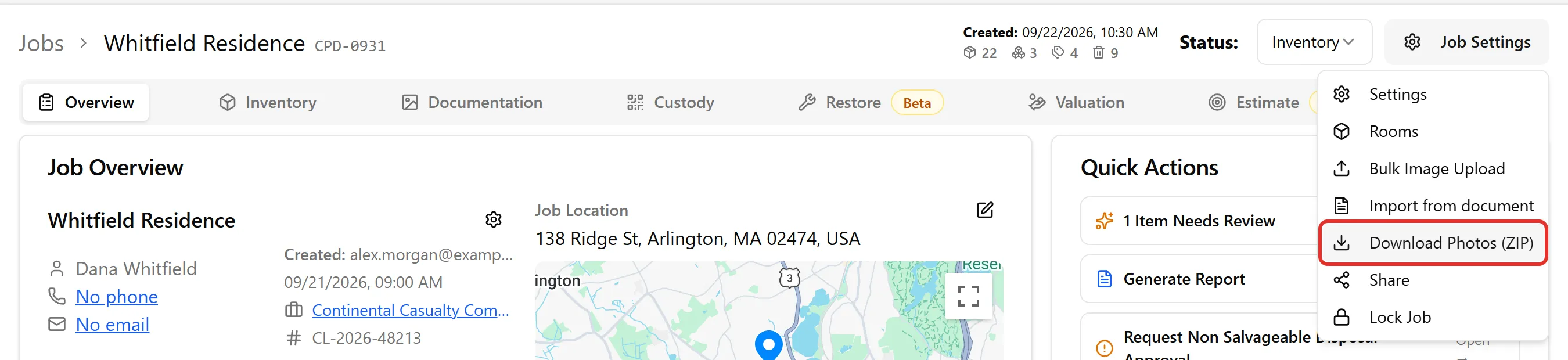
Click Job Settings in the top right, then choose Download Photos (ZIP)
2. (Optional) Choose Which Photos to Include
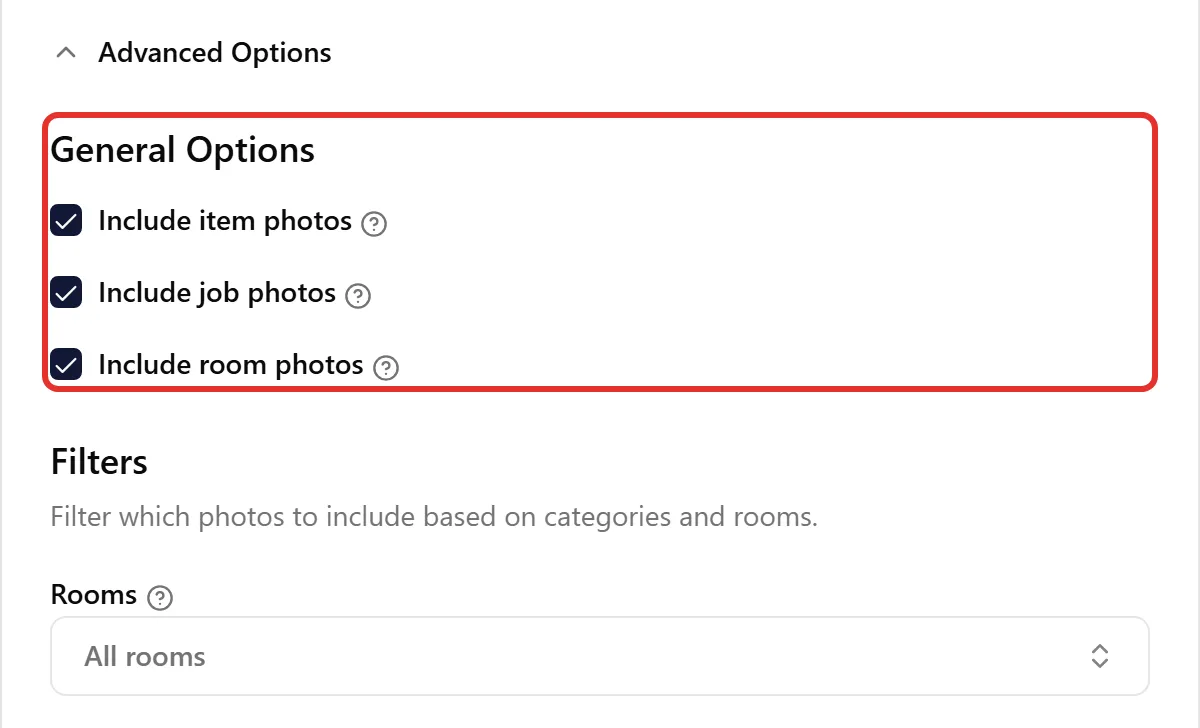
Section titled “2. (Optional) Choose Which Photos to Include”By default the ZIP has every item, job and room photo in the job. To narrow it down, click Advanced Options:
-
Include item photos, Include job photos, Include room photos — untick the kinds you don’t need
-
Rooms — only the photos from the rooms you pick (job photos aren’t tied to a room, so they’re always included while Include job photos is ticked). Choose No Room to include items that have no room
-
Item Filters (created date, storage and cleaning categories, labels, item hashtags, flagged items only) — narrow down the item photos
-
Photo Hashtags — only the job and room photos with the hashtags you pick
3. Click Download Images
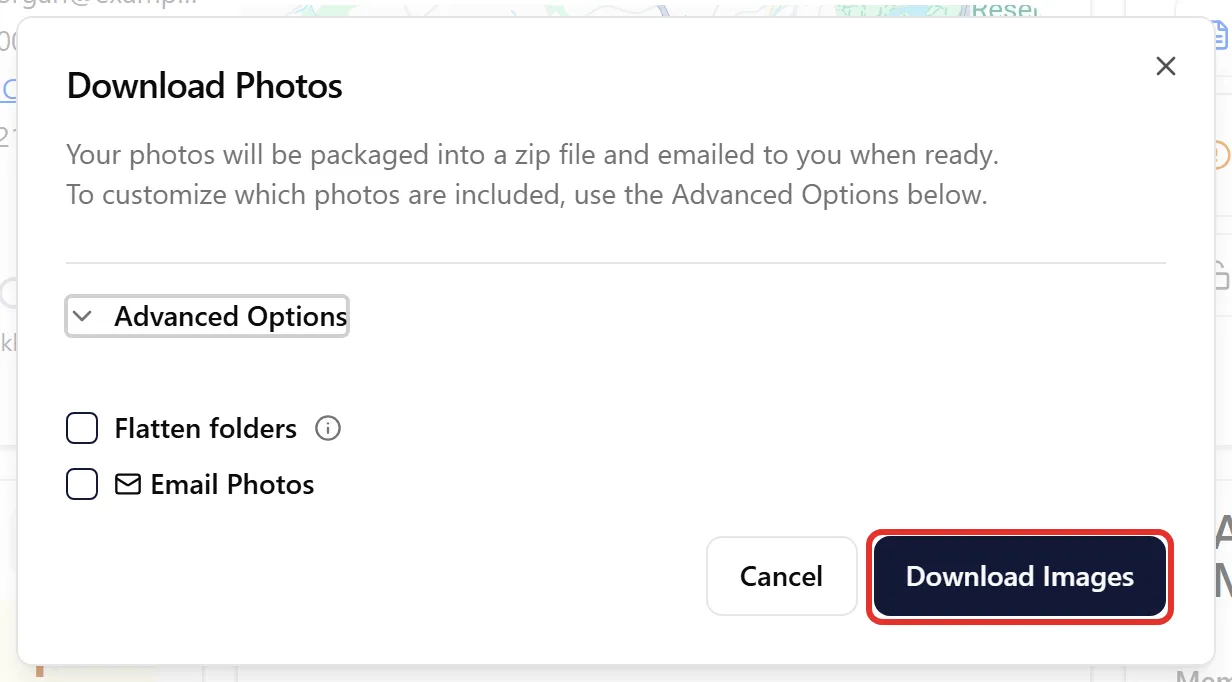
Section titled “3. Click Download Images”Two more options sit above the button:
-
Flatten folders — puts every photo in a single folder, with the room and item in each file name
-
Email Photos — also sends the download link to other people. Type each address and press Enter or a comma (up to 10), or tick Email download to me
Click Download Images. A Preparing Images message confirms the request, and you can keep working while ContentsPal builds the ZIP.
📥 Get the ZIP
Section titled “📥 Get the ZIP”When the ZIP is ready:
-
Email — you receive an email titled Job Images Ready for Download with the download link and the number of images. Anyone you added under Email Photos gets the same link.
-
Reports tab — the ZIP appears on the job’s Reports tab as an Image Download row (type ZIP). It shows Processing… until it’s ready; then click the ⋯ menu and choose Download, or Copy Link to share it.

Small jobs are ready in under a minute; jobs with thousands of photos take longer.
🗂️ What’s Inside the ZIP
Section titled “🗂️ What’s Inside the ZIP”-
Job photos sit at the top of the ZIP, named
job_img_1.jpg,job_img_2.jpg, and so on -
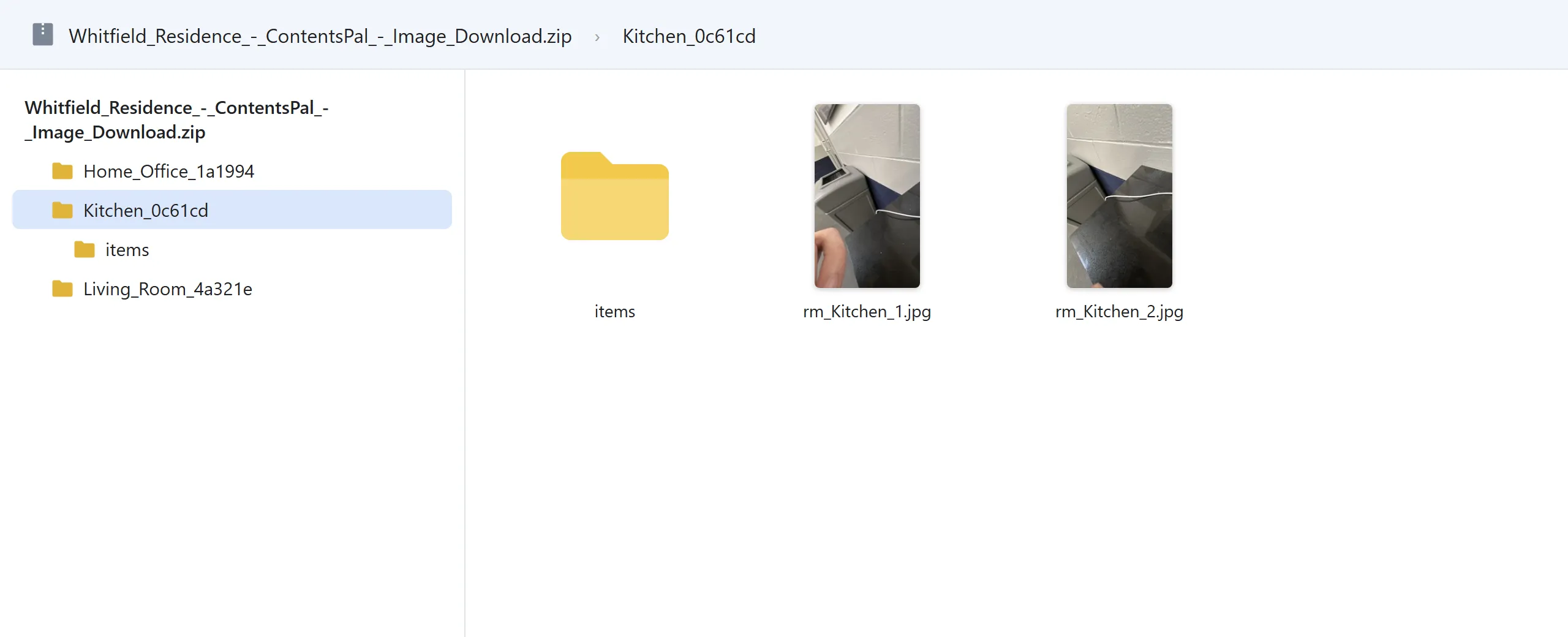
Each room has its own folder, named after the room plus a short code (for example
Kitchen_0c61cd). Room photos are inside it, namedrm_Kitchen_1.jpg,rm_Kitchen_2.jpg, … -
Item photos are in the room’s
itemsfolder, named after the item plus a short code (for exampleAir_fryer_1c76c5.jpg). An item with more than one photo gets its own folder, with_mainfor the main photo and_1,_2, … for the additional photos -
Items without a room are in an
unassignedfolder -
Photos are full size, and job and room videos are included too
-
Long names are shortened, and characters that aren’t allowed in file names are replaced with
_
With Flatten folders ticked, everything is in one folder and the folder path becomes part of the file name (for example Kitchen_0c61cd_items_Air_fryer_1c76c5.jpg).
🎯 Download Only Certain Photos
Section titled “🎯 Download Only Certain Photos”To download just the job or room photos you pick, tag them with a hashtag, then download only that hashtag:
-
On the job’s Documentation tab, open the room (or the job photos)
-
Hover over each photo you want and tick its checkbox
-
Click Batch Actions → Add Hashtag, type a hashtag (for example
download), and click Add Hashtag -
Click Job Settings → Download Photos (ZIP) and open Advanced Options
-
Untick Include item photos (and Include job photos if you picked room photos), pick the room under Rooms, and pick your hashtag under Photo Hashtags
-
Click Download Images
The ZIP has only the photos you tagged.
🖼️ Download a Single Photo
Section titled “🖼️ Download a Single Photo”To save just one photo, click it in the web app to open it full screen, then click the download icon. The full-size photo opens in a new browser tab, where you can save it (right-click → Save image as).
📱 On the Mobile App
Section titled “📱 On the Mobile App”The mobile app can’t create the ZIP. Once you’ve requested it on the web, open the job’s Documents tab on your phone and choose Reports: tap the Image Download row to Open it, Share file, or Copy link.
To keep a copy of every photo you take on your phone, turn on Save to Camera Roll in the app’s Settings → Capture.
🧩 Troubleshooting
Section titled “🧩 Troubleshooting”The email didn’t arrive:
-
Check your spam folder
-
The ZIP is still on the job’s Reports tab — download it from there
-
An organization admin may have turned off the Job images ready email under Organization → Settings → Notifications
Download Photos (ZIP) is greyed out: your organization’s account is locked. Contact your organization’s admin.
Download Images is greyed out: tick at least one of Include item photos, Include job photos or Include room photos under Advanced Options.
Some photos are missing:
-
Check the options under Advanced Options — each time you open the dialog they start again from everything included
-
Rooms with no photos and no matching items get no folder
-
A very large video may be left out; open it in the job and download it on its own
The Reports row says Failed: request the download again. If it fails again, contact support.
🔗 Related Articles
Section titled “🔗 Related Articles”-
Converting Job and Room Photos to Items — re-upload downloaded photos as items
-
Photo Report and Job & Room Photo Report — the same photos in a PDF