
📦 Instant Estimate
Esta página aún no está disponible en tu idioma.
Generate a quick preliminary estimate from your job photos using AI. Get a room-by-room breakdown of boxes and items — no manual counting needed — then review, adjust, and share as a PDF report.
🧭 Summary
Section titled “🧭 Summary”The Instant Estimate feature lets you create a preliminary packing estimate in seconds. After you’ve taken room photos during your walkthrough, the app will analyze those photos to estimate the number of boxes, large items, and small items per room. Jobsite documentation photos are included in the PDF report.
You can review the results, adjust quantities, rerun the estimate, and share or save a professional PDF report. Instant Estimate is available in two places:
-
In the mobile app — open the Instant Estimate window from the Estimate tile on a job’s Job Report screen.
-
On the web dashboard — open the Initial Scope view inside the Estimate tab of a job.
Both surfaces share the same underlying estimate, so an estimate calculated on mobile is visible on the web (and vice versa). The generated PDF report appears on the web dashboard under the Reports tab.
The mobile entry point is currently in Beta and must be enabled in your app settings.
Initial Scope vs. Job Estimate
Section titled “Initial Scope vs. Job Estimate”The Estimate tab on the web has two views that are built from different data:
-
Initial Scope (the Instant Estimate) is a quick draft built only from a few room photos. It counts boxes, large items, and small items per room. It doesn’t use the job’s inventory, labels, or Custody, and it doesn’t include Textiles Mode work—there are no wash/dry/fold weights or per-garment textile cleaning codes. Clothing seen in the photos is only counted toward boxes and small items.
-
Job Estimate is built from the job’s full inventory and labels, including textiles. Use it when you need a complete, coded estimate. To turn room photos into inventory items, see Converting Job and Room Photos to Items.
In the Job Estimate, contents cleaning lines come only from items and boxes marked Needs Cleaning. If a job is pack-out only, keep the job’s Default Cleaning Category set to As Is (on the web: Job Settings → Settings → Defaults) so new items don’t get cleaning lines. The default only applies to new items. To change what you’ve already captured, set Cleaning Category to As Is with Batch Edit in the Inventory tab (items) and the Custody tab (boxes), then click Rebuild on the Job Estimate.
⚙️ Prerequisites
Section titled “⚙️ Prerequisites”-
Instant Estimate enabled (mobile): The feature must be turned on in your app settings (it’s off by default)
-
Room photos taken: You need photos in at least one room so the AI has something to analyze
-
Jobsite documentation photos (optional but recommended): Overview photos of the job site are added to the PDF report
🚀 Step-by-Step Instructions (Mobile)
Section titled “🚀 Step-by-Step Instructions (Mobile)”1. Enable Instant Estimate in Settings
Section titled “1. Enable Instant Estimate in Settings”-
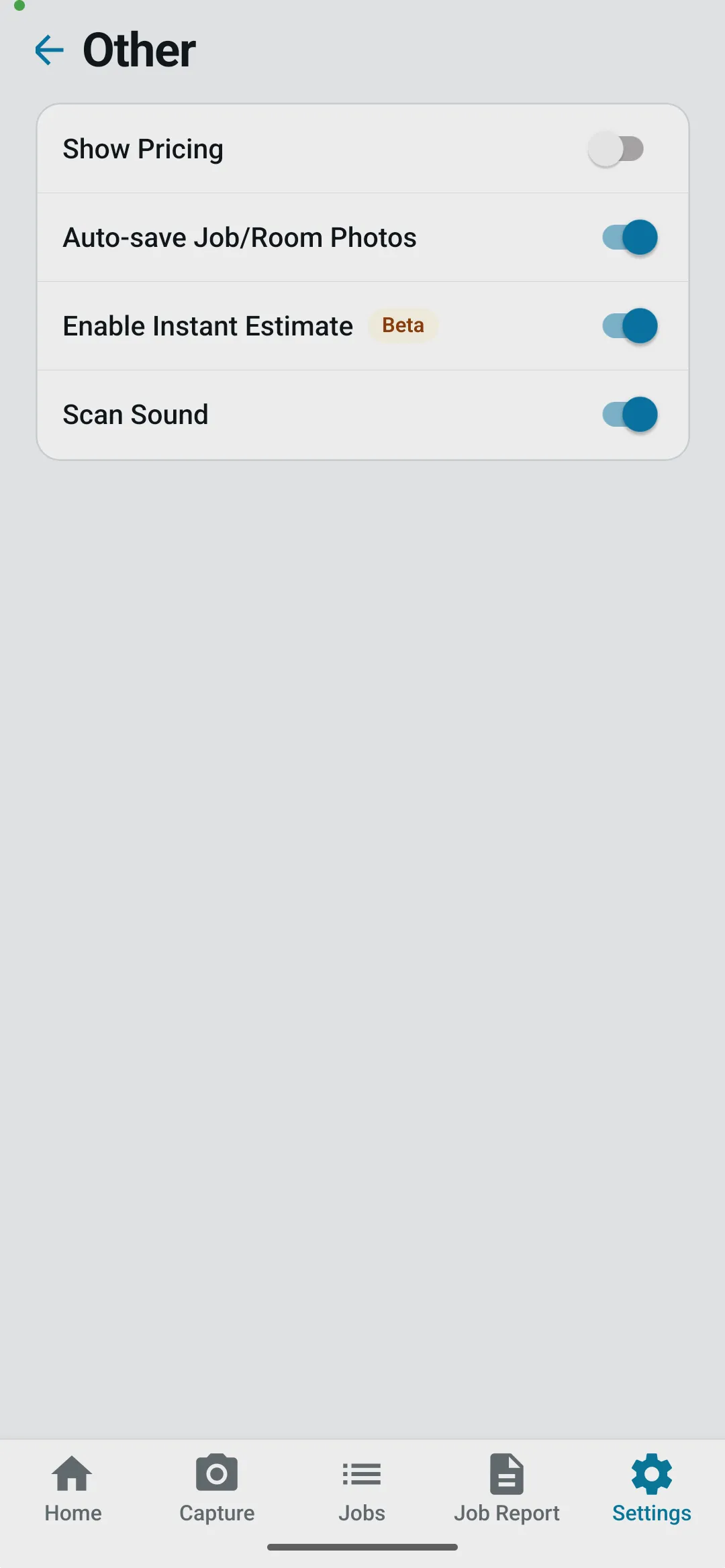
Open the app and tap Settings in the bottom navigation bar.
-
Tap Other.
-
Turn on Enable Instant Estimate. You’ll see a Beta badge next to it. Because the feature is experimental, you’ll be asked to confirm — tap I Agree.
2. Open the Instant Estimate from a Job
Section titled “2. Open the Instant Estimate from a Job”-
Navigate to the job you want to estimate (e.g., from the Jobs tab or Job Report tab).
-
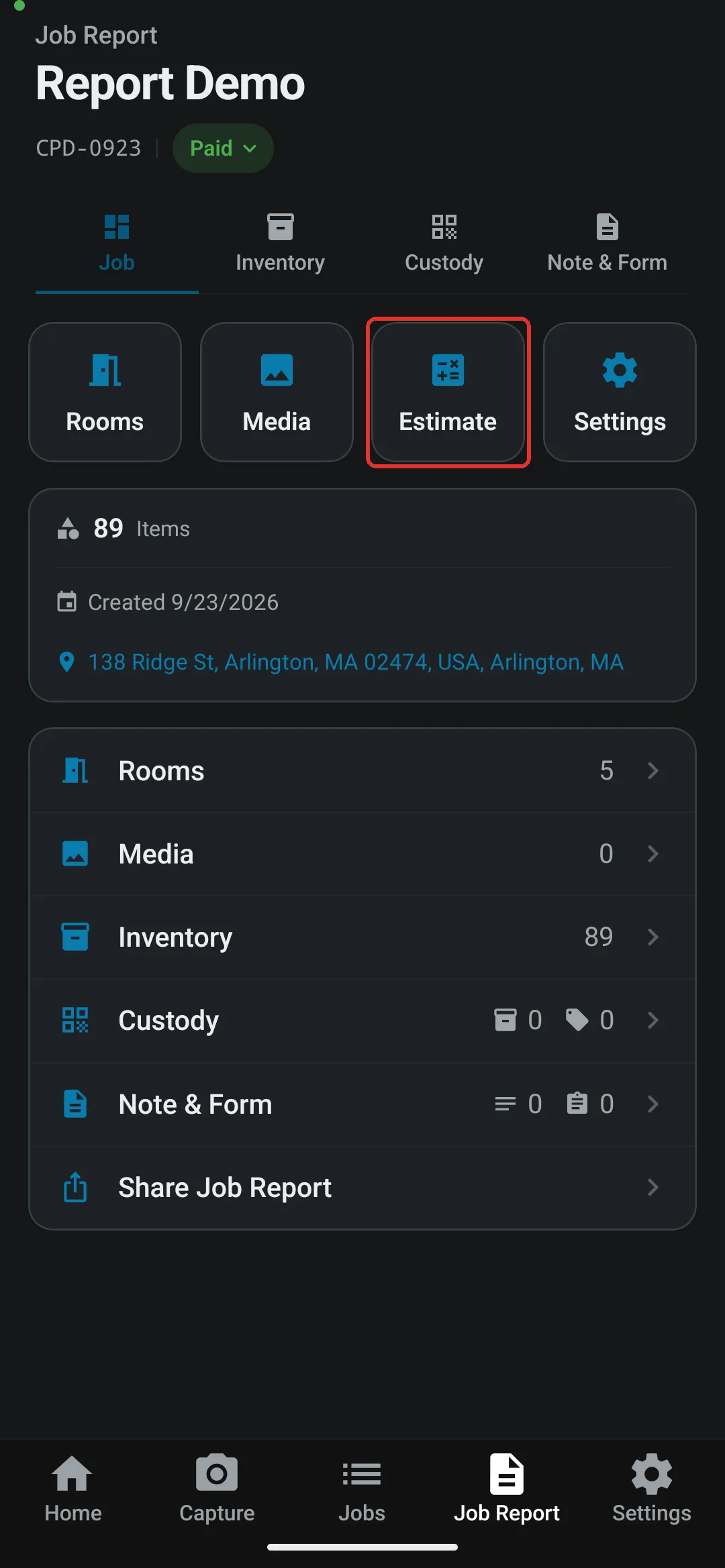
On the Job Report’s Job tab, look for the Estimate tile in the row of tiles near the top of the page.
-
Tap Estimate to open the Instant Estimate window.
3. Calculate the Estimate
Section titled “3. Calculate the Estimate”-
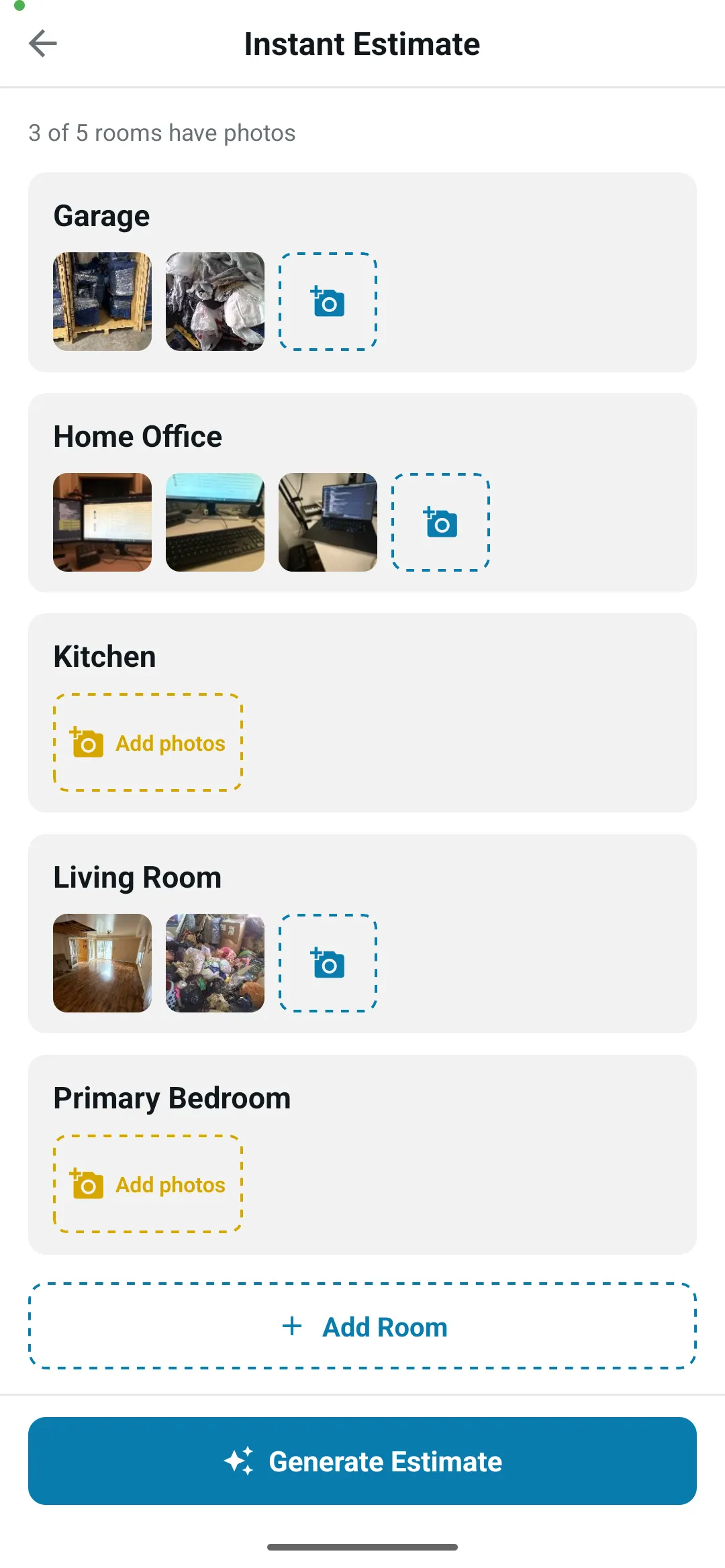
When the Instant Estimate window opens for the first time, you’ll see the job’s rooms, each with a strip of its room photos, and a line showing how many rooms have photos. Tap the camera tile on a room to add photos, or tap Add Room to create a room.
-
Tap Generate Estimate (available once at least one room has photos). If some photos are still uploading, you’ll be warned that they won’t be included yet.
-
Wait a few moments while the app analyzes your room photos.
4. Review the Results
Section titled “4. Review the Results”Once the estimate is ready, the window updates to show:
-
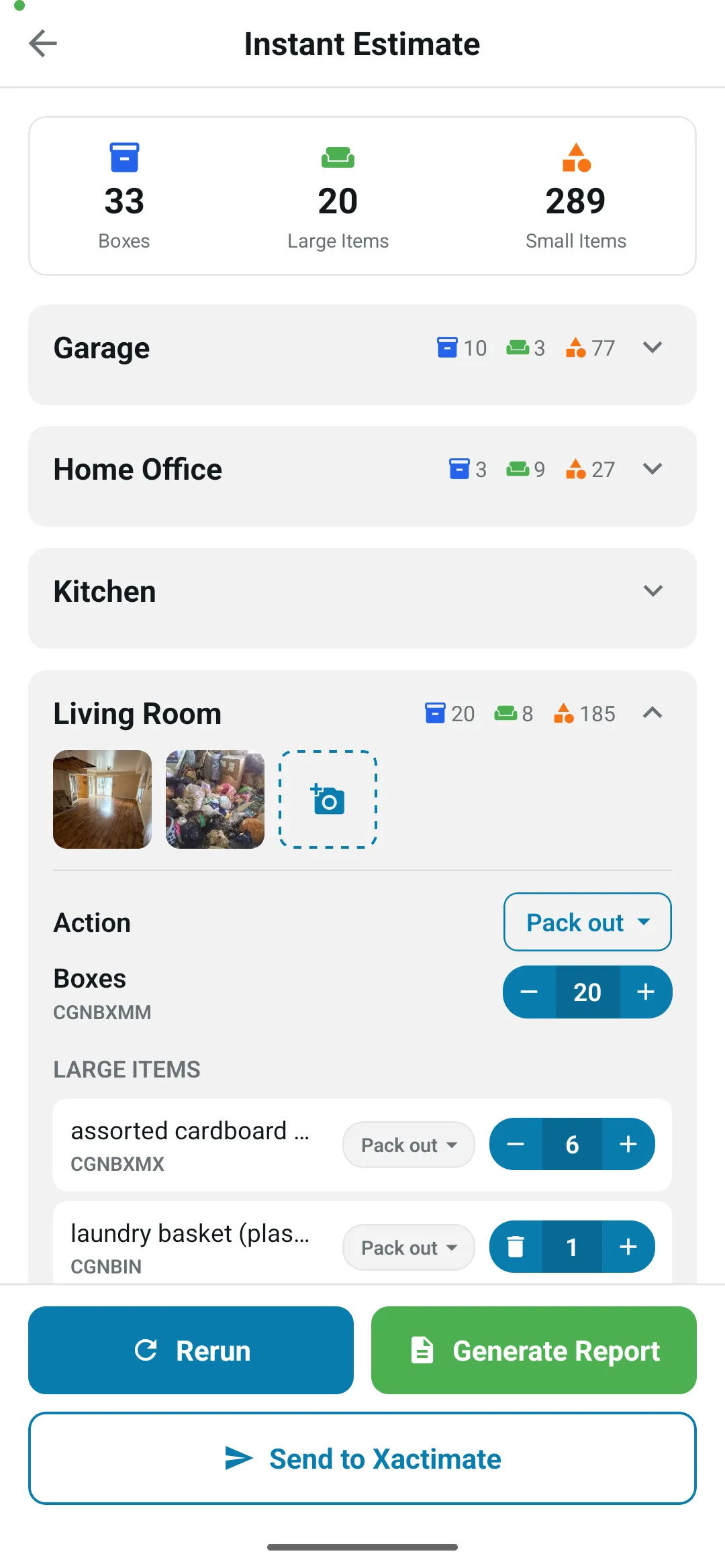
Summary totals at the top: total number of Boxes, Large Items, and Small Items across the entire job.
-
Room-by-room breakdown below, listing each room with its own counts.
For each room, you can see:
-
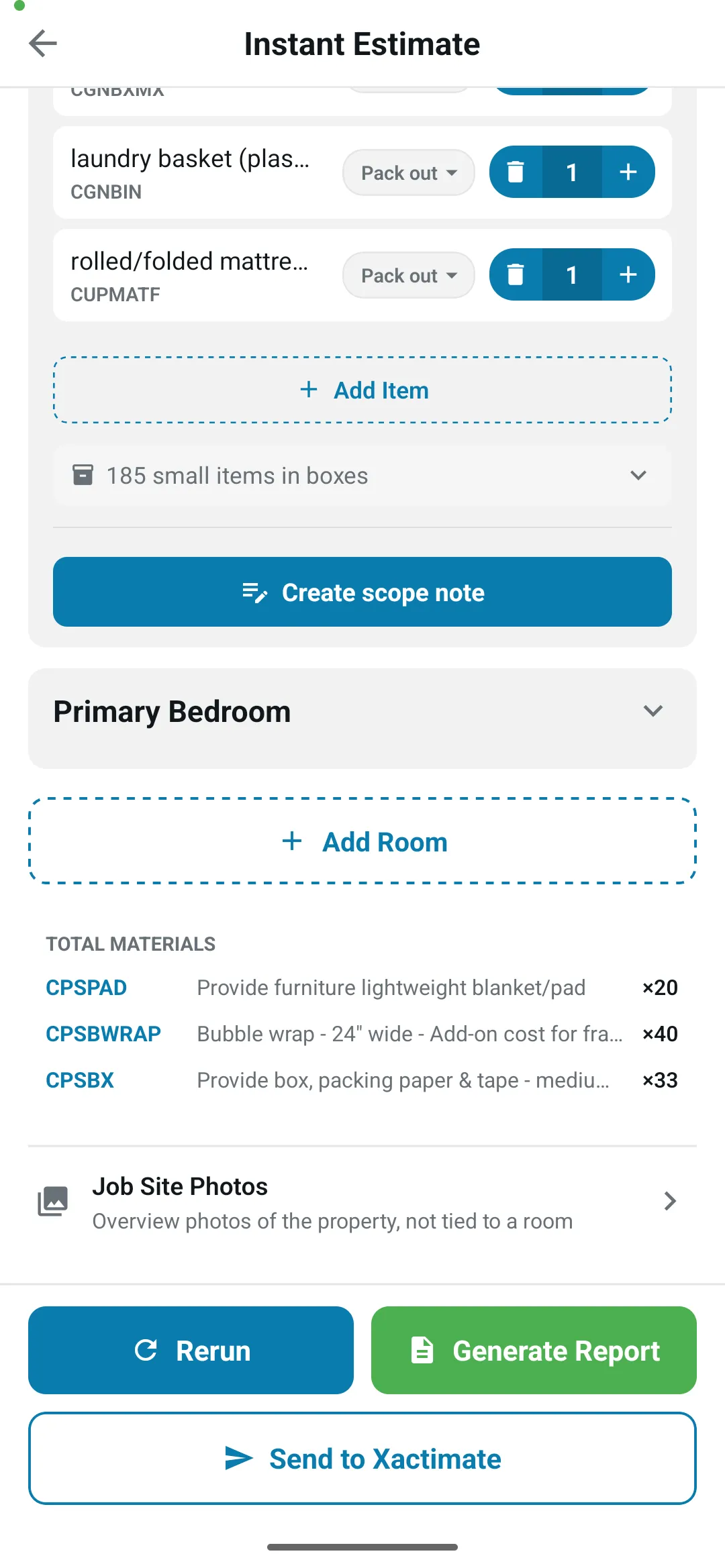
Action — what happens to the room’s contents (Pack out, Dispose, Clean on site, or Out of scope)
-
Boxes count with a +/- control to adjust
-
Large Items listed individually with quantity controls and their Xactimate code
-
Small items in boxes (expandable to see details)
-
Create scope note — opens a job note pre-filled with a summary of the room’s scope
Tap a room’s header to expand or collapse it. The job-wide Total materials (packing materials) are listed below the rooms.
5. Adjust the Estimate (Optional)
Section titled “5. Adjust the Estimate (Optional)”You can fine-tune the estimate before saving:
-
Use the + and − buttons next to Boxes to change the box count for any room.
-
Use the + and − buttons next to a large item to change its quantity. At a quantity of 1 the − becomes a trash icon that removes the item.
-
Tap Add Item to add a large item yourself (name, size, and quantity).
-
Tap a room’s Action (or the action chip on a single large item) to change how it is scoped.
-
Expand small items in boxes to review what the AI detected.
6. Rerun, Generate Report, or Save
Section titled “6. Rerun, Generate Report, or Save”At the bottom of the estimate window, you have these options:
-
Rerun — Re-analyze the photos to generate a fresh estimate (useful if you’ve added new photos since the last run). You’ll be asked to confirm, because this replaces all current items and edits.
-
Generate Report — Saves any pending edits and generates the Instant Estimate PDF, which opens in a preview you can share (via email, text, etc.). The report is also available on the web dashboard.
-
Save — Appears when you have unsaved changes. Saves your edits to the job’s estimate.
6a. Send the Estimate to Xactimate (Optional)
Section titled “6a. Send the Estimate to Xactimate (Optional)”Below the main action buttons you’ll find a Send to Xactimate button. It queues the initial scope for automated entry into Xactimate — the same request you can create from the web dashboard.
-
Tap Send to Xactimate.
-
Enter the recipient’s XactNet address (formatted
<user>@<org>, e.g.recipient@xactnet). If your profile already has a XactNet address saved, it’s filled in for you. -
Tap Send. Any unsaved edits are saved first, then the request is queued.
The lines sent are each room’s box count and coded large items, plus the job-total packing materials. Rooms and items marked Dispose or Out of scope are left out — their cleaning codes don’t apply.
7. View the Estimate Report
Section titled “7. View the Estimate Report”After tapping Generate Report, you can view the full estimate in two ways:
On Mobile
Section titled “On Mobile”-
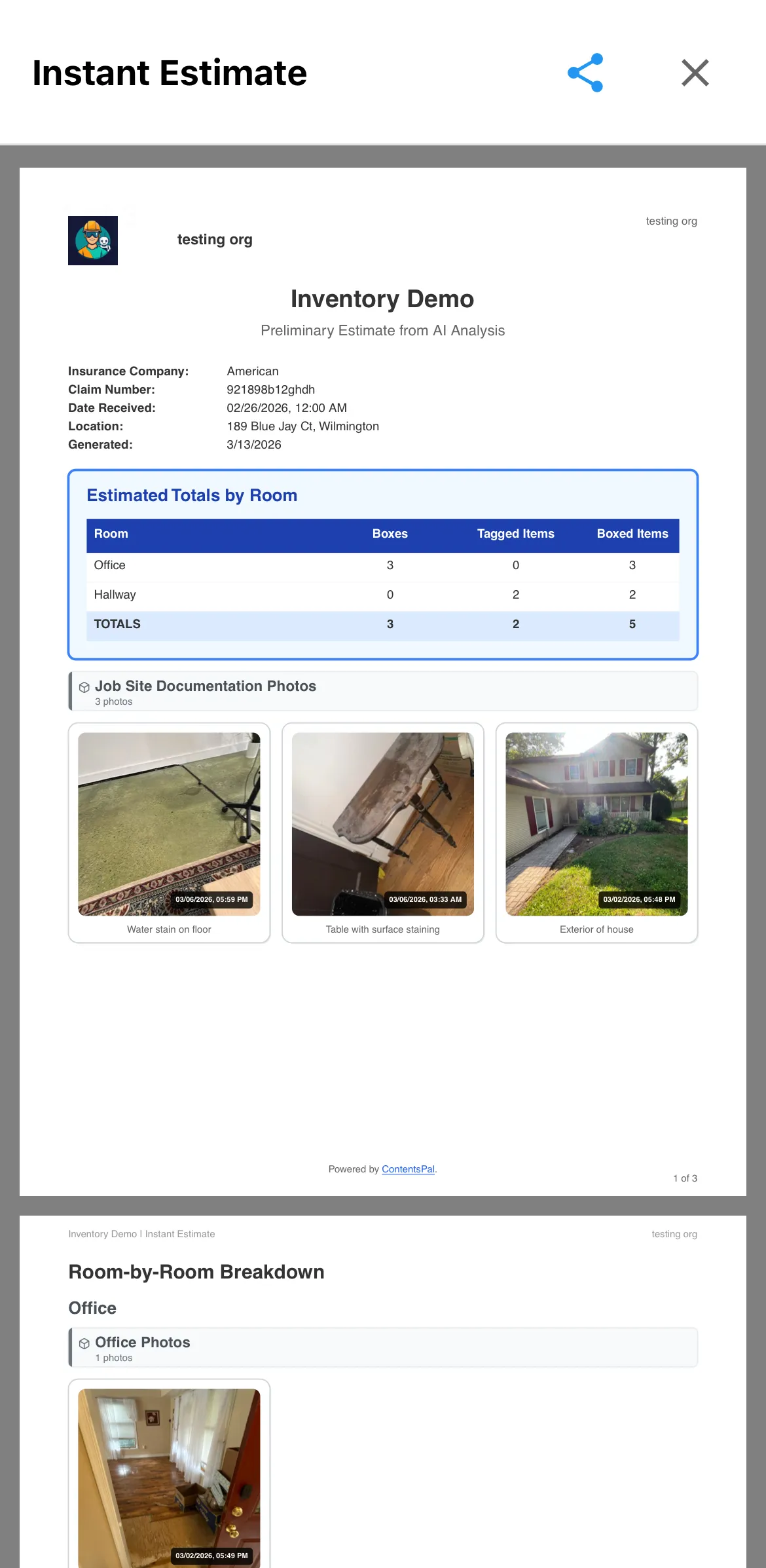
A full-screen preview of the Instant Estimate PDF opens, showing:
-
Job details (insurance company, claim number, date, location)
-
Estimate Summary with job totals, a By Room table of boxes, large items, and small items per room, and the packing materials
-
Job Site Photos with timestamps and captions
-
A page for each room with its photos, large items and codes, and small items
-
-
Use the share icon at the top to send the PDF to anyone.
-
On Android, the PDF opens in your browser or PDF viewer instead of inside the app. To open it again, tap Open PDF on the Instant Estimate screen.
On the Web Dashboard
Section titled “On the Web Dashboard”-
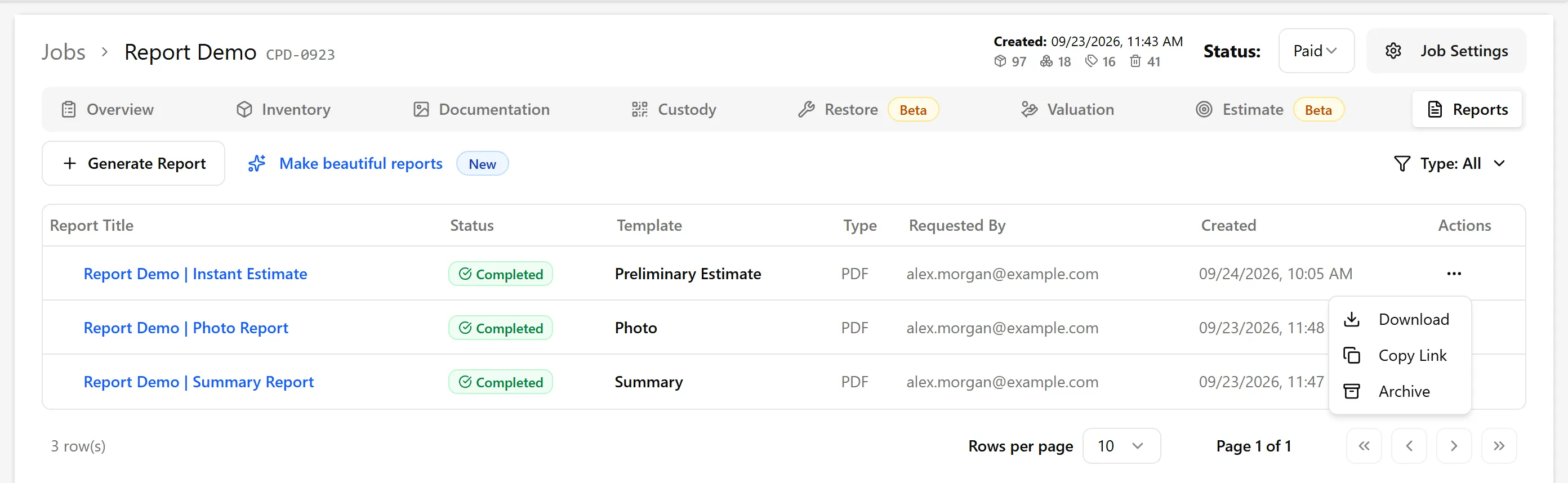
Go to the job on the web and click the Reports tab.
-
The estimate appears as a report titled [Job Name] | Instant Estimate with the template listed as Preliminary Estimate.
-
Click Download to get the PDF.
🖥️ Step-by-Step Instructions (Web)
Section titled “🖥️ Step-by-Step Instructions (Web)”On the web dashboard, the Instant Estimate is shown as the Initial Scope view inside a job’s Estimate tab. It uses the same data as the mobile Instant Estimate.
1. Open the Initial Scope View
Section titled “1. Open the Initial Scope View”-
Navigate to the job on the web dashboard.
-
Open the Estimate tab.
-
Click the Initial Scope sub-tab (next to Job Estimate).
You’ll see an info note explaining that Initial Scope is a draft estimate built from the job and room photos in Photos & Notes (the job’s Documentation tab).
2. Calculate the Estimate
Section titled “2. Calculate the Estimate”The first time you open Initial Scope, you’ll see one of these states:
-
No rooms yet — if the job has no rooms, you’ll be prompted to add rooms and photos in the Documentation tab first (click Go to Documentation).
-
Add room photos to generate an estimate — rooms without photos are marked in the Room breakdown list; add photos to at least one room in the Documentation tab.
-
Generate a draft estimate from the room photos — once at least one room has photos, click Generate Estimate to analyze them. The view shows “Analyzing photos…” while the AI processes the images.
3. Review the Results
Section titled “3. Review the Results”Once the calculation finishes, the Initial Scope view shows:
-
A summary card at the top with totals for Boxes, Large Items, and Small Items across the whole job.
-
Collapsible Total Packing Materials and Job Site Photos sections. Click any job site photo to open the full photo viewer.
-
A Room breakdown list on the left showing each room with its box count, large item count, and small item count. Click a room to see and edit its details on the right.
4. Adjust the Estimate (Optional)
Section titled “4. Adjust the Estimate (Optional)”Inside each room you can fine-tune what the AI detected:
-
Use the + and − controls next to Boxes to change the room’s box count (or type a number).
-
Use the + / − controls next to each large item to adjust its quantity. The trash icon appears when the quantity is 1 — clicking it removes the item from the room. The large items table also shows each item’s size and Xactimate code.
-
Click Add item to add a large item yourself (name, size, and quantity).
-
Click Show / Hide next to “small items in boxes” to reveal the AI’s list of small items detected per room.
-
Click any room photo thumbnail to open the full viewer for that room’s images.
Any edits are local until you click Save. Clicking Recalculate replaces all current items and edits.
5. Recalculate, Generate Report, or Save
Section titled “5. Recalculate, Generate Report, or Save”At the top of the Initial Scope view you have these action buttons:
-
Recalculate — Re-analyzes the photos and produces a fresh estimate. You’ll be asked to confirm because this replaces all current items and edits and can’t be undone.
-
Generate Report — Saves your current edits and generates the Instant Estimate PDF. When it’s ready you’re taken to the job’s Reports tab where you can download or share the PDF. The report is also logged in the Reports tab on the web for anyone with access to the job.
-
Save — Appears when you have unsaved edits. Saves your edits to the Initial Scope without generating a PDF. Use this when you want to keep adjusting before producing a report.
6. Export the Initial Scope
Section titled “6. Export the Initial Scope”The Export button next to Generate Report offers two ways to get the scope out of ContentsPal:
-
CSV — Downloads a spreadsheet with a row per room’s boxes, large items, and small items (room, type, item, size, Xactimate code, quantity, and scope action), followed by the job-total packing materials. A copy is also saved to the job’s Reports tab.
-
Send to Xactimate — Queues the scope for automated entry into Xactimate. You’ll be asked for the recipient’s XactNet address (formatted
<user>@<org>, e.g.recipient@xactnet). Processing can take a few minutes, and the request’s status is tracked on the Reports tab.
The lines sent to Xactimate are each room’s box count and coded large items, plus the job-total packing materials. Rooms and items marked Dispose or Out of scope are left out — their cleaning codes don’t apply.
✅ Best Practices
Section titled “✅ Best Practices”-
Take clear room photos before running the estimate — well-lit, wide-angle shots help the AI identify items more accurately.
-
Include jobsite documentation photos (exterior, damage areas) for a more complete report.
-
Review and adjust the estimate before sharing — the AI gives you a solid starting point, but your on-site judgment is the final word.
-
Rerun after adding photos — if you take additional room photos after your first estimate, tap Rerun to get updated results.
-
Save before leaving the job — tap Save to keep your edits, and Generate Report to create the PDF report that your team can access from the web dashboard.
-
Use the web Initial Scope for larger edits — the web view shows job photos, room photos, and counts side-by-side on a bigger screen, which makes line-by-line review faster on jobs with many rooms.
🧩 Troubleshooting
Section titled “🧩 Troubleshooting”I don’t see the “Estimate” tile on the mobile job screen: Make sure Enable Instant Estimate is turned on in Settings > Other. The mobile entry point is in Beta and is off by default. The tile is also hidden when the app is in Adjuster mode or your organization is a claims organization.
The estimate seems inaccurate: The AI works best with clear, well-lit room photos that show the full contents of each room. Try adding more photos and tapping Rerun (mobile) or clicking Recalculate (web).
I don’t see the report on the Reports tab: Make sure you tapped Generate Report (mobile) or clicked Generate Report (web) — Save only saves your edits. Once generated, the report appears under the Reports tab.
The “Generate Estimate” button is not responding: Make sure at least one room has photos, and that you have an active internet connection. The estimate requires a server-side analysis of your photos, so it won’t work offline.
Initial Scope says “Add room photos to generate an estimate” on the web: The Initial Scope view needs at least one room with photos. Add photos to a room in the job’s Documentation tab, then return to Estimate (Beta) > Initial Scope and click Generate Estimate.
A room is missing from the estimate: Rooms without any photos are skipped. Add at least one photo to the room and click Rerun (mobile) or Recalculate (web) to include it.
The Initial Scope doesn’t include textiles: This is expected. Initial Scope estimates boxes and large items from room photos only, and doesn’t include Textiles Mode work. Textiles you inventory in Textiles Mode appear in the Job Estimate.
My Xactimate export from Initial Scope looks like a cleaning scope, not a pack-out: Initial Scope sends each pack-out room’s boxes with the medium-box cleaning code (CGNBXMM), each large item with its cleaning code, and the job’s packing materials (pads, bubble wrap, shrink wrap, and boxes). To drop a room or item, set its Action to Dispose or Out of scope in the mobile app. For a full pack-out estimate with box packing codes, labor, and storage, build the job’s inventory and use the Job Estimate instead.
The estimate is taking a long time: The AI analyzes each room’s photos in parallel, but jobs with many rooms can still take a minute or two. The function has a 9-minute timeout.