
Manage Your Subscription
Esta página aún no está disponible en tu idioma.
See which plan your organization is on, update the card you pay with, download your invoices, or cancel — all from the Usage tab of your organization’s page in the ContentsPal web app.
🧭 Summary
Section titled “🧭 Summary”Your ContentsPal subscription belongs to your organization, not to a single user. Owners and admins manage it on the web:
-
See your plan — the plan badge next to your organization’s name, and Your plan on the Usage tab, show whether you’re on the Free, Starter, Standard, Pro, Enterprise or Custom plan.
-
Manage your billing — Manage Subscription on the Usage tab opens your secure billing page, hosted by our payment provider, Stripe. There you can see your current plan, update your payment method and billing details, download invoices, and cancel your subscription.
-
Change or upgrade your plan — talk to us: book a quick demo or contact support, and we’ll set up the right plan with you.
-
Fix a failed payment — if a payment doesn’t go through, a red banner at the top of the web app links straight to your billing page so you can update your card.
⚙️ Prerequisites
Section titled “⚙️ Prerequisites”-
Access to the ContentsPal web app. The mobile app shows your plan’s name, but subscriptions are managed on the web.
-
Who can do this: the organization’s owner or an admin. Other members don’t see the organization’s page or the Usage tab. To change someone’s role, see Managing organization members.
-
If you belong to more than one organization, switch to the one whose subscription you want to manage first.
🚀 Step-by-Step Instructions
Section titled “🚀 Step-by-Step Instructions”1. See Your Plan
Section titled “1. See Your Plan”-
Click Organization in the side menu.
-
Your plan’s badge is shown next to your organization’s name at the top of the page.
-
Click the Usage tab. Your plan at the top right shows the same badge, next to the Manage Subscription button.

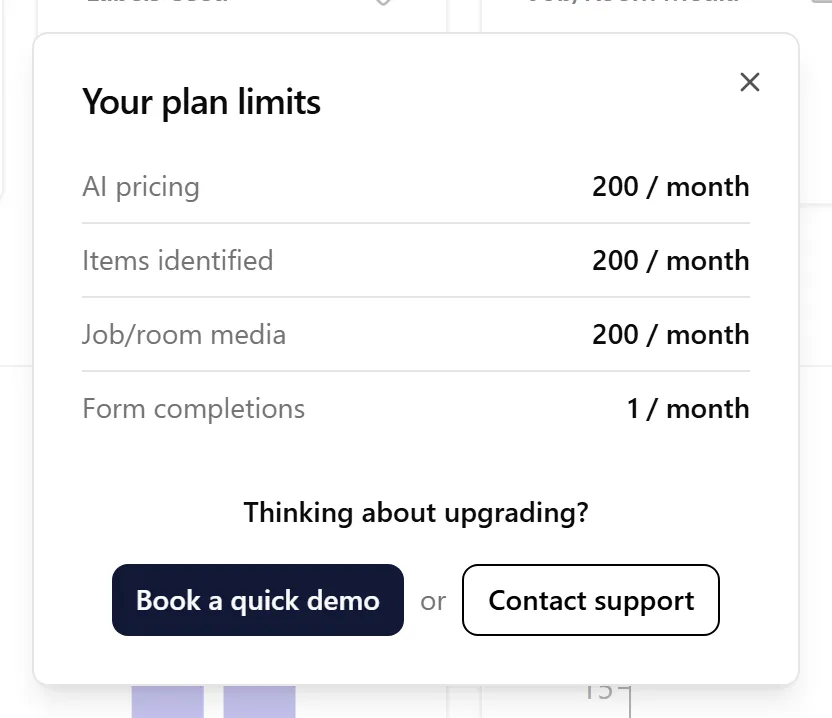
On the Free, Starter and Standard plans, click the plan badge to open Your plan limits: what your plan includes each month for AI pricing, Items identified, Job/room media and Form completions. A feature your plan doesn’t include reads Not available. Paid plans without monthly limits don’t show this window.
2. Open Your Billing Page
Section titled “2. Open Your Billing Page”-
On the Usage tab, click Manage Subscription.
-
Your billing page opens in the same browser tab. It’s a secure page hosted by Stripe, our payment provider — ContentsPal never sees or stores your full card number.
-
When you’re done, use the link back to ContentsPal on the billing page. It returns you to the Usage tab.
Each click opens a fresh, short-lived link, so always start from Manage Subscription rather than bookmarking the billing page.
3. What You Can Do on the Billing Page
Section titled “3. What You Can Do on the Billing Page”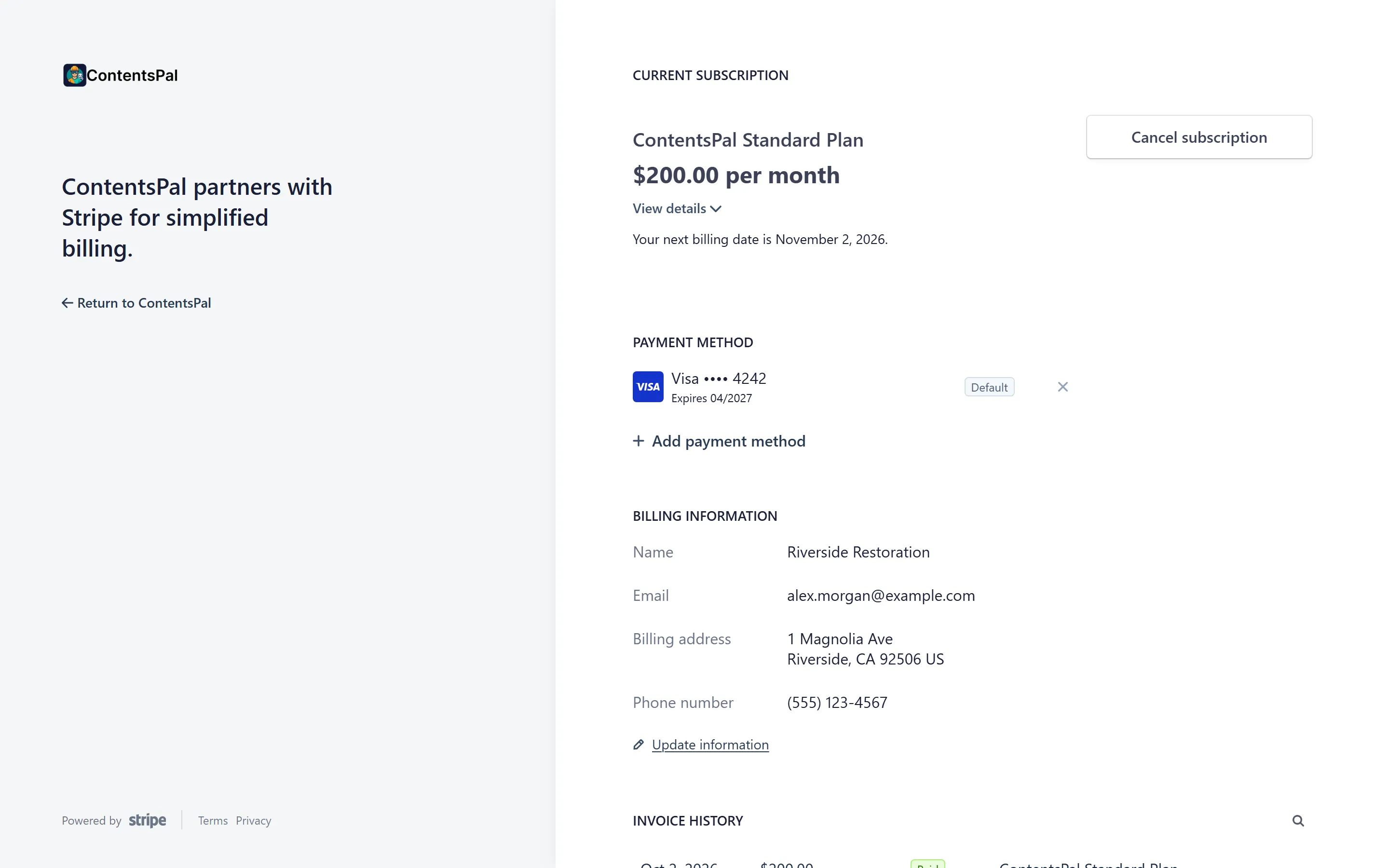
Current plan — the plan you’re subscribed to, its price, and when it renews.
Payment method — update the card your subscription is charged to. Do this before a card expires to avoid a failed payment.
Billing information — the name, email and address that appear on your invoices.
Invoice history — your organization’s past invoices, with their dates and amounts. Open one to view or download it for your records or your accounting team.
Cancel your subscription — cancel from the billing page. Your plan stays in place until the subscription ends. Once it has ended, your organization moves to the Free plan and its monthly limits apply.
Cancelling keeps your account and all of your data intact: your jobs, items, labels, photos and reports stay where they are, and your team can still sign in.
The Free plan doesn’t include a data retention guarantee, but we don’t delete your data. If you’re not sure the Free plan covers what you need, contact us before you cancel — we’re happy to help find the right plan.
Changes you make on the billing page show in ContentsPal within a minute or so; refresh the page if your plan badge hasn’t updated yet.
4. Change or Upgrade Your Plan
Section titled “4. Change or Upgrade Your Plan”Plan changes are set up with our team, so you get the plan that fits how you work:
-
On the Free, Starter or Standard plan, click your plan badge to open Your plan limits.
-
Under Thinking about upgrading?, choose:
-
Book a quick demo — pick a time to talk through your options with us, or
-
Contact support — opens a chat with our team, ready to discuss upgrading.
-
On any other plan — or if you’d like to move to a smaller plan — contact us through the chat in the web app. You’ll also see these options whenever you reach one of your plan’s monthly limits.
5. If a Payment Fails
Section titled “5. If a Payment Fails”When a payment doesn’t go through, a red banner appears at the top of every page of the web app, for example:
Your organization’s payment is past due. Please update your payment method to resolve this and avoid any interruption to your account.

-
Owners and admins see update your payment method as a link. Click it to open your billing page, then add a working card or update the expiring one.
-
Other members see contact support instead. Let your organization’s owner or an admin know, too.
Your organization keeps its plan while the payment is past due. Once the payment goes through, the banner disappears. If it stays unpaid, the subscription can end and your organization moves to the Free plan.
You can close the banner with ×, but it comes back the next time you load the app until the payment is resolved.
Other messages you may see in the same banner:
-
Your organization’s subscription is unpaid and access may be limited.
-
Your organization’s subscription setup is incomplete.
Both are fixed the same way: update your payment method, or contact support.
✅ Best Practices
Section titled “✅ Best Practices”-
Keep your card up to date. Update the payment method before the card on file expires so there’s no interruption.
-
Keep billing details current. Make sure the billing email and address on your invoices are the ones your accounting team expects.
-
Have more than one admin. If the owner is away, another admin can still fix a failed payment. See Managing organization members.
-
Check your usage before changing plans. The Usage tab shows how much your team uses ContentsPal each month.
🧩 Troubleshooting
Section titled “🧩 Troubleshooting”There’s no Manage Subscription button: Your organization doesn’t have a self-serve subscription yet, or it’s on a custom plan that our team manages for you. Contact support and we’ll help with any billing change.
I can’t open the Organization page, or there’s no Usage tab: Only the organization’s owner and admins can manage the subscription. Ask your owner or an admin to make the change, or to give you the admin role.
“Failed to open the billing portal”: Try again in a moment. If the message keeps appearing, contact support.
The banner says contact support instead of update your payment method: You’re not an owner or admin, or your organization’s subscription is managed by our team. Contact support, or ask your organization’s owner.
My plan badge didn’t change after I updated my subscription: Refresh the page after a minute. If it still shows the old plan, contact support.
I can’t find billing in the mobile app: The mobile app shows your plan under Settings → Organization → Current plan, but billing is managed in the web app. Sign in at app.contentspal.com on a computer.
🔗 Related Articles
Section titled “🔗 Related Articles”-
Managing organization members — roles and who can manage the organization