
XAct Contents Spreadsheet
Esta página aún no está disponible en tu idioma.
A fixed-format Excel file compatible with Xactimate and other estimation software.
What’s Included
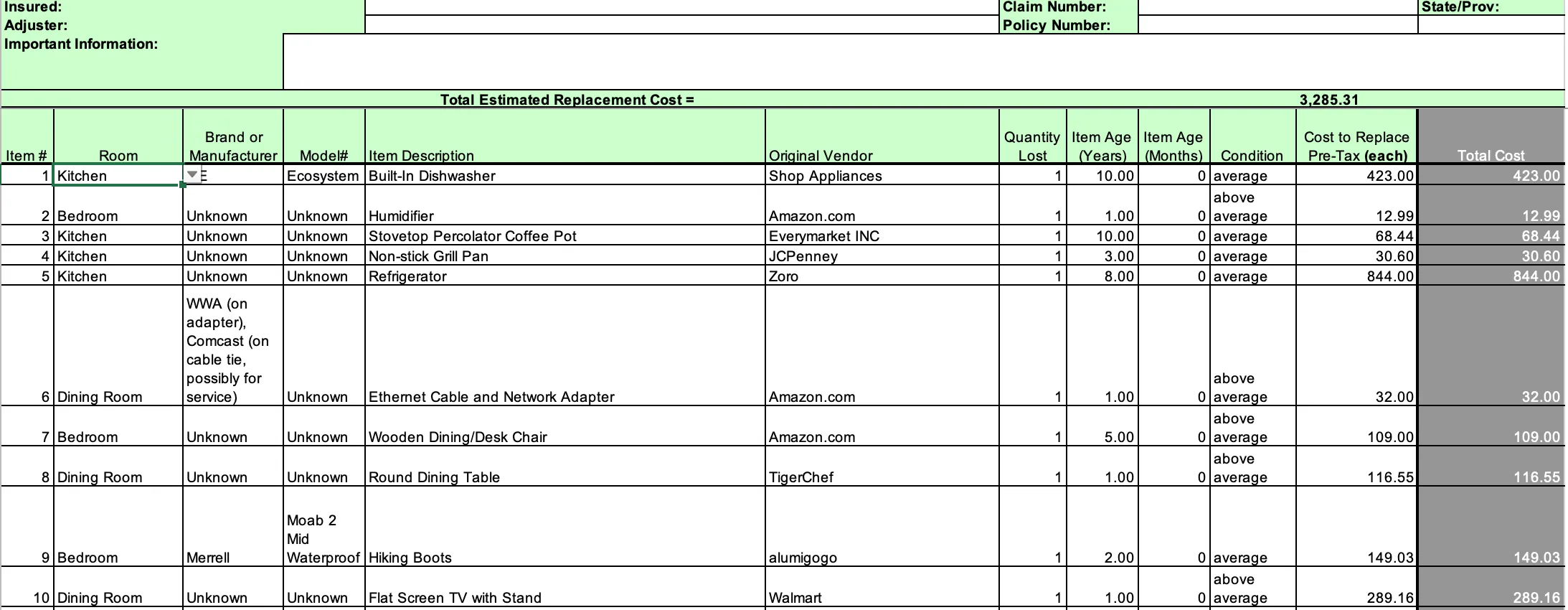
Section titled “What’s Included”The XAct Contents Spreadsheet is a standardized Excel file with 12 pre-defined columns:
-
Item # - Sequential item number
-
Room - Location within the property
-
Brand - Item brand/manufacturer
-
Model # - Model number or identifier
-
Description - Item name and details
-
Original Vendor - Source or supplier information
-
Quantity Lost - Number of items
-
Item age (year) - Age in years
-
Item age (month) - Age in months
-
Condition - Item condition rating
-
Cost to replace - Replacement cost per item (pre-tax)
-
Total cost - Total replacement cost (quantity × cost)
The file also includes three hidden columns used when it is imported into XactContents: CAT and SEL (the item’s Xactimate replacement category and selector codes) and Link (the replacement product’s web link). You can unhide them in Excel to review the codes.
This format follows industry standards for compatibility with third-party estimation and claims software. By default the spreadsheet includes only non-salvageable items.
Available as: Spreadsheet (XLSX) only (designed for data import into other systems)
When to Use This Report
Section titled “When to Use This Report”Best for:
-
Exporting to Xactimate or Xactcontents
-
Importing into claims management systems
-
Sharing with adjusters who use industry-standard software
-
Maintaining compatibility with estimation tools
Not ideal for:
-
Custom column layouts (use Custom Inventory Report)
-
Visual documentation (use Photo Report)
-
Quick readability (use PDF reports)
How to Generate
Section titled “How to Generate”-
Open your job in the web app
-
Click the Reports tab (top right)
-
Click Generate Report
-
Expand Additional Reports
-
Select XactContents Spreadsheet
-
Leave Output Format set to XactContents
-
Customize your options under Advanced Options (see below)
-
Click Generate Report
Note: Most reports download immediately. Large jobs (2000+ items) are emailed to you when ready.
The Output Format dropdown can also switch the export to a specific insurance carrier’s layout. See Standard Format Spreadsheet for the carrier formats.
Customization Options
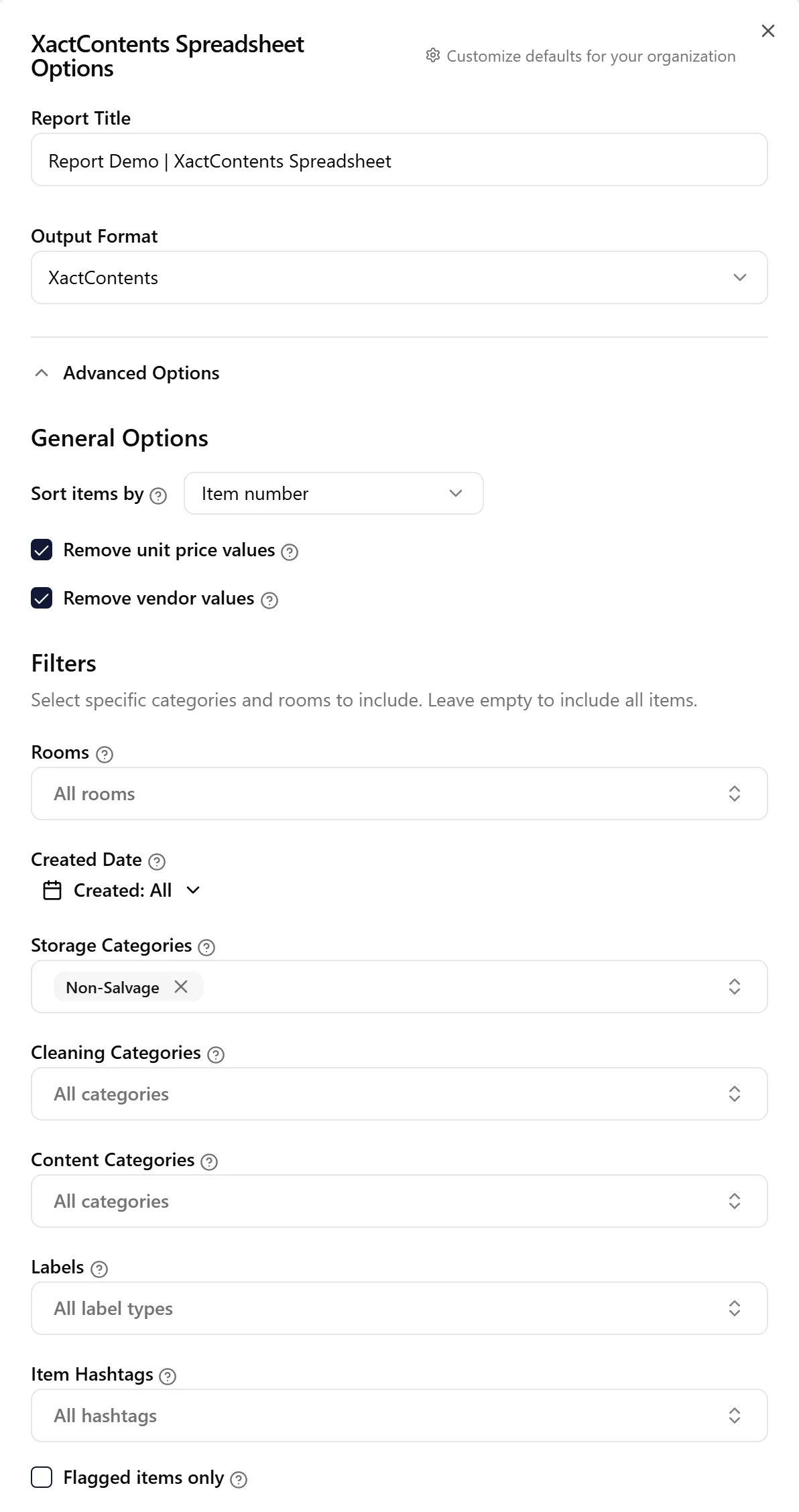
Section titled “Customization Options”Remove Unit Price Values
Section titled “Remove Unit Price Values”Default: Enabled
When enabled, clears the “Cost to replace” values, so “Total cost” also comes out as zero. The columns stay in the layout. Turn it off to include pricing. Useful when sharing with external parties who don’t need pricing information.
Remove Vendor Values
Section titled “Remove Vendor Values”Default: Enabled
When enabled, clears the “Original Vendor” values (and the hidden Link column) from the export. Turn it off to include vendor details.
Sort Items By
Section titled “Sort Items By”Default: Item number
Sets the order of the rows in the spreadsheet: by Item number, or grouped by Room name (A–Z).
Item Filters
Section titled “Item Filters”Default: Storage Categories set to Non-Salvage
Use filters to include only specific items in the spreadsheet. The Storage Categories filter starts on Non-Salvage — clear it to include items from every storage category.
Available filters:
-
Rooms: Filter by specific rooms. Select “No Room” to include unassigned items
-
Created Date: Include only items created within a date range
-
Storage Categories: Filter by where items are stored (Storage, Left On Site, Third Party, Non-Salvage, Other)
-
Cleaning Categories: Filter by cleaning requirements (Needs Cleaning, Biohazard, As Is, etc.)
-
Content Categories: Filter by content type (e.g., Electronics, Kitchenware)
-
Labels: Filter by label type (Box, Tag, Textile, Garment Bag, Non-Salvageable, Other, or No Label)
-
Item Hashtags: Include only items with specific hashtags
-
Flagged items only: Include only items flagged for review
When you select multiple options in a filter, the spreadsheet includes items matching any of those selections.
Important Notes About This Format
Section titled “Important Notes About This Format”Fixed Column Structure
Section titled “Fixed Column Structure”Unlike other reports, you cannot customize which columns appear. The XACT format uses a standardized structure required for compatibility with estimation software.
If you need custom columns, use the Custom Inventory Report instead.
No Photos
Section titled “No Photos”This spreadsheet does not include item photos. It’s designed for data transfer, not visual documentation.
For photo documentation, use the Photo Report instead.
Pricing Information
Section titled “Pricing Information”This format can include replacement cost information (“Cost to replace” and “Total cost” columns) that may not be appropriate to share with all parties. The “Remove Unit Price Values” option is on by default to exclude pricing — turn it off when you want prices in the export.
Viewing Report History
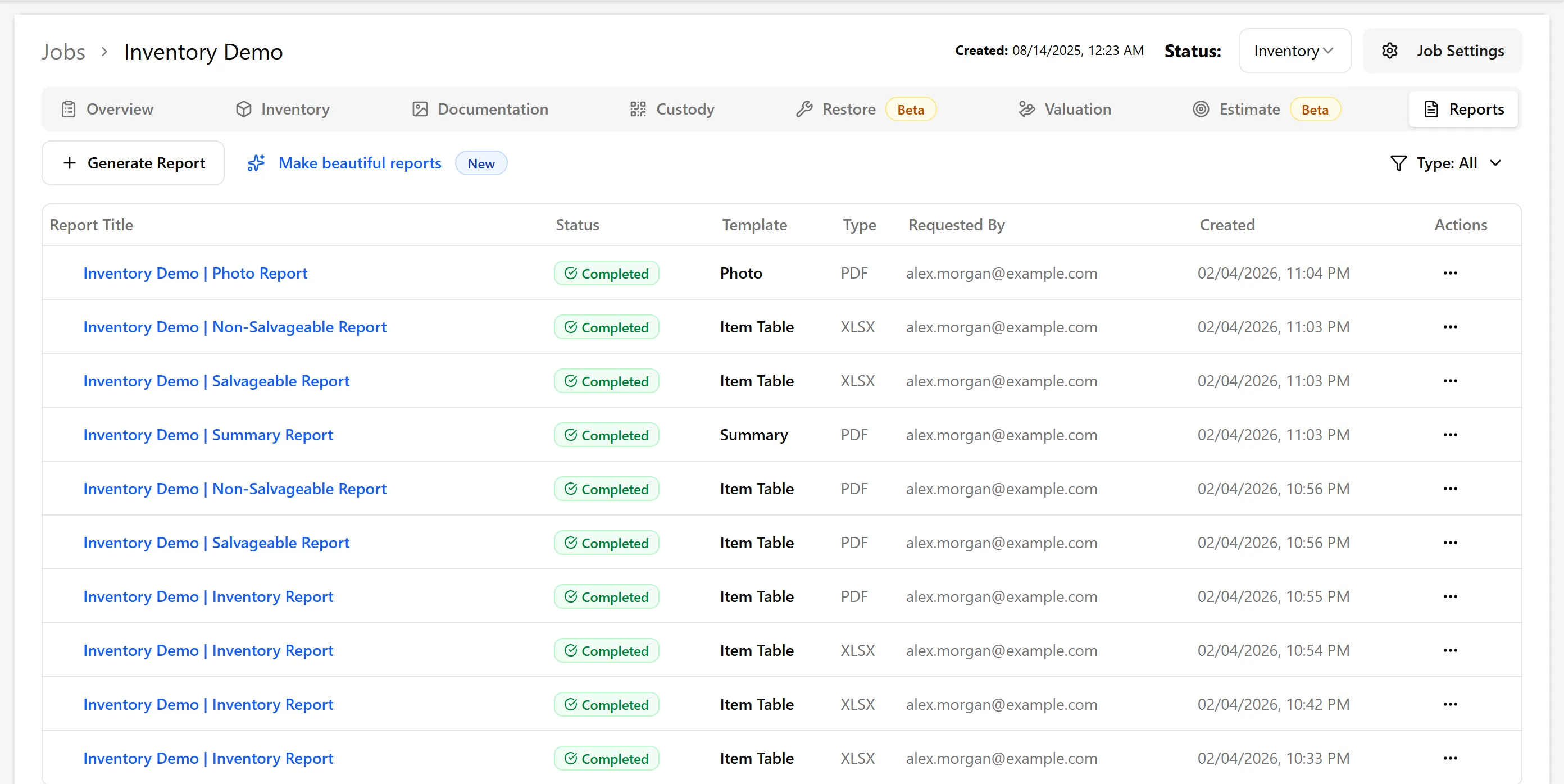
Section titled “Viewing Report History”All generated spreadsheets are stored in the Reports tab where you can:
-
Download again anytime
-
See when the report was generated
-
View who requested it
-
Keep pricing removed (the default) before sharing with policyholders or external contractors
-
Use filters to create exports for specific rooms or categories
-
Check compatibility with your target software before large-scale exports
-
Test import first with a small subset of items to ensure proper formatting
Troubleshooting
Section titled “Troubleshooting”Spreadsheet missing expected data
-
Check if filters are enabled and excluding items
-
Verify items have all required fields populated
-
Try generating without filters to see all items
Items in the spreadsheet have no matching photos in the Photo Report
-
This spreadsheet never carries photos, so no photos reach Xactimate from it. Send a Photo Report alongside it.
-
The two reports are filtered separately. The XactContents Spreadsheet starts on Non-Salvage only, while the Photo Report includes every storage category by default — set both to the same filters so they cover the same items.
-
The Photo Report only shows items that have a photo. Items added without one (for example, imported from a list or typed in) appear in the spreadsheet but not in the Photo Report.
File won’t open
-
Ensure you have Excel or compatible spreadsheet software
-
Try opening in Google Sheets if Excel is unavailable
-
Re-download if the file appears corrupted
Related Articles
Section titled “Related Articles”-
Custom Inventory Report - Flexible column layouts
-
Salvageable Report - Detailed salvageable item lists
-
Replacements Report - Replacement pricing details