
🔗 Sharing Jobs and Public View
Esta página aún no está disponible en tu idioma.
This article explains how to share a job with others using a public link, control what information is visible, and what the public view looks like for people who receive the link.
Who can do this? Only organization owners and admins can enable sharing and change sharing settings. Other organization members (including editors) can open the sharing dialog but cannot modify these settings.
🧭 Summary
Section titled “🧭 Summary”ContentsPal lets you share a job’s inventory and photos with anyone — even people who don’t have a ContentsPal account. By generating a public shareable link, you can let clients, insurance adjusters, or other stakeholders browse the job’s items, view photos, and see replacement details, all from their web browser.
You can also control whether pricing and replacement values are shown in the public view, and share the link directly via social media or email.
⚙️ Prerequisites
Section titled “⚙️ Prerequisites”-
You must have an active job with items already added.
-
You must be an organization owner or admin.
-
The job must be open (not archived).
🚀 Step-by-Step Instructions
Section titled “🚀 Step-by-Step Instructions”1. Open the Sharing Dialog
Section titled “1. Open the Sharing Dialog”-
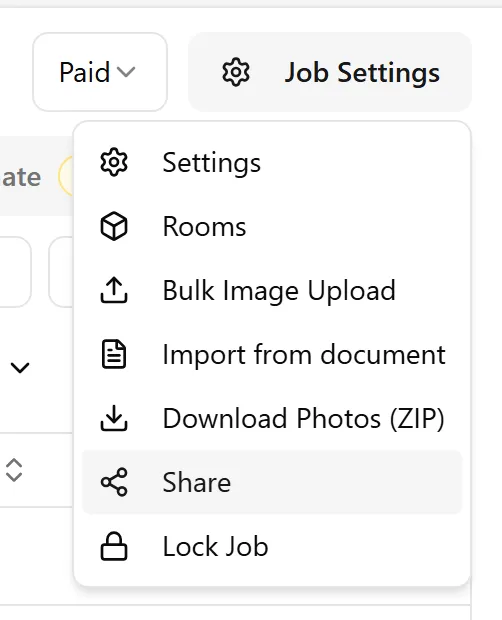
Open the job you want to share.
-
Click the Job Settings button at the top of the job page.
-
From the dropdown menu, click Share.
2. Enable Public Link Sharing
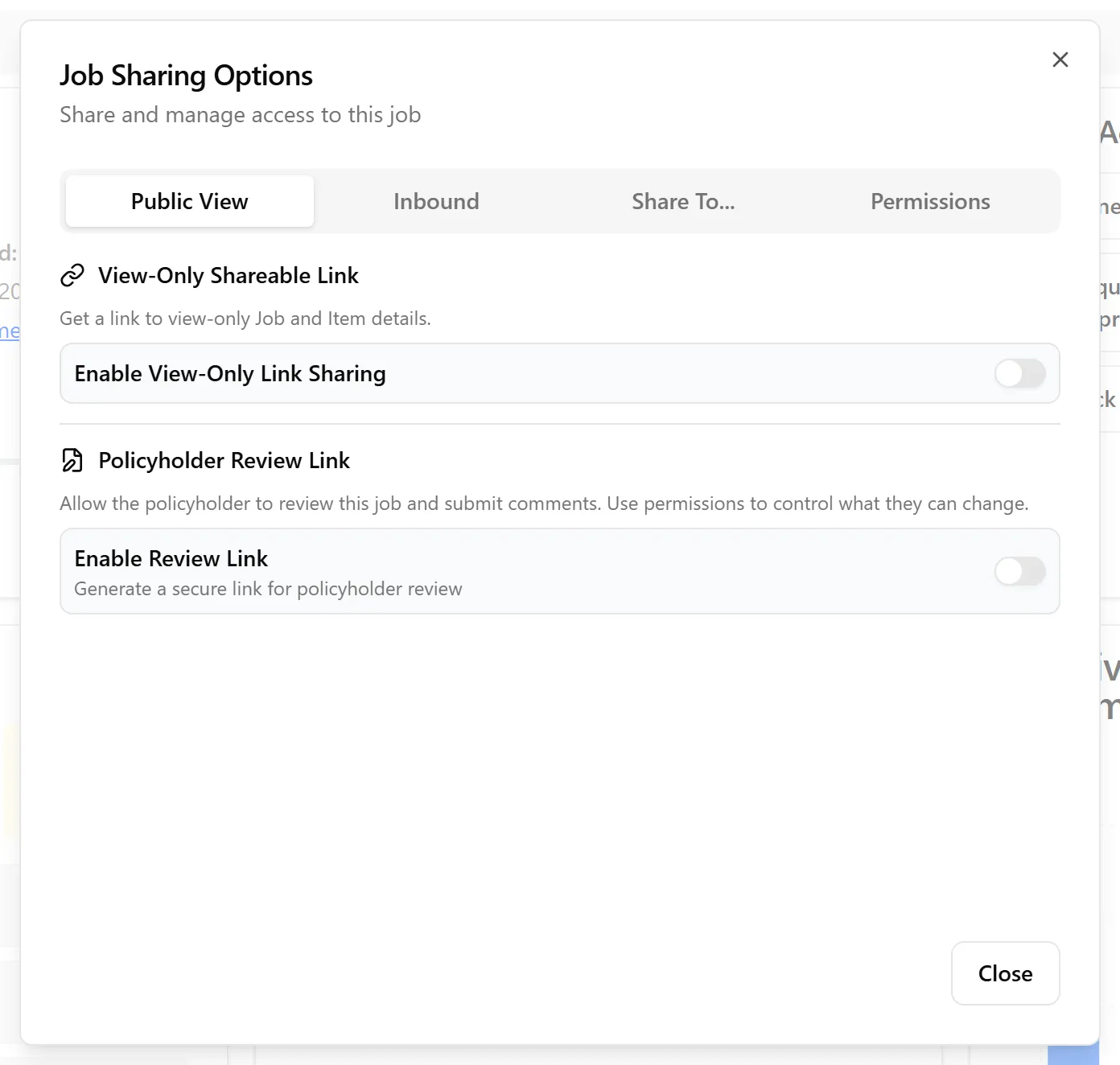
Section titled “2. Enable Public Link Sharing”When the Job Sharing Options dialog opens, you’ll see four tabs: Public View, Inbound, Share To…, and Permissions. (Inbound gives the job its own email address for receiving photos and documents, and Permissions controls what a policyholder can add or edit through the separate Policyholder Review Link on the Public View tab.)
-
On the Public View tab, under View-Only Shareable Link, find the Enable View-Only Link Sharing toggle.
-
Switch it on to generate a shareable link.
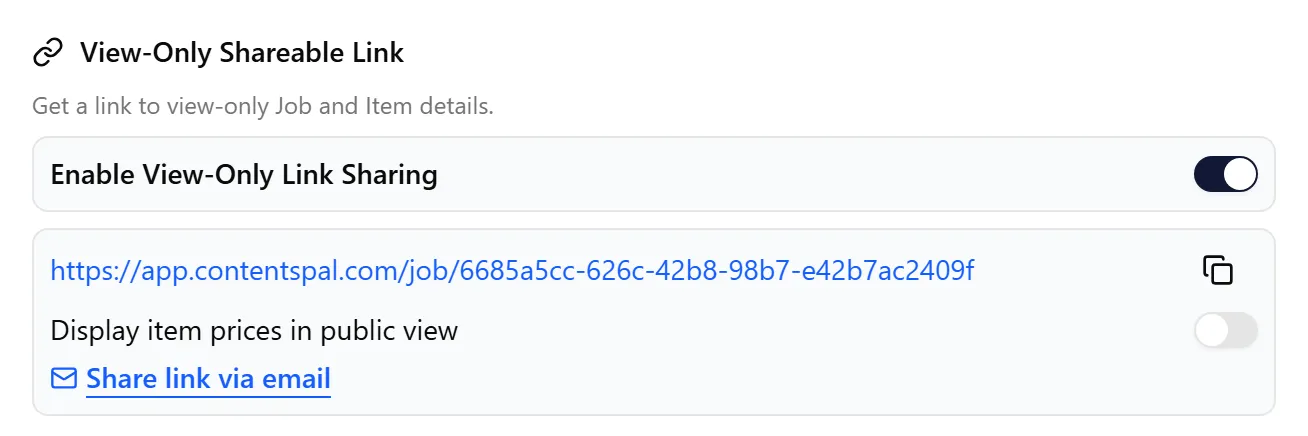
Once enabled, a unique link for your job will appear below the toggle. This link looks like: https://app.contentspal.com/job/...?t=... — the t= part is a security code unique to this job, so always share the full link.
-
Click the copy icon next to the link to copy it to your clipboard.
-
Share the link with anyone who needs to view the job.
Reset Public Links
Section titled “Reset Public Links”If a link reached someone it shouldn’t have, click Reset public links below the shareable link and confirm Reset Links. The job gets a new security code, and every public job, item and label link shared so far — including links in reports and spreadsheets you’ve already sent — stops working. Copy the new link, or generate new reports, to share the job again.
3. Choose Whether to Show Pricing
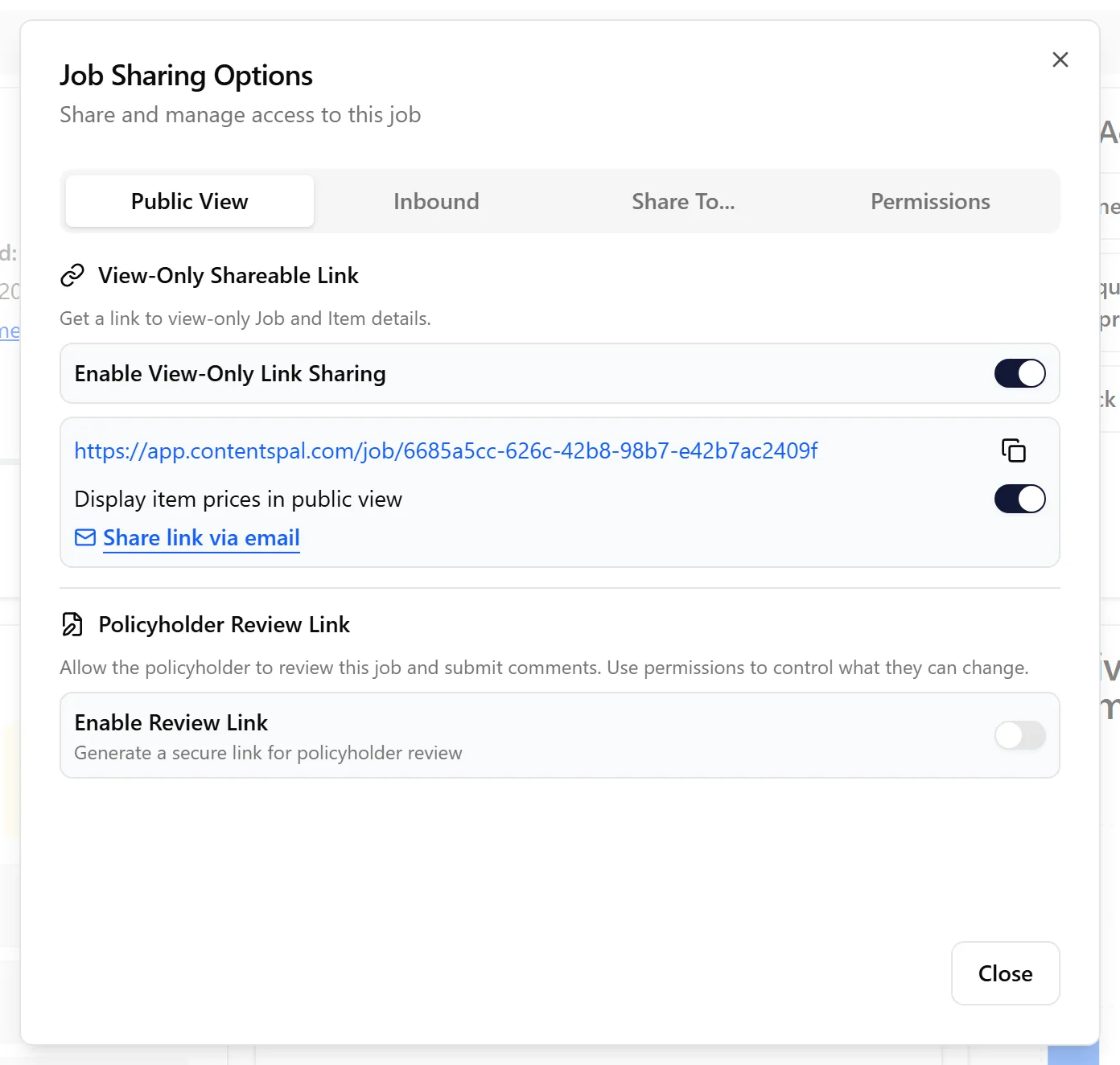
Section titled “3. Choose Whether to Show Pricing”Below the shareable link, you’ll see a Display item prices in public view toggle.
-
On: Anyone viewing the public link will see item replacement values and pricing details.
-
Off: Pricing information is hidden — viewers will only see item descriptions, photos, and categories.
4. Share via Social Media or Email
Section titled “4. Share via Social Media or Email”Switch to the Share To… tab to share the job link directly through:
-
Facebook
-
X/Twitter
-
LinkedIn
-
Reddit
-
Email — opens a dialog where you can compose and send an email with the job link.
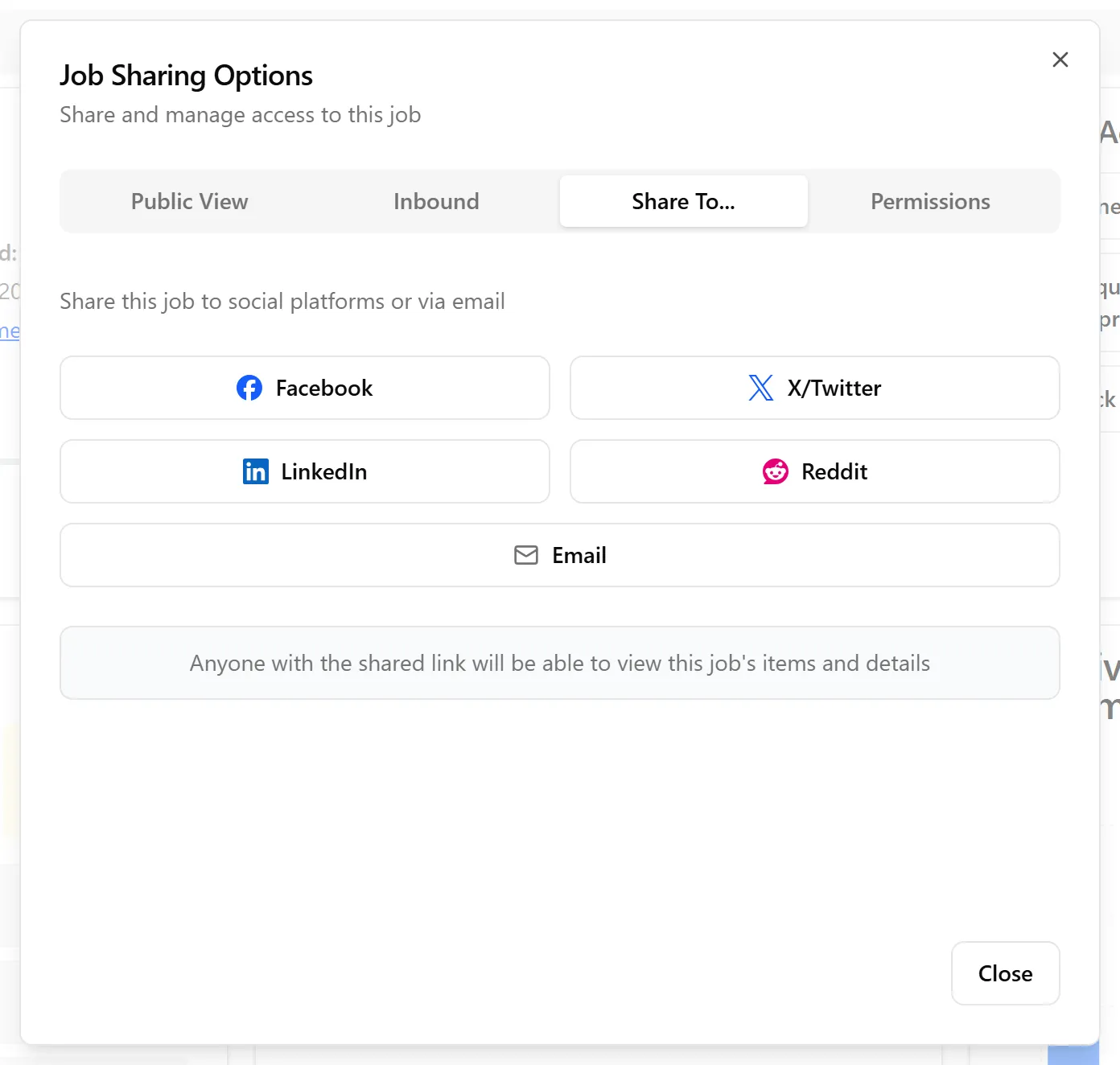
Each button will open the respective platform’s sharing window with the job link pre-filled.
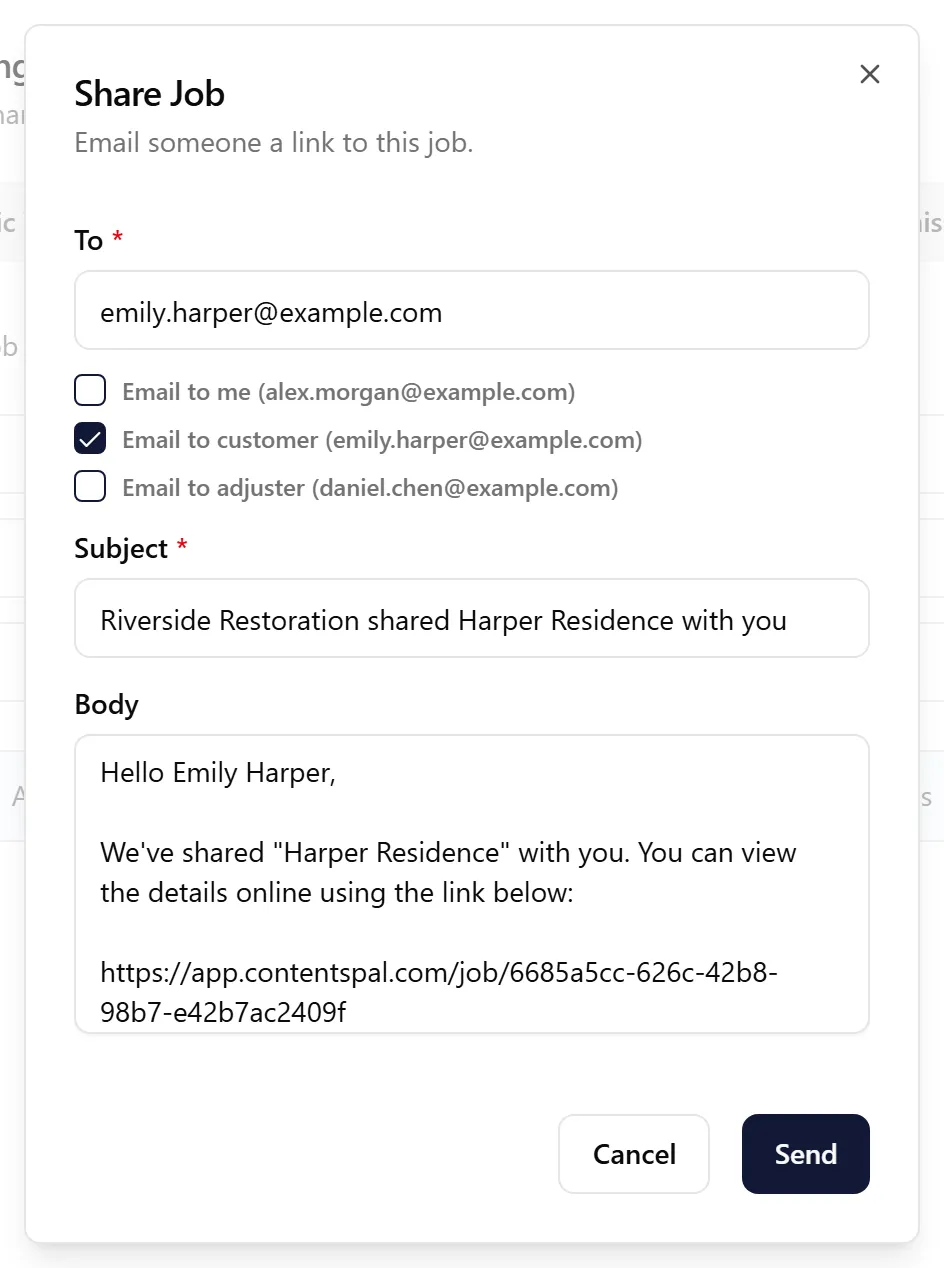
Clicking Email (or Share link via email on the Public View tab) opens the Share Job dialog, where you can enter one or more recipient addresses (with quick picks for yourself, the customer, and the adjuster when those emails are on file) and customize the subject and body. If the view-only link isn’t enabled yet, sending the email turns it on.
5. What the Public Job View Looks Like
Section titled “5. What the Public Job View Looks Like”When someone opens the shared link, they’ll see a clean, read-only view of the job with two tabs:
Inventory Tab
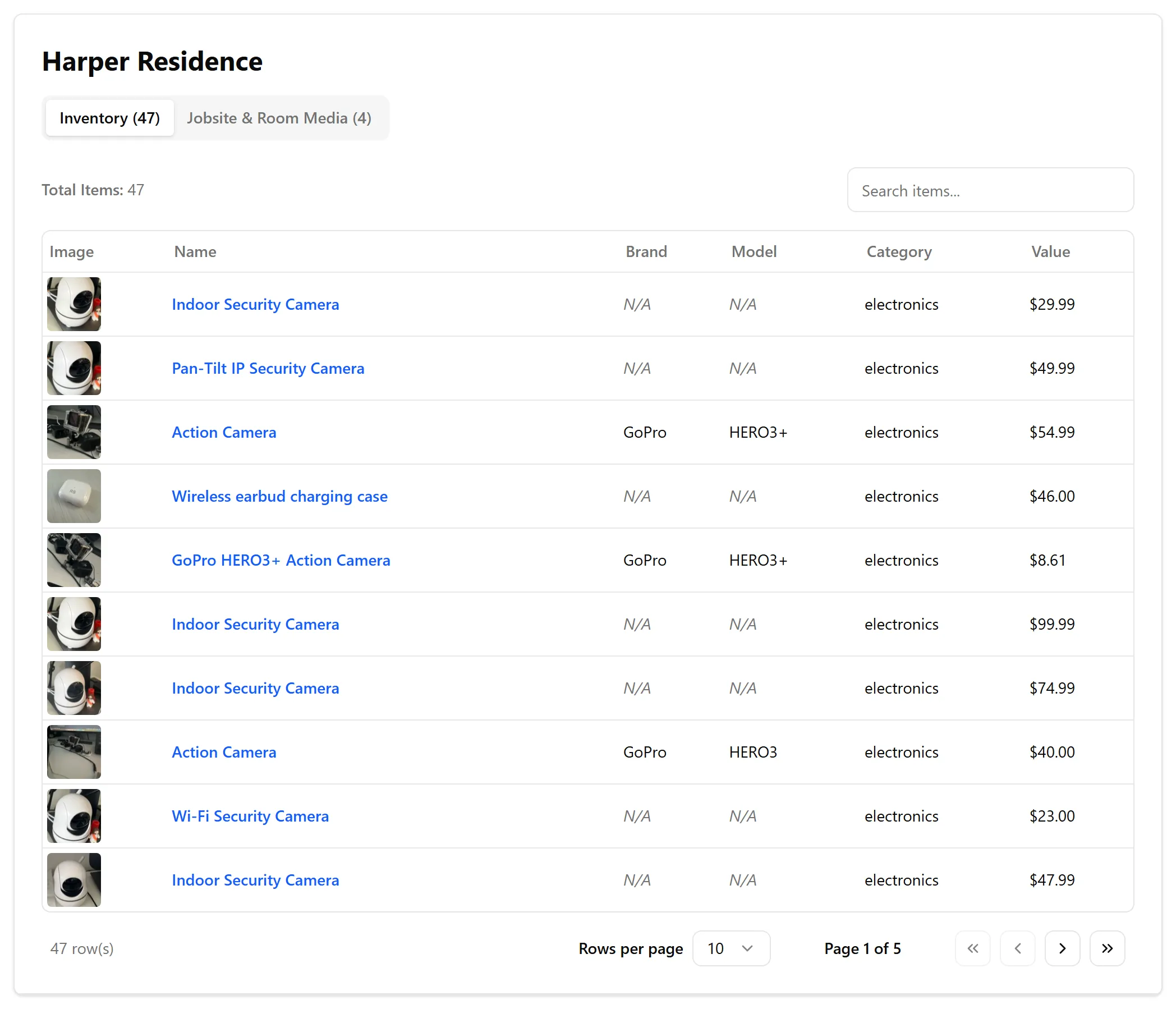
Section titled “Inventory Tab”The Inventory tab shows a searchable table of all items in the job, including:
-
Item image thumbnail
-
Name (clickable to view full item details)
-
Brand, Model, and Category
-
Replacement value (if pricing is enabled)
Viewers can search items by name, brand, model, or description using the search bar.
Jobsite and Room Media Tab
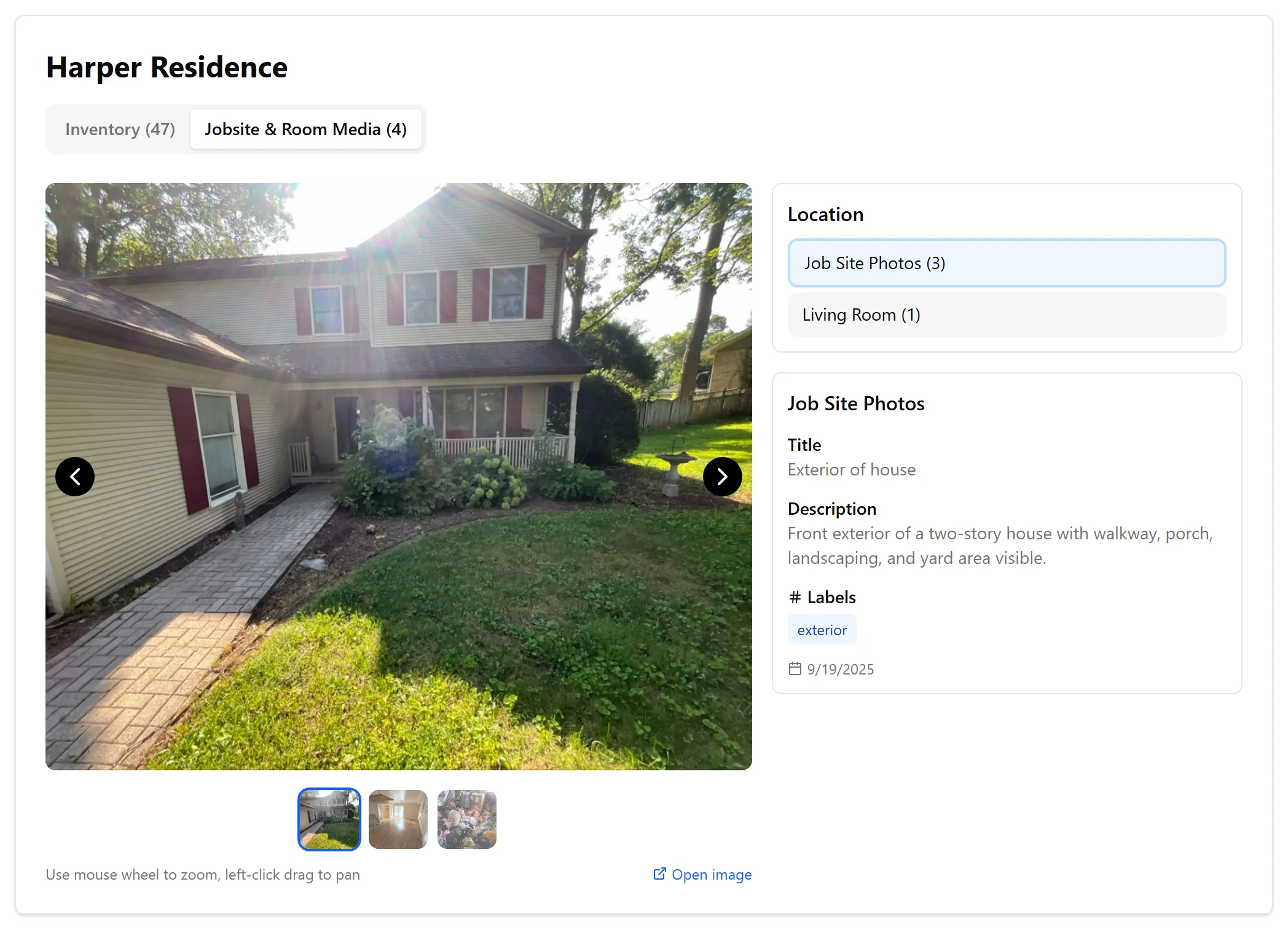
Section titled “Jobsite and Room Media Tab”The Jobsite & Room Media tab shows all photos taken for the job, organized by location:
-
Job Site Photos — general photos of the property or site.
-
Room-specific photos — photos organized by room (e.g., Office, Hallway).
Viewers can browse photos using the image carousel, and see details like title, description, labels, and date for each photo.
6. What the Public Item View Looks Like
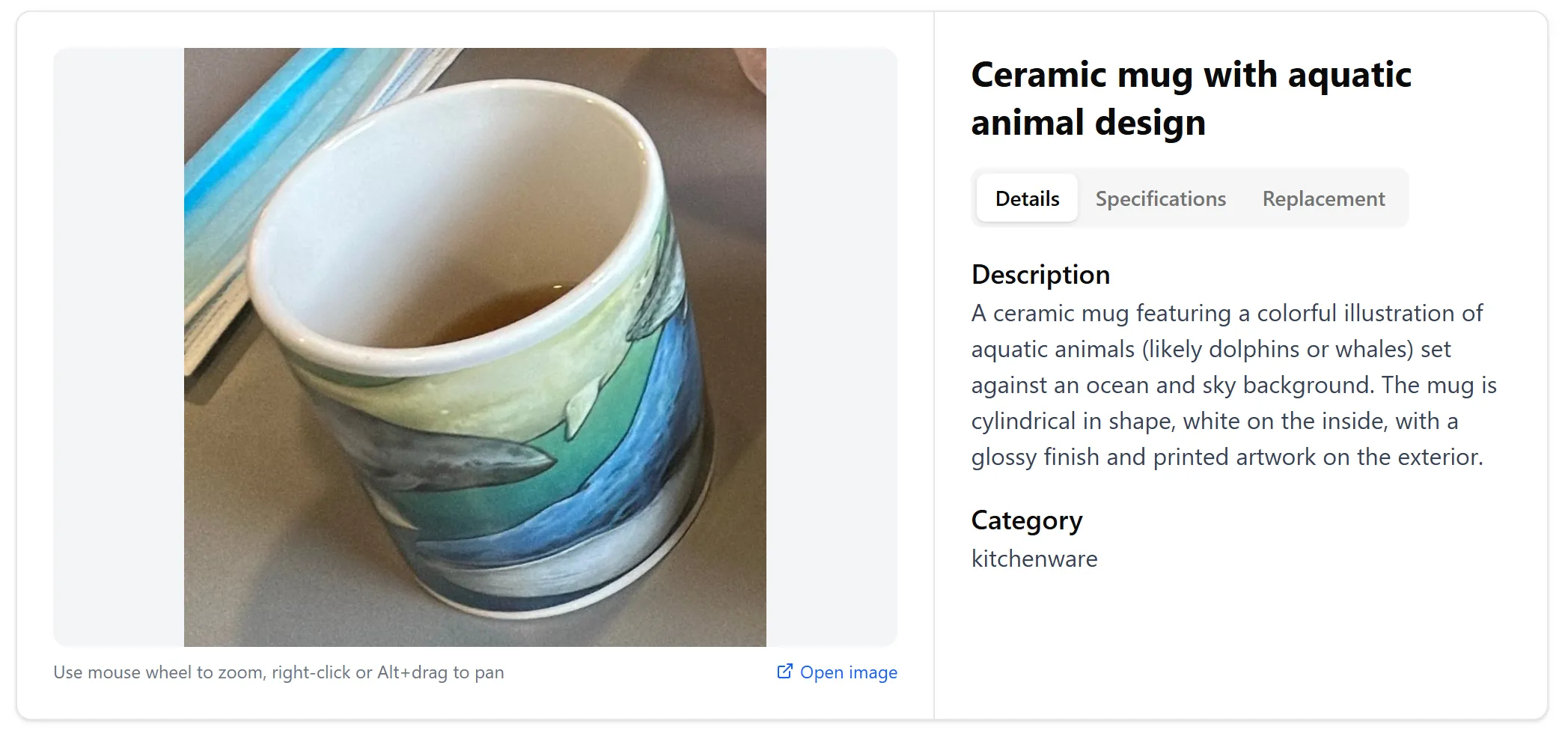
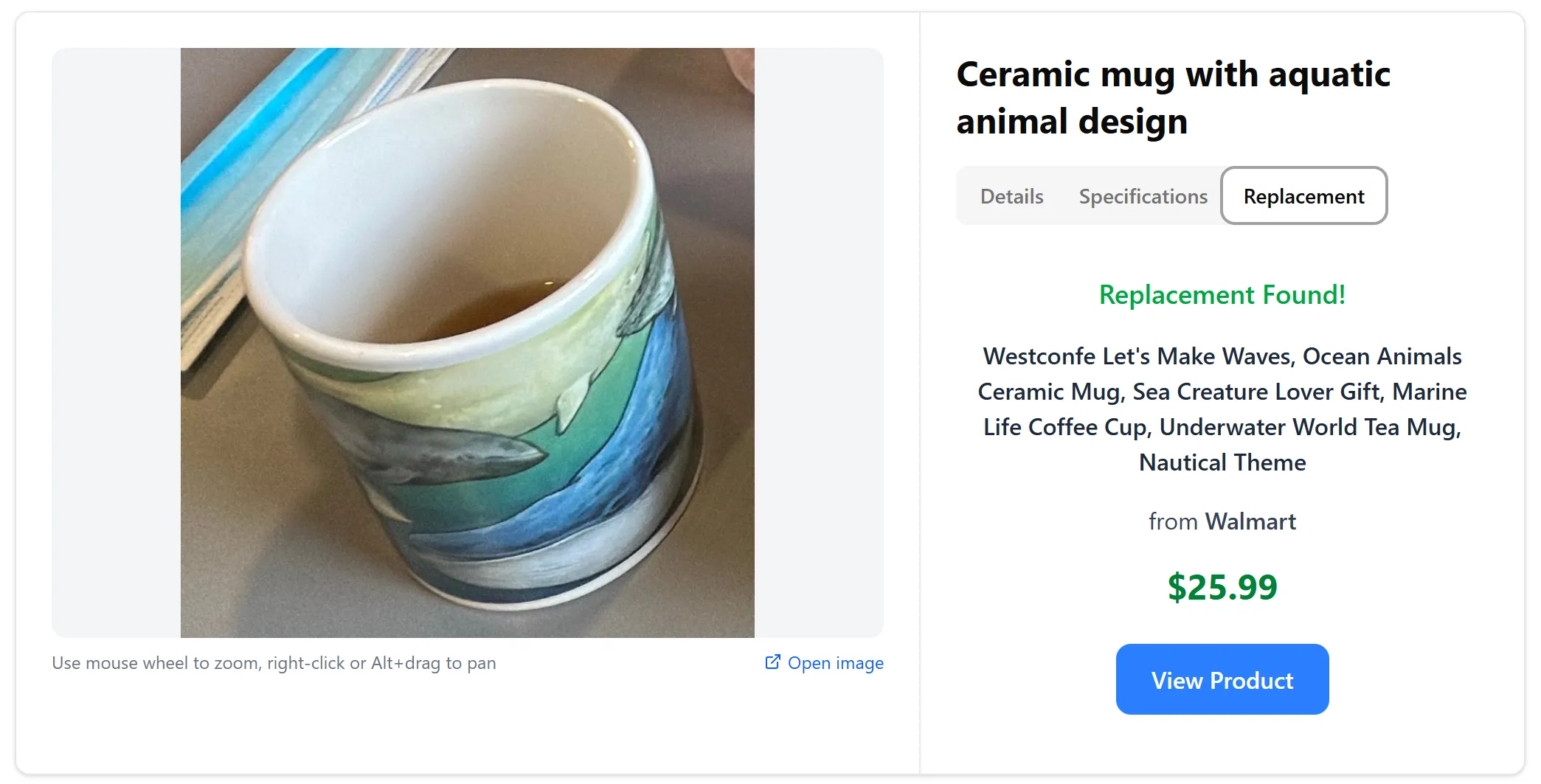
Section titled “6. What the Public Item View Looks Like”When a viewer clicks on an item name in the public job view, they’ll see the item’s full details page with:
-
A large image viewer with all photos of the item.
-
Details tab — description and category.
-
Specifications tab — brand, model, and size.
-
Replacement tab (if a replacement was found) — shows the replacement product name, vendor, price, and a link to purchase.
7. Let Your Customer Review and Change Items
Section titled “7. Let Your Customer Review and Change Items”The view-only link can’t be edited. To let your customer comment on items — and, if you allow it, change them — send the separate Policyholder Review Link:
-
On the Public View tab, under Policyholder Review Link, switch on Enable Review Link.
-
Copy the link with the copy icon, or click Share review link via email.
-
On the Permissions tab, choose what the customer can do:
-
Policyholder can add: New items, Photos to existing items, and New rooms
-
Policyholder can edit: switch on Allow editing item details, then tick the fields they may change — Name, Quantity, Brand, Model, Condition, Age, Vendor, Submitted Price, URL, and Room
-
Until you turn permissions on, the customer can only view items and leave comments. A note under the link sums up what they can currently do.
For restoration and packout companies, the link opens a Disposal Request page listing the job’s non-salvageable items. The customer can comment on each item, make the changes you allowed, and click Approve and Sign to approve the disposal (signing needs the customer’s email saved on the job). A price they enter is saved as their Submitted Price — it doesn’t replace the item’s replacement price.
Their comments, changes, and added photos appear in each item’s activity panel on the Inventory tab — see How to View Policyholder Comments.
✅ Best Practices
Section titled “✅ Best Practices”-
Enable sharing only when ready — make sure your inventory and replacements are complete before sharing the link with clients or adjusters.
-
Control pricing visibility — use the pricing toggle to decide when stakeholders can see dollar amounts. This gives you flexibility in your workflow.
-
Use email sharing for formal communication — the Email option in the Share To tab lets you send a professional-looking email with the job link.
-
Disable sharing when no longer needed — once a job is closed or the review period is over, turn off the public link to keep data private.
🧩 Troubleshooting
Section titled “🧩 Troubleshooting”I toggled sharing on but the link doesn’t appear: Make sure you’re an organization owner or admin. Other members will see the toggles but they will be disabled. Contact your organization admin.
The person I shared with says the link doesn’t work: Check that the Enable View-Only Link Sharing toggle is still on. If it was turned off, the link will stop working immediately. Also make sure they received the full link, including the ?t=... security code at the end — a link without it, or one from before the links were reset, shows “This link is invalid or has been reset”. Send them a freshly copied link or a newly generated report. Archived jobs’ public links don’t work, and restoring a job gives it new links — share the new link or generate new reports.
Pricing isn’t showing up in the public view: Make sure the Display item prices in public view toggle is turned on in the sharing dialog. Also verify that your items actually have replacement values — items without replacements won’t show pricing regardless of the setting.
I can’t find the Share option: Look for the Job Settings button at the top of the job page, then click Share in the dropdown menu. Public link settings are only available on the web app. (In the mobile app, Share via email on the job’s Job tab lets you export a PDF report or email the job; emailing asks to turn on the view-only link.)
I want to text a report link from my phone: In the mobile app, open the job’s Documents tab and choose Reports. Tap a generated report and choose Copy link — this opens your phone’s share sheet, where you can copy the link or send it by text message. The mobile app can email the job’s view-only link but can’t copy it — copy that from the web app.