
📦 How to Enable Textiles Mode
Esta página aún no está disponible en tu idioma.
Learn how to enable Textiles Mode on your mobile device to unlock soft goods restoration workflows.
🧭 Summary
Section titled “🧭 Summary”Textiles Mode is a specialized feature for soft goods restoration that changes how your app works. When you enable it, the capture screen buttons change from the standard Box, Tag, and Non Sal. options to textile-specific options: Bulk, Single, and Pack.
Textiles Mode is one of the app’s modes, alongside Packout (the standard mode), Total Loss, Restore, and Warehouse—only one mode is active at a time. Once enabled, the textile workflows remain active until you switch to a different mode.
🚀 Step-by-Step Instructions
Section titled “🚀 Step-by-Step Instructions”1. Open Settings
Section titled “1. Open Settings”- At the bottom of your screen, tap Settings
2. Tap Mode
Section titled “2. Tap Mode”-
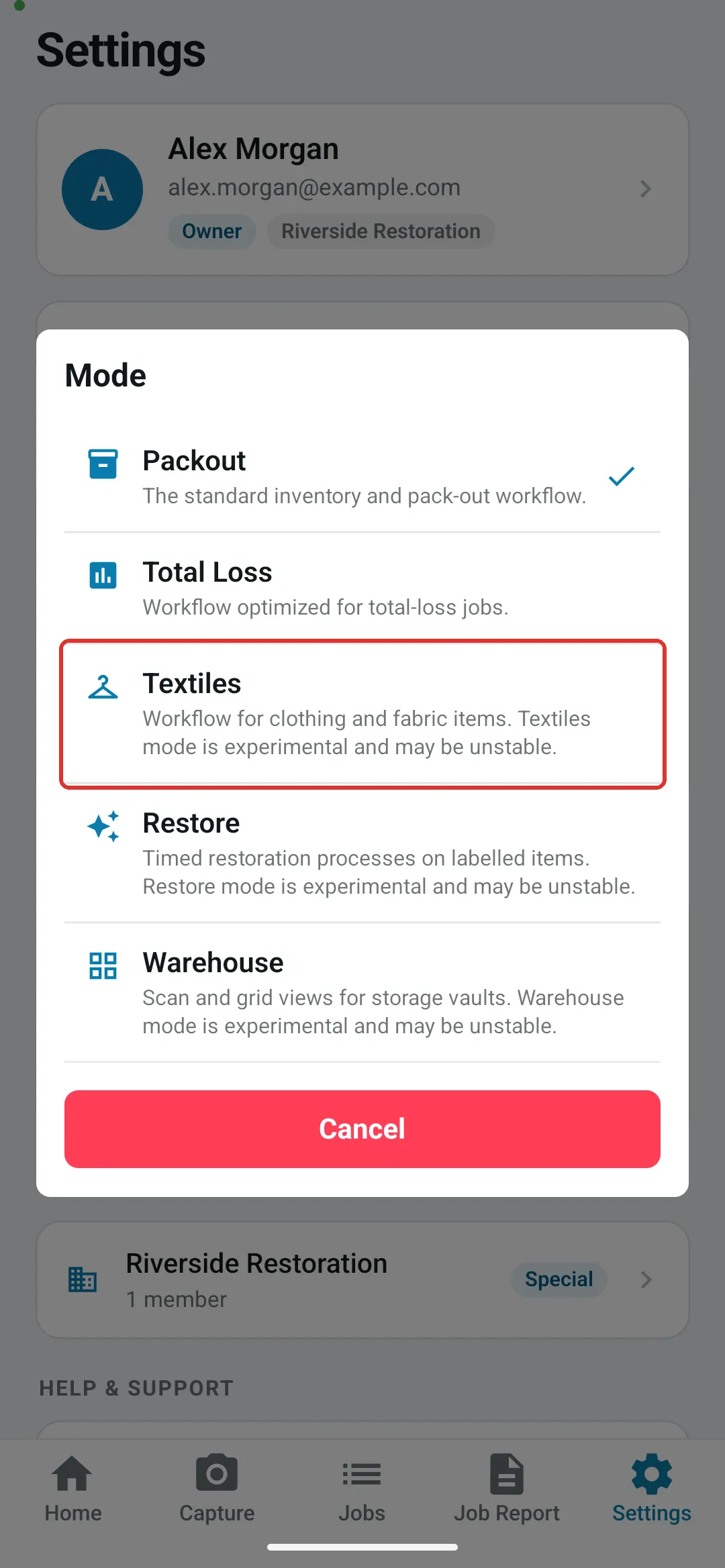
Near the top of the Settings screen, tap Mode
-
The row shows the mode you’re currently using (for example, Packout)
3. Review the Mode Options
Section titled “3. Review the Mode Options”-
A list of modes appears: Packout, Total Loss, Textiles, Restore, and Warehouse
-
Each mode has a short description—Textiles is described as a workflow for clothing and fabric items
4. Select Textiles Mode
Section titled “4. Select Textiles Mode”- Tap Textiles to switch to Textiles Mode
5. Accept the Beta Warning
Section titled “5. Accept the Beta Warning”-
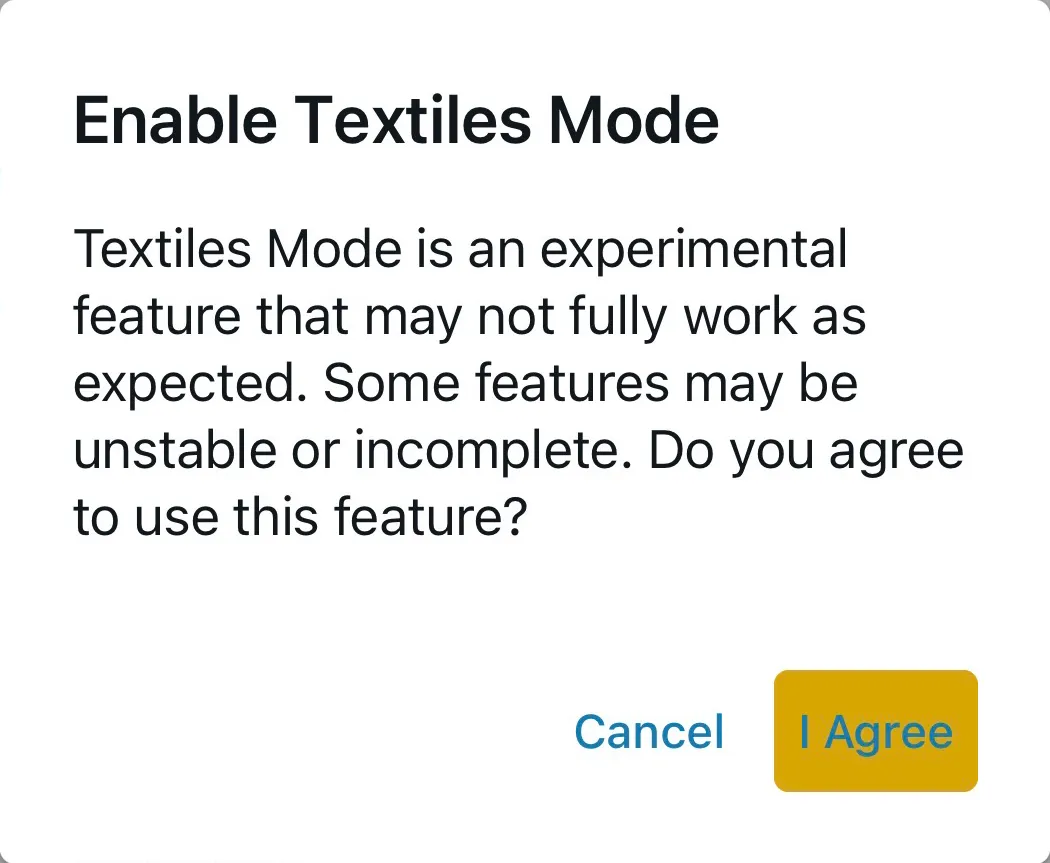
An Enable Textiles Mode message will appear warning you that this is an experimental (beta) feature
-
Read the warning
-
Tap I Agree if you wish to continue
6. Confirm Textiles Mode is Enabled
Section titled “6. Confirm Textiles Mode is Enabled”-
Return to your job and open the Capture screen
-
Check the buttons at the bottom of the screen
-
You should now see Bulk, Single, and Pack instead of the standard buttons
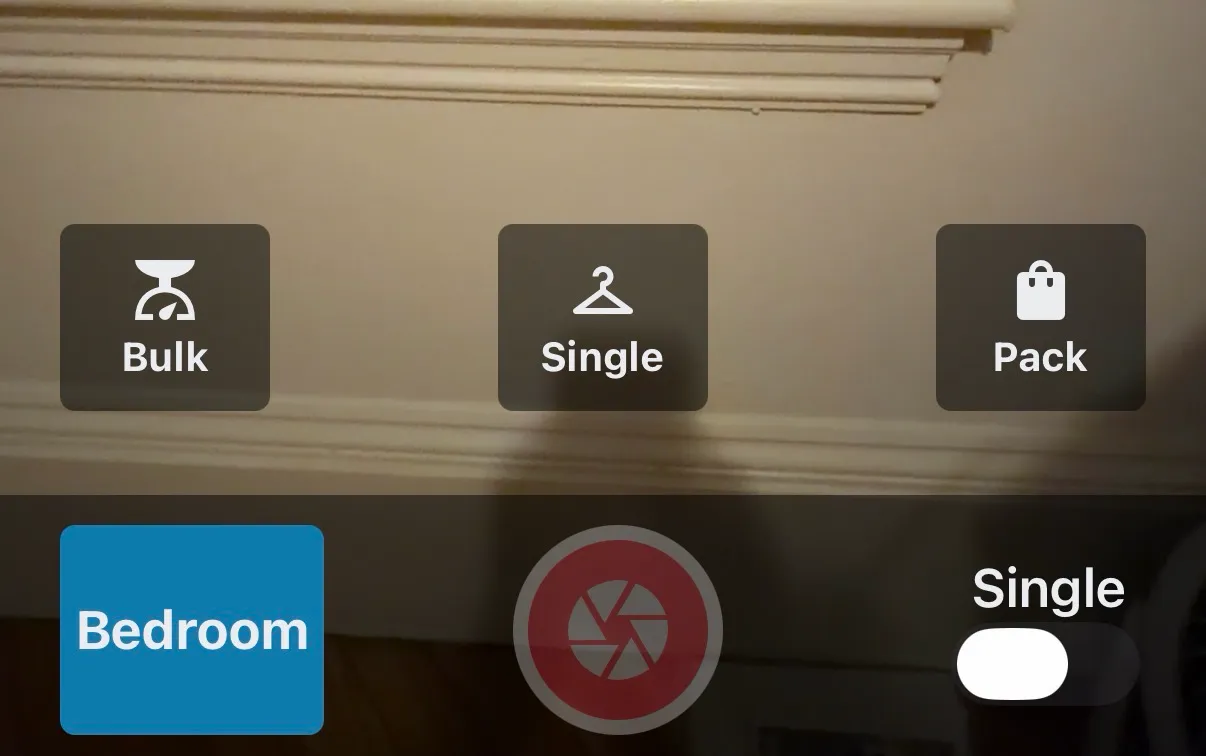
This confirms that Textiles Mode is now active.
📋 What Changes After Enabling Textiles Mode
Section titled “📋 What Changes After Enabling Textiles Mode”When Textiles Mode is enabled, your capture screen buttons change:
| Before (Standard Mode) | After (Textiles Mode) | Purpose |
|---|---|---|
| Box | Bulk | Inventory wash/dry/fold items by weight |
| Tag | Single | Inventory specialty items individually |
| Non Sal. | Pack | Pack processed items into boxes or garment bags |
-
Inventorying Wash/Dry/Fold Items (Bulk Mode)
-
Inventorying Specialty Items (Single Mode)
-
Packing Wash/Dry/Fold Items (Pack Mode)
✅ Best Practices
Section titled “✅ Best Practices”-
Enable once: Textiles Mode is saved to your account, so it applies to all your jobs and follows you when you sign in on another device.
-
Train your team: Make sure everyone using the app for textile work enables Textiles Mode on their own account (or ask your organization admin to set the mode for the team)
-
Understand the modes: Before starting work, review what Bulk, Single, and Pack modes do so you choose the right one for each task
-
Keep it enabled: Once you’re working with textiles, leave Textiles Mode enabled to avoid switching back and forth
🧩 Troubleshooting
Section titled “🧩 Troubleshooting”The buttons didn’t change after I tapped I Agree: Try closing the app completely and reopening it. If the buttons still don’t change, go back to Settings and check that Mode shows Textiles.
I enabled it by accident and want to turn it off: Go back to Settings → Mode and select Packout (or the mode you normally use). Your capture screen will return to the standard buttons.
I can’t change the Mode: If the Mode row shows a lock and a message that your app mode is set by your organization, your organization admin controls the mode. Contact your admin to switch you to Textiles Mode.
Do I need to enable this for every job? No. Textiles Mode is saved to your account, not to a job. Once enabled, it stays enabled for all jobs until you switch to a different mode.
Can I switch between Textiles Mode and Standard Mode? Yes, but it’s not recommended to switch frequently. If you’re working on textile jobs, keep Textiles Mode enabled. If you’re working on standard contents, switch back to Packout. Switching modes frequently can be confusing.
🔑 Key Takeaways
Section titled “🔑 Key Takeaways”-
Enable Textiles Mode from Settings → Mode → Textiles
-
Accept the beta warning by tapping I Agree
-
Confirm the capture screen buttons changed to Bulk, Single, and Pack
-
Textiles Mode is saved to your account—enable it once and it applies to all your jobs
-
Once enabled, you can start using textile-specific workflows for soft goods restoration