
👕 Textiles Mode Overview
Esta página aún no está disponible en tu idioma.
Learn how Textiles Mode transforms ContentsPal into a purpose-built solution for soft goods restoration workflows.
🧭 Summary
Section titled “🧭 Summary”Textiles Mode is the first software solution specifically built for soft goods restoration workflows. Unlike traditional software that forces you to fit soft goods into a hard contents workflow, Textiles Mode adapts to how you actually work with textiles.
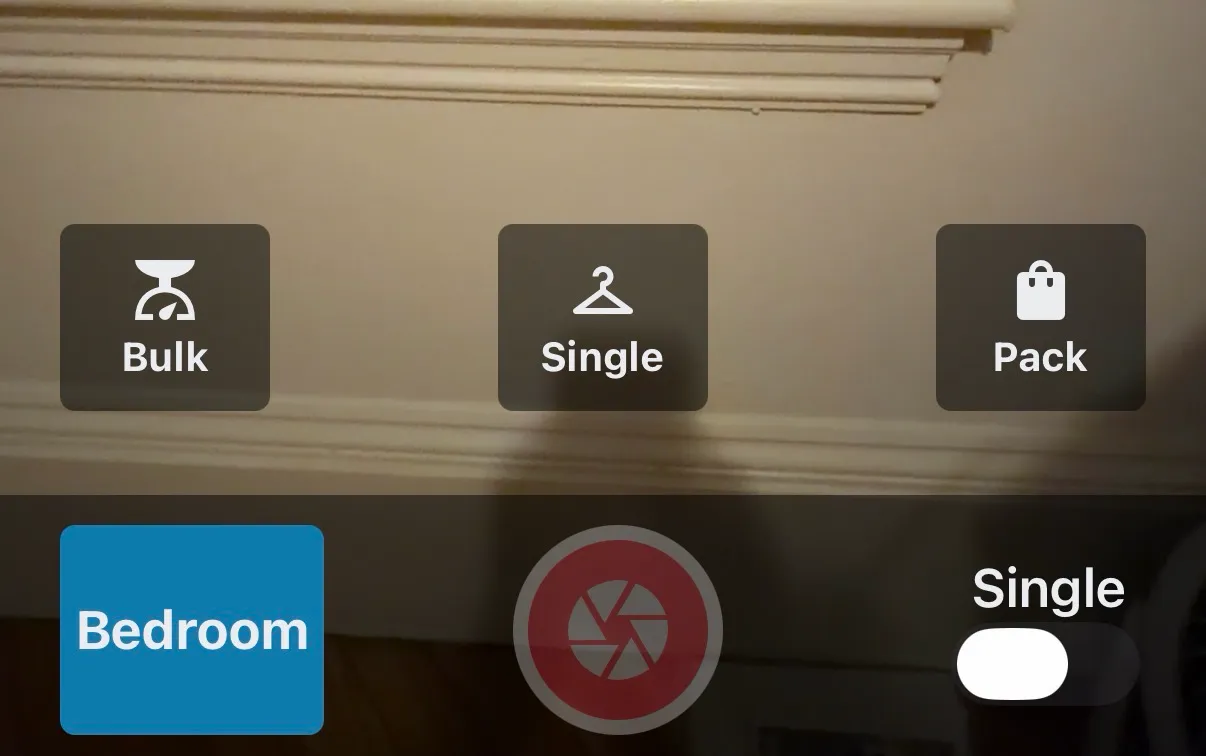
When you enable Textiles Mode, the app interface changes to match your textile restoration process. Instead of the standard Box, Tag, and Non Sal. buttons, you’ll see Bulk, Single, and Pack options designed specifically for soft goods.
This guide provides an overview of how Textiles Mode works and the three main ways you’ll use it to inventory and pack textiles.
⚙️ Prerequisites
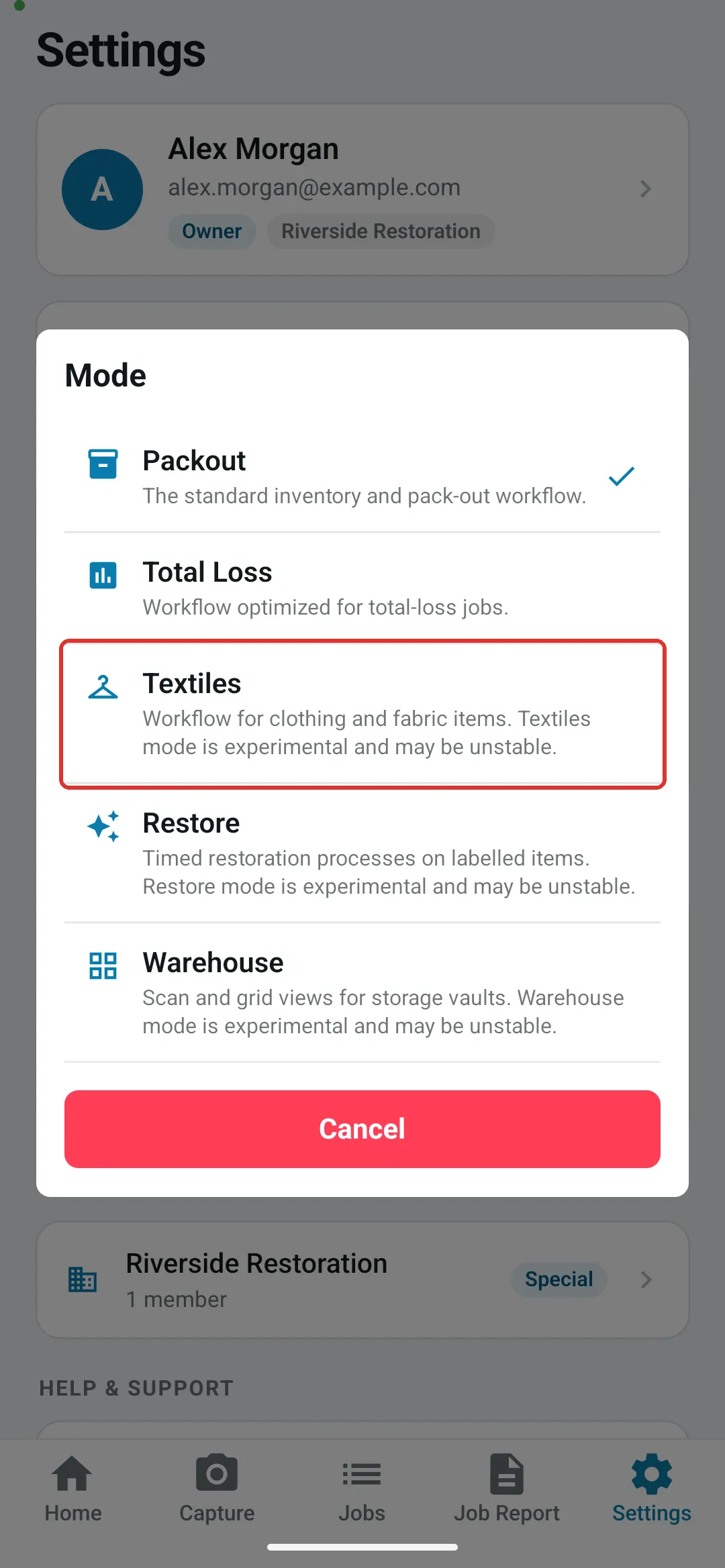
Section titled “⚙️ Prerequisites”- Textiles Mode must be enabled in the mobile app (Settings → Mode → Textiles)
-
Work is typically done at your facility (not on-site at the property)
-
For bulk items: sorting area with a scale
-
For specialty items: good lighting for capturing garment details
🚀 How Textiles Mode Works
Section titled “🚀 How Textiles Mode Works”Understanding the Interface Changes
Section titled “Understanding the Interface Changes”Once you enable Textiles Mode, the buttons at the bottom of your capture screen change to match your textile workflow:
-
Bulk: For wash-dry-fold items where you charge by weight
-
Single: For specialty items that you inventory one by one (items with upcharges, dry cleaning needs, etc.)
-
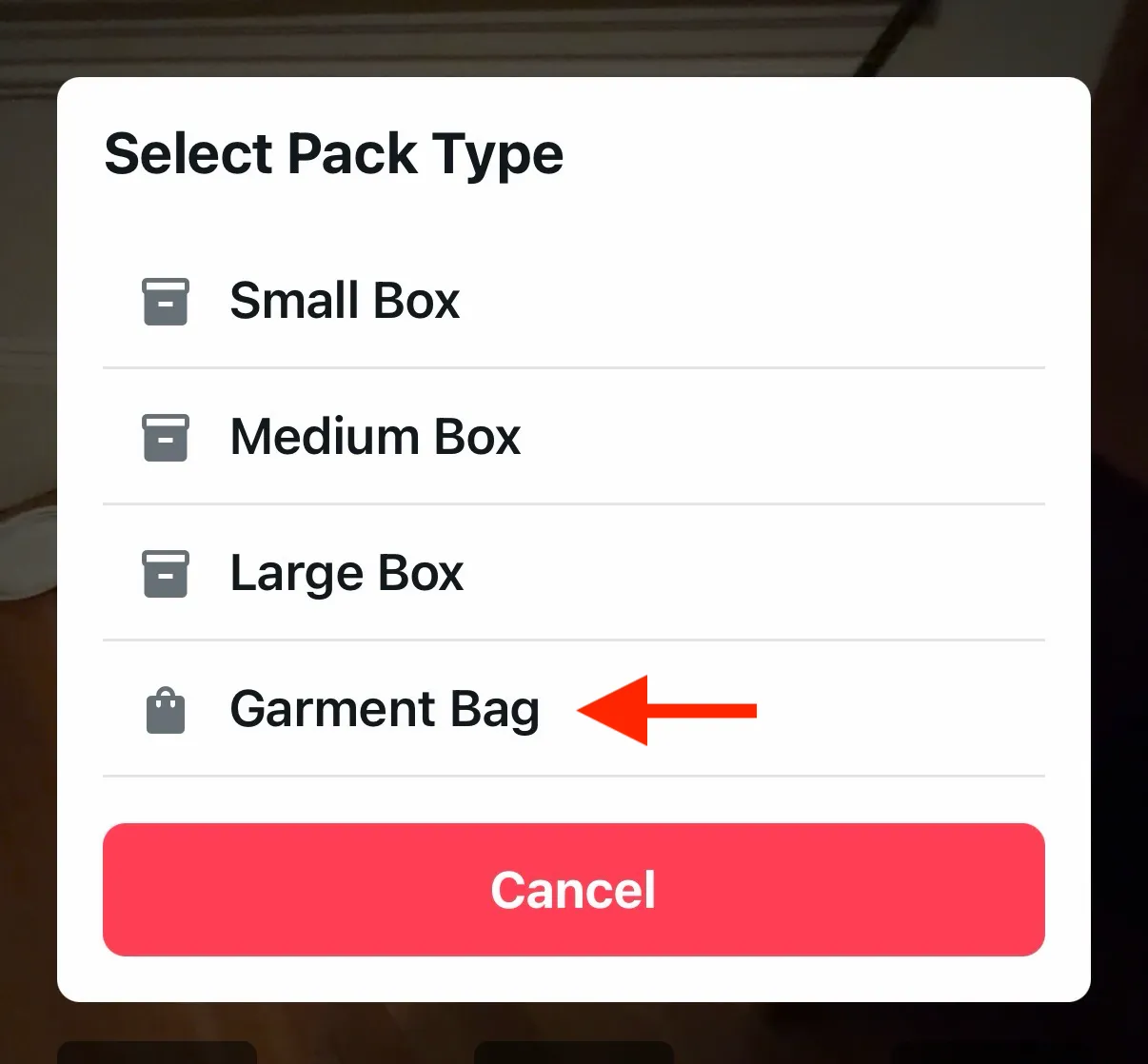
Pack: For packing cleaned items back into boxes or garment bags
📋 Understanding Bulk vs. Single Mode
Section titled “📋 Understanding Bulk vs. Single Mode”Bulk Mode (Wash-Dry-Fold Items)
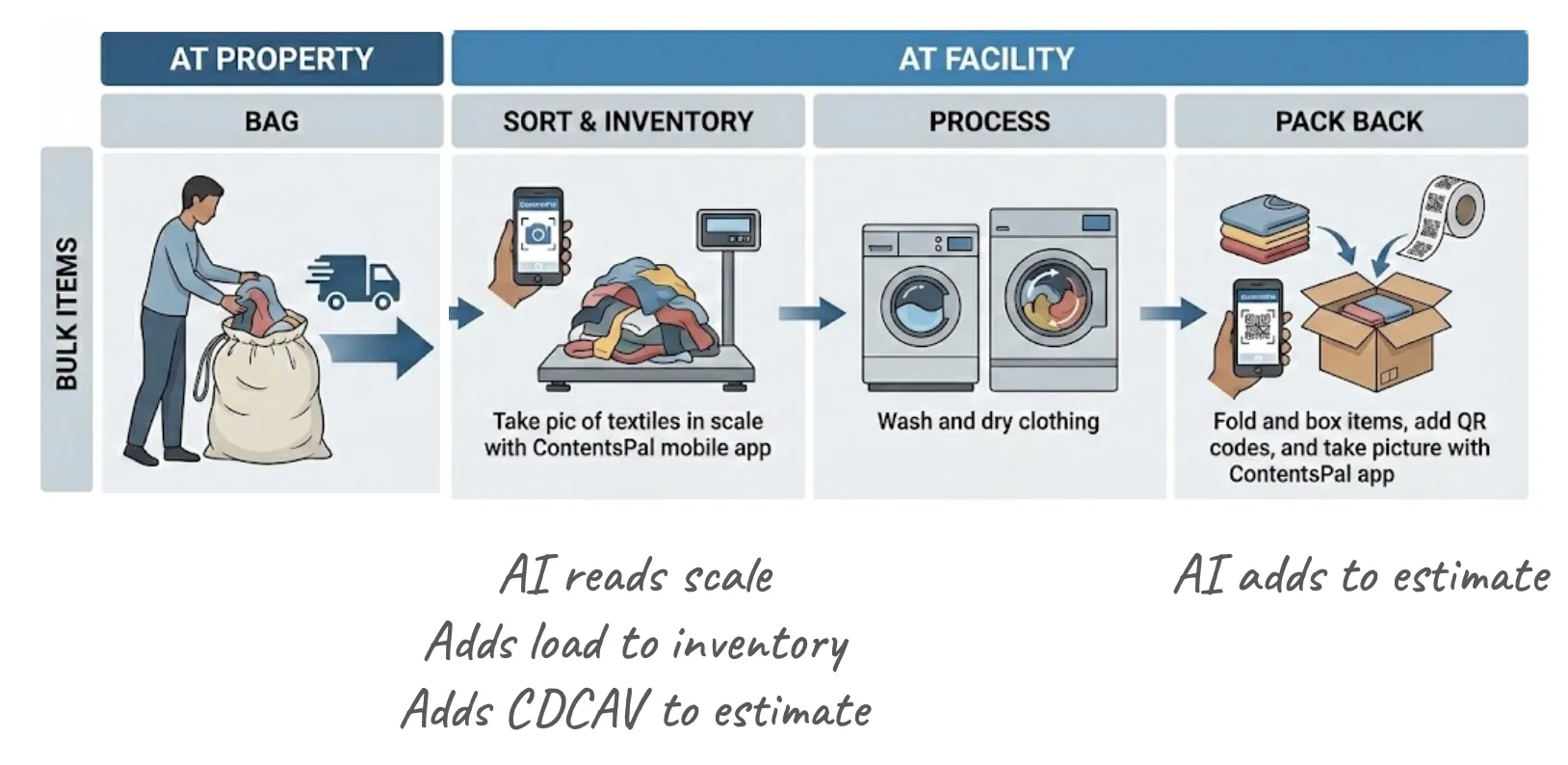
Section titled “Bulk Mode (Wash-Dry-Fold Items)”When to use: Items you charge by weight
Typical workflow:
-
At the property: Add textiles into bags (often one bag per room)
-
At the facility: Take items out in your sorting area
-
Place items in a bin on a scale
-
Take a picture of the clothing
-
AI reads the scale automatically and records the weight
-
Process the items (wash, dry, fold)
-
Pack cleaned items into boxes
How it appears in your inventory:
-
Inventory: One line item per picture you take (each “load”)
-
Estimate: One combined line item per room with the CDCAV code, showing the total weight of all loads from that room
Single Mode (Specialty Items)
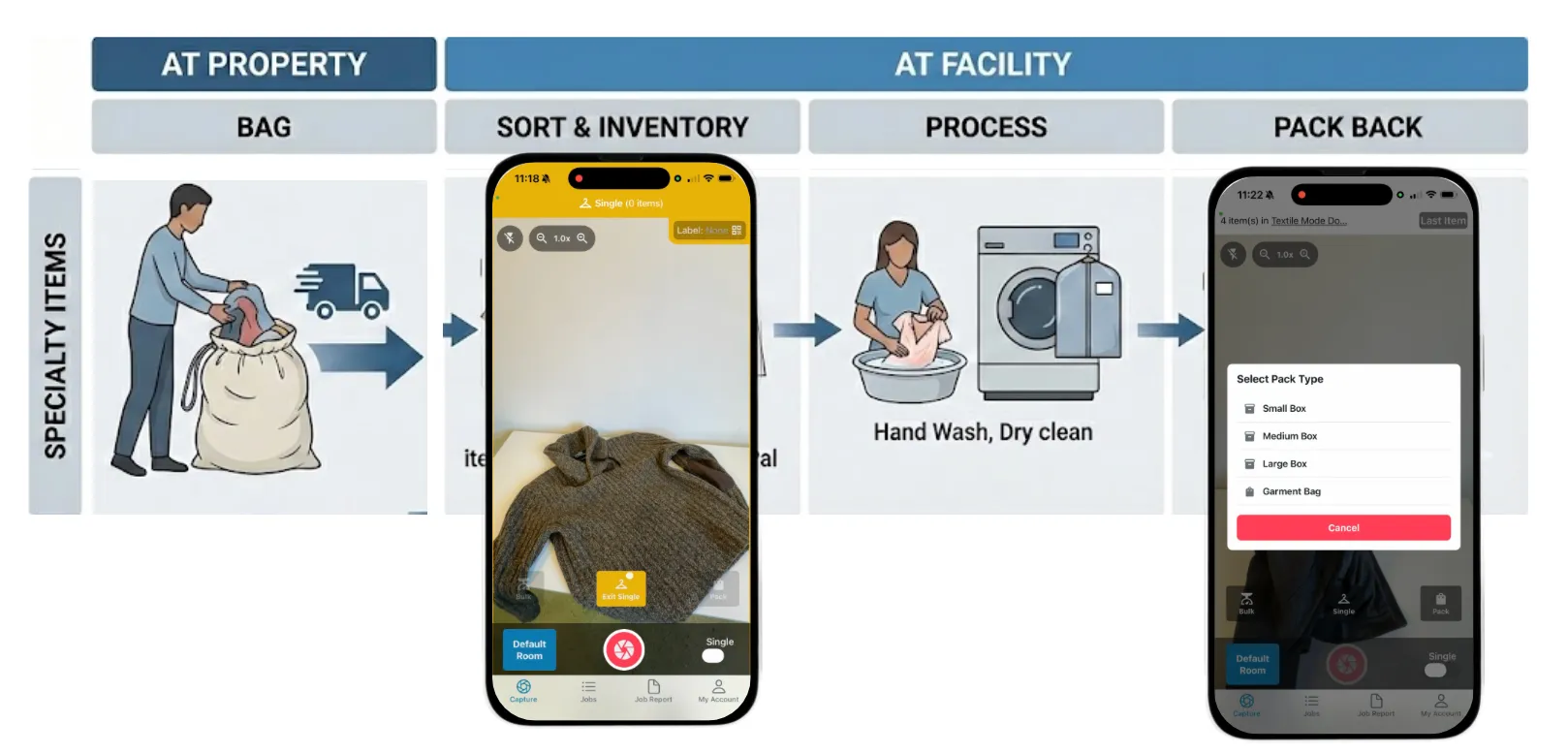
Section titled “Single Mode (Specialty Items)”When to use: Items you need to inventory individually (items requiring dry cleaning, items with upcharges, high-value garments)
Typical workflow:
-
At the property: Add all textiles into bags with other items
-
At the facility: Sort textiles into wash-dry-fold and specialty items
-
Take pictures of specialty items individually or use multi-mode for multiple items at once
-
AI identifies each item, finds the correct Xactimate code, and adds required upcharges
-
Process items (hand wash, dry cleaning, or other appropriate treatment)
-
Pack items into garment bags with QR codes for tracking
Multi-mode option: You can capture multiple pieces of clothing from a single image, but for very nice suits, dresses, or blouses, take individual pictures including the label and material so AI can categorize them accurately.
🚀 The Packing Process
Section titled “🚀 The Packing Process”Packing Bulk Items
Section titled “Packing Bulk Items”After processing wash-dry-fold items:
-
Pack items into a box
-
Add a label to track the box
-
Take at least one picture of the box contents (a pack with no photos isn’t saved)
-
AI adds consumables to your estimate and tracks the box in chain of custody
Packing Specialty Items
Section titled “Packing Specialty Items”After processing specialty items:
-
Select Garment Bag option
-
Place items in garment bags
-
Apply QR codes for tracking
-
Take pictures
-
AI adds everything to the estimate and maintains chain of custody
✅ Best Practices
Section titled “✅ Best Practices”-
At the property: Use separate bags per room to keep items organized during collection
-
At the facility: Set up a dedicated sorting area where you can separate wash-dry-fold from specialty items
-
For high-value items: Always take individual pictures of expensive suits, dresses, and blouses. Include close-ups of the label and material tag so AI can properly identify the fabric and assign the correct codes
-
Use multi-mode wisely: It’s great for capturing multiple similar items quickly, but switch to individual shots for anything that needs special attention
-
Document thoroughly: The better your photos, the better AI can identify items and find the right Xactimate codes, which means better estimates and less adjuster pushback
🔑 Key Takeaways
Section titled “🔑 Key Takeaways”Textiles Mode delivers significant benefits for soft goods restoration:
-
Faster cycle times: Less time spent documenting each item means you can process more jobs
-
Higher margins: Faster documentation translates directly to lower labor costs per item
-
Better Xactimate codes: AI identifies the correct codes from over 1,600 options, including upcharges you might miss manually. This means you don’t leave money on the table
-
Better documentation: AI annotates images and creates detailed inventories just like hard contents, which leads to less adjuster pushback
-
Faster payment: The sooner you send the inventory and estimate, the sooner you get paid