
Customizing Emails Your Organization Sends
Esta página aún no está disponible en tu idioma.
Set the wording of the emails ContentsPal sends on your behalf — job shares, report links, review requests, and signature requests.
What You Can Customize
Section titled “What You Can Customize”ContentsPal sends emails to your customers throughout a job — a link to view a shared job, a report, a request to review an inventory, and so on. Each of these emails starts from a built-in default. On the Email Templates screen you can rewrite the subject and body of any of them, and add your organization’s logo to the top of every outgoing email.
Email Templates covers the emails you send to your customers. To choose which updates ContentsPal sends to your own team — report-ready notices, batch identification summaries, form activity, and so on — open Organization → Settings → Notifications instead.
Where to Find Email Templates
Section titled “Where to Find Email Templates”-
Click Organization in the side menu, then open the Settings tab.
-
Select Email Templates in the left sidebar.
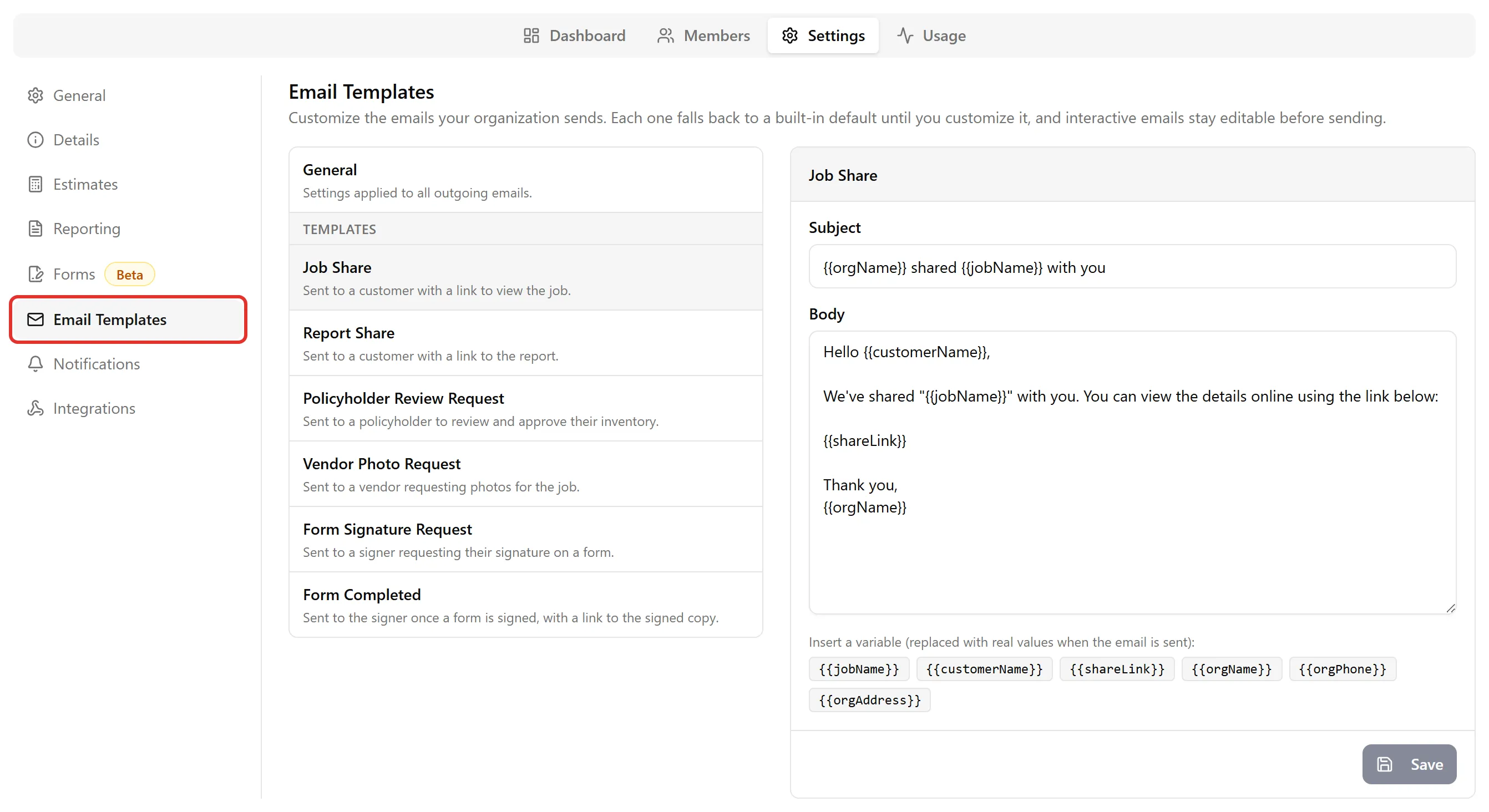
The left side lists a General section (settings that apply to every email) followed by each individual template. A Customized badge marks any template you’ve changed from its default.
Customizing a Template
Section titled “Customizing a Template”-
Select a template from the list. The editor shows its current Subject and Body.
-
Edit the text however you like.
-
Click Save.
If you switch to another template with unsaved changes, ContentsPal asks whether to save or discard them first.
Using Variables
Section titled “Using Variables”Variables are placeholders — like #{{orgName}} or #{{shareLink}} — that are replaced with real values when the email is actually sent. Below the body you’ll see a row of the variables available for that template; click one to insert it at the end of the body, or type it directly wherever you want it to appear.
Every template can use your organization’s details:
-
#{{orgName}}— your organization name -
#{{orgPhone}}— your organization phone number -
#{{orgAddress}}— your organization address
Each template also has its own variables for the job, recipient, and the relevant link (for example #{{jobName}}, #{{customerName}}, #{{reportLink}}).
Required variables: Every template has one essential variable — usually the link the recipient needs to act on (such as #{{shareLink}} or #{{signLink}}). If you remove it, ContentsPal won’t let you save and will tell you which variable is missing. This makes sure the recipient always gets a working link.
The Available Templates
Section titled “The Available Templates”-
Job Share — Sent to a customer with a link to view the job.
-
Report Share — Sent to a customer with a link to a report.
-
Policyholder Review Request — Sent to a policyholder to review and approve their inventory.
-
Vendor Photo Request — Sent to a vendor requesting photos for the job.
-
Form Signature Request — Sent to a signer requesting their signature on a form.
-
Form Completed — Sent to the signer once a form is signed, with a link to the signed copy.
(Note: For emails you send interactively — like sharing a job or a report — you can still adjust the message on the spot before sending. Your template just sets the starting point.)
Adding Your Logo
Section titled “Adding Your Logo”Open the General entry at the top of the list, check Include organization logo, and click Save to add your logo to the top of every outgoing email.
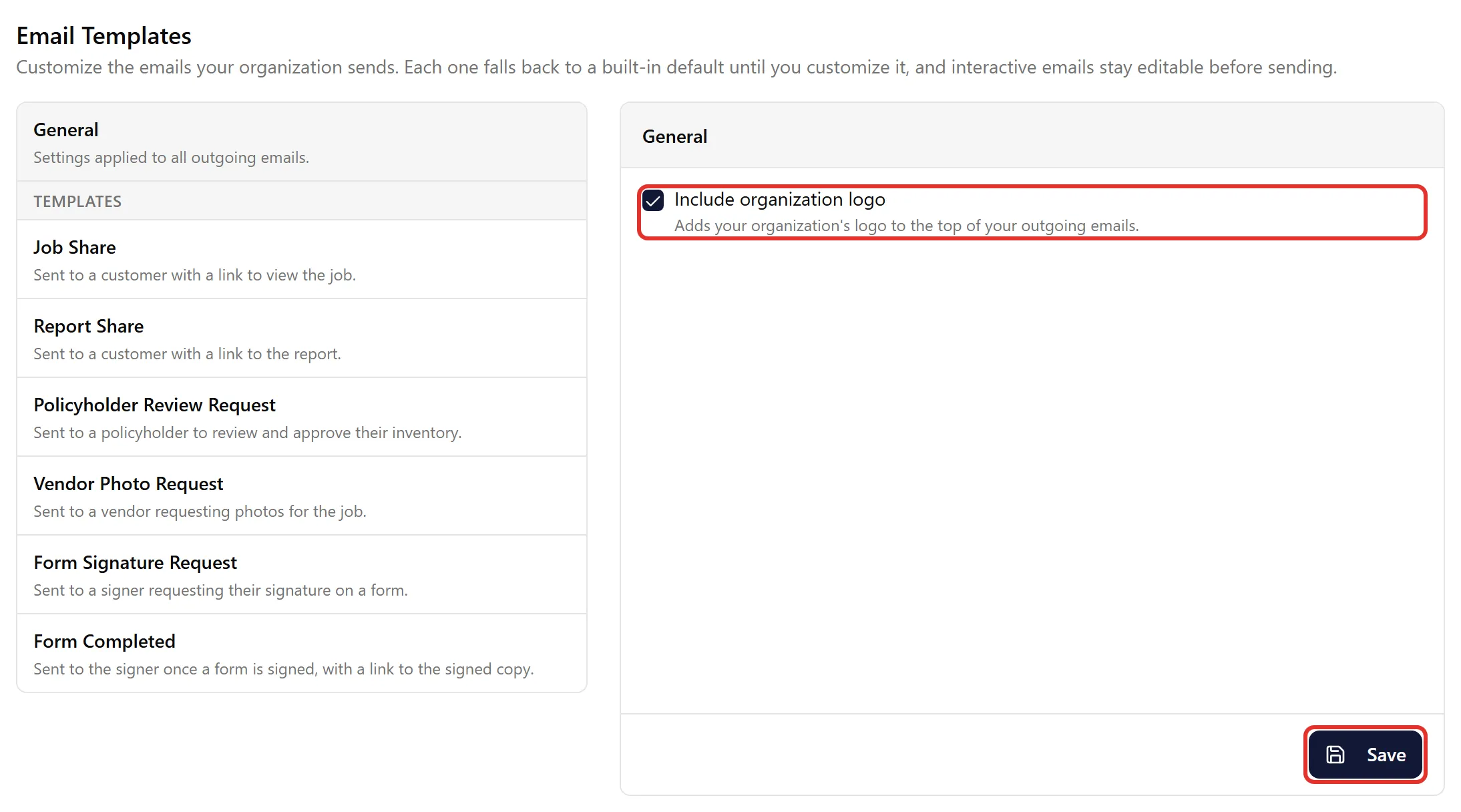
You need to upload a logo first. If you haven’t, add one under Settings → Details, then come back and check the box.
Resetting a Template to the Default
Section titled “Resetting a Template to the Default”If you want to undo your changes and go back to the built-in wording:
-
Select the customized template (it has a Customized badge).
-
Click Reset to default.
-
Confirm.
Your customization is removed and the template goes back to the system default.
Who Receives Notification Emails
Section titled “Who Receives Notification Emails”The emails ContentsPal sends to your own team are listed under Organization → Settings → Notifications. Each one goes to the person who started the action, not to everyone on the job:
-
Batch identification complete — the person who started the batch identification.
-
Report ready and Report failed — the person who generated a report that was built in the background. Anyone added under Email this Report also gets a copy.
-
Job images ready — the person who requested the photo download, plus any addresses added under Email Photos.
-
Form activity — when a form is completed, the team member who sent it. When a form is waiting for a team member’s signature, that team member.
-
Member requested account deletion — the organization’s owners and admins.
ContentsPal doesn’t send an email when a job is finished or its status changes.
Stopping a notification. Untick it on the Notifications screen and click Save Settings. These switches apply to your whole organization; there’s no setting to stop a notification for just one person. To keep someone off a report or photo-download email, leave their address out of the Email this Report or Email Photos list.
Who Can Customize Emails?
Section titled “Who Can Customize Emails?”Customizing email templates is available on the Pro plan and above. Only organization owners and admins can open the Organization settings, so only they can edit these templates. The customized emails then apply to every email your organization sends.
Related
Section titled “Related”-
Customizing Reports for Your Organization — Set default report options for your team
-
Sharing Jobs and Public View — How job and report links are shared with customers