
Moving Labels Between Locations (Mobile)
Move boxes, tags and groups between your storage locations from the mobile app — one label at a time, a whole batch at once, or straight from the location itself — and keep your chain of custody up to date.
🧭 Summary
Section titled “🧭 Summary”Every label (a box, a tag, or a group of labels) can be stored in one location — a vault, rack, pallet, cleaning room, truck and so on. When the label moves, everything packed in it moves with it, and the move is recorded in its Location history.
There are four ways to move labels in the mobile app:
| Start from | Best for | Where |
|---|---|---|
| The label | One box or tag in your hand | Custody → Labels → the label → Move |
| A batch of labels | Several labels going to the same place | Custody → Labels → Select or Batch scan → Move |
| The location | Loading or emptying one location | Custody → Locations → the location |
| Warehouse Mode | Running the warehouse floor with a scanner | Warehouse Mode’s Scan tab |
⚙️ Prerequisites
Section titled “⚙️ Prerequisites”-
The labels already exist — boxes and tags created during packout, or labels created in Custody
-
Your locations are set up in the web app under Sites — locations can’t be created from the mobile app. See Setup Locations
-
An internet connection. The Locations tab in Custody is hidden while you’re offline, and scanning a location’s QR code needs a connection
-
The job isn’t locked — a locked job’s labels can’t be moved
🏷️ Move One Label
Section titled “🏷️ Move One Label”-
Open your Job Report, tap Custody, and stay on the Labels tab.
-
Tap the label to open it (or tap Scan Label and scan it).
-
Tap Move (or tap the label’s current location).
-
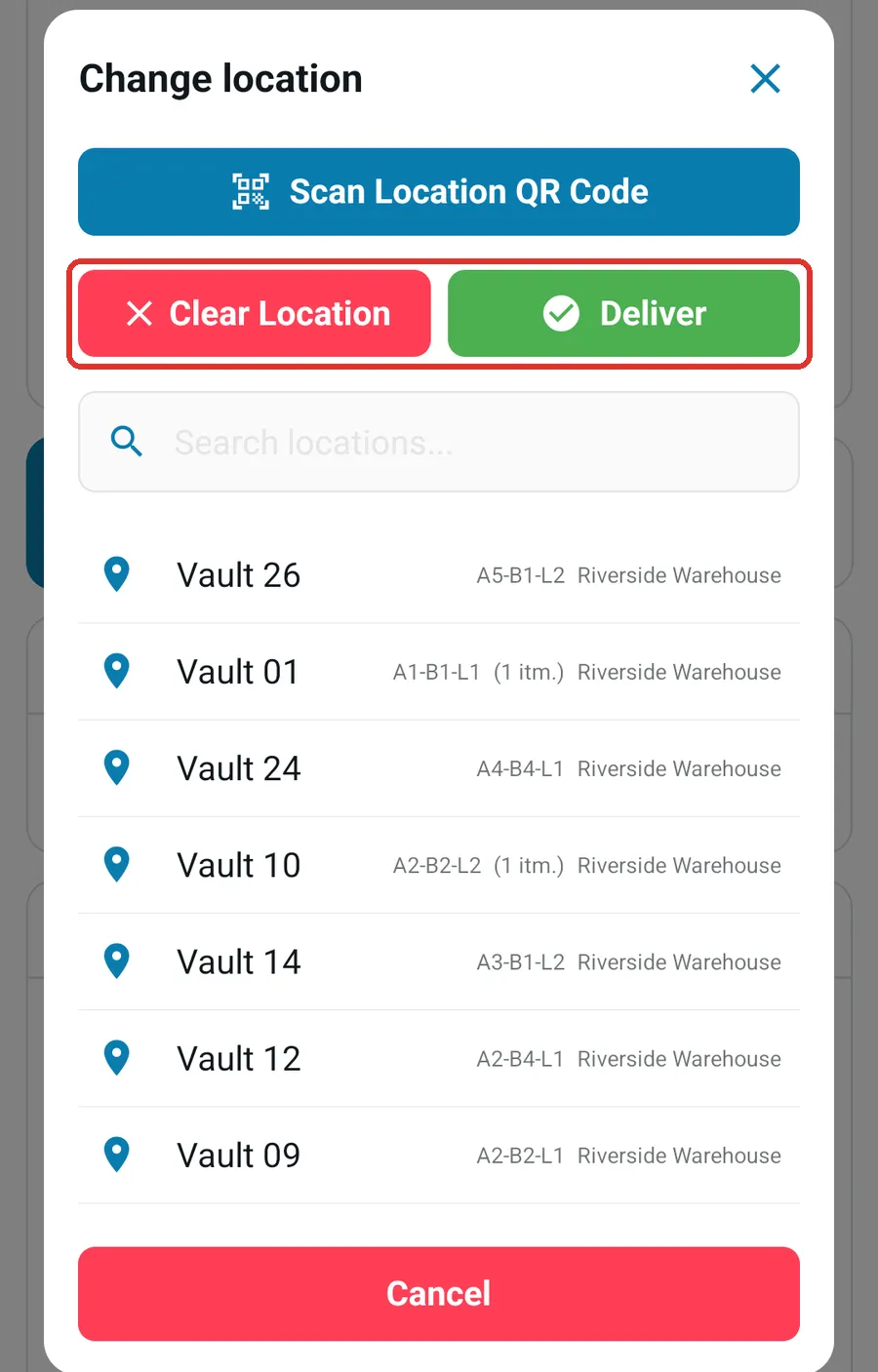
In Change location, choose where it goes:
-
Scan Location QR Code — scan the label on the location.
-
Search — type part of a location or site name and tap the location. Each location shows its coordinates, how many items it holds, and its site.
-
Clear Location — the label is no longer stored anywhere.
-
Deliver — clears the location and sets the label’s status to Delivered, in one step.
-
-
Confirm the prompt (for example, Move HEB-RO-31 to Main Vault? → Move).
After a move into a location:
-
If the location is set up to give its contents a status (for example, a cleaning room set to Cleaning), the label takes that status — down to every item in it — and the app tells you so.
-
The app asks Take a photo to document this location change? Tap Add Photo to take a location photo while you’re standing in front of it, or Not Now. See Location (Vault) Photos.
Groups: moving a group label moves every label in the group with it (the confirmation says how many). A label that belongs to a group can’t be moved on its own — move the group, or take the label out of the group first. See Grouping Custody Labels.
📦 Move Several Labels at Once
Section titled “📦 Move Several Labels at Once”Pick the labels first, then send them all to one location in a single step. This is also the quickest way to move labels you can’t scan, such as hand-written tags.
-
Open your Job Report, tap Custody, and stay on the Labels tab.
-
Choose the labels, using either method or both:
-
Scan them: tap Scan Label, then Batch scan, scan each label, and tap Done. You come back to the list with the scanned labels already selected.
-
Search for them: tap Select (the checkbox button beside the filters), type a label’s name in the search box, and tick it. Repeat for each label. Labels you’ve ticked stay selected when you change the search.
-
-
Tap Move in the bar at the bottom of the screen.
-
In Select New Location, tap Scan Location QR Code and scan the location’s label, or pick the location from the list. (Clear Location takes the labels out of storage instead.)
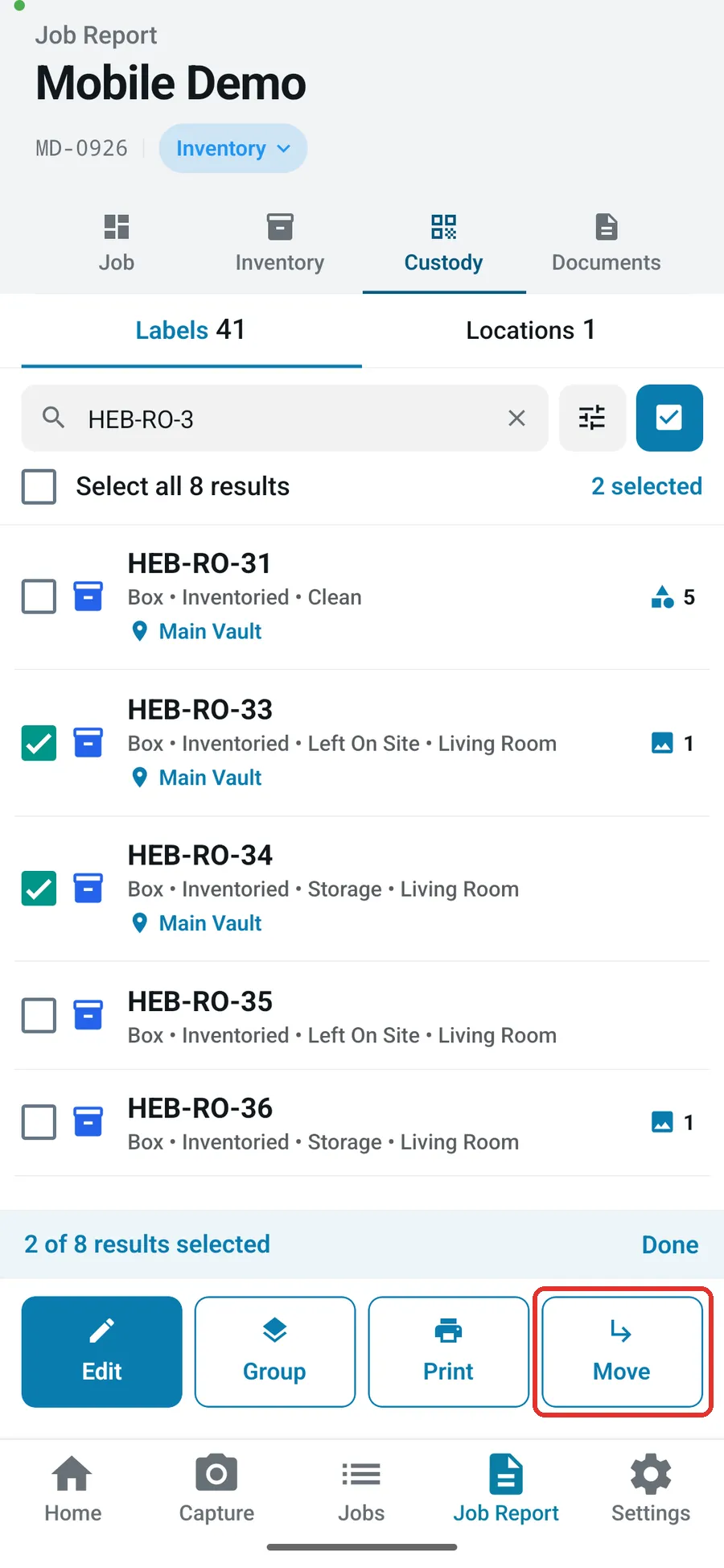
All the selected labels, and everything packed in them, move to that location together, and they take the location’s status if it sets one. A label that belongs to a group is skipped, because its group decides where it goes — select the group label instead and the whole group moves.
🗄️ Work From the Location
Section titled “🗄️ Work From the Location”Use this when you’re standing at one location — loading a vault, emptying a cleaning room, or checking what’s on a pallet.
1. Open the location
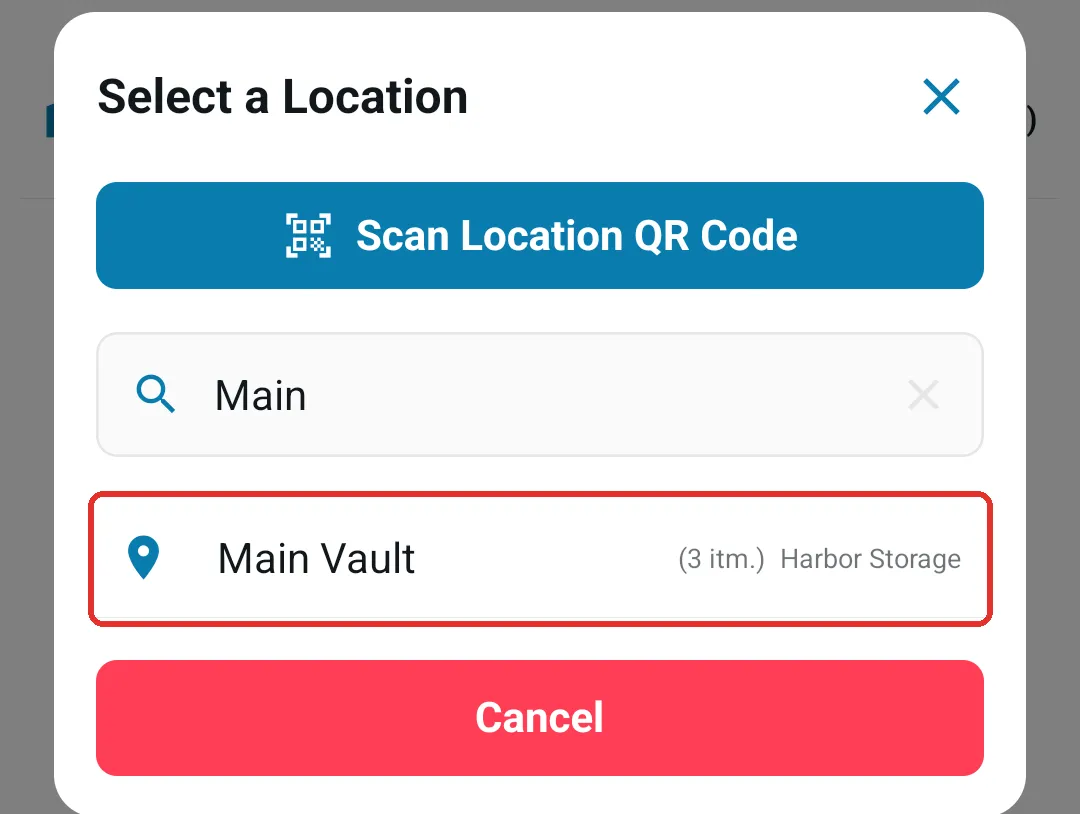
Section titled “1. Open the location”Open your Job Report, tap Custody, then tap the Locations tab. It lists the locations this job’s labels are stored in. To open any location:
-
Scan Location — scan the QR label on the location, or
-
Select Location — search the Select a Location list by location or site name and tap the location.
2. What the location screen shows
Section titled “2. What the location screen shows”The location’s name is at the top, followed by:
-
Location Tag — the code printed on its QR label.
-
Coordinates — where it sits on the site’s grid (shown when the site uses coordinates). Tap the pencil to change the Aisle, Bay and Level, then Save, or tap Remove Coordinates to take it off the grid. A cell that is blocked or outside the grid can’t be saved; a cell another location already uses shows a warning.
-
Site — tap it and pick another site under Select Target Site to move the whole location, with everything stored in it, to that site. It arrives without coordinates, since every site has its own grid.
-
Note — the location’s own note (access instructions, for example), when it has one. It’s edited in the web app or in Warehouse Mode.
-
Vault Photos — this job’s photos of the location. See Location (Vault) Photos.
-
Notes — this job’s notes about the location. Tap Add Note to write one.
-
Items at this Location — every label stored here, with its status. Tap the arrow on one of this job’s labels to open it.
3. Scan labels into the location
Section titled “3. Scan labels into the location”-
Tap Scan Items to Add.
-
Scan each box or tag label. Only labels from the job you have open are accepted — a label from another job shows Invalid item QR code.
-
Tap Done.
The labels move into the location and appear under Items at this Location. If the location sets a status for its contents, they take that status too, and the confirmation says so.
4. Move or update labels that are already here
Section titled “4. Move or update labels that are already here”-
Tick the labels to change under Items at this Location, or tick All.
-
Tap Set Location and pick the destination from the list, or tap Scan Location QR Code and scan the destination’s label. You can also tap Clear Location or Deliver in the same sheet.
-
To change their status as well, tap Set Status and pick a status.
-
Tap Update (it shows how many labels will change).
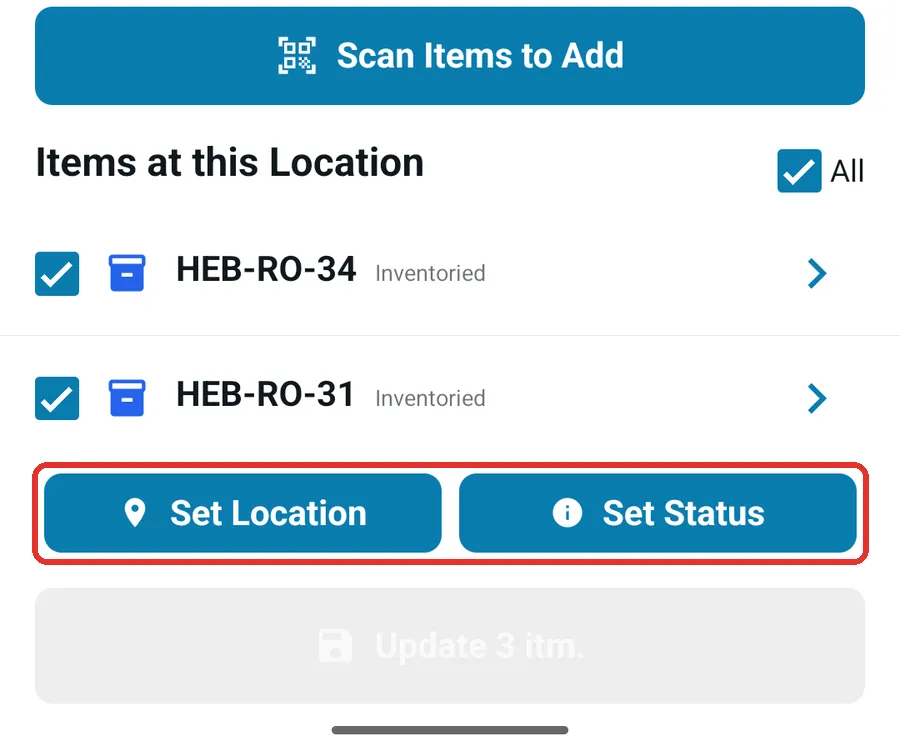
If the destination sets a status for its contents, the labels and their items take that status. A status you pick with Set Status in the same update wins over it.
Labels that belong to a group can’t be ticked on their own. Tick the group label and its labels move with it.
🏭 In Warehouse Mode
Section titled “🏭 In Warehouse Mode”Warehouse Mode turns the app into a scanner for the warehouse floor: scan a vault to see what’s in it, add codes to it, or move codes from one vault to another, without opening a job first. It also shows the whole site as a 2D or 3D grid where you can relocate a vault. See Warehouse Mode.
✅ Best Practices
Section titled “✅ Best Practices”-
Scan the location’s QR label rather than picking from the list whenever you can — it avoids filing a box in the wrong vault
-
Check the destination name in the confirmation before tapping Move
-
Move a group by its group label so its labels stay together
-
Keep location labels visible and clean for easy scanning
🧩 Troubleshooting
Section titled “🧩 Troubleshooting”The Locations tab is missing. You’re offline. Reconnect, and the tab comes back.
Scanning a location says “Scanning a location requires an internet connection”. Location scans are looked up online. Reconnect and scan again.
Scan Items to Add says “Invalid item QR code”. The label belongs to a different job (or isn’t a ContentsPal label). Open that label’s job first, or use Warehouse Mode, which works across jobs.
A location doesn’t appear in the list. Locations are created in the web app under Sites. Pull down on the list to refresh it after one is added. If you see “No locations available”, none have been created yet.
A label won’t move on its own. It’s part of a group — move the group label, or take the label out of the group first.
A label shows in the wrong location. Open the label, tap Move, and choose the right location.