
🏭 Warehouse Mode
Warehouse Mode turns the mobile app into a tool for running your storage floor: scan a vault to see what’s inside, scan the codes on items and boxes to move them in and out, and view the whole warehouse as a 2D or 3D grid.
🧭 Summary
Section titled “🧭 Summary”Warehouse Mode is a streamlined mode for warehouse and storage staff. Instead of the usual capture-and-inventory screens, the app shows two tabs built around your storage locations (alongside Home and Settings):
-
Scan — a camera workflow: scan a vault (a storage location) to see what’s inside, or scan the codes on items and boxes to add them to a vault or move them to another one.
-
Warehouse — the selected warehouse drawn as a grid, in flat 2D or true 3D. See where every vault sits and which job it holds, find a specific vault, or move one to a new spot.
The grid is live: as your team fills, empties, and moves vaults, it updates on every device in real time.
⚙️ Prerequisites
Section titled “⚙️ Prerequisites”-
The ContentsPal mobile app (iOS or Android)
-
You’re signed in and have an organization selected
-
An internet connection — the Scan tab looks codes up online
-
Items have already been labeled (QR codes) during packout or inventory — Warehouse Mode moves existing codes between locations rather than creating new items
-
Your warehouse and its grid are set up on the web app — see Setup Locations and Grid Editor
🚀 Turn On Warehouse Mode
Section titled “🚀 Turn On Warehouse Mode”Warehouse Mode is saved on this device only. It doesn’t follow your account to another phone or tablet, and it doesn’t change anything for your teammates. Switching to it replaces whatever mode you were in (Packout, Total Loss, Textiles or Restore).
You can turn it on in either of two places:
From Home
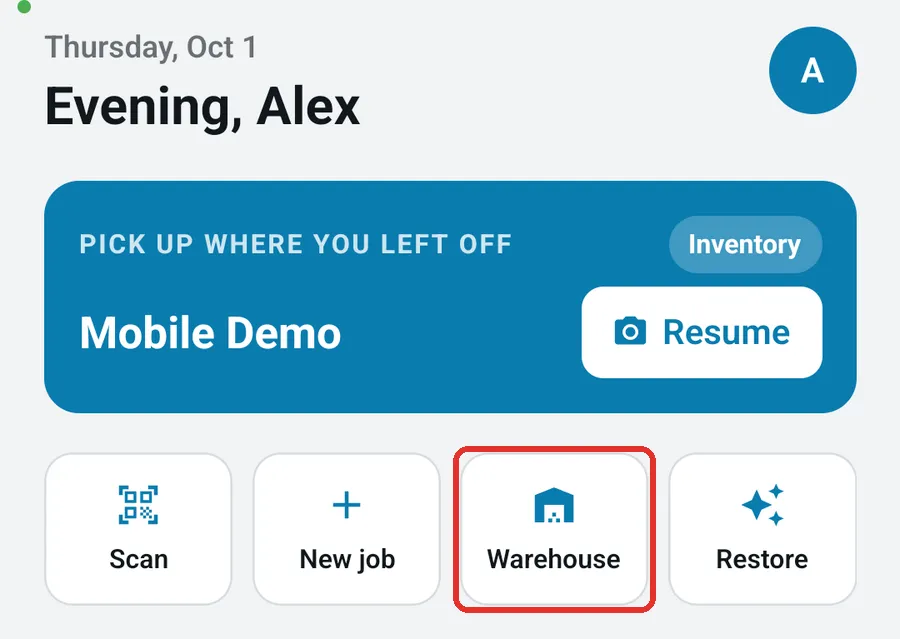
Section titled “From Home”On the Home tab, tap the Warehouse tile in the shortcut row, then tap I Agree. The app switches mode and opens the Warehouse tab.
From Settings
Section titled “From Settings”-
Open the Settings tab and tap Mode at the top.
-
Tap Warehouse in the list of modes, then tap I Agree.
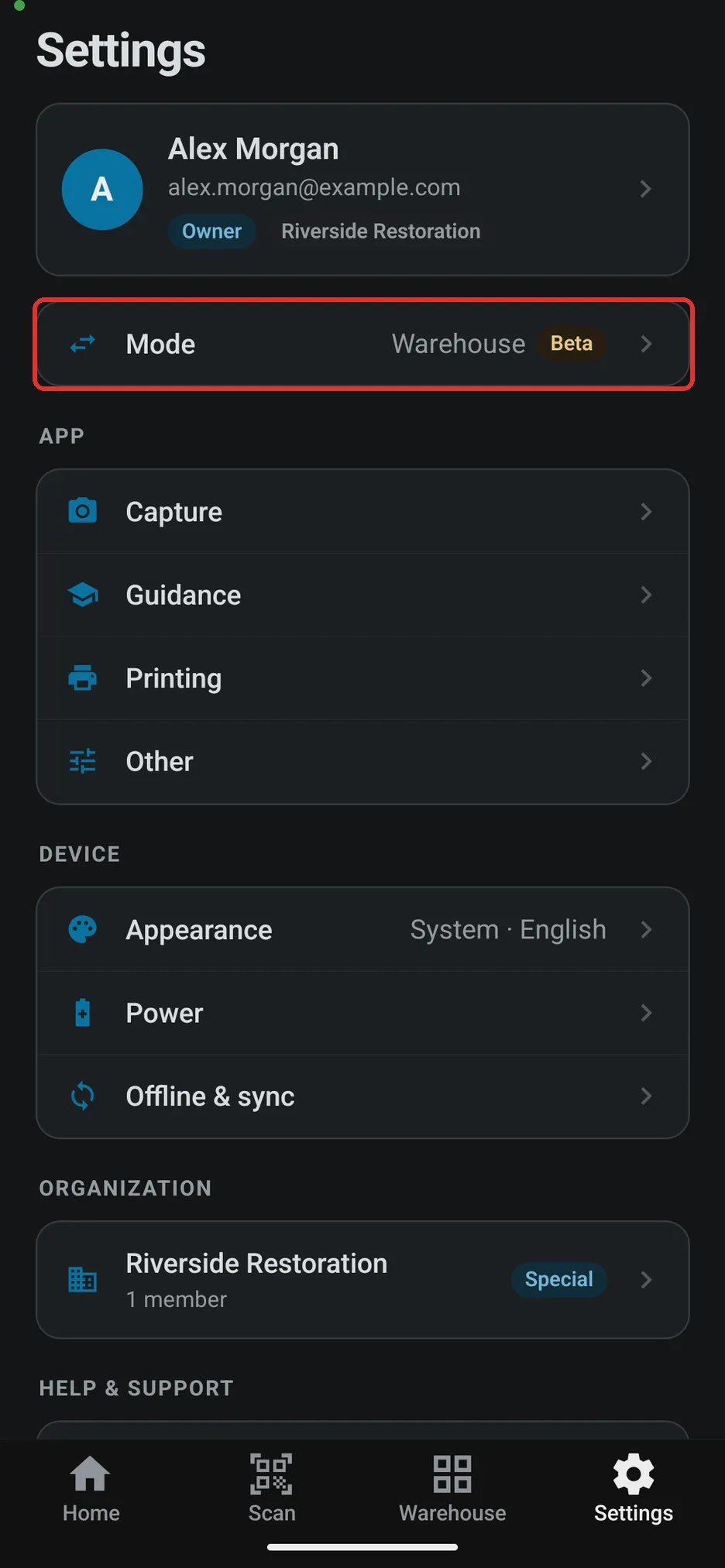
As soon as Warehouse Mode is on, the app simplifies down to four tabs — Home, Scan, Warehouse, and Settings. The usual Capture, Jobs, and Report tabs are hidden so the storage workflow stays front and center. Home stays: it’s your account-wide screen, with your daily figures and the shortcuts into the rest of the app.
If your organization locks the app mode: an organization admin can lock the app mode from the web app. Members then see a lock on the Mode row and the note “Your app mode is set by your organization. Contact your admin to change it.”, and the Warehouse tile is hidden on Home. The organization’s owner and admins aren’t affected by the lock and can still switch modes.
🗂️ The Tabs
Section titled “🗂️ The Tabs”-
Home is where the app opens: your greeting, what you captured today and over the last 7 days, and shortcuts — including Packout, which takes you back out of Warehouse Mode.
-
Scan is the camera tab: open a vault, add codes to it, or move codes to another vault. Hold a code inside the frame for a moment to scan it. Tap the flashlight icon in the top-right corner to turn on the torch in a dark aisle. The Scan tab looks codes up online, so it needs an internet connection (see Troubleshooting below).
-
Warehouse is the map: the whole warehouse as a grid you can pan, zoom, filter by job, and rearrange.
Most storage tasks can be started from either the Scan or the Warehouse tab — for example, you can open a vault by scanning it on the Scan tab or by tapping it on the grid, and both lead to the same vault view.
🧰 Common Tasks
Section titled “🧰 Common Tasks”Check what’s in a vault
Section titled “Check what’s in a vault”-
From Scan: point the camera at the vault’s QR code. A panel slides up with the vault’s name, its grid coordinates (or Off-grid), the jobs it holds, its location note, and the codes stored in it. Tap the note (or Add a location note) to write access instructions or anything else the crew should know.
-
From the grid: tap the vault’s cell (or pick it from the list if several are stacked in one spot).
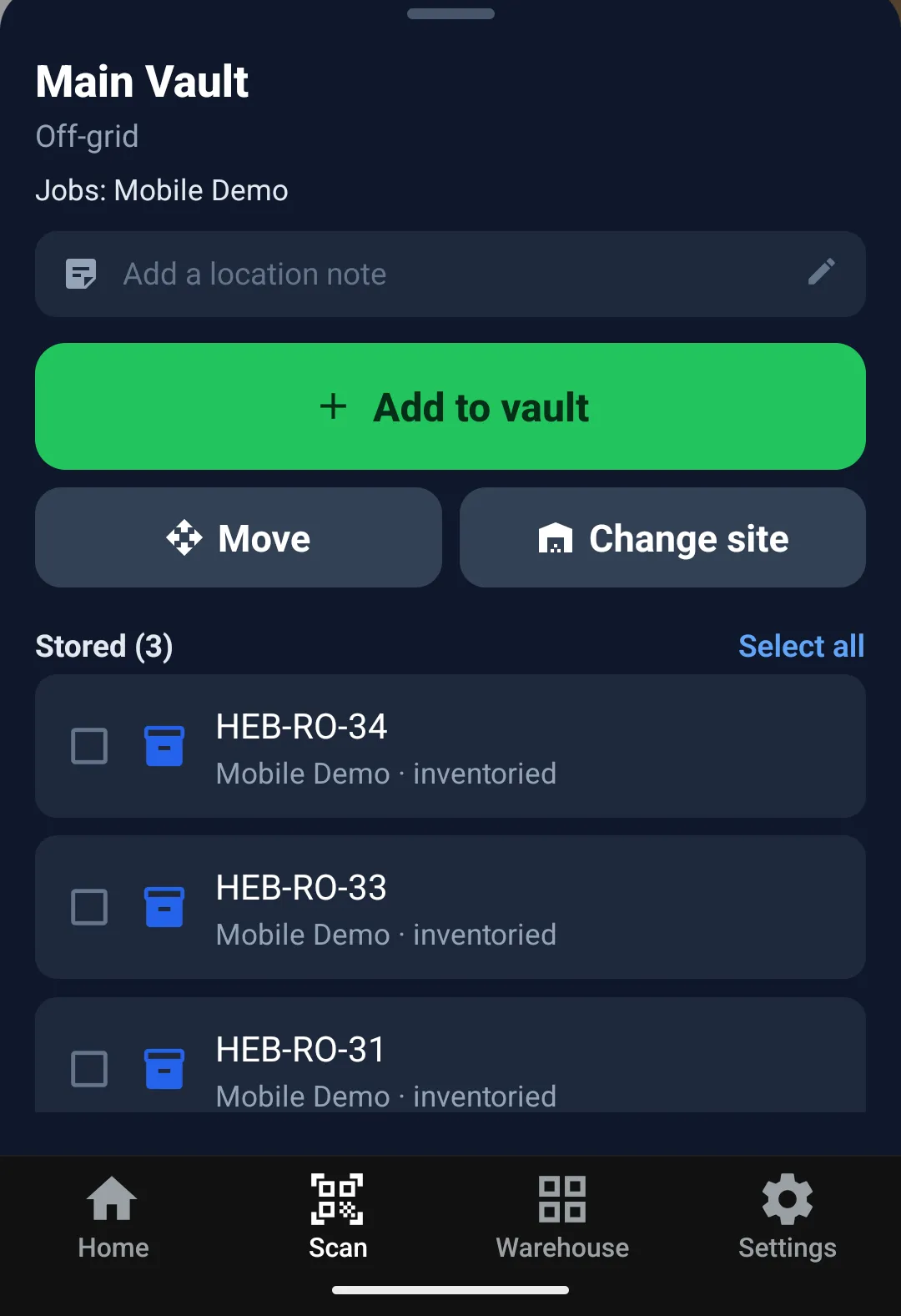
If you don’t have the vault in front of you, tap Search instead (Scan tab) or the search icon (Warehouse tab) and search by vault name, site, or job.
Add codes to a vault
Section titled “Add codes to a vault”-
Open the vault (scan it, or tap it on the grid).
-
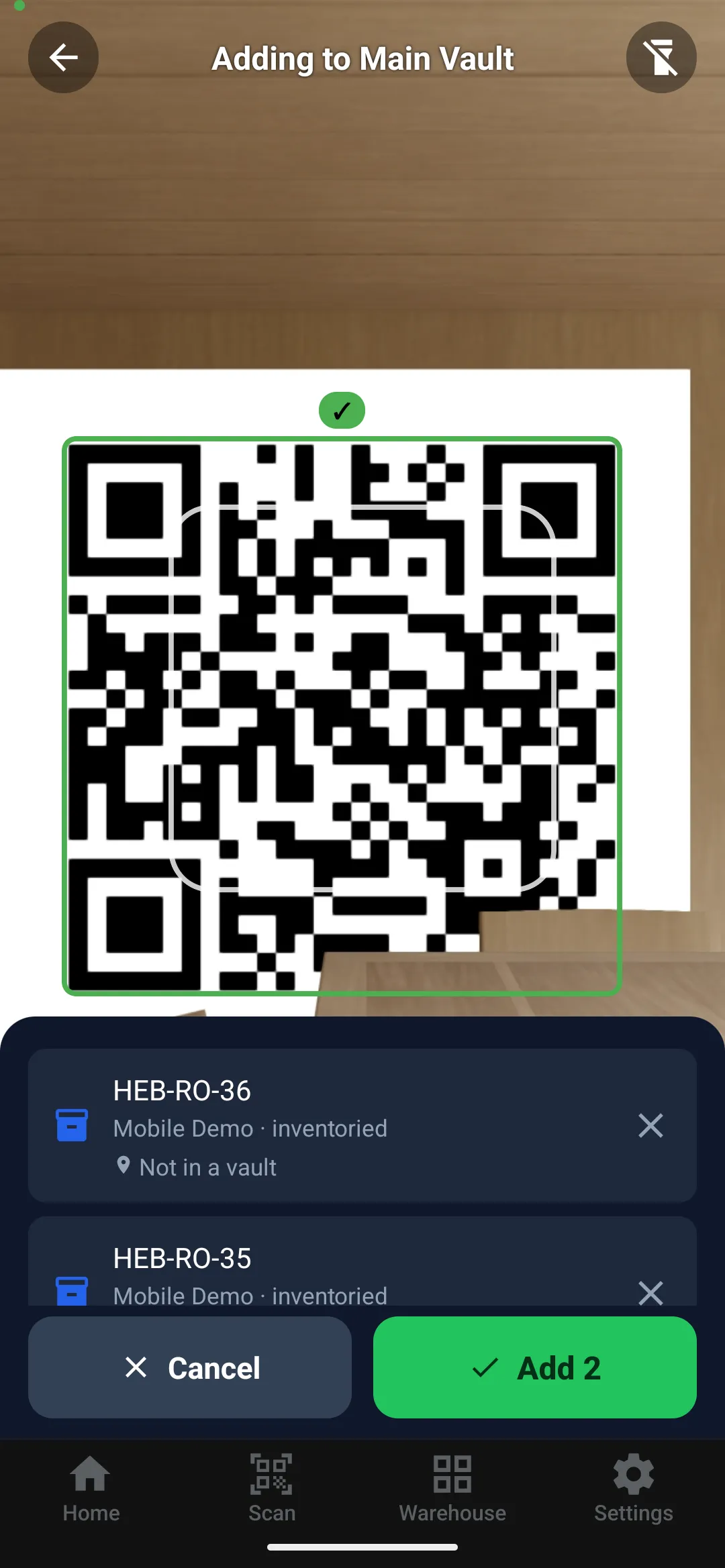
Tap Add to vault. The camera reopens in “adding” mode with the vault name in the header.
-
Scan each code in turn — they collect in a tray as you go. A code already in this vault is flagged so you don’t double-add it.
-
Tap Add [N] to commit, or Cancel to discard.
If the vault is set up to give its contents a status (for example, a cleaning room set to Cleaning), the codes you add or move into it take that status automatically, and the confirmation says so.
Move codes to another vault
Section titled “Move codes to another vault”-
Open the source vault and tap the codes to move in its stored list, or tap Select all above the list. (Or skip the vault and scan the codes directly from the idle Scan screen.)
-
Tap Move (above the stored list, or in the tray). The app switches to Scan a destination vault.
-
Scan (or search for) the destination vault, review the summary, and tap Move [N] to confirm.
Group scanned codes together
Section titled “Group scanned codes together”-
From the idle Scan screen, scan the labels you want to group — they collect in a tray as you go.
-
Tap Group [N]. The number is how many of the scanned labels can actually be grouped, so if it is lower than the tray count, some are being skipped.
-
Tap Scan group label and scan the group’s code, then confirm. Or tap Choose from list or create new to pick an existing group — each one shows how many labels it already holds — an unused label to become the group, or Create a new group and name it, then tap Group [N].
-
The labels take on the group’s room, status, categories, and storage location — and so do their items.
-
Tap View group on the confirmation to open the group label, where you can print it, move it, or edit its details. This switches your active job to the one the labels belong to.
A label cannot be grouped if it is itself a group, or if it already belongs to one. When none of the scanned labels qualify, the Group button is dimmed and tapping it explains why.
A label that is already in a group cannot be scanned into a batch or picked out of a vault on its own — its group decides where it goes. Scan the group’s label instead and the whole group travels together.
A new group needs at least two labels — one on its own is not a group. A single label can still be added to a group that already exists, which is the usual way to put a stray box onto an existing pallet.
All the labels in one batch have to belong to the same job; grouping never spans jobs.
Relocate a vault
Section titled “Relocate a vault”The fastest way to move a vault is to scan it, then scan the QR label at the destination coordinate:
-
On the Scan tab, scan the vault and tap Move.
-
Point the camera at the destination’s coordinate label. Its aisle and bay lock to what you scanned, and you just pick the Level (it starts at the lowest free one).
-
Tap Move here to confirm.
To set the spot by hand instead of scanning, use the Aisle / Bay / Level steppers (tap Adjust manually first if a scan has locked the aisle and bay).
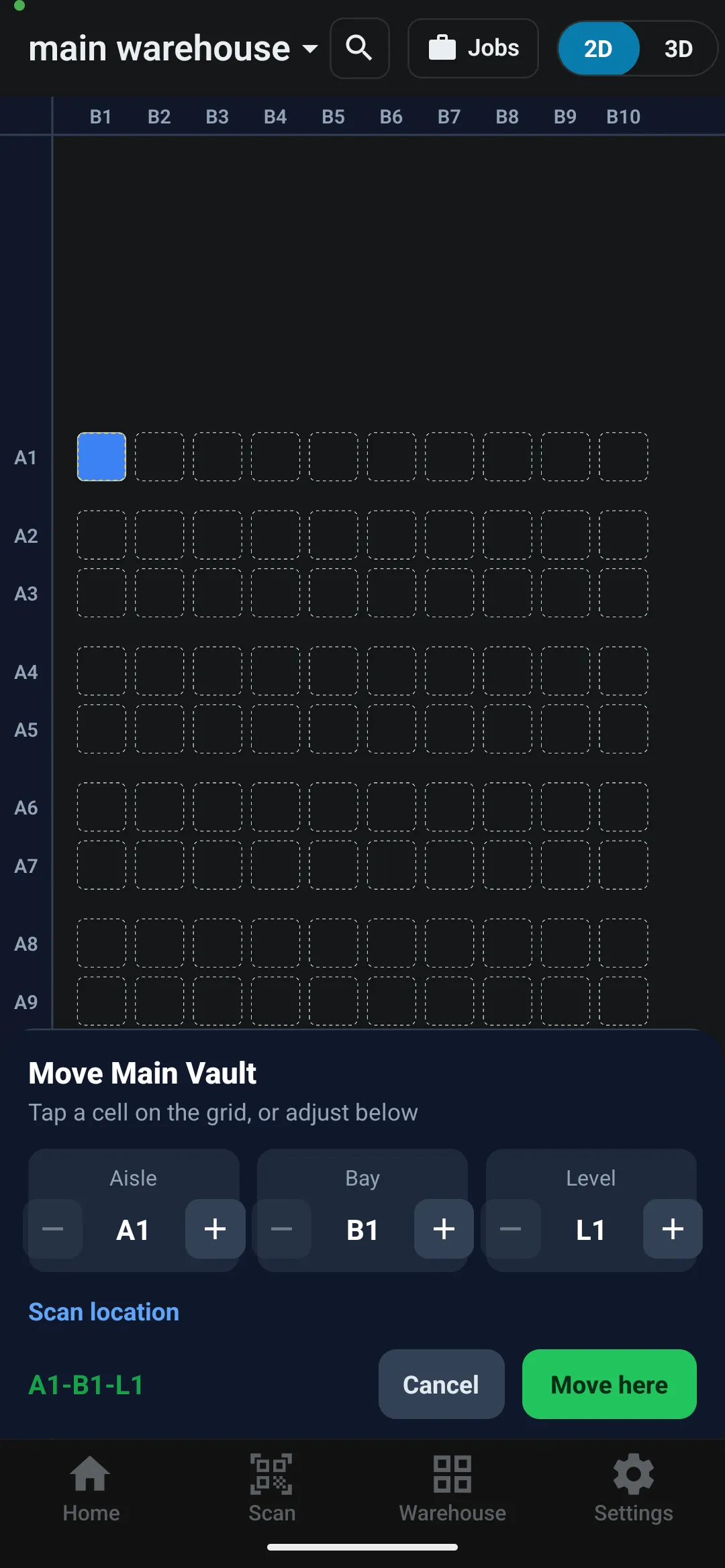
Coordinate labels are printed from the web app and posted at each coordinate — see Setup Locations. Scanning a coordinate label when you’re not moving anything opens that coordinate instead: its stored vaults, plus a Move a vault here action.
You don’t need a coordinate label to move a vault. Open it, tap Move, then tap the destination cell on the grid or use the steppers. A live preview shows the vault in its new spot, and the target turns red if the cell is out of range, blocked, or occupied. Tap Move here to confirm. To place a vault into an empty grid spot, tap that empty cell and choose Move a vault here.
While a vault move is in progress, the tab bar is dimmed and locked until you tap Move here or Cancel (on Android, the Back button also cancels the move).
Moving a vault to a different site: if you scan a coordinate label that belongs to another site during a move, the grid switches to that site and the bar warns Moving to a different site. Tapping Move here then moves the vault — with everything stored in it — to that site, at the spot you picked. To move a vault to another site without placing it, open it and tap Change site (shown when your organization has more than one site); it arrives in the new site off-grid.
Find a vault
Section titled “Find a vault”Tap the search icon on the Warehouse tab (or Search instead on Scan) and search by vault name, site, or job. Choosing a result highlights the vault on the grid and centers the view on it.
🗺️ Navigating the Warehouse Grid
Section titled “🗺️ Navigating the Warehouse Grid”The Warehouse tab shows the selected warehouse as a grid. If you manage more than one warehouse, use the picker in the header to switch between them.
2D and 3D
Section titled “2D and 3D”Use the 2D / 3D toggle in the header to switch views:
-
2D (flat): a top-down map with pinned Aisle (A) and Bay (B) rulers. Stacked vaults in one spot fan out, with a +N badge when a column holds more than a few levels.
-
3D: a true three-dimensional model you can orbit, pinch to zoom, and tilt. Use the fit and top buttons to snap back to a helpful angle.
Pan with one finger and pinch to zoom in either view. Tap a spot to open the vault there (or a list, if several are stacked).
Jobs and filtering
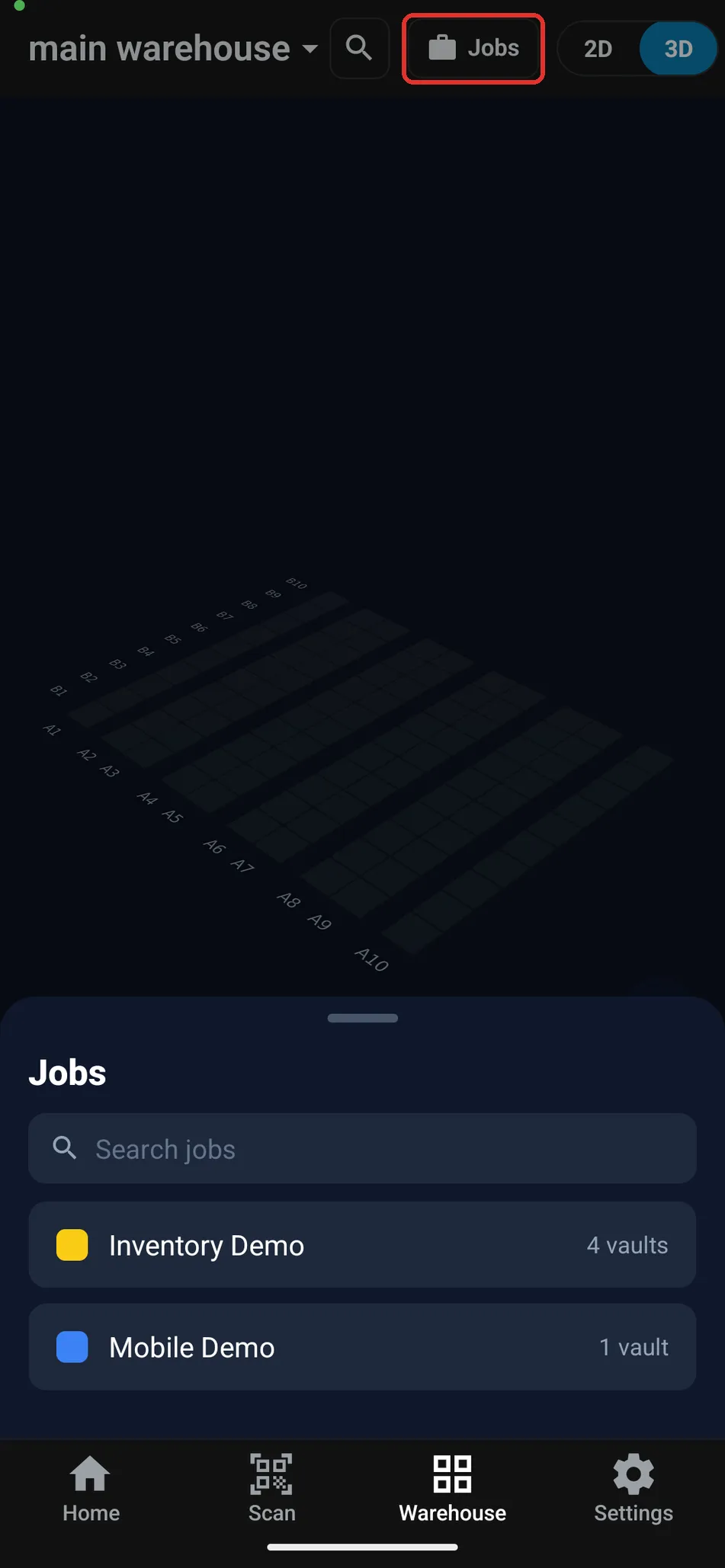
Section titled “Jobs and filtering”Each vault is tinted by the job it holds, so you can see at a glance how the floor is allocated. Vaults with no job are shown in a muted gray.
Tap Jobs to open the legend: search for a job and tap it to highlight its vaults across the grid while the rest dim. A banner shows the active filter and how many vaults match — tap it to clear.
Off-grid vaults
Section titled “Off-grid vaults”Vaults that don’t yet have grid coordinates appear in the Off-grid strip along the bottom. Tap one to open it, then use Move to place it on the grid. To take a vault off the grid, open it, tap Move, then Remove from grid.
💡 Best Practices
Section titled “💡 Best Practices”-
Scan as you go. Scan a code the moment it enters or leaves a vault so the live grid stays accurate for the rest of the team.
-
Finish or cancel batches and vault moves. Navigation is locked mid-scan and mid-move on purpose — commit or cancel before switching tabs.
-
Use job filtering to stage work. Highlighting a job’s vaults is a fast way to see everything for one job in one place.
🧩 Troubleshooting
Section titled “🧩 Troubleshooting”The Scan / Warehouse tabs aren’t showing. Warehouse Mode is saved per device, so turning it on on another phone doesn’t carry over — open Settings and make sure Mode is set to Warehouse. (Home and Settings appear in every mode, so seeing those two alone doesn’t mean the mode is on.)
I can’t switch to Warehouse Mode. If the Mode row shows a lock and there’s no Warehouse tile on Home, your organization has locked the app mode. Ask an organization admin or the owner to change it.
The Scan tab says “No vault or code found” (or “Not a known code” while you’re adding or moving codes). The code must be a vault, or a label on a job, in your currently selected organization. Confirm you’re signed in with the right organization selected, then rescan with the QR centered in the frame.
The Scan tab says “Can’t reach the server — check your connection and scan again”. The Scan tab looks every code up online, so it doesn’t work offline. Reconnect and scan again.
It’s too dark to scan. Tap the flashlight icon in the top-right corner of the Scan tab to turn on the torch.
The grid says the warehouse has no grid configured. The warehouse’s grid is set up on the web app — see Grid Editor. Once a grid exists, it appears here automatically.
I can’t drop a vault on a cell. The target cell is out of range, blocked, or already occupied (it shows red during the move). Pick a free cell, or adjust the level with the coordinate steppers.
The tab bar is dimmed and won’t respond. You’re either mid-scan collecting a batch, or in the middle of relocating a vault. Tap Add, Move, Group, or Cancel to finish the batch — or Move here or Cancel to finish the vault move — and navigation unlocks.
Group says the labels are from different jobs. Grouping works within one job. Cancel, then scan one job’s labels at a time.
A scan says the label is in a group. That label moves with its group. Scan the group’s label to move them all, or ungroup the label if it really should travel alone (see below).
How do I ungroup a label? Open the label in the job’s Custody list and tap Leave group on the banner at the top. Custody is part of Packout, so tap Packout on Home first. You can also open the group label and remove the label from its Grouped labels list. Either way, the label keeps the values it got from the group, and the rest of the group stays together.
Scanning a vault with Home’s Scan shortcut says “No job or location found for this code”. The vault isn’t in your active organization. Check that the organization selected in Settings is the one that owns the warehouse.