
Replacements Report
Esta página aún no está disponible en tu idioma.
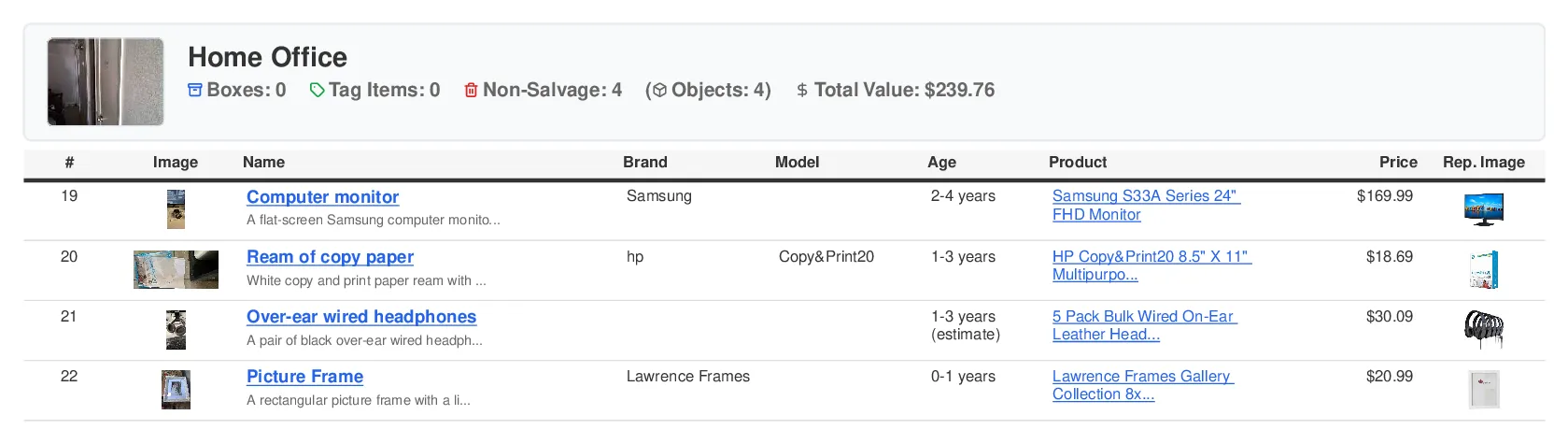
Shows non-salvageable items with their replacement products, replacement prices, replacement images, and item details such as brand, model, and age. Best for insurance claims.
What’s Included
Section titled “What’s Included”The Replacements Report includes detailed item information with replacement pricing:
-
Item Number: Sequential numbering for reference
-
Item Photos: Original item images
-
Item Description: Name and detailed description of each item
-
Product Details: Brand and model (size is available as an optional column)
-
Item Age: The item’s age (condition and storage category are available as optional columns)
-
Replacement Products: Suggested replacement product listings
-
Replacement Price: The current market price of the selected replacement
-
Replacement Images: Photos of suggested replacement products
This report is specifically designed for valuation purposes. It shows replacement prices only — for depreciation, ACV, and tax, generate the Valuation Report (also under Additional Reports).
Available as: PDF or Spreadsheet (XLSX). PDFs provide professional presentation with images and pricing, while spreadsheets offer sortable data for analysis and calculations.
When to Use This Report
Section titled “When to Use This Report”Best for:
-
Valuation documentation
-
Showing replacement options for damaged items
-
Adjuster reviews requiring pricing details
Not ideal for:
-
Sharing with policyholders (may contain sensitive pricing)
-
Items without replacement data
-
Quick visual overviews (use Photo Report)
-
Non-pricing focused documentation
How to Generate
Section titled “How to Generate”-
Open your job in the web app
-
Click the Reports tab (top right)
-
Click Generate Report
-
Expand Additional Reports
-
Select Replacements Report
-
Choose PDF or Spreadsheet format
-
Customize your options under Advanced Options (see below)
-
Click Generate Report
Note: Most reports download immediately. Large jobs (2,000+ items) are emailed to you when ready.
Customization Options
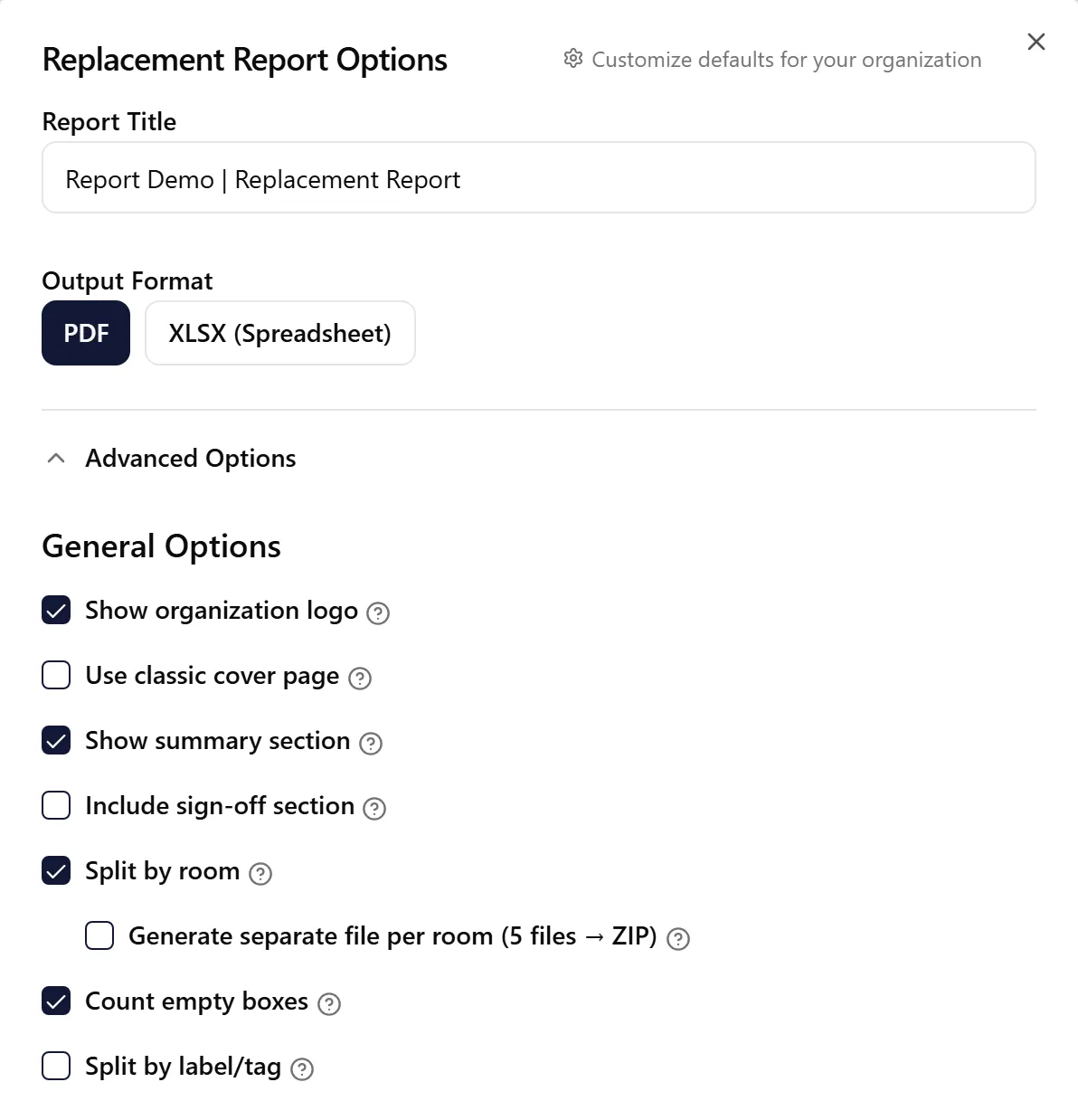
Section titled “Customization Options”Show Organization Logo
Section titled “Show Organization Logo”Default: Enabled
Adds your organization’s logo to the report header.
Show Summary
Section titled “Show Summary”Default: Enabled
Includes a summary section with:
-
Box, tag item, textile, and non-salvage counts
-
Total number of objects
-
Total replacement value
Split by Room
Section titled “Split by Room”Default: Enabled
Organizes the report into separate sections for each room.
Split by Label/Tag
Section titled “Split by Label/Tag”Default: Disabled (PDF only)
Creates separate sections for each box or bag label.
Include Additional Item Photos
Section titled “Include Additional Item Photos”Default: Disabled (Spreadsheet only)
Adds up to five of each item’s additional photos to the spreadsheet, one photo per column, at the far right of the table after every other column. These columns are left out of the column filters, so sorting and filtering still work on the item data. Jobs with many photos take longer to generate with this turned on.
Item Filters
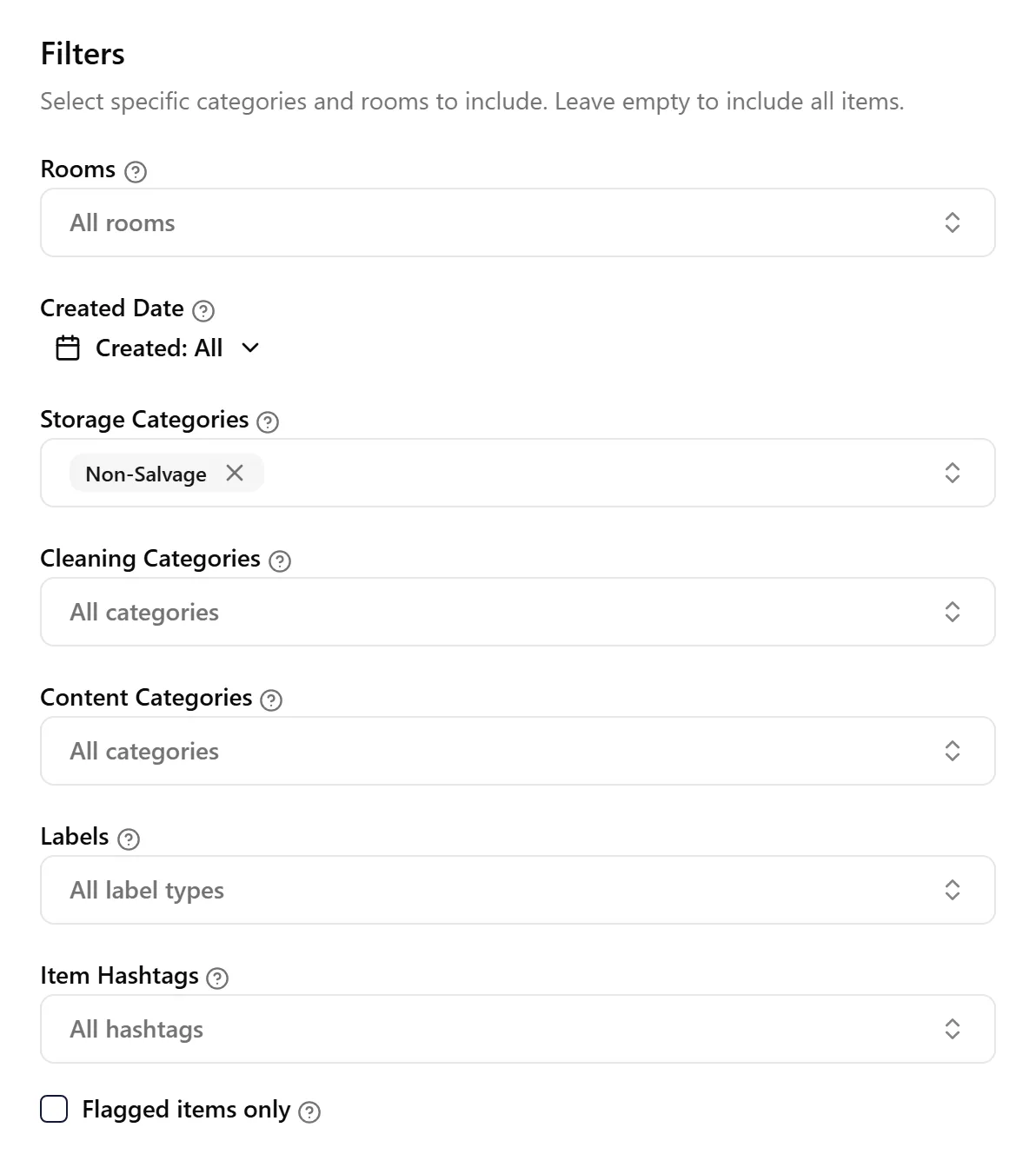
Section titled “Item Filters”Default: Non-Salvage items only (Storage Categories filter)
Use filters to include only specific items in the report. Clear the Storage Categories filter (and leave the others empty) to include all items.
Available filters:
-
Storage Categories: Filter by where items are stored (In Storage, Left on Site, Non-Salvage, etc.)
-
Cleaning Categories: Filter by cleaning requirements (As-Is, Needs Cleaning, etc.)
-
Rooms: Filter by specific rooms. Select “No Room” to include unassigned items
-
Labels: Filter by label type (Box, Tag, Textile, Garment Bag, Non-Salvageable, Other, or No Label)
-
Created Date, Content Categories, Item Hashtags and Flagged items only: narrow the report further by when items were added, their category, their hashtags, or to flagged items
When you select multiple options in a filter, the report includes items matching any of those selections.
Column Selection
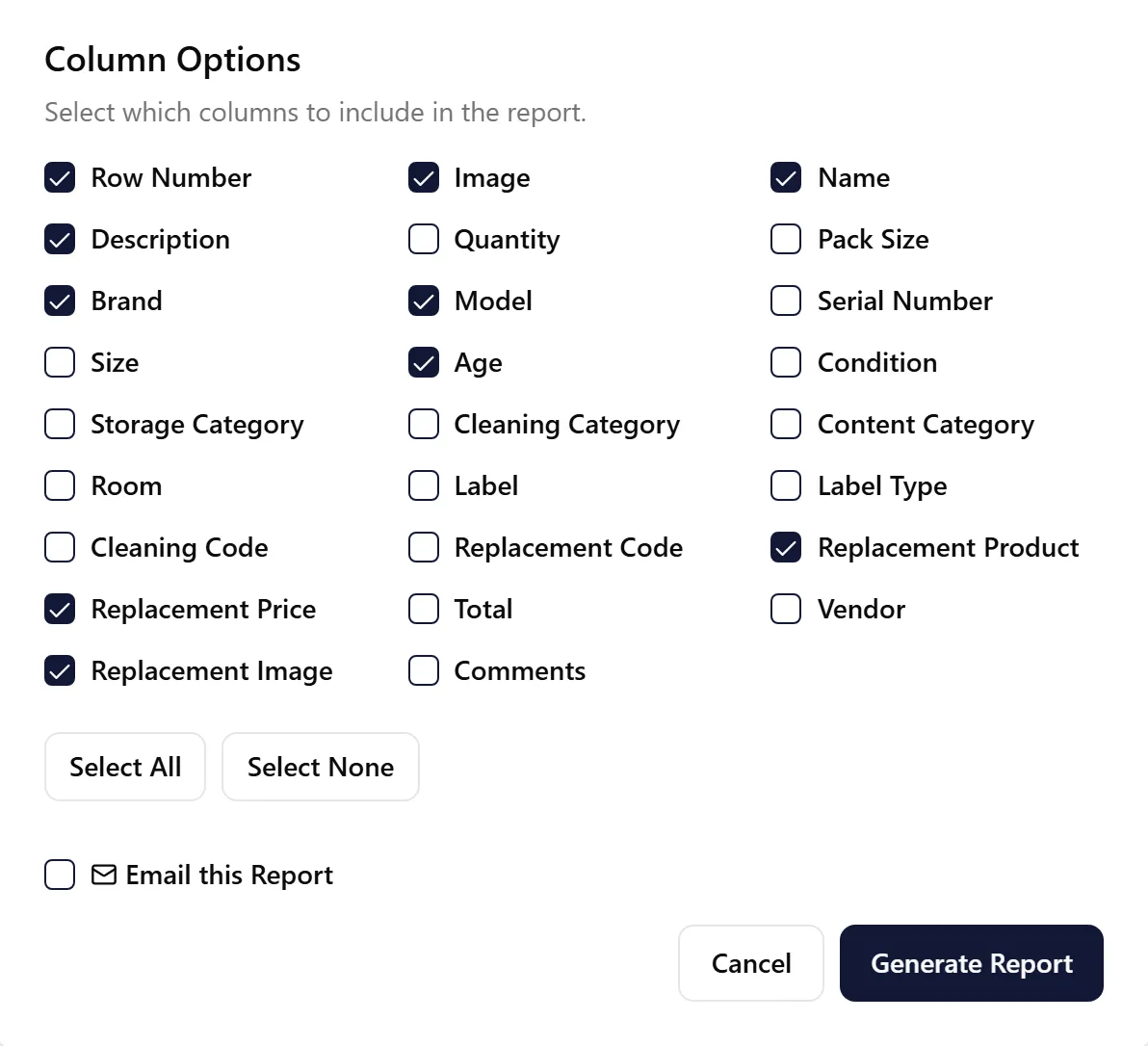
Section titled “Column Selection”Default columns shown:
-
Row Number
-
Image
-
Name
-
Description
-
Brand
-
Model
-
Age
-
Replacement Product
-
Replacement Price
-
Replacement Image
Other columns — such as Quantity, Size, Condition, Storage Category, Room, Label, Vendor, and Total — can be turned on as needed.
Use “Select All” or “Select None” buttons, then toggle individual columns as needed.
Understanding Replacement Data
Section titled “Understanding Replacement Data”Actual Cash Value (ACV)
Section titled “Actual Cash Value (ACV)”The Replacements Report does not include ACV. ACV (the depreciated value of an item) is shown in the job’s Valuation tab and in the Valuation Report — see Understanding the Valuation Tab: RCV, ACV, Tax, and Depreciation for how it is calculated.
Replacement Products
Section titled “Replacement Products”When items are identified and priced, ContentsPal may suggest replacement products:
-
Product Listings: Current market equivalents
-
Replacement Images: Photos of suggested replacements
-
Pricing: Current market pricing for replacements
Items Without Replacement Data
Section titled “Items Without Replacement Data”Not all items may have complete replacement information:
-
Items may show original photos but no replacement suggestions
-
Pricing may be estimates rather than specific products
-
You can manually add replacement data in the item details
Viewing Report History
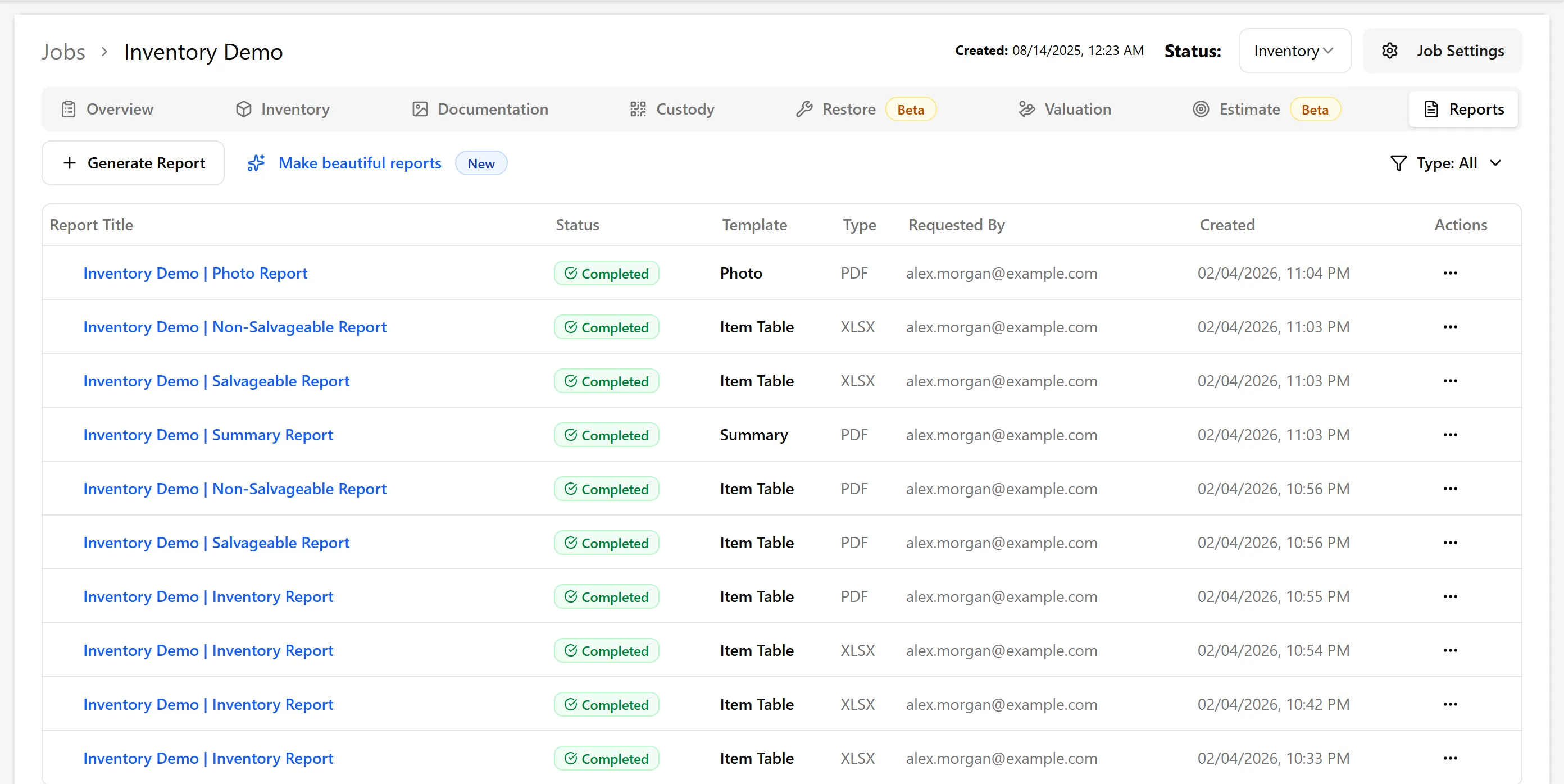
Section titled “Viewing Report History”All generated reports are stored in the Reports tab where you can:
-
Download reports again anytime
-
See generation status
-
Track who requested each report
-
Verify pricing data before submitting to insurance companies
-
Use filters to create reports for specific claim categories
-
Split by room for large properties to organize by location
-
Check replacement suggestions for accuracy and current availability
-
Include summaries when submitting to adjusters for easy totals
Troubleshooting
Section titled “Troubleshooting”Missing replacement data
-
Some items may not have replacement products identified
-
Manually add product information in item details
-
Use pricing estimates if specific products aren’t available
Replacement pricing seems incorrect
-
Verify product matches the original item specs
-
Check that condition and age are accurately entered
-
Prices reflect current market, which may differ from purchase price
-
Contact support if pricing appears significantly off
Report doesn’t include pricing for some items
-
Ensure items have replacement cost data entered
-
Check if items are marked as “not priced” or “TBD”
-
Some items may require manual pricing entry
ACV calculations don’t match expectations (Valuation Report)
-
ACV isn’t part of the Replacements Report — use the Valuation Report or the job’s Valuation tab
-
Review depreciation schedules in your organization settings
-
Verify item age and condition are correctly entered
-
Different item categories may have different depreciation rates
Related Articles
Section titled “Related Articles”-
Non-Salvageable Report - Items marked for disposal
-
Custom Inventory Report - Flexible column layouts
-
Salvageable Report - Items in storage or restoration