
How to Change Box Size on a Custody Label
Esta página aún no está disponible en tu idioma.
Learn how to update the box size assigned to a custody label from the web portal’s Custody tab or the mobile app.
Overview
Section titled “Overview”If you need to update the box size assigned to a custody label (for example, changing from a small box to a medium or large), you can do this directly from the Custody tab on the web portal or in the mobile app.
-
Navigate to your job and open the Custody tab.
-
Locate the label you want to update. You can scroll through the list or use the search bar to find it quickly.
-
Click on the label to open its details.
-
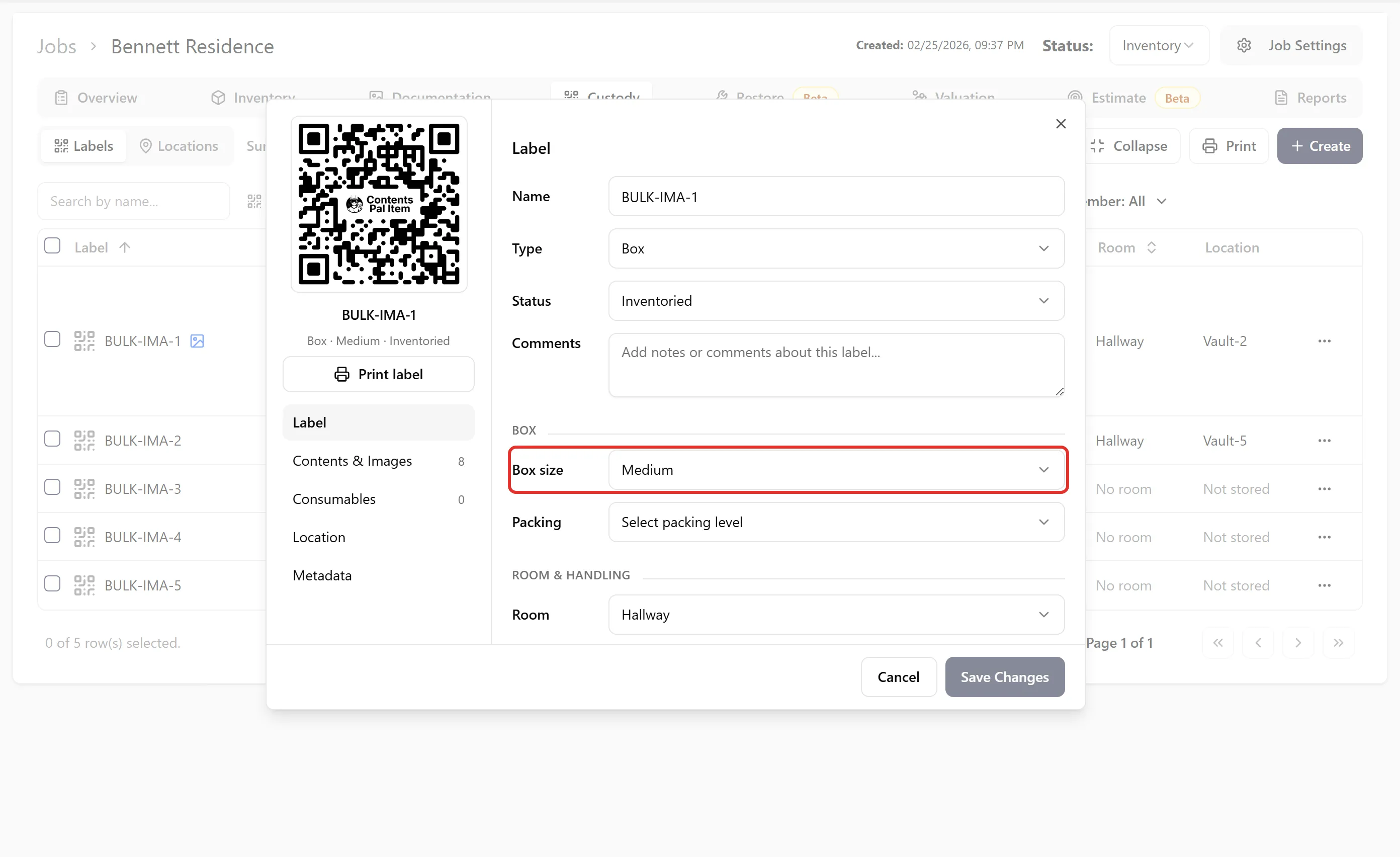
In the label detail view, on the Label tab, find the Box size field (under Box) and select the new size from the dropdown.
-
Click Save Changes.
Here’s what the label detail view looks like with the box size selector:
In the Mobile App
Section titled “In the Mobile App”Open the job’s Custody tab and tap the label. Expand the Details section, tap Box Size, and pick the new size. The change is saved as soon as you select it.
- Changing the box size on a label does not affect the items assigned to that label — it only updates the box size metadata for reporting and tracking purposes, along with the box’s Xactimate cleaning code, which is based on its size.