
🔍 Reviewing Soft Goods Inventory / Custody / Estimate
Learn how to review textile inventory in the web admin view across Inventory, Custody, and Estimate tabs.
🧭 Summary
Section titled “🧭 Summary”After inventorying and packing textile items using the mobile app, you’ll review and manage everything from the web admin view. The review process for soft goods is similar to hard contents, but with important differences in how bulk items, specialty items, and estimates work.
This guide walks you through reviewing textile inventory across three main tabs:
-
Inventory: Where you see individual items and can adjust codes and upcharges
-
Custody: Where you track packed items and automatically generated labels
-
Estimate: Where bulk items are aggregated by room and specialty items appear by Xactimate code
Understanding these differences helps you review textile jobs efficiently and ensure your estimates are accurate before sending them to adjusters.
⚙️ Prerequisites
Section titled “⚙️ Prerequisites”-
Textiles Mode enabled in the mobile app
-
Items inventoried using the mobile app (Bulk Mode and/or Single Mode)
-
Items packed using Pack Mode (optional, for Custody tab review)
-
Access to the web admin view
🚀 Step-by-Step Instructions
Section titled “🚀 Step-by-Step Instructions”1. Open the Job and Navigate to Inventory Tab
Section titled “1. Open the Job and Navigate to Inventory Tab”-
Log into the web admin view
-
Open the job you’ve been working on
-
Click the Inventory tab
2. Review Bulk Items (Wash/Dry/Fold)
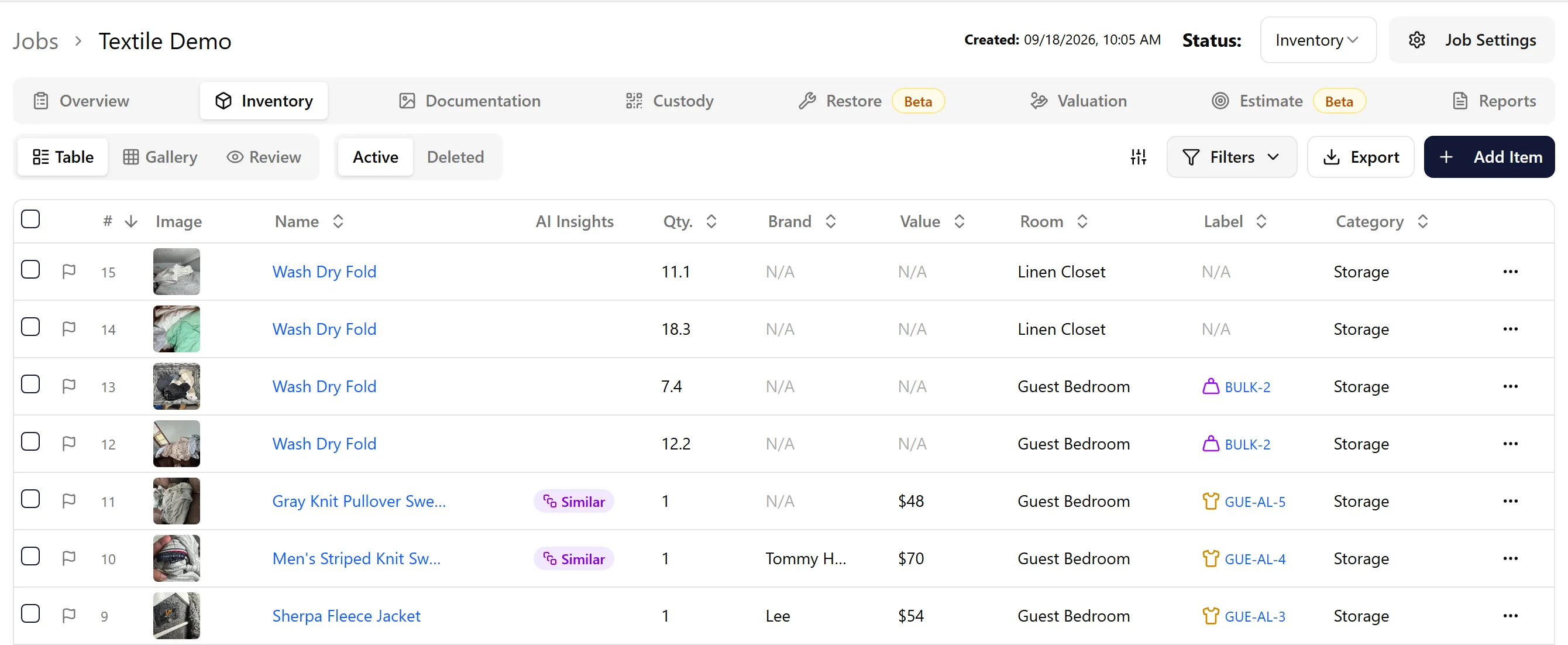
Section titled “2. Review Bulk Items (Wash/Dry/Fold)”Bulk items appear with these characteristics:
-
Item name: “Wash Dry Fold”
-
Picture: The photos you took of items on the scale
-
Quantity: The weight of that load (not a count of individual items)
What you’ll see:
-
Each load you photographed appears as a separate line item in the Inventory tab
-
For example, if you took 5 pictures of different loads, you’ll see 5 line items here
-
The quantity field shows pounds (e.g., “408 lbs”)
3. Review Specialty Items (Single Mode)
Section titled “3. Review Specialty Items (Single Mode)”Specialty items appear just like regular inventory items:
-
Picture: Photos you took of the item
-
Item details: Brand, description, age, condition
-
Pricing: Cost information
Textile Upcharges
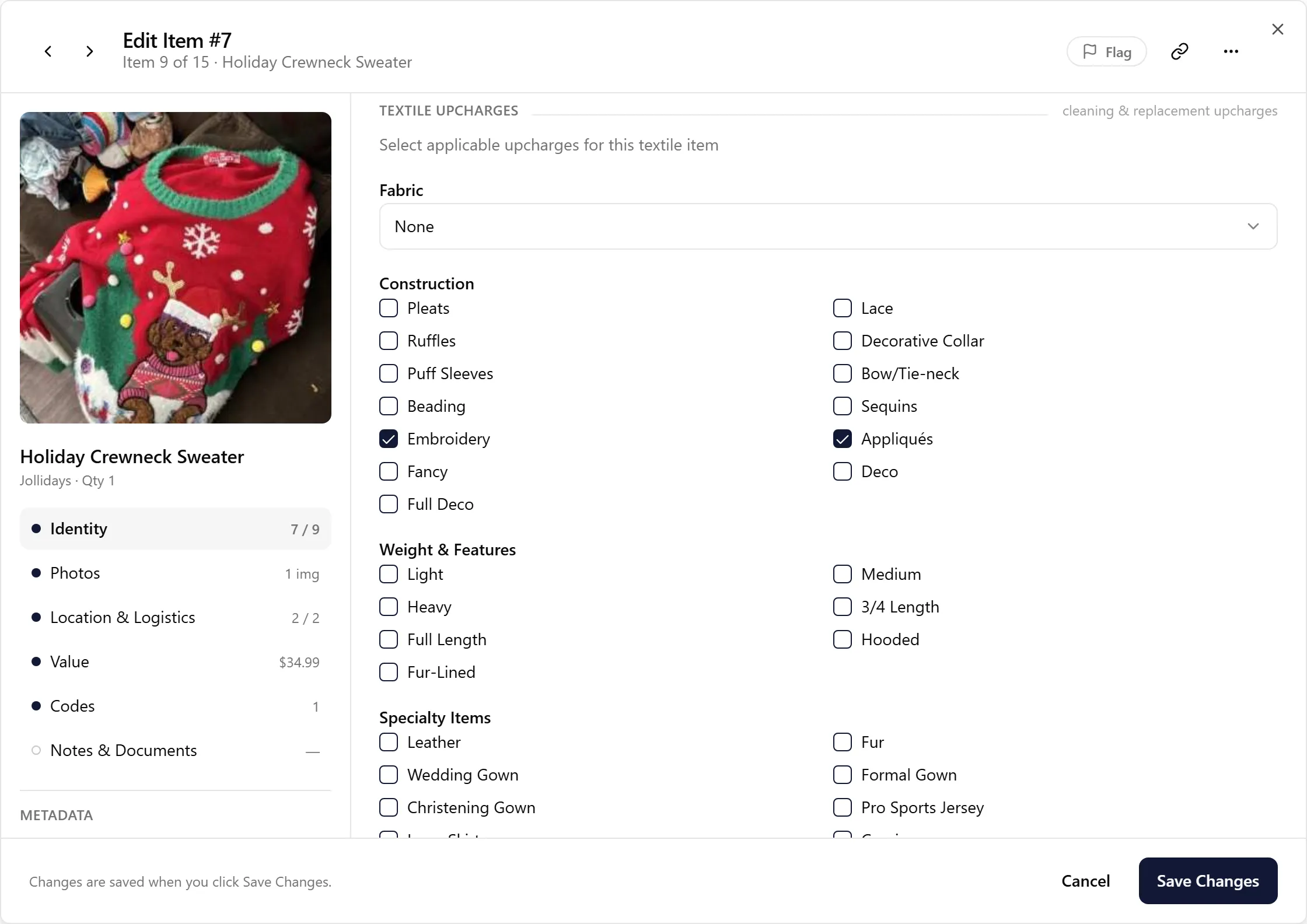
Section titled “Textile Upcharges”The main difference for specialty items is the Textile Upcharges section, found in the Identity section when you open the item:
-
Shows detected fabric type (e.g., wool, silk, cotton)
-
Shows weight and feature classification
-
Shows construction details
-
Shows specialty item upcharges
-
These upcharges inform which Xactimate code the system selects when it identifies the item
How to adjust upcharges:
-
Open the item and go to the Textile Upcharges section
-
Review the detected upcharges (Fabric, Construction, Weight & Features, Specialty Items)
-
If you want to change an upcharge, uncheck or modify it, then save
-
Changing upcharges doesn’t change the item’s Xactimate code by itself—check the code afterwards and select a different one if needed (see the next step)
4. Change Xactimate Codes if Needed
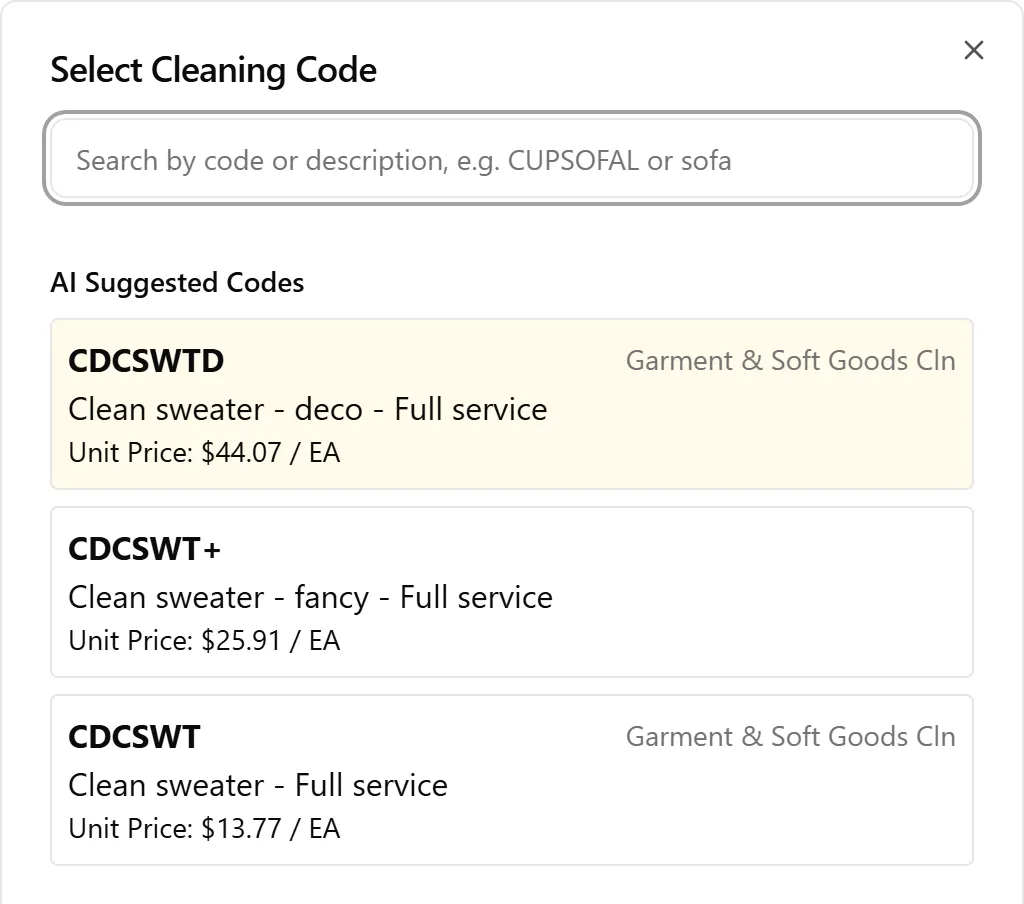
Section titled “4. Change Xactimate Codes if Needed”If the system picked the wrong Xactimate code:
-
Open the item and go to the Codes section
-
Next to Cleaning Code, click Select
-
Select a different code from the suggested list, or
-
Search by code or description if you already know it
5. Identify Multi-Mode and Duplicate Items
Section titled “5. Identify Multi-Mode and Duplicate Items”Multi-Mode Items
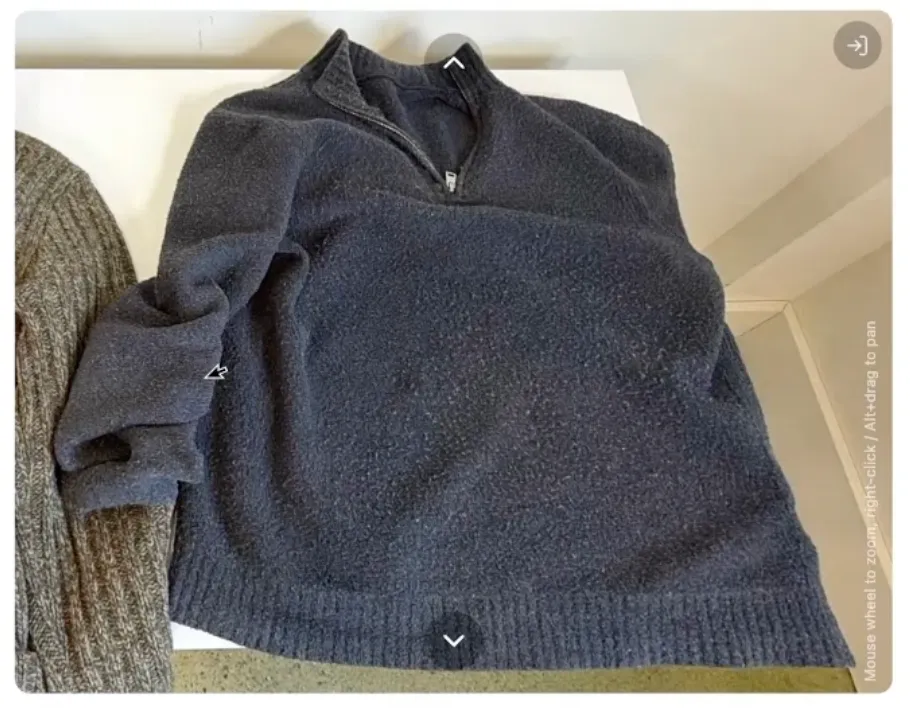
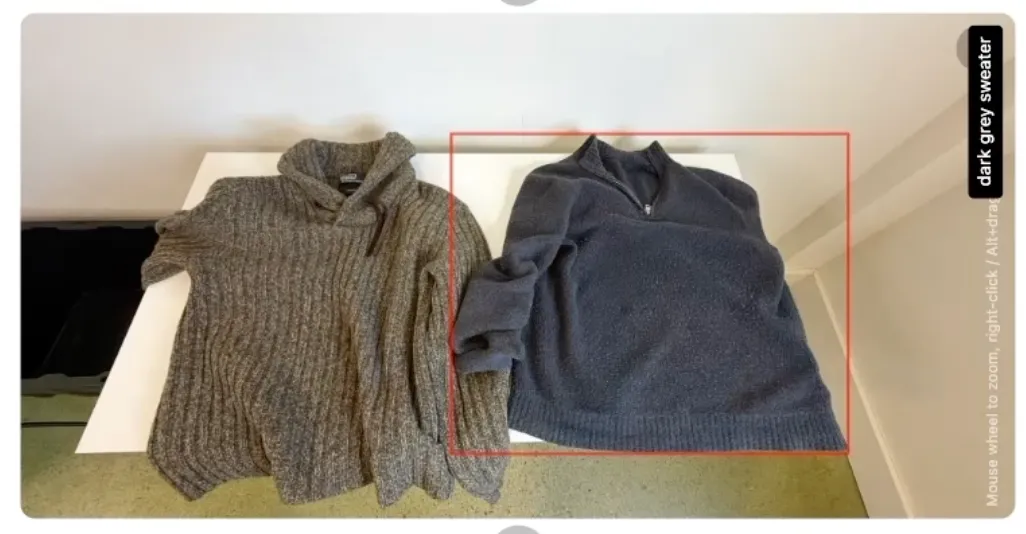
Section titled “Multi-Mode Items”If you see a small symbol in top left of picture indicating multi-mode:
-
This means you captured multiple items in a single photo using Multi-mode
-
The system crops the original photo to show just that item
-
Click the symbol to see all items from that group
Duplicate Items
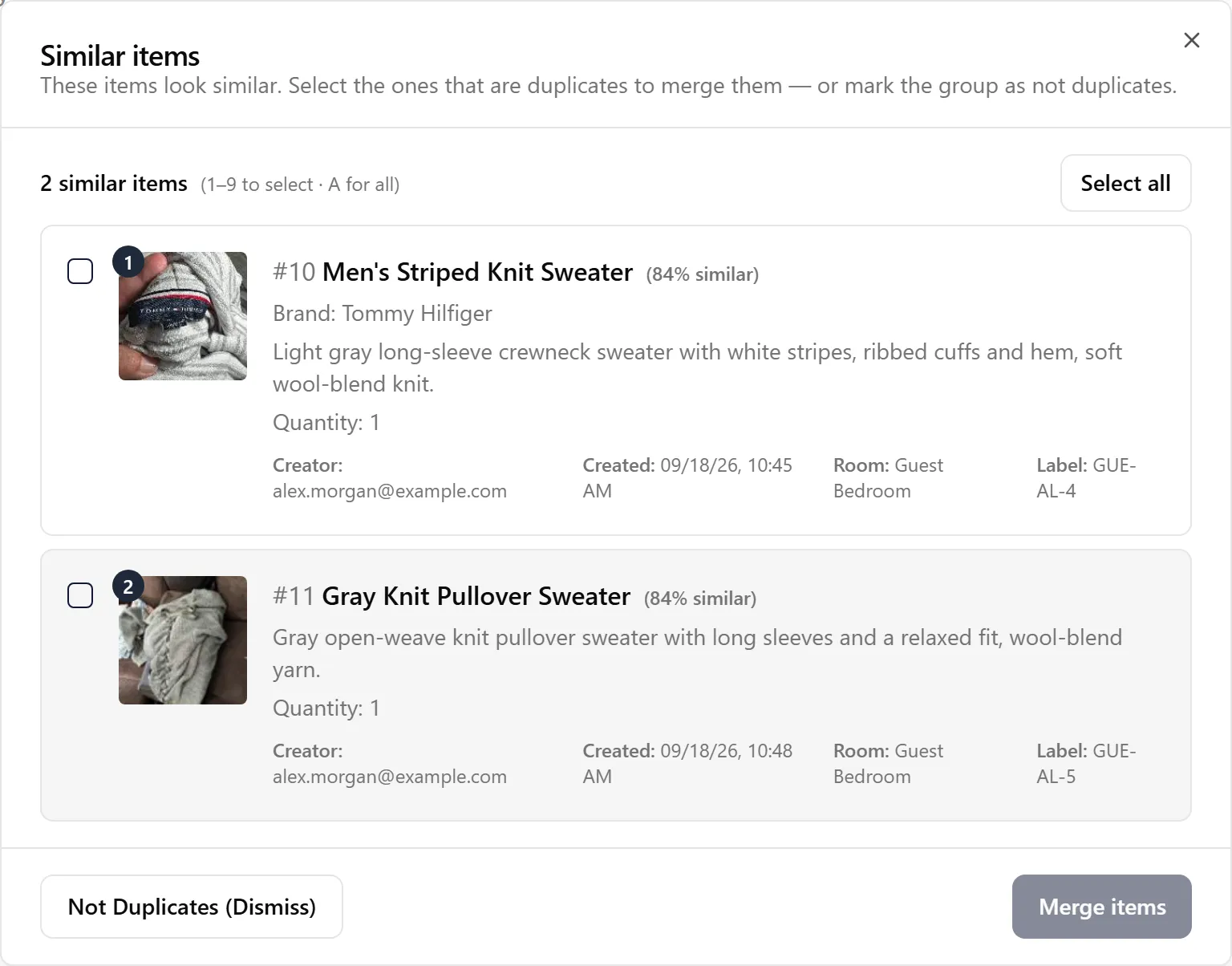
Section titled “Duplicate Items”If you see a duplicate detection symbol:
-
Click it to see potential duplicates
-
Review the suggested matches
-
If it’s truly a duplicate (e.g., you photographed the same sweater twice), select the items and merge them into a single line item
6. Review the Custody Tab
Section titled “6. Review the Custody Tab”-
Click the Custody tab
-
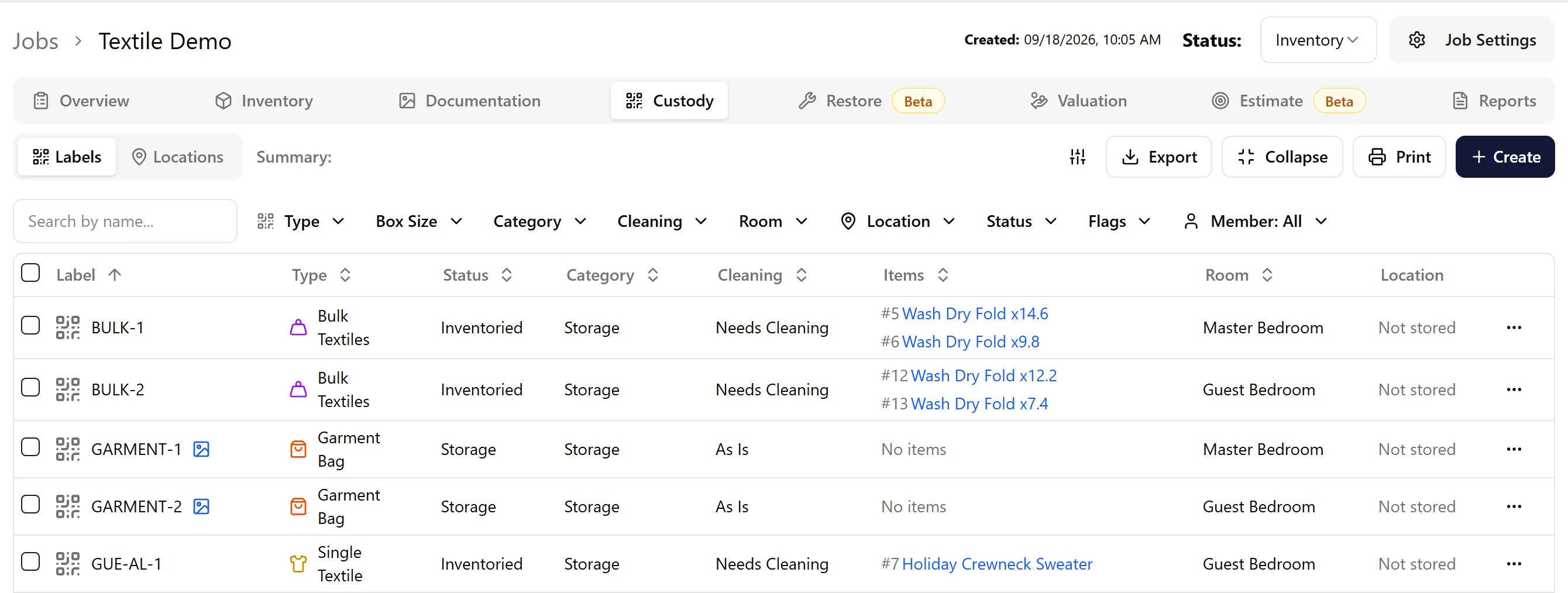
You’ll see different types of labels than you would for regular contents
What Appears in Custody
Section titled “What Appears in Custody”Single textile labels:
-
Automatically created when you inventory specialty items in Single Mode
-
Generated even if you didn’t scan a QR code
-
Helps you keep track of items
Packed boxes and garment bags:
-
Created when you use Pack Mode to pack processed items
-
Associated with QR codes you scanned during packing
-
Show images of what’s inside
Key Difference from Tagged Items
Section titled “Key Difference from Tagged Items”-
Tagged items and boxes: Require QR codes during inventory
-
Single and bulk items during inventory: QR codes optional
-
Packed items (boxes and garment bags): Scanning a QR code during packing is recommended; if you don’t scan one, a label is generated automatically
7. Review the Estimate Tab
Section titled “7. Review the Estimate Tab”-
Click the Estimate tab
-
Click Rebuild (and confirm with Recalculate) whenever the job has changed since the estimate was last built—see below
⚠️ When to Rebuild the Estimate
Section titled “⚠️ When to Rebuild the Estimate”The estimate doesn’t update itself. It’s built the first time you open the Estimate tab and then saved, so later changes in Inventory or Custody don’t reach it until you click Rebuild. Rebuild:
-
After you finish inventorying or packing
-
After you fix items or labels—cleaning category, room, label type, weight, or Xactimate code
-
Whenever the counts or totals on the Estimate tab (for example, the number of boxes) don’t match what you see in Inventory or Custody
When the job has changed since the last build, the Rebuild button is highlighted with a warning icon—hover it to see when the job changed and when the estimate was last built.
Which Textiles Get Cleaning Lines
Section titled “Which Textiles Get Cleaning Lines”Only textile items with a cleaning category of Needs Cleaning produce cleaning line items in the estimate. Items marked As Is, Biohazard, or Unknown are packed, tracked, and stored as normal, but no textile cleaning charge is added for them.
You can set this while you capture: in Single and Pack modes the capture screen shows a Cleaning checkbox in the top-right corner. Tick it to mark the whole label and everything in it as Needs Cleaning. The box starts ticked or unticked according to the job’s default cleaning category, and Single mode starts ticked when the job has no default set. Wash/dry/fold loads captured in Bulk mode are always recorded as Needs Cleaning.
How Wash/Dry/Fold Items Are Aggregated
Section titled “How Wash/Dry/Fold Items Are Aggregated”This is the main difference between textile estimates and regular contents:
In the Inventory tab:
- You separate line items for each load you photographed
In the Estimate tab:
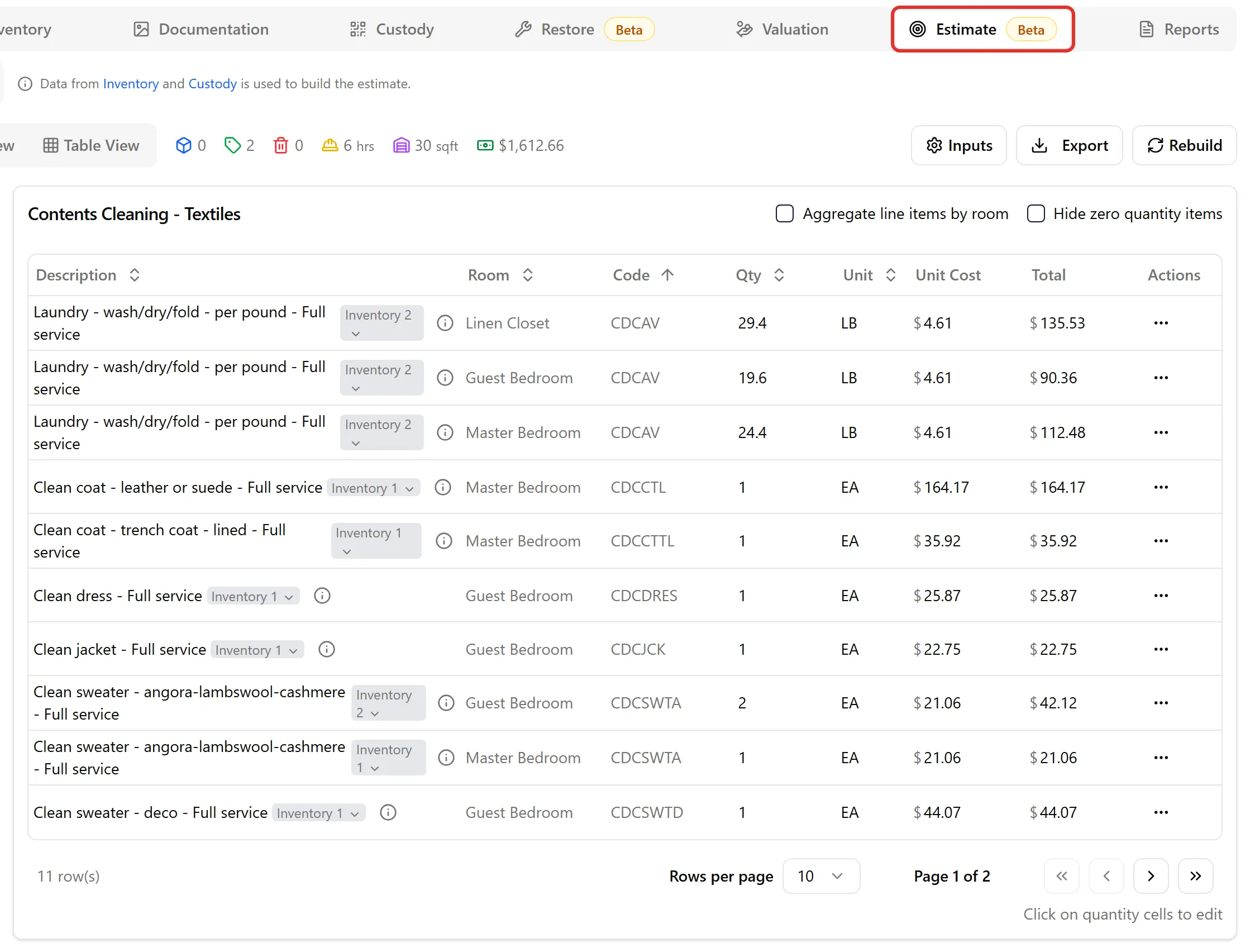
- Wash/dry/fold items are aggregated per room into a single line with the CDCAV code
Example:
-
Master Bedroom: 408 lbs (aggregated from 3 loads)
-
Guest Bedroom: 185 lbs (aggregated from 2 loads)
Room View
Section titled “Room View”If you switch to the room view:
-
Each room shows its aggregated wash/dry/fold line item
-
Quantity = total weight for all loads from that room
Specialty Items in the Estimate
Section titled “Specialty Items in the Estimate”Specialty items are grouped by room and Xactimate code in the estimate:
-
Each Xactimate code gets its own line in each room
-
Shows the combined quantity of items with that code (e.g., 3 wool sweaters, 1 turtleneck)
-
Upcharges are reflected in the codes used
8. Report Textiles and Other Contents Separately (Optional)
Section titled “8. Report Textiles and Other Contents Separately (Optional)”Reports include textiles alongside hard contents. To give the estimator one report with only textiles and another with everything else, generate the Custom Inventory Report twice using the Labels filter—see the steps in Custom Inventory Report.
✅ Best Practices
Section titled “✅ Best Practices”-
Review upcharges for specialty items: Check fabric type, weight, and construction to ensure accurate codes
-
Adjust Xactimate codes as needed: If the system picked the wrong code, change it from the dropdown
-
Look for duplicate indicators: Merge duplicate items to avoid double-charging
-
Check room assignments: Make sure wash/dry/fold items are aggregated correctly by room in the estimate
-
Verify Custody labels: Even if you didn’t scan QR codes during inventory, labels are auto-generated for tracking
-
Review packed items: Check that garment bags and boxes show the correct images and room associations
-
Rebuild estimate before final review: Ensure all changes are reflected in the estimate
🧩 Troubleshooting
Section titled “🧩 Troubleshooting”The wrong Xactimate code was selected: Open the item, go to Codes, click Select next to Cleaning Code, and choose a different one. If upcharges are wrong, adjust those first in the Textile Upcharges section, then select the code.
I see duplicate items in the inventory: Click the duplicate detection symbol to view suggested matches. If they’re truly duplicates, select them and merge into a single line item.
Wash/dry/fold items show separately in Inventory but I want them combined: This is normal. In the Inventory tab, each load appears separately. They’re automatically aggregated per room in the Estimate tab—check there to see the combined weights.
I don’t see a label in Custody for a specialty item: Labels are auto-generated for all single/specialty items, even without QR codes. Check the Custody tab—it should be there as a “Single Textile” label.
Textiles are missing from the estimate: Only items marked Needs Cleaning generate textile cleaning lines. Update the cleaning category in the Inventory tab and rebuild the estimate. To avoid the fix-up next time, tick the Cleaning checkbox in the top-right corner of the capture screen as you inventory.
The estimate’s counts or totals don’t match the inventory: The estimate is out of date. Open the Estimate tab and click Rebuild to pick up the latest job data.
Wash/dry/fold weights aren’t added up in the estimate: Check that the laundry was captured as wash/dry/fold loads in Bulk Mode, not logged as boxes. To fix a job that was logged as boxes, see the Troubleshooting section of Inventorying Wash/Dry/Fold Items.
Items are aggregated under the wrong room in the estimate: This happens if the wrong room was selected during inventory. You can update room assignments in the Inventory tab, then rebuild the estimate.
I can’t see the full multi-mode photo: Click the multi-mode symbol on the item to see all items from that group and the original uncropped photo.
🔑 Key Takeaways
Section titled “🔑 Key Takeaways”-
Inventory tab: Bulk items show each load separately with weight as quantity; specialty items include a Textile Upcharges section
-
Custody tab: Labels auto-generated for all items (even without QR codes); packed boxes and garment bags appear here
-
Estimate tab: Wash/dry/fold items aggregated per room with total weight; specialty items grouped by room and Xactimate code
-
Rebuild: The estimate doesn’t update itself—click Rebuild after any change to the inventory or labels
-
QR codes: Optional during inventory, recommended during packing (labels are generated automatically if you don’t scan one)
-
Upcharges: Review and adjust fabric, weight, and construction for specialty items to ensure correct Xactimate codes
-
Room assignment: Critical for wash/dry/fold items since they’re aggregated by room in the estimate
-
Reports: Look the same as hard contents reports, but with aggregated bulk line items and specialty upcharges