
Custody Report
Track boxes, bags, and labeled items with their contents and replacement costs. Best for chain of custody documentation.
What’s Included
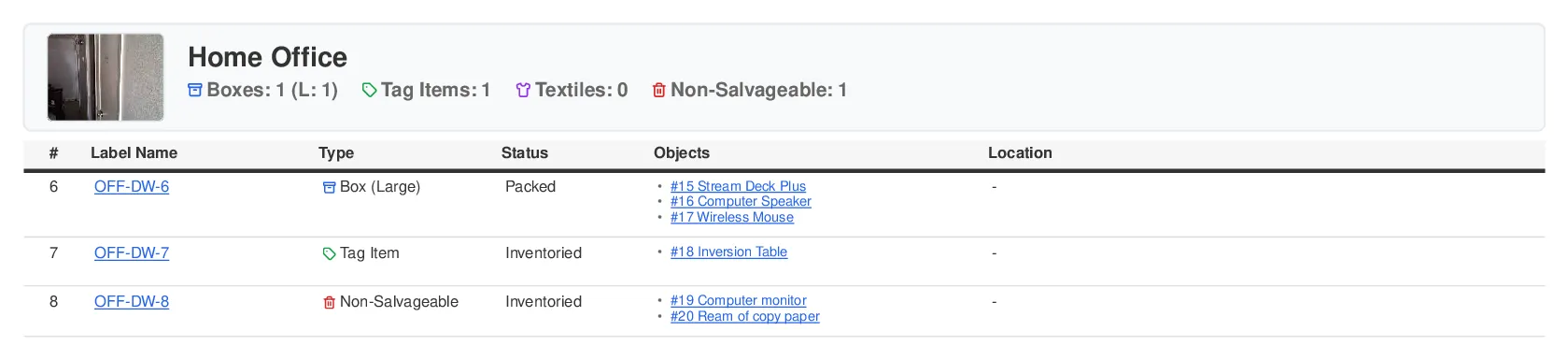
Section titled “What’s Included”The Custody Report organizes items by their labels. The default contents are:
-
Label Information: Label name, type (box, tag, textile bag), status, and location
-
Container Items: List of items in each box, bag, or with each tag
-
Cost Information (optional): Total replacement cost for items in each container, when you turn on the Cost to Replace column
This report groups items by their physical labels rather than by room or category, making it ideal for tracking packed and labeled items.
Available as: PDF or Spreadsheet (XLSX). PDFs provide professional custody documentation ready to share or print, while spreadsheets offer sortable data you can filter and search.
When to Use This Report
Section titled “When to Use This Report”Best for:
-
Chain of custody documentation
-
Tracking items that have been packed and labeled
-
Verifying contents of boxes and bags
-
Transfer documentation for storage facilities
-
Confirming what’s in each container
Not ideal for:
-
Items not yet labeled or packed
-
Room-based organization (use Salvageable Report instead)
-
Visual documentation (use Photo Report)
-
Detailed item specifications without labels
How to Generate
Section titled “How to Generate”-
Open your job in the web app
-
Click the Reports tab (top right)
-
Click Generate Report
-
Expand Additional Reports
-
Select Custody Report
-
Choose PDF or Spreadsheet format
-
Customize your options (see below)
-
Click Generate Report
Note: Most reports download immediately. Large jobs (2,000+ items) are emailed to you when ready.
Customization Options
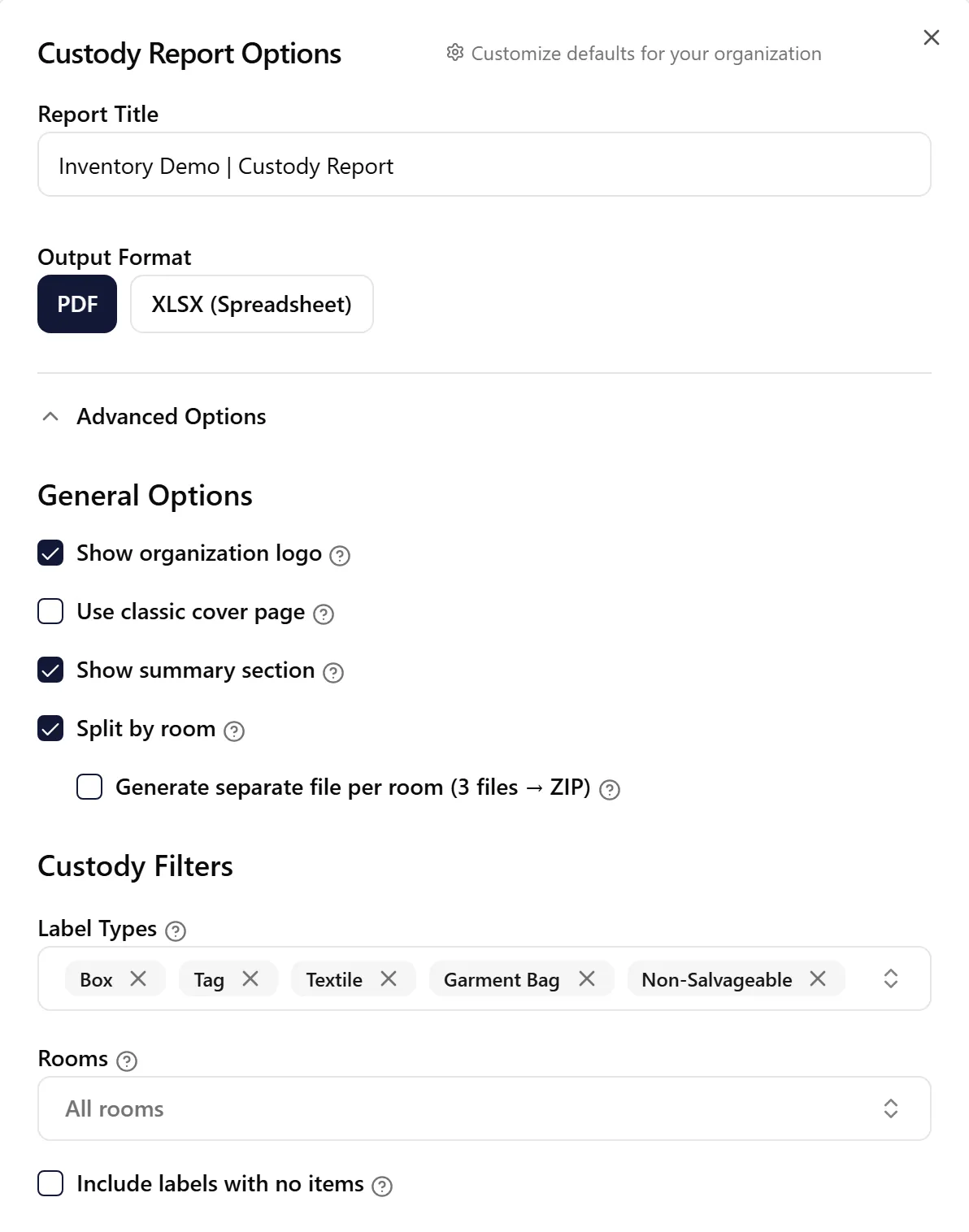
Section titled “Customization Options”Show Organization Logo
Section titled “Show Organization Logo”Default: Enabled
Adds your organization’s logo to the report header.
Cover Page
Section titled “Cover Page”Default: Your organization’s cover setting (PDF only)
Under Cover page, tick Use classic cover page for the previous job details page, or choose which sections the new cover shows. See Report Cover Page for details.
Show Summary Section
Section titled “Show Summary Section”Default: Enabled
Includes a summary section with:
-
Total number of boxes
-
Total number of tag items
-
Total number of textiles
-
Total number of non-salvageable labels
-
Total replacement costs (when the Cost to Replace column is included)
Split by Room
Section titled “Split by Room”Default: Enabled
Organizes the report into separate sections for each room, showing which labels/containers are in each room.
Custody Filters
Section titled “Custody Filters”Use the Label Types filter to choose which types of labels to include:
-
Box: Show items in boxes
-
Tag: Show individually tagged items
-
Textile: Show items in textile bags
-
Garment Bag: Show items in garment bags
-
Non-Salvageable: Show non-salvageable labels
-
Other: Show other label types
Box, Tag, Textile, Garment Bag, and Non-Salvageable are selected by default. Remove types you don’t need, or add Other.
Default: All rooms
Limits the report to labels assigned to the rooms you select. Leave it empty to include every room.
Choose No Room to include labels that haven’t been assigned to a room yet. You can combine it with named rooms — for example, select Kitchen and No Room to see that room’s labels alongside any that still need assigning.
This matches the room shown in the report’s Room column and in the Custody tab, so a label appears under the same room you filtered for.
Include Labels With No Items
Section titled “Include Labels With No Items”Default: Disabled
Controls whether empty labels appear in the report:
-
Enabled: Shows all labels, even if they have no items assigned
-
Disabled: Only shows labels that contain items
Useful for tracking all labels even if they’re currently empty.
Column Selection
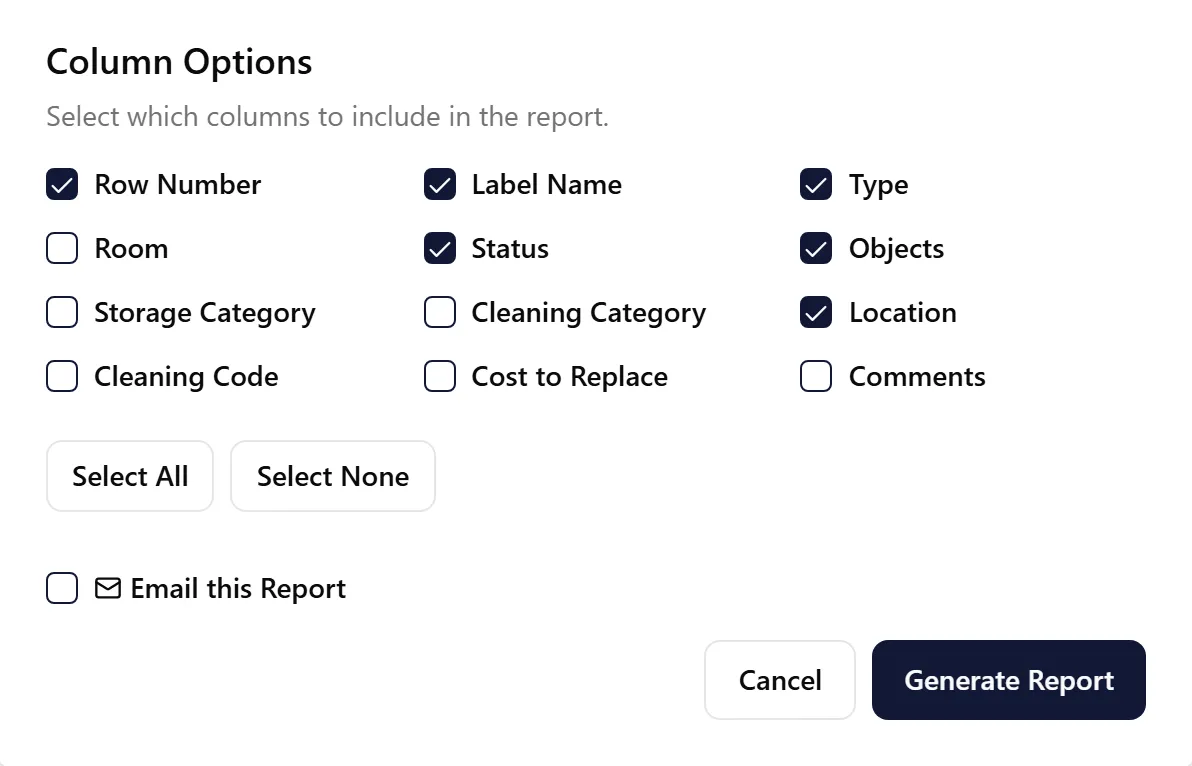
Section titled “Column Selection”Default columns shown:
-
Row Number
-
Label Name
-
Type (box, tag, textile)
-
Status
-
Objects (list of items in container)
-
Location
Optional columns you can toggle:
-
Room
-
Storage Category
-
Cleaning Category
-
Cleaning Code
-
Cost to Replace
-
Comments
Use “Select All” or “Select None” buttons, then toggle individual columns.
Viewing Report History
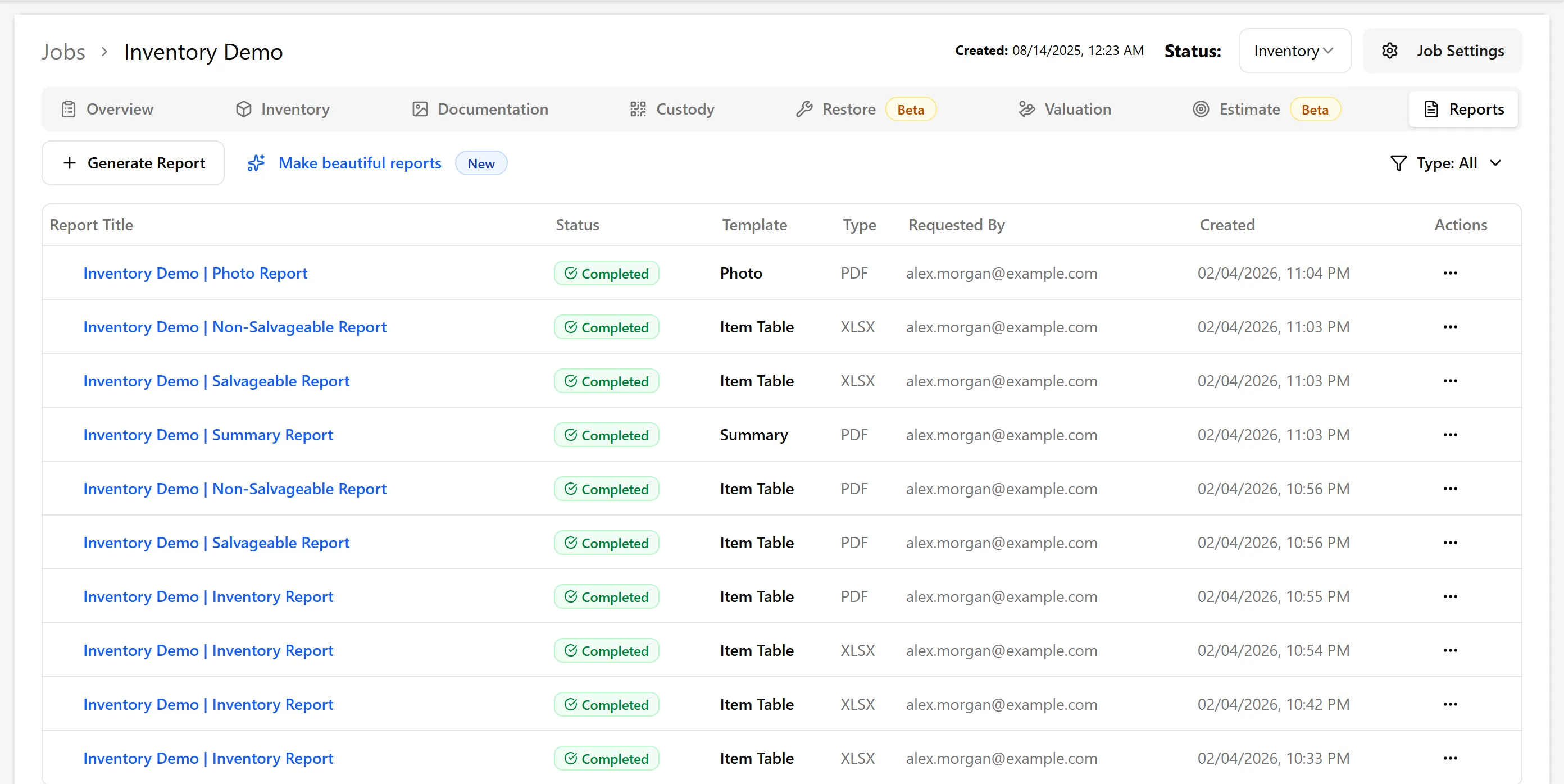
Section titled “Viewing Report History”All generated reports are stored in the Reports tab where you can:
-
Download reports again anytime
-
See generation status
-
View who requested each report
For Storage Facilities
Section titled “For Storage Facilities”-
Include all label types
-
Show costs for insurance purposes
-
Use PDF format for official documentation
-
Include your organization logo
For Transport
Section titled “For Transport”-
Include boxes and textile bags only (exclude tags)
-
Focus on container counts
-
Use spreadsheet format for easy verification
For Insurance
Section titled “For Insurance”-
Turn on the Cost to Replace column
-
Show storage and cleaning categories
-
Add comments with condition notes
-
Use PDF with logo for professionalism
For Internal Tracking
Section titled “For Internal Tracking”-
Use spreadsheet format for searching and sorting
-
Filter by specific label types as needed
-
Include all columns for complete information
Troubleshooting
Section titled “Troubleshooting”Report is empty or missing items
-
Verify items have been labeled
-
Check if the Label Types filter is excluding certain types (Other isn’t selected by default)
-
Check the Rooms filter — labels in rooms you didn’t select are left out, and labels with no room only appear if you select “No Room”
-
Enable “Include Labels With No Items” if you want to see empty labels
-
Confirm items are in the custody tab
Missing label names
-
Some items may have incomplete label information
-
Edit items to add proper label names
-
Check that labels were created correctly
Costs don’t appear
-
Verify items have replacement costs entered
-
Check if cost information is incomplete
-
Some items may need manual pricing
Wrong items in containers
-
Verify items are assigned to correct labels
-
Check for labeling errors in the inventory
-
Update item labels in the custody tab
Related Articles
Section titled “Related Articles”-
Salvageable Report - Items organized by room
-
Custom Inventory Report - Flexible organization
-
Job Summary Report - High-level overview including label counts