
How do you run Multi-Mode in ContentsPal after you’ve already taken a picture?
This article explains how you can run multi mode after you’ve taken the picture in single mode.
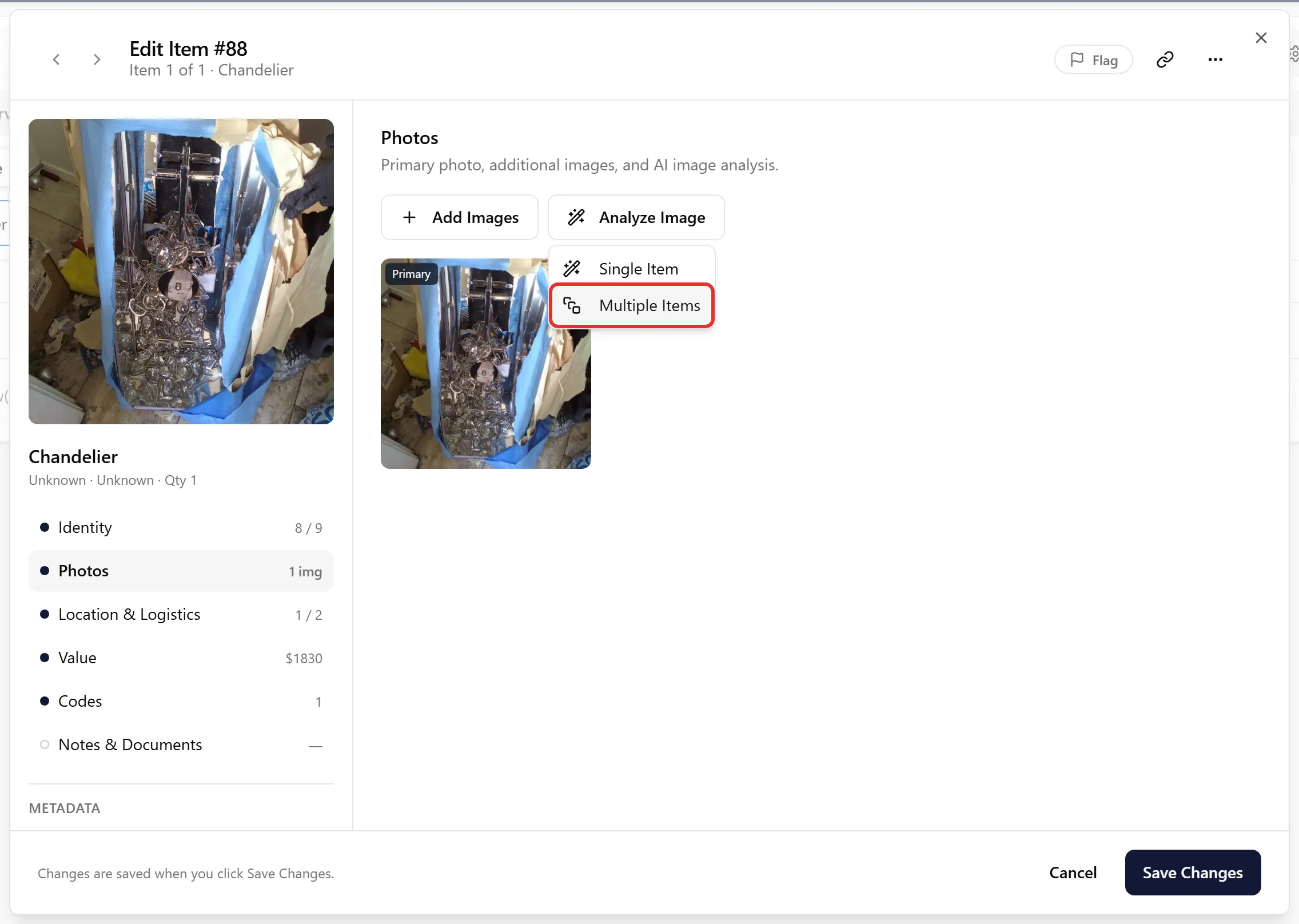
To run Multi-Mode after taking a picture, start from the Inventory View in the web app.
-
Open the Inventory View for the job.
-
Click on any item in the inventory list.
-
This opens the Edit Item view.
-
In the Edit Item screen, go to the Photos section, where you’ll see the button “Analyze Image” (“Analyze Images” when the item has more than one photo)
-
If you click on that, you’ll see the option to re-run AI as Single Item or Multiple Items
-
Click on “Multiple Items” and AI will try to identify them
Multi-Mode allows you to enhance or extend the analysis of an item without needing to retake photos, making it easy to refine inventory details after the initial capture.
Batch Re-identify Multiple Items
Section titled “Batch Re-identify Multiple Items”You can also re-run AI identification on multiple items at once from the Inventory table:
-
Open the Inventory View for the job.
-
Select one or more items using the checkboxes in the table to reveal the Edit rows actions.
-
Click the Edit rows dropdown button and choose Re-identify.
-
Choose your identification mode — Single item per image or Multiple items per image.
-
Click Re-identify to start. ContentsPal will run AI identification on all eligible items in this job (for example, items with uploaded photos that still need identification), not just the specific rows you selected.
-
Items without photos will be automatically skipped during processing.
-
You’ll receive an email notification when AI processing is complete.