
Offline Settings and Storage
Manage your offline uploads, storage, and settings from Offline & sync in the Settings tab.
“Offline & sync” in Settings
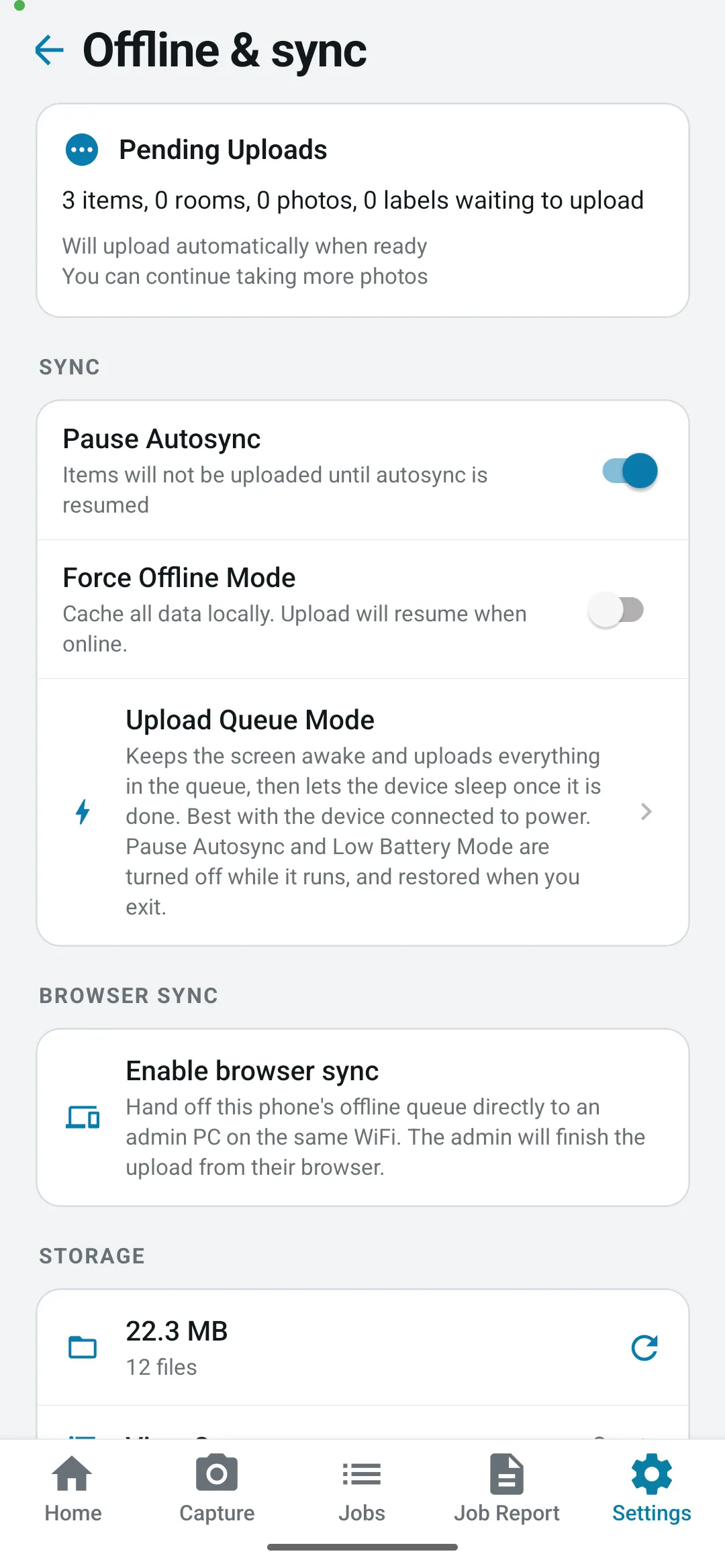
Section titled ““Offline & sync” in Settings”Open the Settings tab and tap Offline & sync (under Device) to access these features. When items are waiting, the Settings tab also shows how many are waiting to upload — tap that notice to jump straight here.
Upload Status
Section titled “Upload Status”See real-time progress when items are uploading:
-
Progress bar and upload counts
-
“View Queue” to see what’s uploading
-
Reminder to keep app open during uploads
Storage Information
Section titled “Storage Information”-
See total storage used and number of files
-
“View Backup” to browse saved images
-
Refresh icon to update statistics
Settings
Section titled “Settings”Force Offline Mode
-
Prevent glitches when phone is switching between online and offline
-
Gives you control over if ContentsPal is in offline mode
-
No automatic uploads while enabled
Pause Autosync
-
Temporarily stop automatic uploads to save data or battery
-
Useful when you have slow cell service
-
Your photos and data stay safely stored on your device
-
While it’s on, the camera shows Autosync paused (N pending) • Resume in Settings, so you don’t forget to turn it back off
-
Resume uploads anytime by turning this off
Low Battery Mode (in Settings → Power)
-
Uploads photos more slowly and lets the screen sleep, to stretch the battery through the rest of the day
-
Turns on by itself when the battery drops below 20%, and you’ll see a warning at the top of the screen
-
Also turns on if you switch on your phone’s own Low Power Mode (iOS) or Battery Saver (Android)
-
Your photos still upload — just a few at a time instead of all at once, so nothing is left behind
-
Turn it on yourself at any battery level, or turn it off if you’d rather upload at full speed. Turning off an automatic switch-on lasts until the phone is charged again — or, if your phone’s own power saving mode switched it on, until you turn that off
-
Dismissing the warning at the top of the screen hides it until the battery has been charged and your phone’s power saving mode is off again — so it won’t keep reappearing while you work
-
This setting applies to this phone only, not to your account
Upload Queue Mode
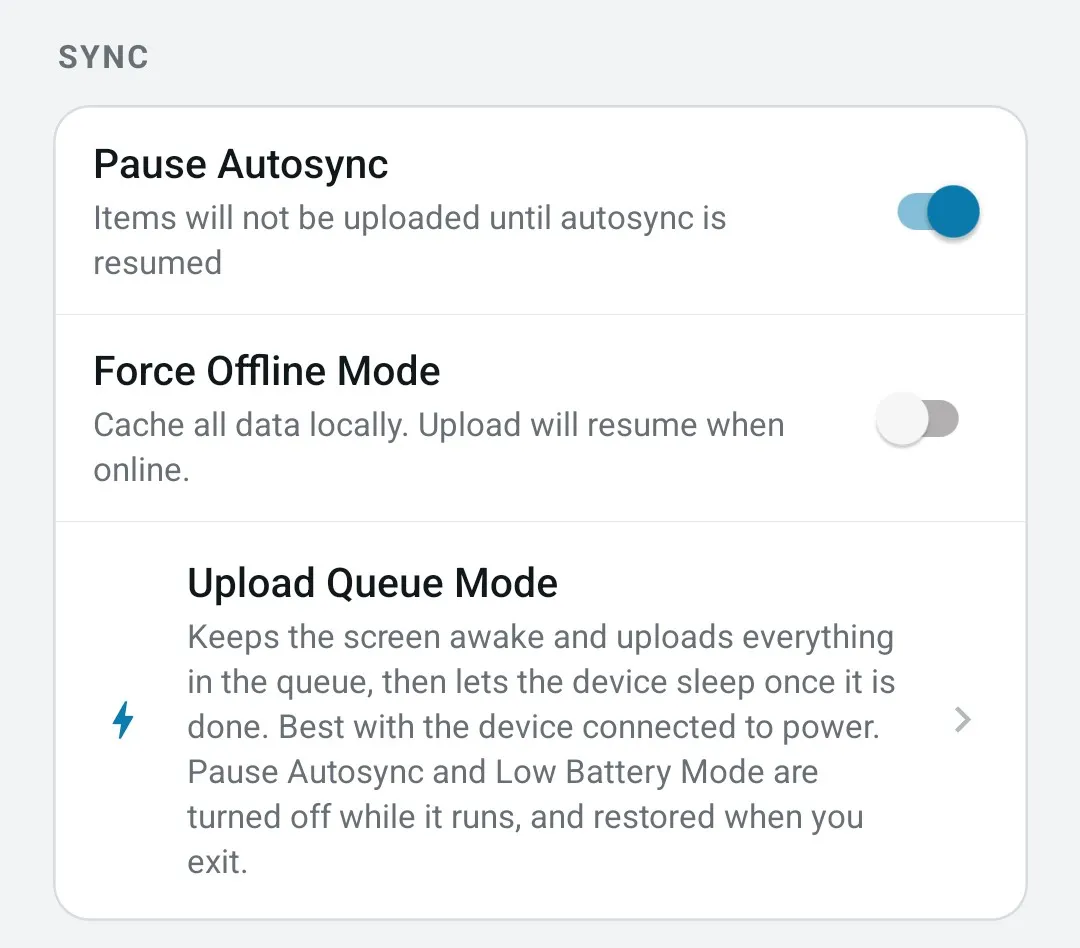
Section titled “Upload Queue Mode”Use this at the end of the day, when you want the phone to finish sending everything before you stop watching it.
Tap Upload Queue Mode in Settings → Offline & sync and the screen turns black, with a progress bar showing how much of the queue is left. The phone is kept awake the whole time, so uploading carries on instead of stopping when the screen would normally go dark — plug the device into power before you start.
-
Tap the X in the corner to leave at any time. Anything still queued keeps uploading in the background as usual
-
When the queue is empty the screen says so, stops keeping the phone awake, and closes itself after a moment, leaving the phone to go to sleep on its own
-
If uploads are waiting on a box, tag or textile that’s still open, the screen says how many are on hold and stays open. Tap Unblock to close what’s open and upload them
-
If Pause Autosync or Low Battery Mode was on, the screen turns it off so uploads can run at full speed, and tells you it has done so. Both go back to how you had them as soon as you close the screen
Last Updated: September 2026