
Inventorying Wash/Dry/Fold Items
Learn how to use Bulk Mode to inventory wash/dry/fold textile items by weight instead of individually.
🧭 Summary
Section titled “🧭 Summary”Bulk Mode is designed for wash/dry/fold items that you charge by weight rather than inventorying individually. Instead of photographing each piece of clothing separately, you place items in a bin on a scale, take one picture, and the system automatically reads the weight and creates the inventory entry.
This workflow is perfect for basic textiles that don’t need individual documentation—t-shirts, socks, towels, everyday clothing, and similar items. The AI reads your scale display, converts units if needed, and adds the correct laundry code to your estimate.
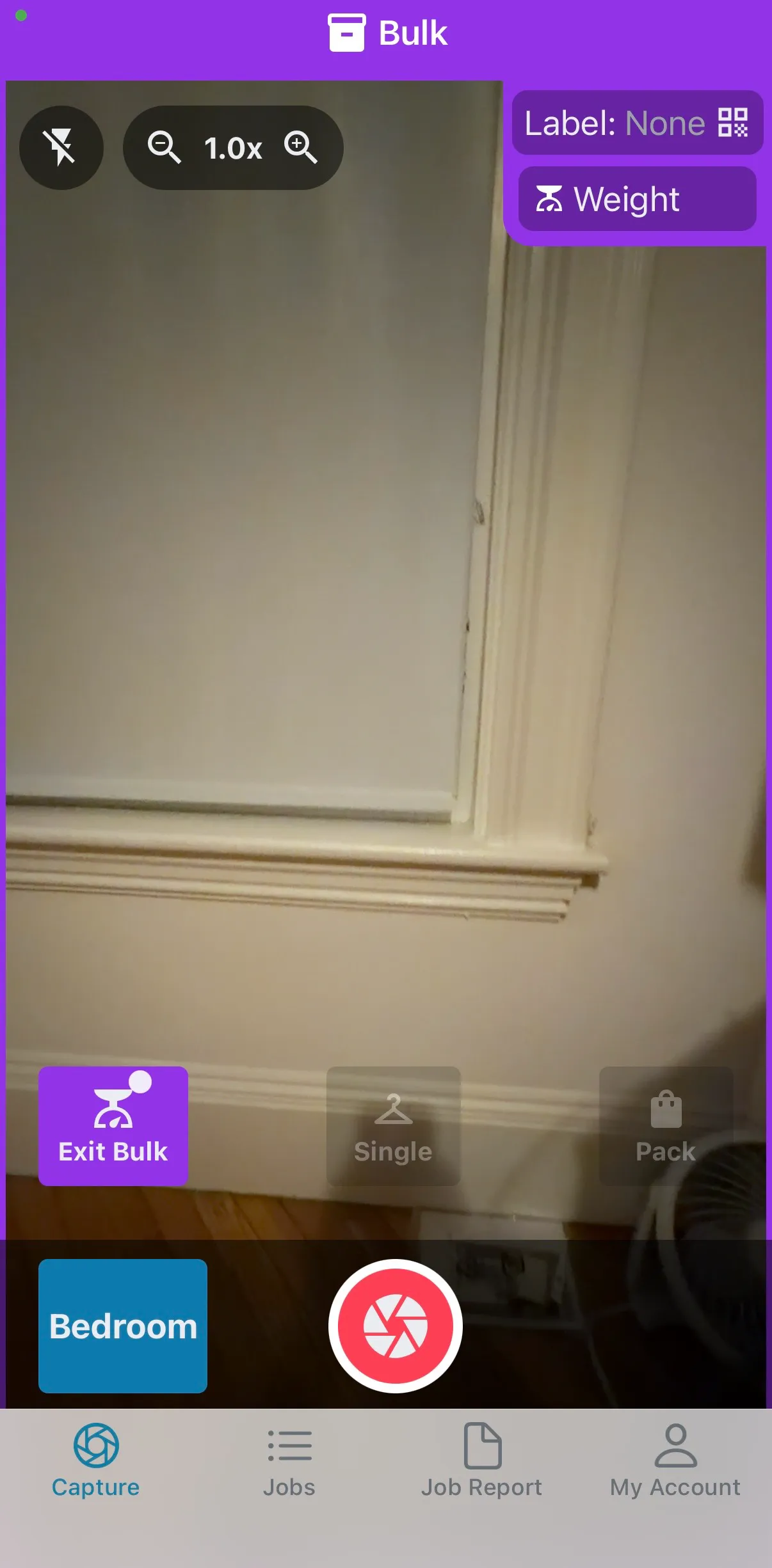
When you enter Bulk Mode, the bar at the top of the camera screen turns purple to remind you that you’re inventorying by weight, not by individual items.
⚙️ Prerequisites
Section titled “⚙️ Prerequisites”-
Textiles Mode must be enabled in the mobile app (see Textiles Mode Overview)
-
Items ready for inventory (sorted at your facility)
-
Scale for weighing items (optional but recommended for automatic weight detection)
-
QR code labels (optional, for tracking specific loads)
🚀 Step-by-Step Instructions
Section titled “🚀 Step-by-Step Instructions”1. Enter Bulk Mode
Section titled “1. Enter Bulk Mode”-
At the bottom of the capture screen, tap Bulk
-
The top of the screen turns purple, confirming you’re in Bulk Mode
2. Prepare Your Items
Section titled “2. Prepare Your Items”-
Add the textile items you want to inventory to your bin
-
If using a scale, turn it on, zero it and then place the items
-
Make sure items are positioned properly so the weight reads accurately
3. Take a Picture
Section titled “3. Take a Picture”-
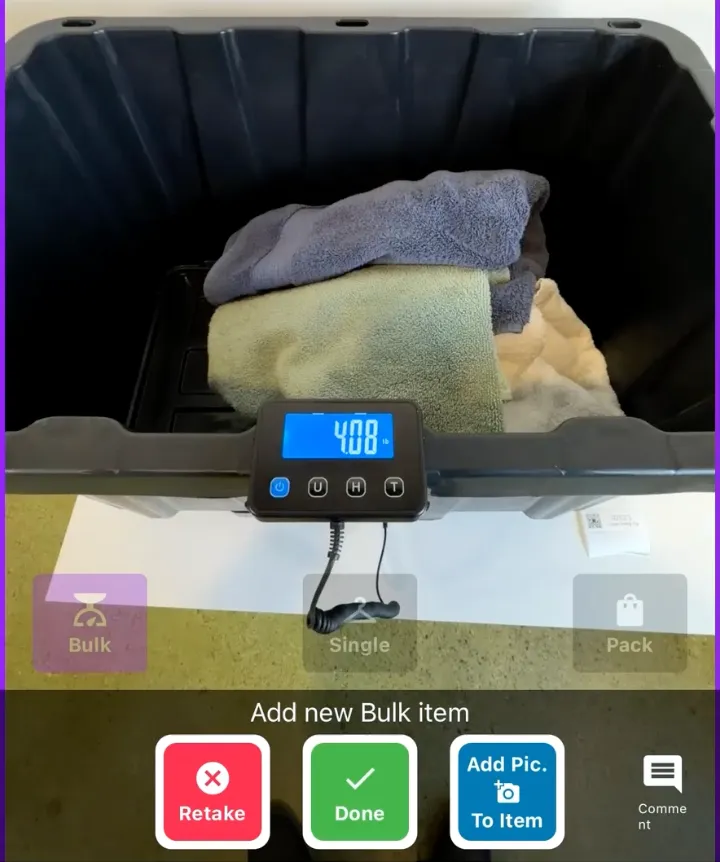
Point your camera at the items in the bin
-
Make sure the scale display is visible in the photo (if using a scale)
-
Tap the capture button to take the photo
-
Tap Done to finish the load. You stay in Bulk Mode, ready for the next load
What the AI does:
-
Reads the weight from your scale display
-
Identifies the items as wash/dry/fold textiles
-
Converts units automatically (kilograms to pounds if needed)
-
Creates an inventory entry with the correct weight
-
Assigns items to the room you selected in the previous step
4. Add Weight Manually (Optional)
Section titled “4. Add Weight Manually (Optional)”If you prefer to enter the weight yourself instead of having AI read the scale:
-
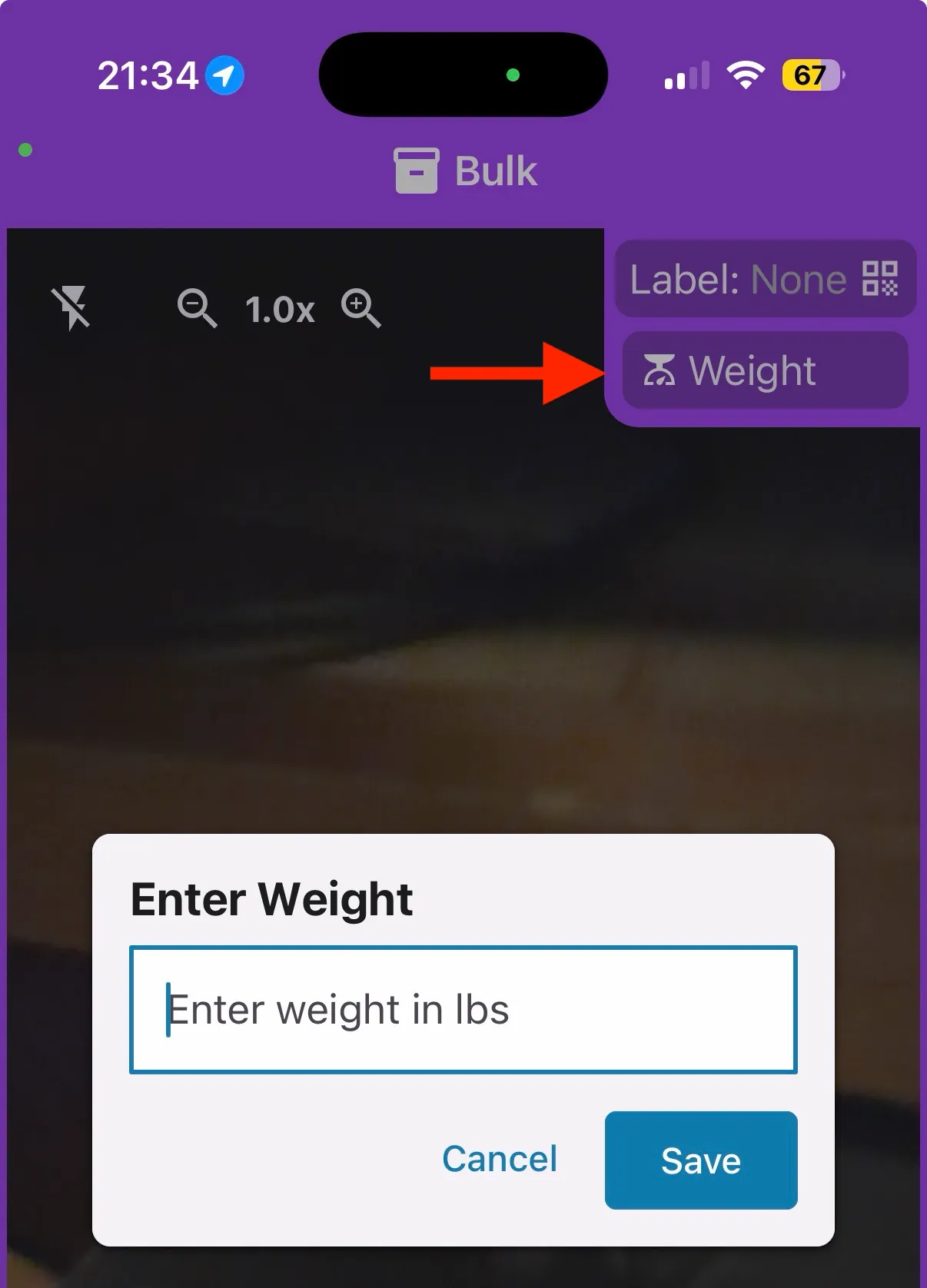
Before you tap Done on the load, tap Weight at the top of the screen
-
Type in the weight value in pounds and tap Save
-
Tap Done
5. Add a Label (Optional)
Section titled “5. Add a Label (Optional)”If you want to track this specific load through chain of custody:
-
Tap Label
-
Scan the QR code on your label
-
The label will be associated with this load
📋 What You’ll See in the Job Report
Section titled “📋 What You’ll See in the Job Report”After inventorying items in Bulk Mode, check the Job Report to see your entries:
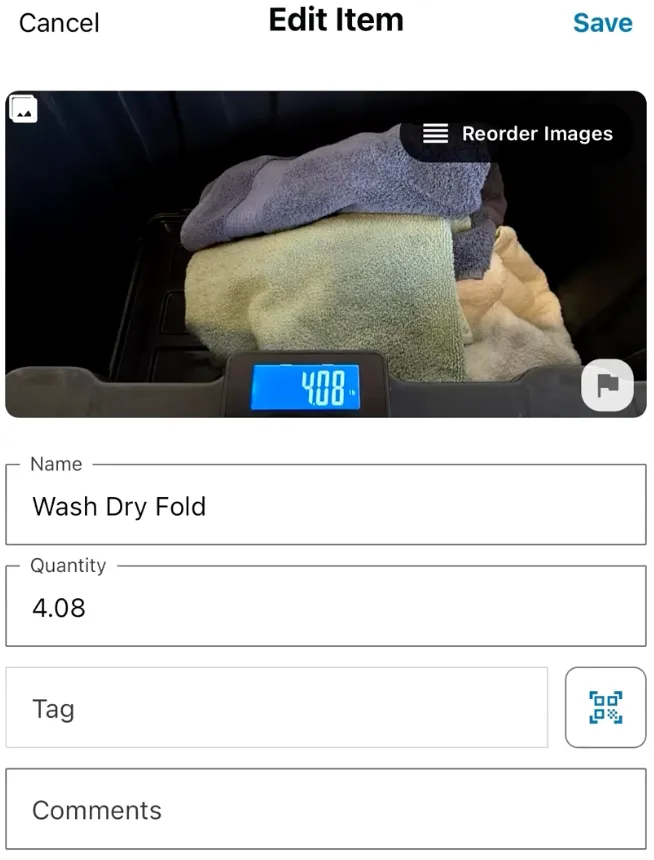
For each load you’ll see:
-
Name: “Wash Dry Fold”
-
Weight: The pounds detected by AI or entered manually (e.g., “4.08 lbs”)
-
Laundry code: Appropriate Xactimate code for wash/dry/fold items
-
Room: The room you selected during inventory
-
No individual items listed: Unlike Single Mode, Bulk Mode doesn’t list each piece of clothing
-
Cleaning category: Bulk loads are always recorded as Needs Cleaning, so every load is included in the estimate’s textile cleaning
Understanding Weight Conversion
Section titled “Understanding Weight Conversion”If your scale displays weight in kilograms, the AI automatically converts it to pounds for your report. For example:
-
Scale shows: 185 kg
-
Report shows: 408 lbs (converted)
📋 Labels and Chain of Custody
Section titled “📋 Labels and Chain of Custody”If you added a label to your load, you’ll find it in the Custody tab:
How labels appear:
-
Labels show up as Bulk Textiles labels (not as tagged items or boxes)
-
Each label is associated with the specific load you photographed
-
Useful for tracking loads through cleaning and storage
✅ Best Practices
Section titled “✅ Best Practices”-
Select the correct room first: Before taking pictures, make sure the right room is selected so items are properly organized in your report
-
Keep the scale visible: Include the scale display in your photo so AI can read the weight automatically (ensure scale is zeroed for bin)
-
Sort by room at the facility: When sorting textiles, keep items from the same room together and inventory them as separate loads
-
Take close-up photos if needed: If the scale display is hard to see, take an additional photo zoomed in on the weight
-
Use labels strategically: Add labels to loads you need to track separately
-
Check the Job Report: After inventorying, verify that weights and room assignments are correct
🧩 Troubleshooting
Section titled “🧩 Troubleshooting”The AI didn’t read my scale correctly: Take another photo with the scale display more clearly visible, or use the manual weight entry option to type in the weight yourself.
My scale is in kilograms, but the report shows pounds: This is correct—the AI automatically converts kilograms to pounds for your report. The conversion happens behind the scenes.
My label doesn’t show up as a tagged item: Labels for bulk items appear in the Custody tab as Bulk Textiles labels, not as tagged items or boxes. This is the expected behavior.
Items went to the wrong room: Always check which room is selected before taking your picture. Items are assigned to the active room at the time you capture the photo. You can change the room assignment later in the Job Report if needed.
The screen isn’t purple: Make sure you tapped the Bulk button at the bottom of the capture screen. The purple bar at the top of the screen confirms you’re in Bulk Mode.
Laundry was logged as regular boxes, so the weights aren’t added up in the estimate: The estimate only adds up weight from wash/dry/fold loads—items whose Type is Bulk Textiles and whose Quantity is the load’s weight in pounds. A Box label is billed as a packed box instead. To fix a job that’s already been logged, use the web app:
-
In the job’s Custody tab, select the labels, click Batch Edit, set Label Type to Bulk Textiles and Cleaning Category to Needs Cleaning, and save. (To change one label, open it and change its Type.)
-
In the Inventory tab, open each load and check that its Type is Bulk Textiles and its Quantity is the weight in pounds. If a load was never inventoried (for example, the weight was only written down), capture it in Bulk Mode—you can type the weight with Weight.
-
Open the Estimate tab and click Rebuild so the estimate picks up the changes.
On future jobs, capture laundry in Bulk Mode from the start.
🔑 Key Takeaways
Section titled “🔑 Key Takeaways”-
Bulk Mode is for wash/dry/fold items you charge by weight
-
Tap Bulk to enter Bulk Mode—the top of the screen turns purple to confirm
-
Place items on a scale, take a picture, and AI reads the weight automatically
-
You can add weight manually if preferred
-
Select the correct room before inventorying to keep items organized by location
-
Labels are optional but useful for tracking specific loads
-
Items appear in the Job Report with weight and laundry code (not as individual inventory entries)
-
AI automatically converts kilograms to pounds if needed