
Import and Export Locations
Add a whole list of locations to a site from a CSV or Excel file, keeping your existing vault numbers, and export a site’s locations to a spreadsheet, all from the Sites page in the web app.
🧭 When to Use It
Section titled “🧭 When to Use It”-
Setting up a site with many locations that you already have in a spreadsheet, such as a list of vaults, racks and trucks.
-
Moving from another system or a paper log, where your vaults already carry numbers or barcode stickers you want to keep.
-
Getting a list of a site’s locations for a stock count, an audit, or to share with your team.
⚙️ Before You Start
Section titled “⚙️ Before You Start”-
Import and export are in the web app. Any member of your organization can use them.
-
Create the site first. Each import adds locations to one site, the one you have open. See Setup Locations to create a site.
📥 Import Locations from a File
Section titled “📥 Import Locations from a File”-
Click Sites in the main navigation, then click Manage Locations on the site.
-
Click Import from spreadsheet.
-
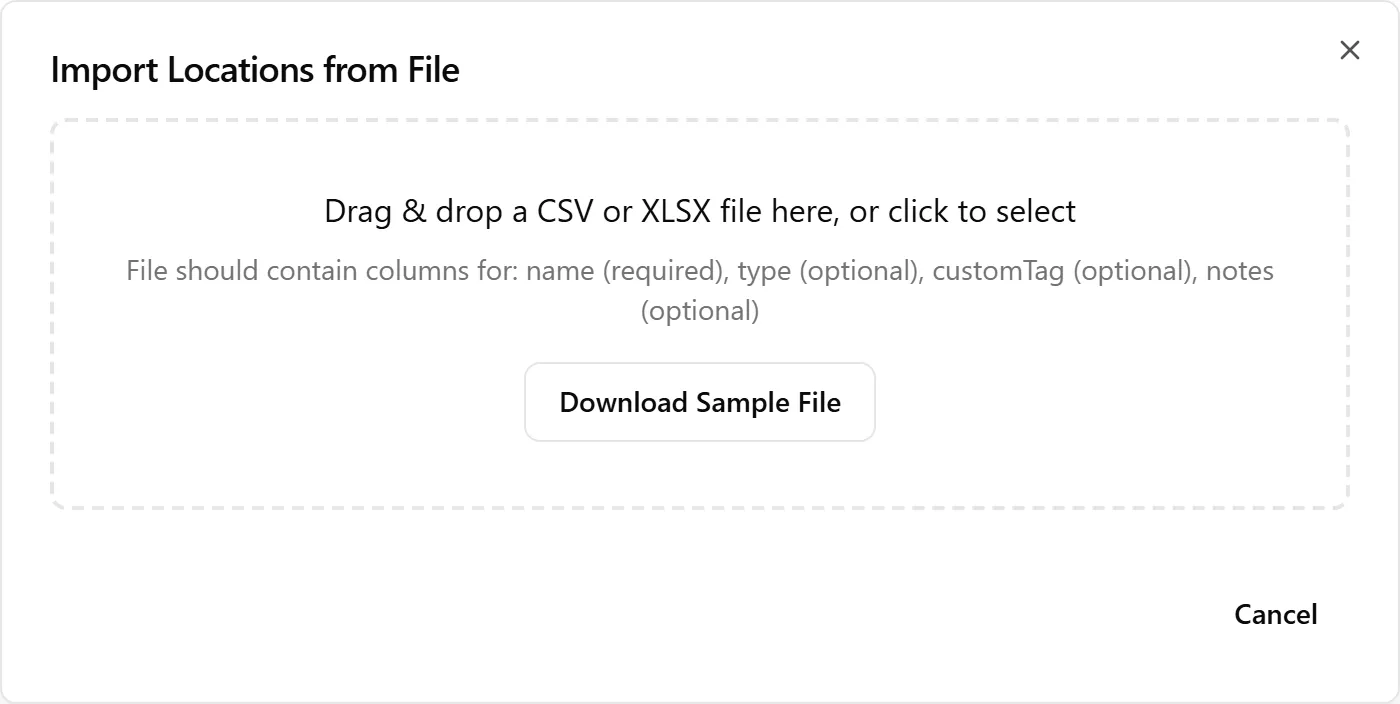
Not sure how to lay out your file? Click Download Sample File for a ready-made spreadsheet with the right columns.
-
Drag and drop your file into the dialog, or click the drop area to choose it. You can use CSV, XLSX or XLS files. For an Excel file, only the first sheet is read.
-
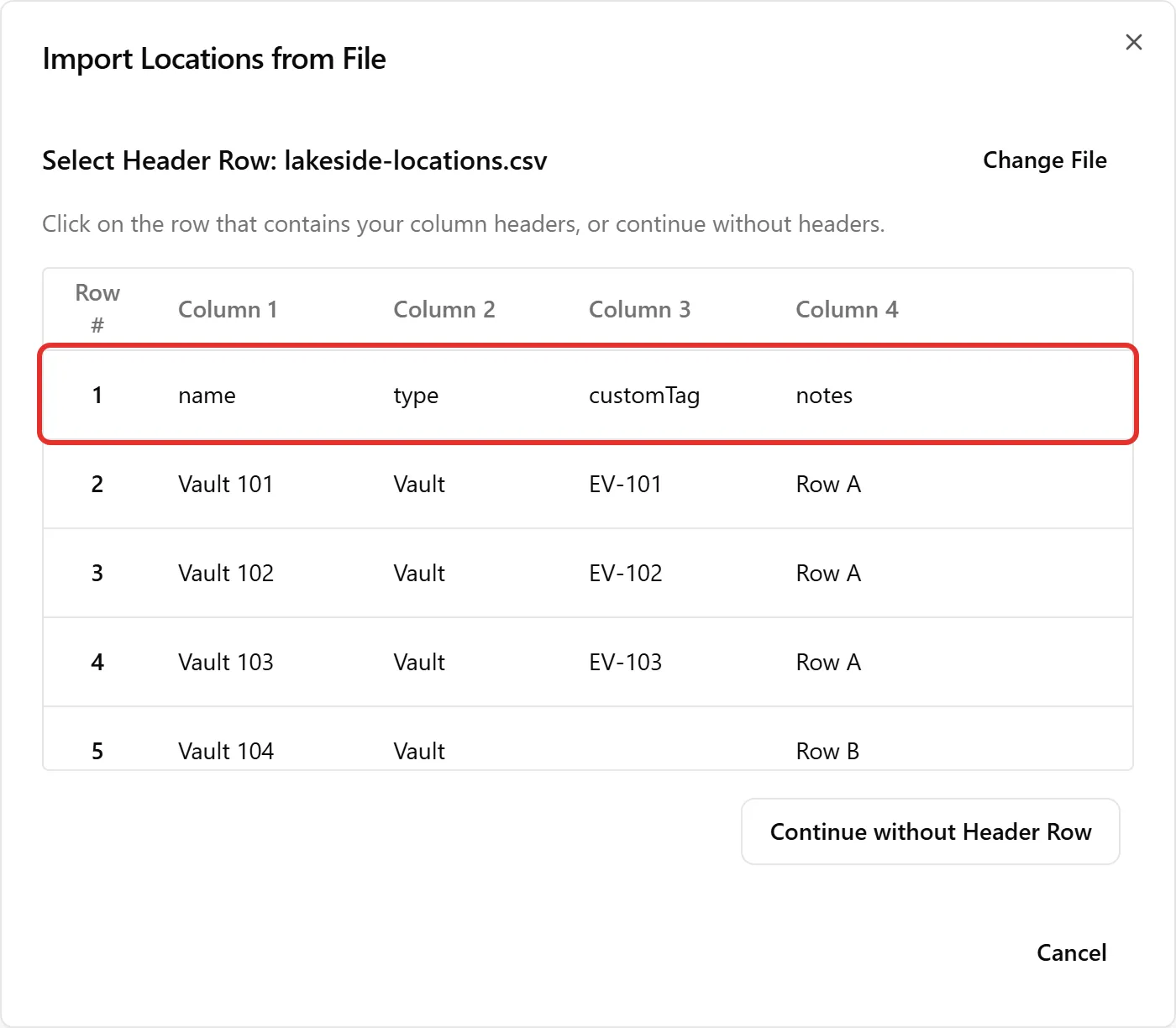
Select the header row. ContentsPal shows the first rows of your file. Click the row that holds your column names, such as name, type and customTag.
-
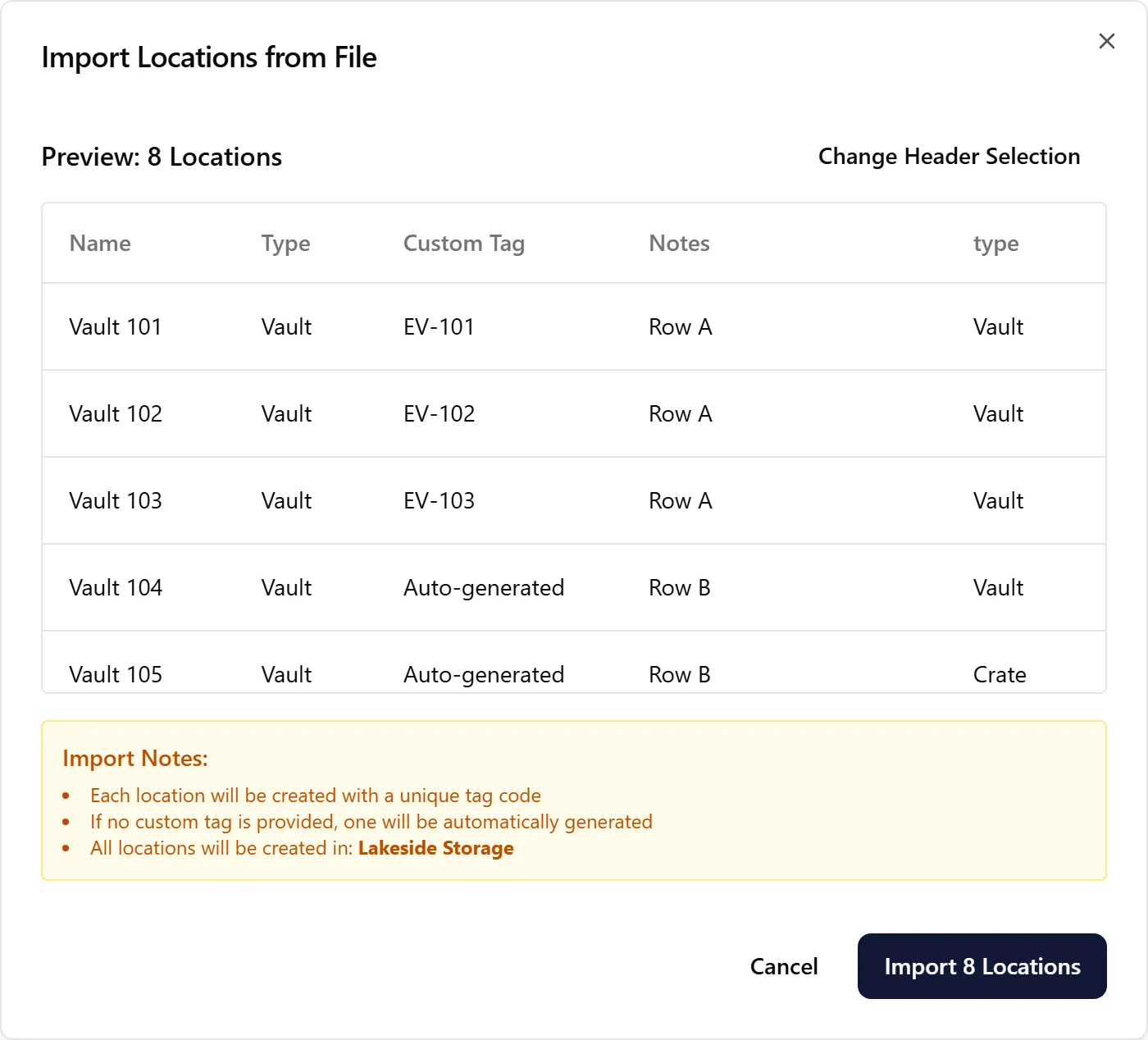
Check the preview. It shows each location’s Name, Type, Custom Tag and Notes, and the site they’ll be created in. A blank custom tag shows as Auto-generated. To pick a different header row, click Change Header Selection.
-
Click Import N Locations. When the import finishes, the dialog closes and the new locations appear in the site’s table.
(Tip: Always include a header row. Without one, ContentsPal can’t tell which column holds the names, and gives every location a placeholder name.)
🗂️ Columns ContentsPal Reads
Section titled “🗂️ Columns ContentsPal Reads”Column names aren’t case-sensitive, and the other names in the table work too. Any other columns in your file are ignored.
| Column | Required | Also recognized as | What it sets |
|---|---|---|---|
| name | Yes | location, location name | The location’s name, for example Vault 101. |
| type | No | location type, kind | The location’s Type. See below. |
| customTag | No | tag, code, barcode, custom tag | The location’s code. Leave it blank and ContentsPal creates one. |
| notes | No | description, comment, comments | The location’s note, for example access instructions. |
The type column accepts the type names Vault, Rack, Pallet, Rail, Bin, Vehicle, Cleaning and Other, singular or plural. It also understands common words for them:
-
crate, container, pod → Vault
-
shelf, shelves, shelving → Rack
-
skid → Pallet
-
tote → Bin
-
truck, van, trailer → Vehicle
Any other word is imported as Other, and a blank cell leaves the location without a type. You can change a location’s type later: open it from the table, or tick several and choose Edit Locations (N) → Change Type.
Keep your existing vault numbers (customTag)
Section titled “Keep your existing vault numbers (customTag)”Every location has its own code, which is part of its QR code and appears as Tag/Code in exports. When customTag is blank, ContentsPal creates a code that starts with CPLOC-.
If your vaults already have numbers or barcode stickers, put each number in customTag. The location keeps that number as its code, and scanning an existing sticker that holds just that number in the mobile app finds the location.
(Important: Make sure every code is unique across your organization. The import doesn’t check for codes that are already in use, and two locations with the same code make scanning unreliable.)
🚫 What Import Doesn’t Do
Section titled “🚫 What Import Doesn’t Do”-
Coordinates: imported locations aren’t placed on the site’s grid. Place them afterwards from the grid or from each location’s details. See Assigning Coordinates to Locations in Setup Locations.
-
Status for contents: set a location’s status afterwards, from its details.
-
Updating existing locations: import only adds new locations. Importing the same file twice creates every location twice. To change several existing locations at once, tick them in the table and use Edit Locations (N).
-
Reporting rows that fail: if a row can’t be saved, it’s skipped and the rest are still imported, without a list of what was skipped. Compare the site’s location count with your file afterwards. Empty rows are always skipped.
(Tip: To move locations from one site to another, don’t export and re-import them. Tick them in the table and choose Edit Locations (N) → Move to Another Site, which keeps each location’s code and contents.)
📤 Export Locations
Section titled “📤 Export Locations”-
Open the site from Sites.
-
Click Export, then choose Export as CSV or Export as Spreadsheet (Excel).

-
The file downloads, named after the site and today’s date, for example main-warehouse-locations-2026-10-01.xlsx.
The export follows the table’s current search and filters (Job, Status, Type and Coordinates), so you can export, for example, only the vaults or only the empty locations. Clear them to export every location.
The file has one row per location, with these columns:
-
Location Name and Type
-
Tag/Code: the location’s code
-
Coordinates: its aisle, bay and level (only for sites that use a grid)
-
Labels: how many labels are stored there now
-
Job: the job with the most labels there, and Status: that job’s status
-
Notes and Created: the location’s note and the date it was created
(Note: The Export button appears once the site has locations, and stays unavailable for a moment while the site’s contents load.)
🧩 Troubleshooting
Section titled “🧩 Troubleshooting”My locations got names like “Location 4821”: ContentsPal didn’t find a name column. Check that your header row has a column called name (or location), and that you picked that row as the header. A row with an empty name also gets a placeholder name.
Fewer locations were created than rows in my file: empty rows are skipped, and so is any row that couldn’t be saved. Import the missing rows again, or add them with Add Location.
“CSV parsing error”: the file isn’t valid CSV. Open it in Excel or Google Sheets and save it again as CSV, or import the Excel file instead.
“Nothing to export”: no locations match the current search and filters. Clear them and try again.
➡️ Related Articles
Section titled “➡️ Related Articles”-
Setup Locations: create sites and locations, place them on the grid, and print their QR codes.
-
Warehousing with ContentsPal: an overview of sites, locations and labels.
-
Grid Editor: draw your floor plan, walkways and levels.