
📦 Packing Wash/Dry/Fold Items
Learn how to pack processed wash/dry/fold items into boxes and track them through chain of custody.
🧭 Summary
Section titled “🧭 Summary”After you’ve finished processing bulk textile items (wash, dry, fold), you need to pack them for storage or return to the customer. Pack Mode lets you document items as they’re placed into boxes, assign labels for tracking, and automatically set the proper custody status.
Unlike inventorying, packing creates boxes in the Custody tab (not the Inventory tab). The system automatically sets these boxes’ custody status to Storage—so you don’t have to manually update their status.
⚙️ Prerequisites
Section titled “⚙️ Prerequisites”-
Textiles Mode must be enabled in the mobile app (Settings → Mode → Textiles)
-
Bulk items have been processed (washed, dried, folded)
-
Boxes are ready for packing
-
QR code labels are available for tracking (optional but recommended)
🚀 Step-by-Step Instructions
Section titled “🚀 Step-by-Step Instructions”1. Enter Pack Mode
Section titled “1. Enter Pack Mode”-
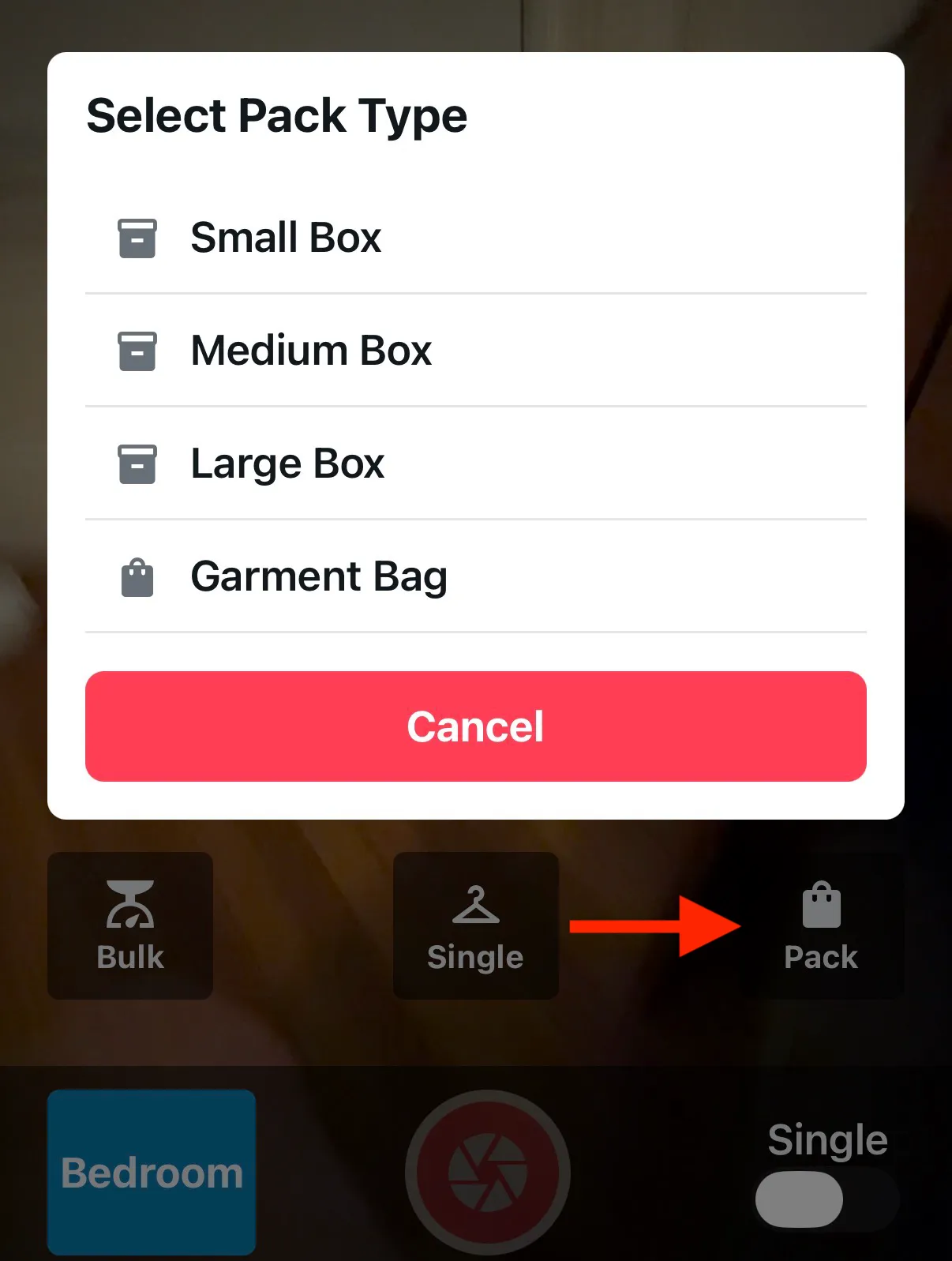
At the bottom of the camera screen, tap Pack
-
Select the box type you’re using (e.g., Small Box, Medium Box, Large Box)
2. Take Pictures of Box Contents
Section titled “2. Take Pictures of Box Contents”-
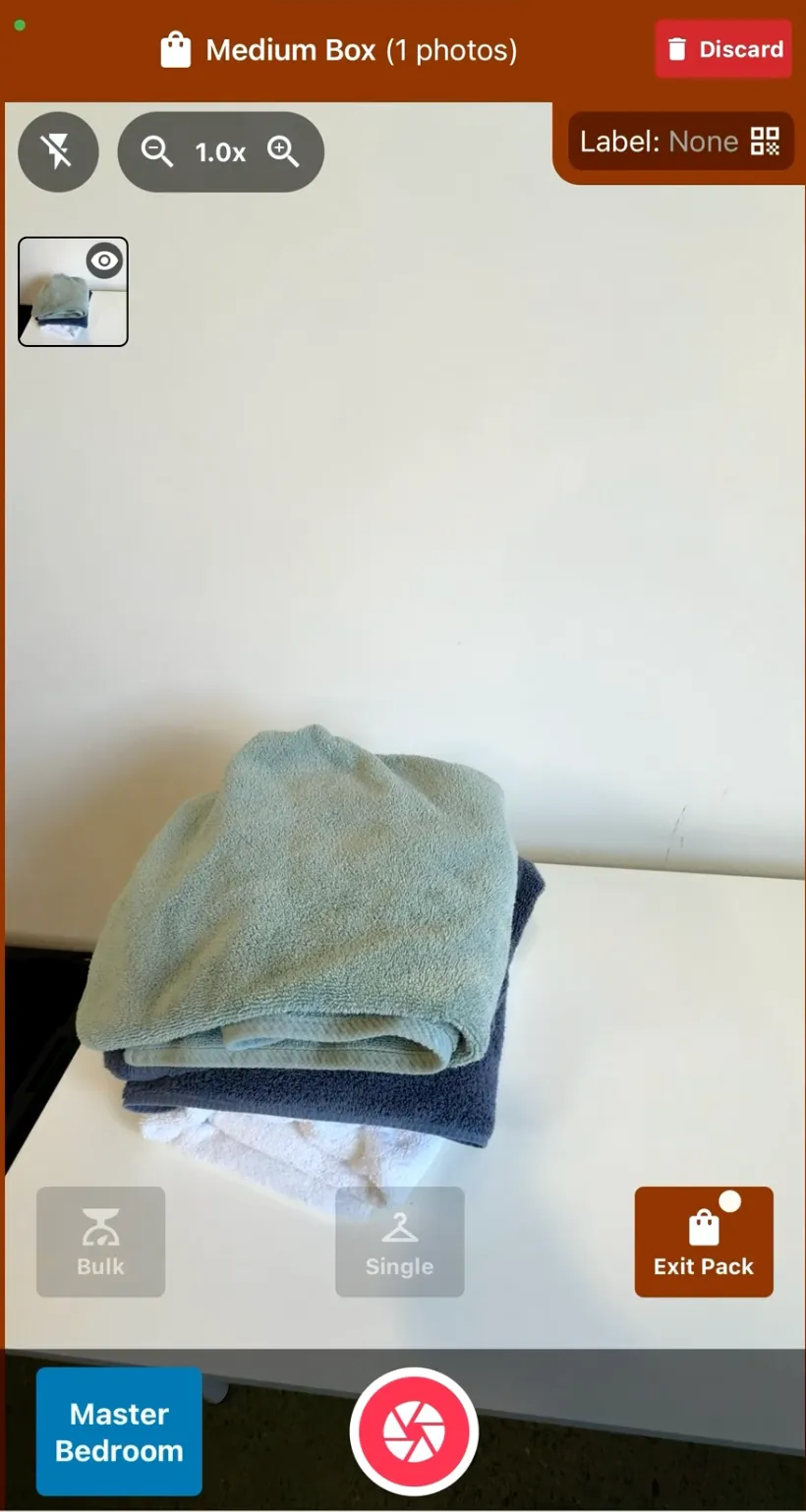
Point your camera at the items
-
Tap the capture button to take a photo
What this photo does:
-
Creates a box-level image showing what’s packed inside
-
Provides visual documentation for the box in the Custody tab
-
Does NOT add the photo to individual items in your inventory
3. Add a Label to the Box
Section titled “3. Add a Label to the Box”-
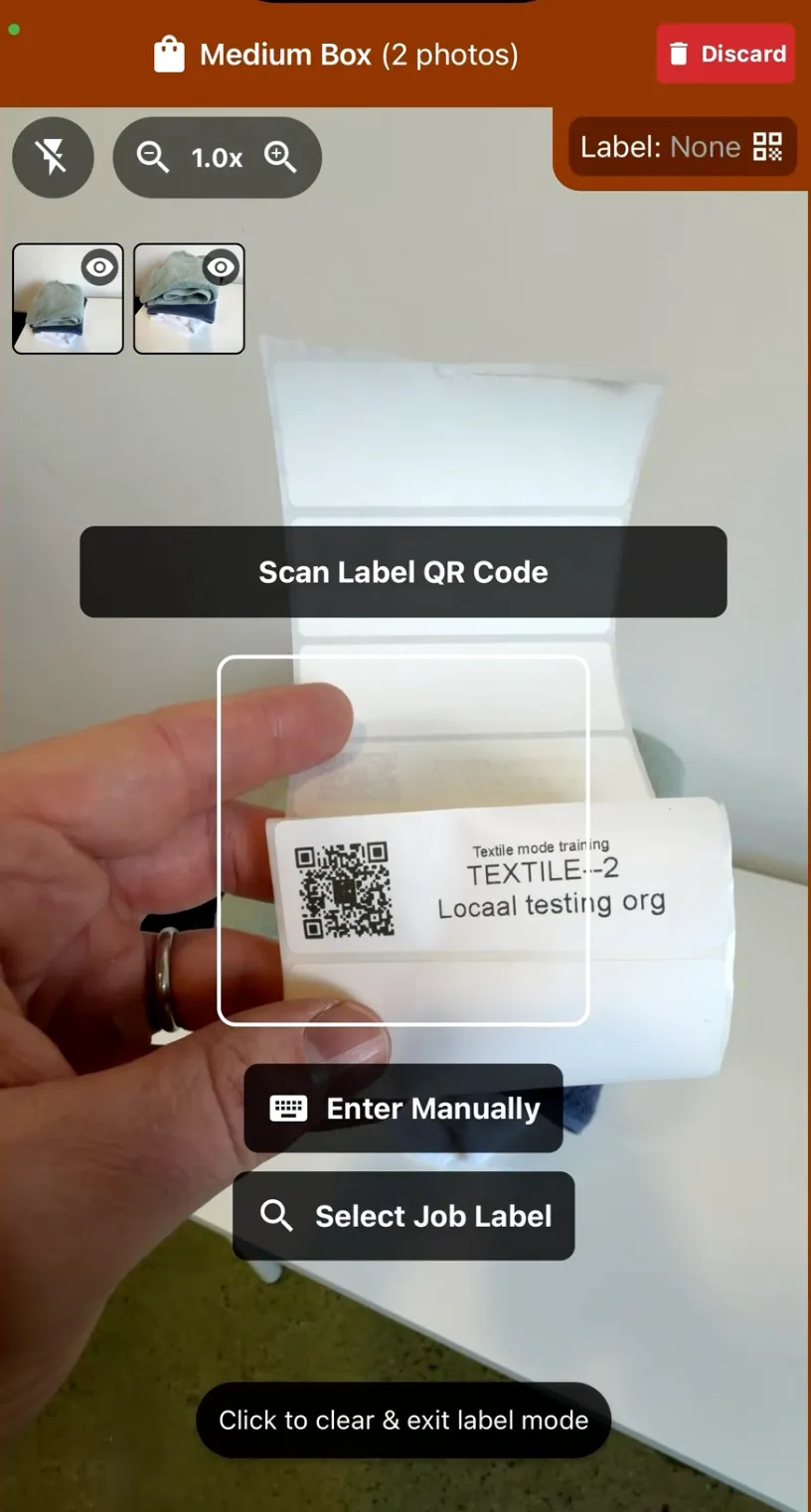
Tap Label
-
Scan the QR code label you’ll attach to the physical box
-
If you don’t scan a label, one is generated automatically when you close the box
4. Exit Pack Mode
Section titled “4. Exit Pack Mode”-
Tap Exit Pack
-
Review the confirmation message (photo count, pack type, and room) and tap Close Pack
-
The system creates the box and adds it to your Custody tab
What happens when you exit:
-
Box is created in the Custody tab (not Inventory)
-
Status is automatically set to Storage
-
Box is ready for storage assignment
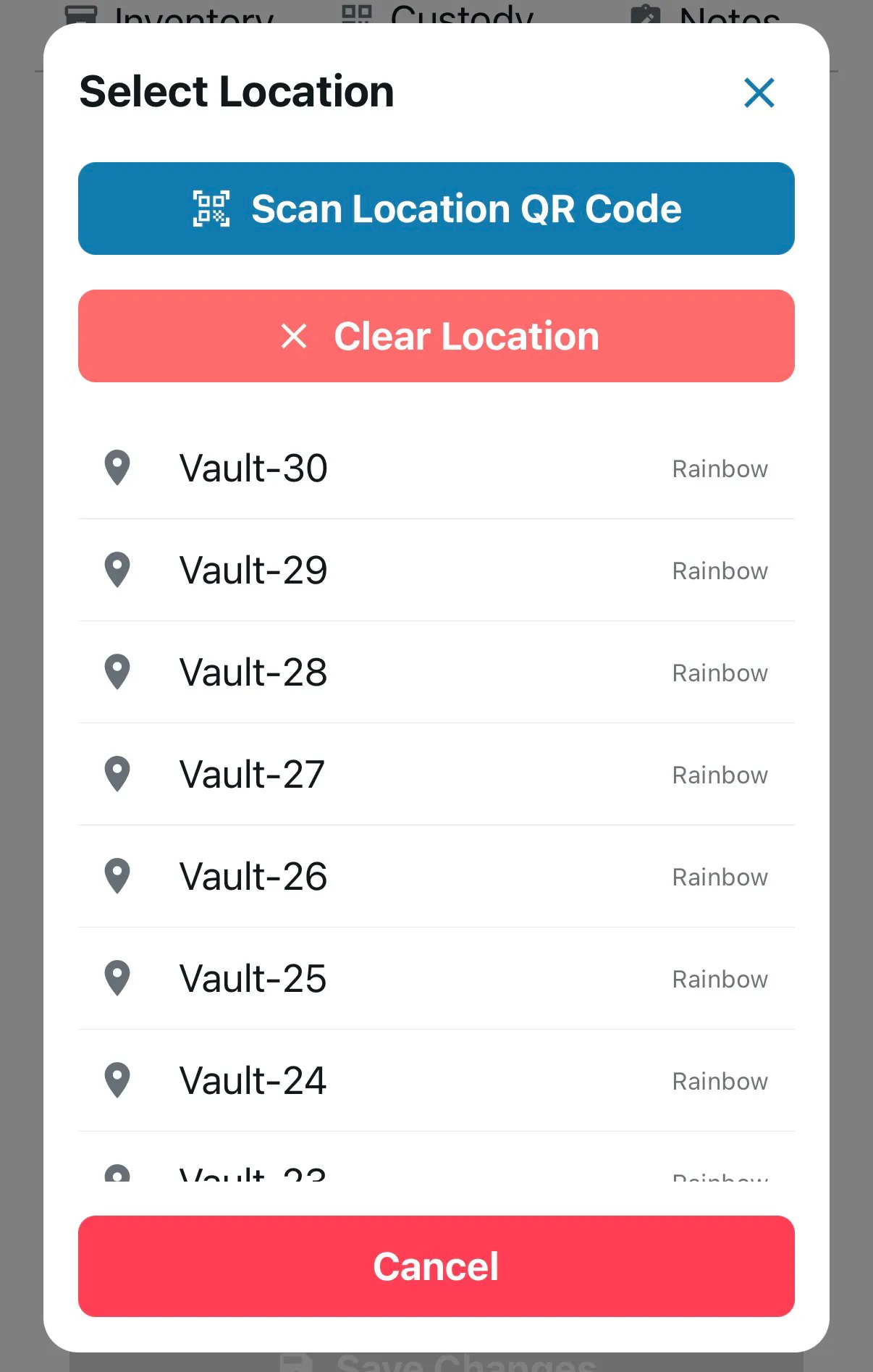
5. Assign Box to Vault Location
Section titled “5. Assign Box to Vault Location”After packing, you can assign the box to a storage location:
Option A: Scan to Vault
-
Use the Custody tab
-
Scan the box into a vault location using QR codes
Option B: Select from Dropdown
-
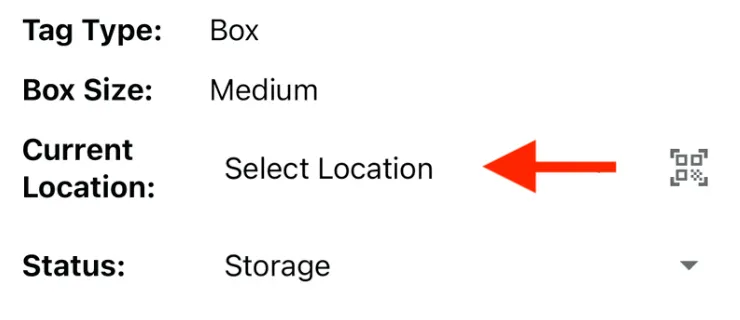
Open the box details in the Custody tab
-
Choose the vault or storage location from the dropdown menu
✅ Best Practices
Section titled “✅ Best Practices”-
Label every box: QR code labels make tracking much easier, especially when managing multiple boxes
-
Take box photos: A quick photo of contents helps you (and the customer) see what’s inside without opening the box
-
Choose correct box size: Select the actual physical box size you’re using for accurate cost tracking
-
Assign vault locations immediately: Don’t wait—assign storage locations right after packing while you remember where the box goes
-
Use consistent labeling: Keep labels on the outside of boxes in the same spot for easy scanning
🧩 Troubleshooting
Section titled “🧩 Troubleshooting”I don’t see my packed box in the Inventory: Packed boxes don’t appear in the Inventory tab—they go directly to the Custody tab. Check there instead.
The wrong box size was selected: You can update the box size from the Custody tab. Open the box details and change the size selection.
I forgot to add a label: You can add or change labels later from the Custody tab. Open the box and scan a new QR code.
My wash/dry/fold weight isn’t in the estimate: Packed boxes don’t carry a weight. The wash/dry/fold (CDCAV) weight in the estimate comes from the loads you weighed in Bulk Mode—see Inventorying Wash/Dry/Fold Items. If your team logged laundry as boxes instead of weighing it in Bulk Mode, that article’s Troubleshooting section shows how to fix the job.
The status is wrong (not showing “Storage”): The system should set this automatically. If they’re incorrect, you can manually update them in the box details from the Custody tab.
🔑 Key Takeaways
Section titled “🔑 Key Takeaways”-
Use Pack Mode to document bulk items after they’ve been processed
-
Tap Pack → Select box size → Take box photos (at least one) → Add label → Exit Pack → Close Pack
-
Packed boxes go to the Custody tab, not Inventory
-
Assign vault locations to track where boxes are stored
-
Labels help maintain chain of custody and make box identification easy