
How to Print Vault Labels
Every vault, rack, truck or room you set up in ContentsPal has its own QR code. Print it as a sticker, put it on the vault, and your crew can scan it in the mobile app to see what’s inside and to move labels in and out. Vault labels are printed from the web app.
🧭 Summary
Section titled “🧭 Summary”-
Many vaults at once: Sites → your site → Print QR Codes, then choose All Locations, Selected Locations or Location Range….
-
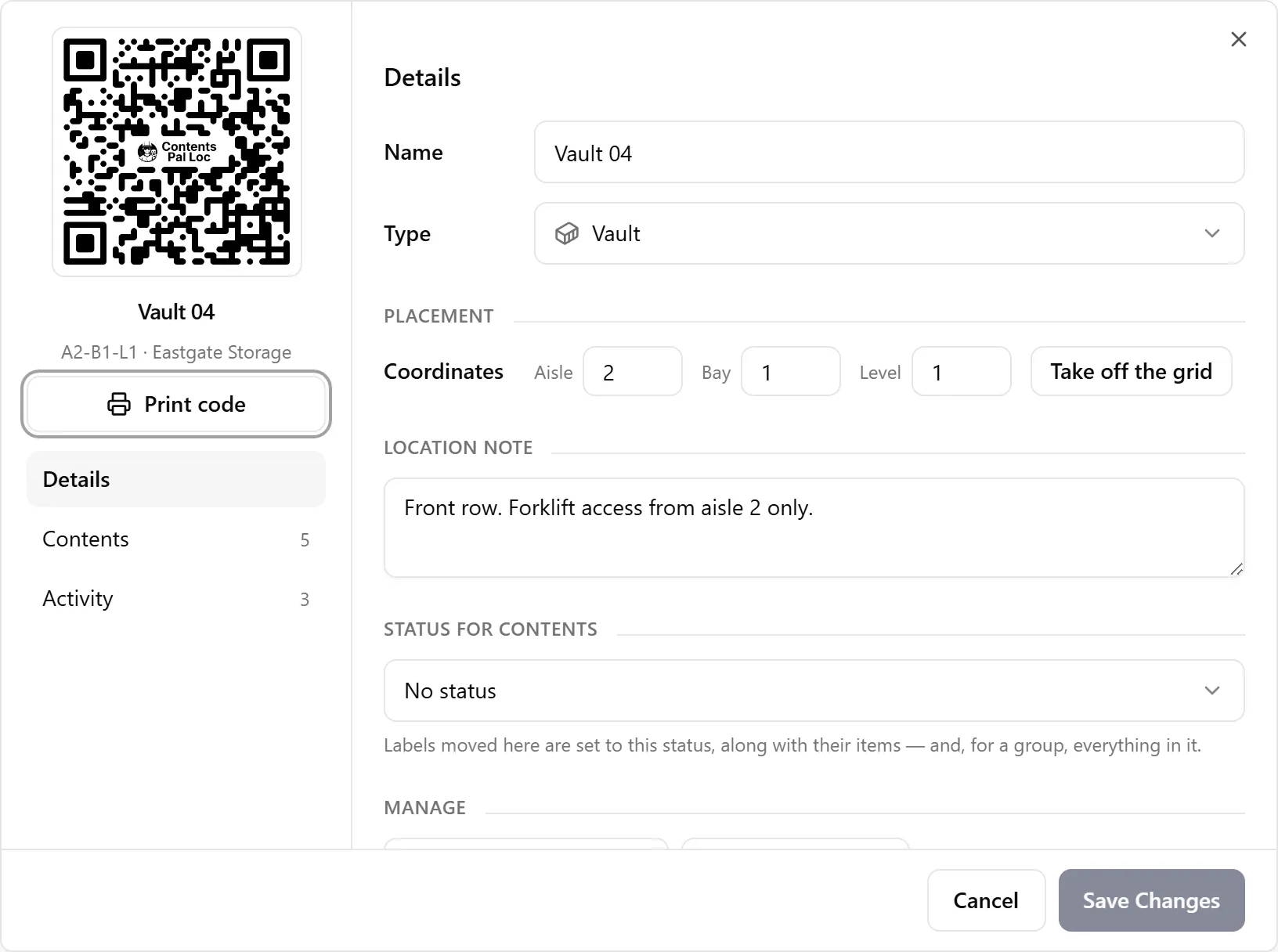
One vault: open the location and click Print code, handy for replacing a damaged sticker.
-
Grid spots: Print QR Codes → Coordinate QR codes prints one code per aisle and bay, if your site uses a grid.
⚙️ Prerequisites
Section titled “⚙️ Prerequisites”-
A site with locations, set up in the web app (see Setup Locations).
-
A label printer or a regular printer with sticker sheets.
-
Any member of your organization can print vault labels.
🚀 Step-by-Step Instructions
Section titled “🚀 Step-by-Step Instructions”1. Print Labels for Many Vaults
Section titled “1. Print Labels for Many Vaults”-
In the web app, click Sites in the side menu.
-
Click Manage Locations on the site you want.
-
Click Print QR Codes and choose:
-
All Locations: every location in the table. If a filter or search is on, only the matching locations print.
-
Selected Locations: the locations you’ve ticked in the table.
-
Location Range…: a run of locations, for example the 1st to the 20th.
-
-
Pick a sticker layout. Tick Include site/warehouse name to print the site’s name on each label, and Include coordinates to print each vault’s spot on the grid (shown only when your locations have coordinates).
-
Print.

2. Reprint a Single Vault Label
Section titled “2. Reprint a Single Vault Label”If a sticker gets torn or dirty, reprint just that one:
-
On the site’s page, click the location’s name to open it.
-
Click Print code under the QR code on the left.
The new sticker has the same code, so scanning it works exactly like before. Nothing needs to be relabeled inside the vault.
3. Put the Labels on Your Vaults
Section titled “3. Put the Labels on Your Vaults”-
Stick each label on the front face of its vault, roughly at eye level, where it’s easy to see and reach with a phone.
-
The code belongs to the vault, not to a spot in the warehouse. When a vault moves, its label goes with it.
-
For racks, rails and trucks, put the label where the crew naturally stands to load them.
If your site uses a grid, you can also print Coordinate QR codes (Print QR Codes → Coordinate QR codes) and post one at each aisle-and-bay spot. They mark places rather than vaults, so relocating a vault in Warehouse Mode is just two scans: the vault, then the spot. See Setup Locations.
🖨️ Which Printer Should I Use?
Section titled “🖨️ Which Printer Should I Use?”Any label printer works, as long as it takes a sheet or roll size ContentsPal prints. Printers our customers use include the Brother QL-810W, Zebra ZSB DP14 or Zebra GK420D, Jadens JD268BT and Westinghouse WHTP203e. A regular office printer with Avery or ULINE sticker sheets works too. See How to Print Labels for every layout.
For vaults that live outdoors or in a damp space, use weather-resistant or laminated labels so the codes stay scannable.
✅ Best Practices
Section titled “✅ Best Practices”-
Print vault labels when you set up a site, before the first job arrives.
-
Use Include site/warehouse name if you run more than one building, so a label is never mistaken for another site’s vault.
-
Post a Vault Summary sheet next to the label if you want anyone walking by to see what’s inside. See Vault Summary Report.
🧩 Troubleshooting
Section titled “🧩 Troubleshooting”I don’t see Include coordinates: none of the locations you’re printing have grid coordinates. Give them a spot on the grid first, or print without coordinates.
I can’t print vault labels from the mobile app: vault labels print from the web app only. The mobile app prints job labels (boxes and tags).
The label scans as “Location not found”: that location was deleted. Print a label for its replacement location instead.
There’s no Sites item in the side menu: Sites aren’t available for insurance adjuster organizations or in Franchise HQ mode.