
Getting Started with Offline Mode
The ContentsPal mobile app includes Offline Mode that allows you to continue documenting inventory even without internet. All photos and data are saved on your device and automatically upload to the cloud when you reconnect.
How Offline Mode Works
Section titled “How Offline Mode Works”What happens when you go offline?
Section titled “What happens when you go offline?”-
Automatic Detection: The app detects when you’re offline and switches to offline mode
-
Local Storage: Photos and inventory data are saved on your device
-
Automatic Upload: When you reconnect, everything uploads automatically in the background
-
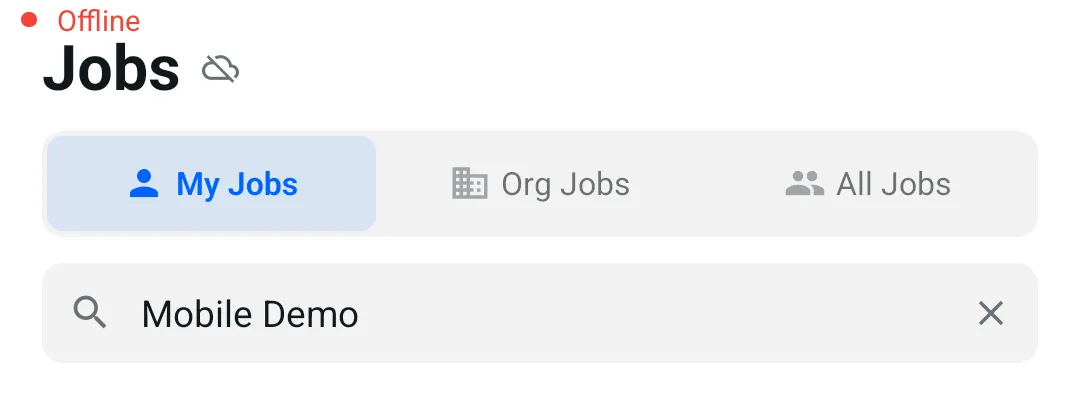
Visual Indicators: You’ll see cloud-off icons indicating offline status
What can I do offline?
Section titled “What can I do offline?”✅ You CAN:
-
Take photos of items
-
Scan QR codes and assign items to boxes/tags
-
View room details
-
Add job site and room photos
-
Set item properties (salvage category, cleaning category, quantity)
-
View and edit items you’ve photographed offline
-
View the job’s already-uploaded items (read-only, as last synced to your device)
-
Continue working on multiple jobs (if previously downloaded)
❌ You CANNOT:
-
Edit items that were already uploaded
-
Invite organization members
-
Delete your account
-
Update profile settings
-
Generate or share reports
-
Switch to jobs that were not downloaded beforehand
Last Updated: September 2026