
How to Audit and Clean Up Your Inventory
A step-by-step workflow for cleaning up inventory errors — including duplicates, misidentified items, and multi-mode mistakes — without re-inventorying from scratch.
Overview
Section titled “Overview”After a pack-out job, your inventory may contain errors such as duplicate items, misidentified objects, or photos that don’t match the correct line items. Rather than starting from scratch, ContentsPal provides several tools to efficiently audit and clean up your inventory.
This guide walks you through a recommended step-by-step cleanup workflow.
Common Inventory Errors
Section titled “Common Inventory Errors”Before diving into the cleanup process, it helps to understand the most common types of errors:
-
Duplicate items — The same object appears multiple times because it was scanned or photographed more than once.
-
Multi-item photo added in single mode — A photo showing multiple items was captured in single mode, so only one line item was created. Some items may be missing from your inventory.
-
Single item added in multi-mode — A photo of one item was captured in multi-mode, causing background objects to be incorrectly identified and added as separate line items.
-
Line item with photos of different items — A single line item has additional photos attached that actually show different objects.
Recommended Cleanup Workflow
Section titled “Recommended Cleanup Workflow”Follow these steps in order to maximize efficiency and minimize rework.
Step 1: Remove Irrelevant Items
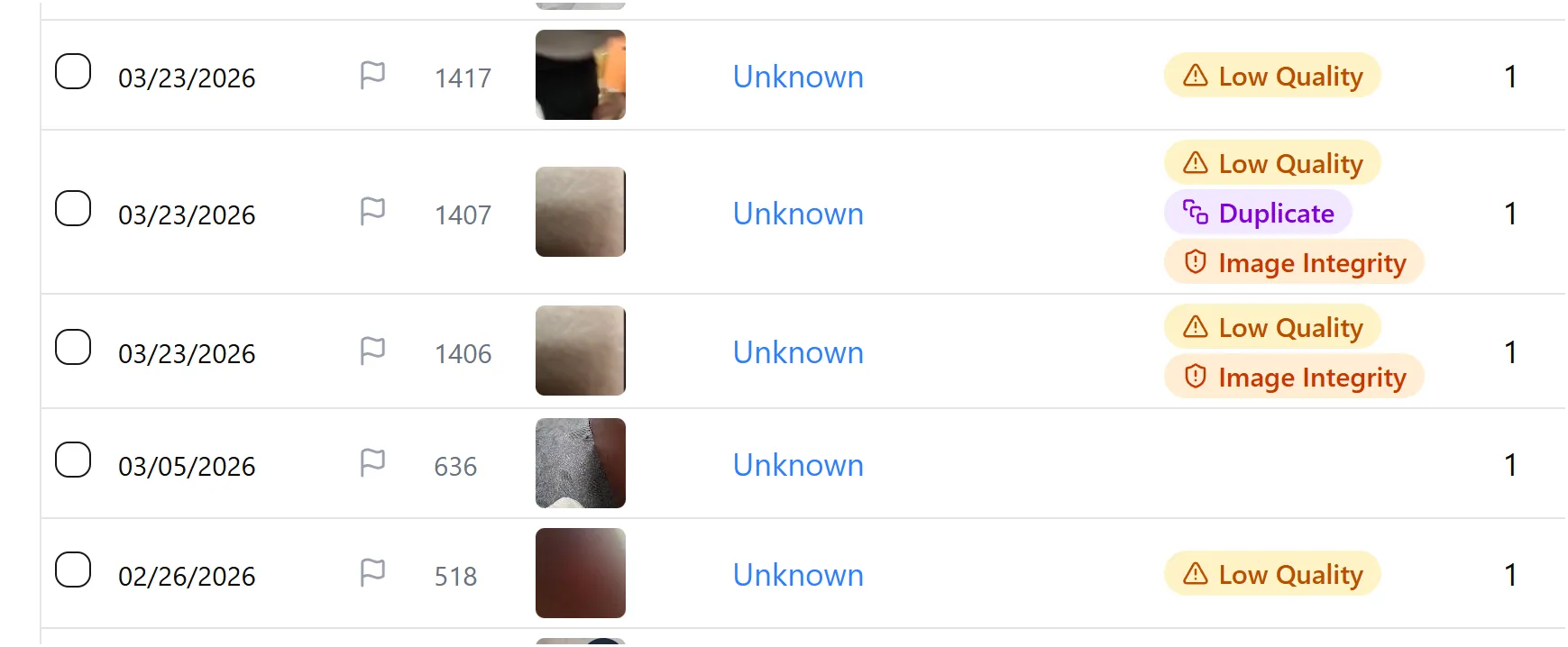
Section titled “Step 1: Remove Irrelevant Items”Start by filtering and removing items that clearly don’t belong in the inventory. Common examples include:
-
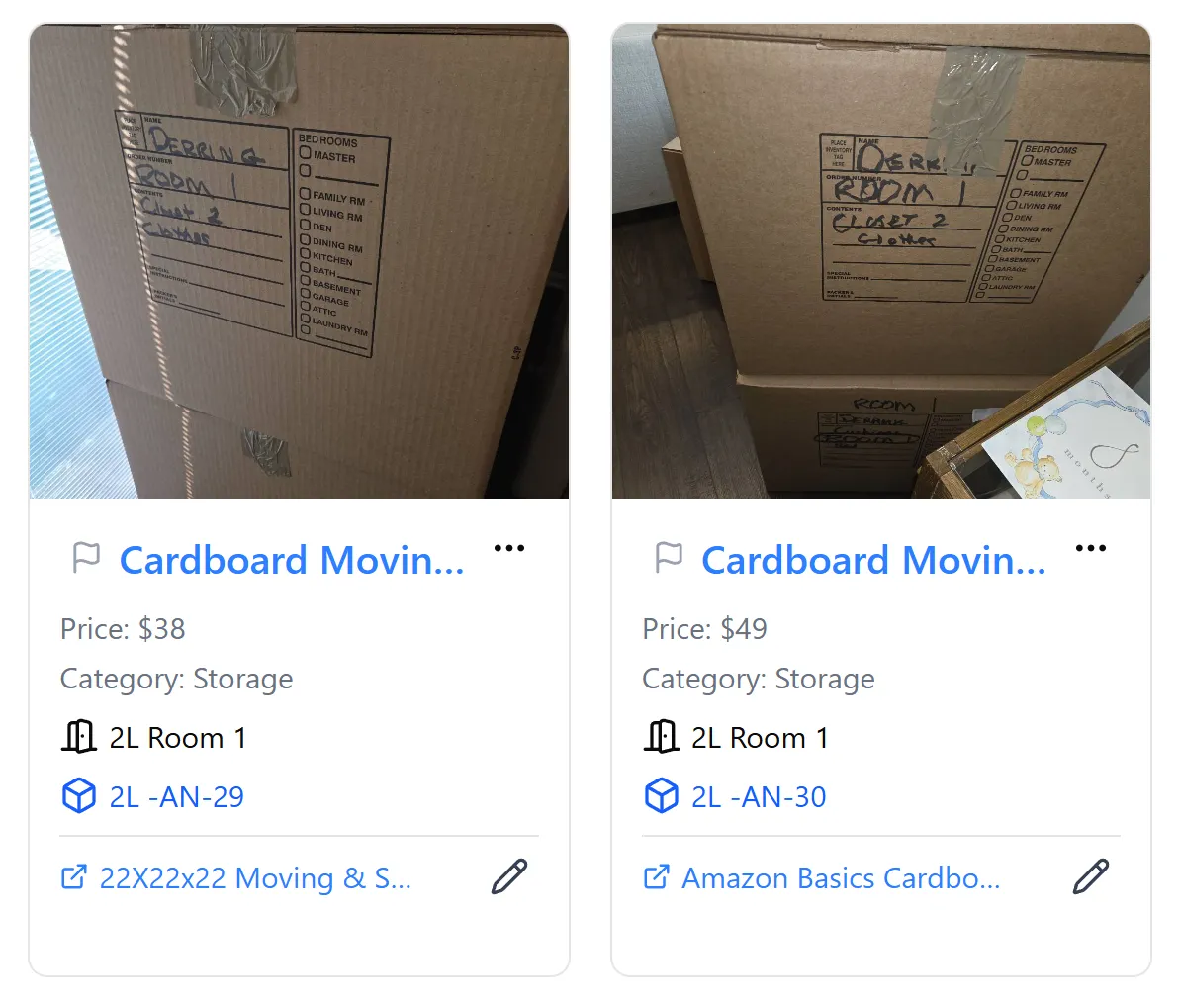
Photos of packed cardboard boxes (not actual contents)
-
Very blurry or unrecognizable photos
-
Background objects incorrectly added by multi-mode
How to do it: Use the search and filter tools to find these items. Select multiple items at once, then open the Edit rows menu and choose Delete rows to remove them all in one action.
Example of items with irrelevant photos that should be deleted:
Example of cardboard box items that should be removed:
Step 2: Check Line Items with Multiple Photos
Section titled “Step 2: Check Line Items with Multiple Photos”Review line items that have multiple images attached (tip: filter by Flags → Additional Photos to list them). Click into each one and check whether all photos show the same object.
- If photos show different items: Use the Split item feature. Click the … menu on the item and select Split item to open a dialog where you can drag photos into separate groups. Each group becomes its own item, and AI re-identifies them automatically. See How to Split an Item for a full guide.
Step 3: Re-analyze Multi-Item Photos
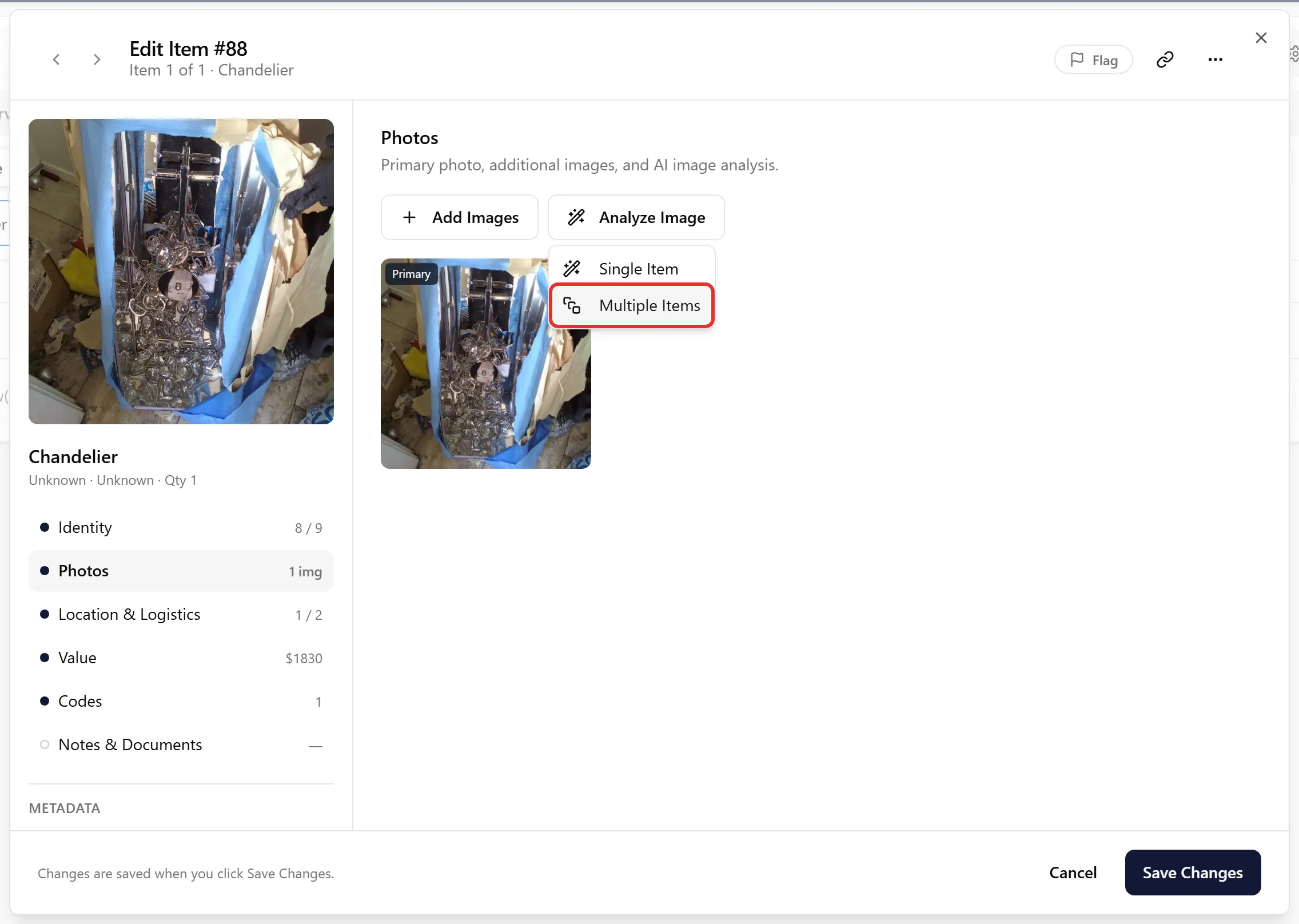
Section titled “Step 3: Re-analyze Multi-Item Photos”Look for photos that show multiple items but were added in single mode (only one line item was created).
How to do it: Click on the item, open its Photos section, then select Analyze Image → Multiple Items. This will break the single line item into separate items for each object visible in the photo.
Tip: You can identify whether an item was added in multi-mode by looking for a small icon on the photo that shows the item’s “siblings.”
Step 4: Merge Duplicate Items
Section titled “Step 4: Merge Duplicate Items”Use the Has Similar Items filter to quickly surface items that ContentsPal has flagged as potential duplicates.
How to do it:
-
In the Inventory view, open the Flags filter and select Has Similar Items.
-
You can also use the search bar to find similar items by name (e.g., search for “heated plate”).
-
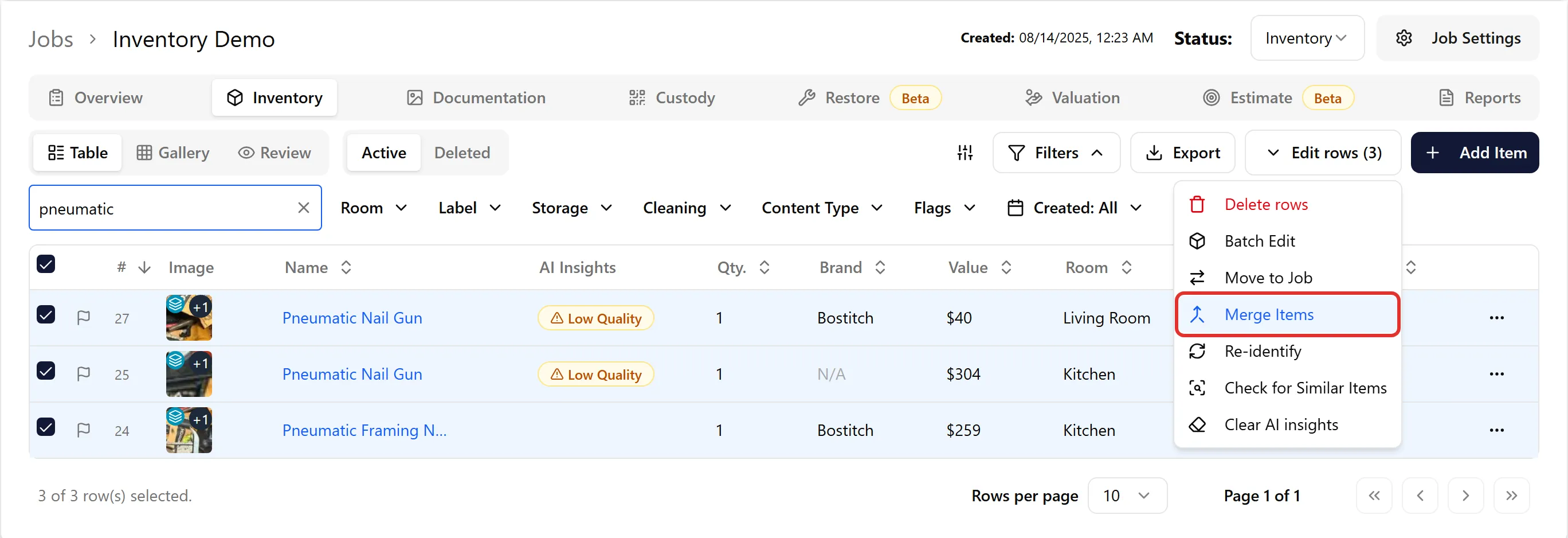
Select the items you want to merge by checking their boxes.
-
Open the Edit rows menu and click Merge Items to combine them into a single line item.
Step 5: Visual Review in Gallery Mode
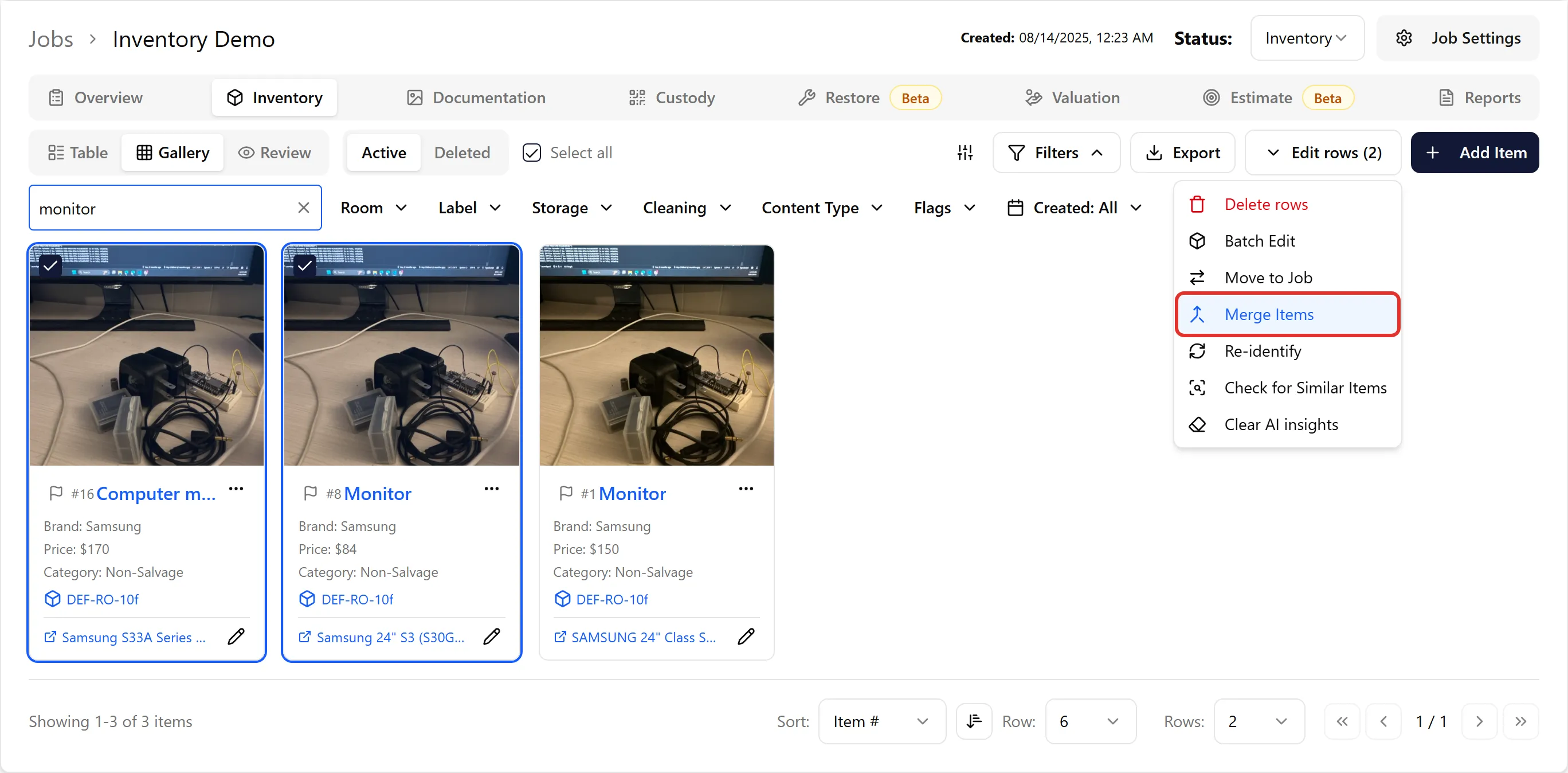
Section titled “Step 5: Visual Review in Gallery Mode”Switch to Gallery mode for a visual overview of your entire inventory. This makes it easy to spot remaining issues like misidentified items or missed duplicates.
Gallery mode supports the same select-and-merge workflow as the Table view:
Tips for Efficient Cleanup
Section titled “Tips for Efficient Cleanup”-
Use search and filters aggressively. Filter for similar items, “unknown” items, or specific item types (e.g., cardboard boxes) to isolate problem areas quickly.
-
Work in passes. Don’t try to fix everything at once. Do a first pass to delete obvious junk, then a second pass for merges, and a final visual review in Gallery mode.
-
Train your team on multi-mode. Most inventory errors come from inconsistent use of single vs. multi-mode during capture. A short training session on when to use each mode prevents these issues from recurring.
Preventing Future Errors
Section titled “Preventing Future Errors”The best way to avoid inventory cleanup is to ensure your team is trained on using ContentsPal correctly from the start:
-
Use Multi Mode when photographing groups of items (e.g., a shelf of dishes, a box of books).
-
Use Single Mode when photographing individual items one at a time.
-
Avoid photographing packing materials, empty boxes, or non-content items.
-
Review the inventory periodically during a job rather than waiting until the end.