
Preparing and Syncing
Learn how to prepare jobs for offline work and understand how data syncs when you reconnect.
Making Jobs Available Offline
Section titled “Making Jobs Available Offline”To work on a job without internet, you need to download it to your device first:
-
Go to the Jobs list while online
-
Find the job you want to make available offline
-
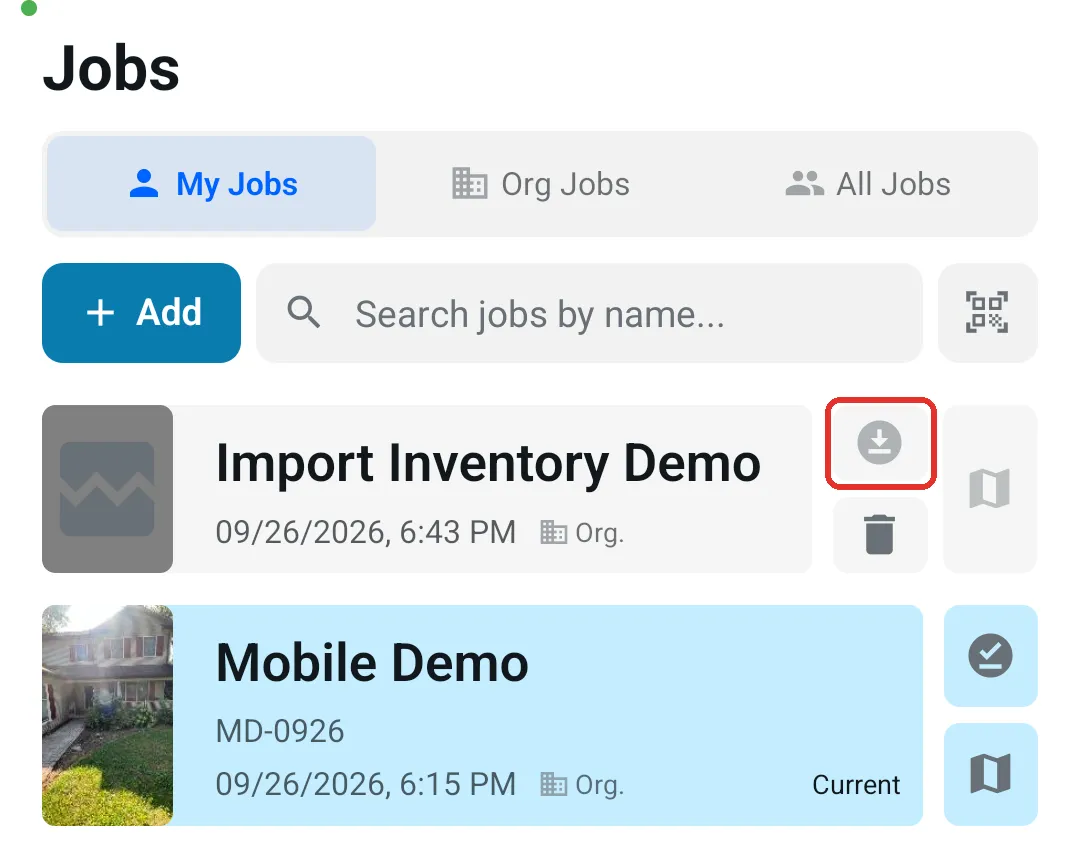
Tap the download icon in the column of buttons on the right side of the job card
-
Wait for the download to complete
-
The icon will change to show the job is now available offline
Any job you open from the Jobs list while online is also made available offline automatically.
What Gets Saved to Your Device:
-
Job details (name, status, rooms)
-
All QR codes
-
Room information
-
The job’s existing inventory, so you can look it up offline
Limits:
-
Keep it to 5 jobs or fewer for best performance
-
Remove jobs you’re no longer working on
How Uploads Work
Section titled “How Uploads Work”When you reconnect to the internet and open the app:
-
Items automatically start uploading
-
New rooms upload first, then boxes and tags, then individual items, then photos
-
Failed uploads retry automatically
-
Keep the app open until uploads complete
-
Check Settings → Offline & sync to monitor progress
Note that files will not upload unless app is open
Important Dos and Don’ts
Section titled “Important Dos and Don’ts”-
Stay Logged In - Uploads only run while you’re logged in. If you log out with items still waiting, they stay on the device and resume uploading when you log back in to the same account
-
Keep the App Open During Uploads - Uploads work best when the app is in the foreground
-
Download Jobs Before Going Offline - Tap the download icon for each job you’ll need offline
-
Monitor Storage - Check Settings → Offline & sync regularly
-
Enable Location Services - Location data helps with organization
❌ DON’T:
Section titled “❌ DON’T:”-
Don’t Delete the App - You’ll lose all offline data forever
-
Don’t Force Close the App - Let uploads complete naturally
-
Don’t Ignore Storage Warnings - Full storage prevents taking new photos
Last Updated: September 2026