
Custom Inventory Report
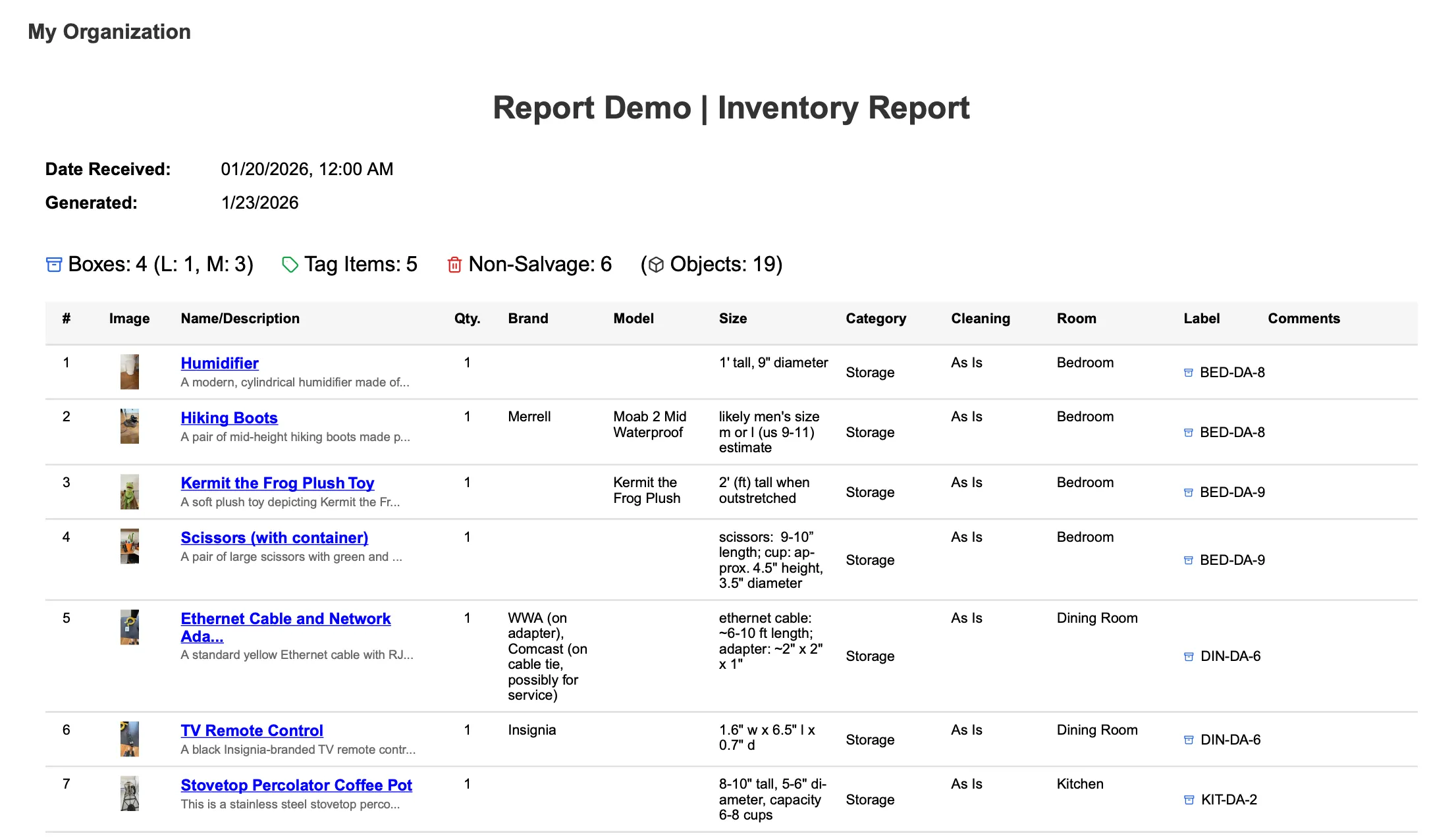
A fully customizable item report where you control columns, filters, and grouping. Best for tailored reports when presets don’t match your needs.
What’s Included
Section titled “What’s Included”The Custom Inventory Report lets you choose exactly what to include:
-
Flexible Columns: Select which data columns appear
-
Customizable Grouping: Split by room, label, or both
-
Filter Control: Apply specific filters for targeted reports
-
Format Choice: Generate as PDF or spreadsheet
-
Item Photos: Optional image inclusion
Available as: PDF or Spreadsheet (XLSX). PDFs provide professional appearance with photos, while spreadsheets offer sortable, filterable data you can manipulate.
When to Use This Report
Section titled “When to Use This Report”Best for:
-
Creating tailored reports for specific stakeholders
-
Building reports with unique column combinations
-
Situations where preset reports don’t match your exact needs
-
Sharing reports that require specific data fields
-
Removing sensitive information (like pricing or age)
-
Giving the customer a full list of their inventory—with no filters, the report includes every item in the job (salvageable and non-salvageable, cleaned or not, and textiles)
Not ideal for:
-
Quick standard reports (use Salvageable or Non-Salvageable)
-
Fixed format requirements (use XactContents Spreadsheet or Total Loss Carrier Spreadsheet)
-
Visual-focused presentations (use Photo Report)
How to Generate
Section titled “How to Generate”-
Open your job in the web app
-
Click the Reports tab (top right)
-
Click Generate Report
-
Expand Additional Reports
-
Select Custom Inventory Report
-
Choose PDF or Spreadsheet format
-
Customize your options (see below)
-
Click Generate Report
Note: Most reports download immediately. Large jobs (2,000+ items) are emailed to you when ready.
Customization Options
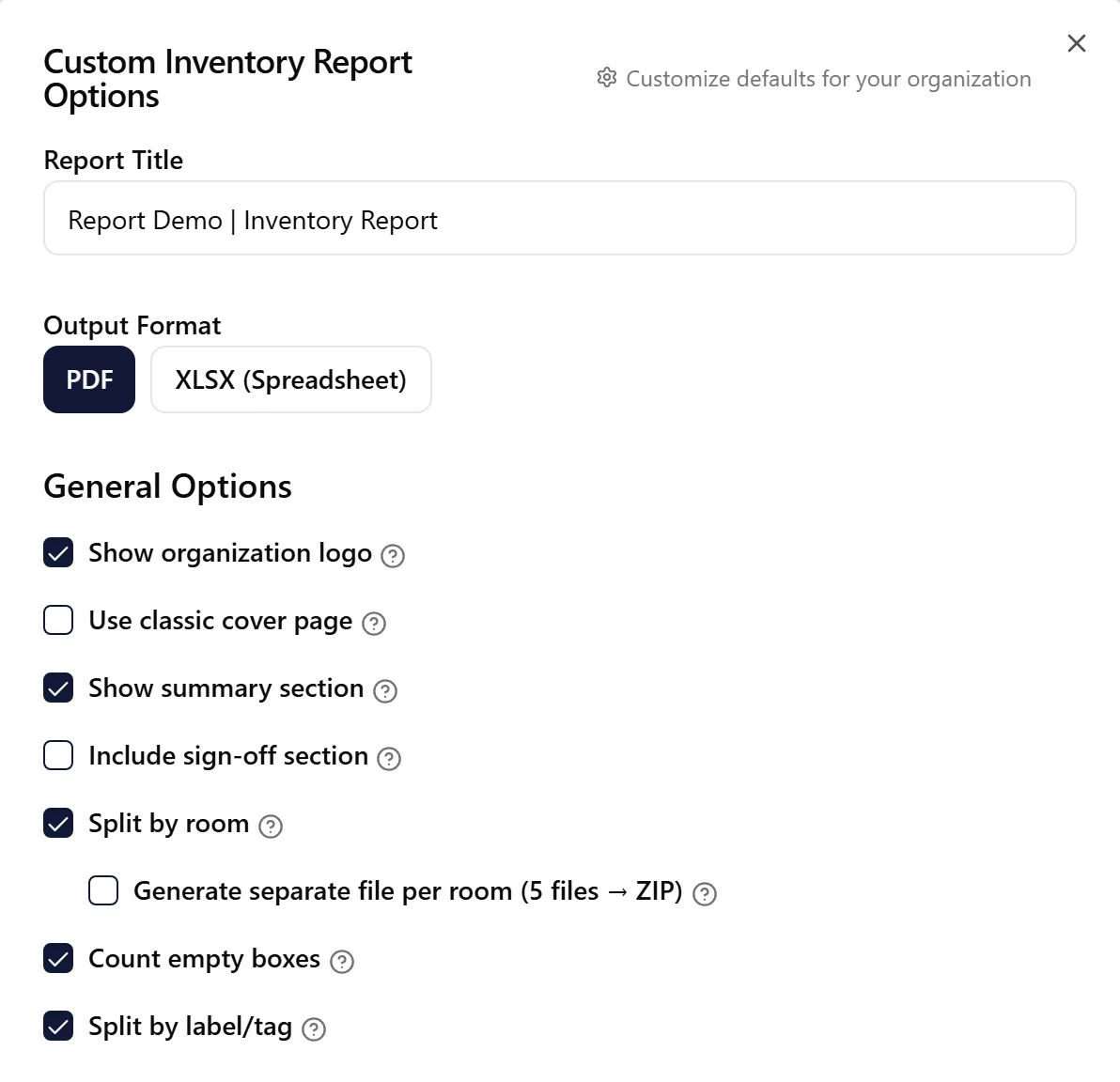
Section titled “Customization Options”Include Organization Logo
Section titled “Include Organization Logo”Default: Enabled
Adds your organization’s logo to the report header.
Cover Page
Section titled “Cover Page”Default: Your organization’s cover setting (PDF only)
Under Cover page, tick Use classic cover page for the previous job details page, or choose which sections the new cover shows. See Report Cover Page for details.
Show Summary
Section titled “Show Summary”Default: Enabled
Includes a summary section with total counts and statistics. While it’s on, Count empty boxes (off by default) also includes boxes with no items scanned into them in the Boxes count, and shows how many of them are empty, for example Boxes: 20 (3 empty; S: 12, M: 8).
Include Sign-Off Section
Section titled “Include Sign-Off Section”Default: Disabled
Adds a confirmation sign-off section with an empty signature line at the end of the report.
Split by Room
Section titled “Split by Room”Default: Enabled
Organizes the report into separate sections for each room. On jobs with more than one room, you can also tick Generate separate file per room to get one file per room, bundled into a ZIP and emailed to you.
Split by Label/Tag
Section titled “Split by Label/Tag”Default: Enabled (PDF only)
Creates separate sections for each box or bag label.
Include Additional Item Photos
Section titled “Include Additional Item Photos”Default: Disabled (Spreadsheet only)
Adds up to five of each item’s additional photos to the spreadsheet, one photo per column, at the far right of the table after every other column. These columns are left out of the column filters, so sorting and filtering still work on the item data. Jobs with many photos take longer to generate with this turned on.
Item Filters
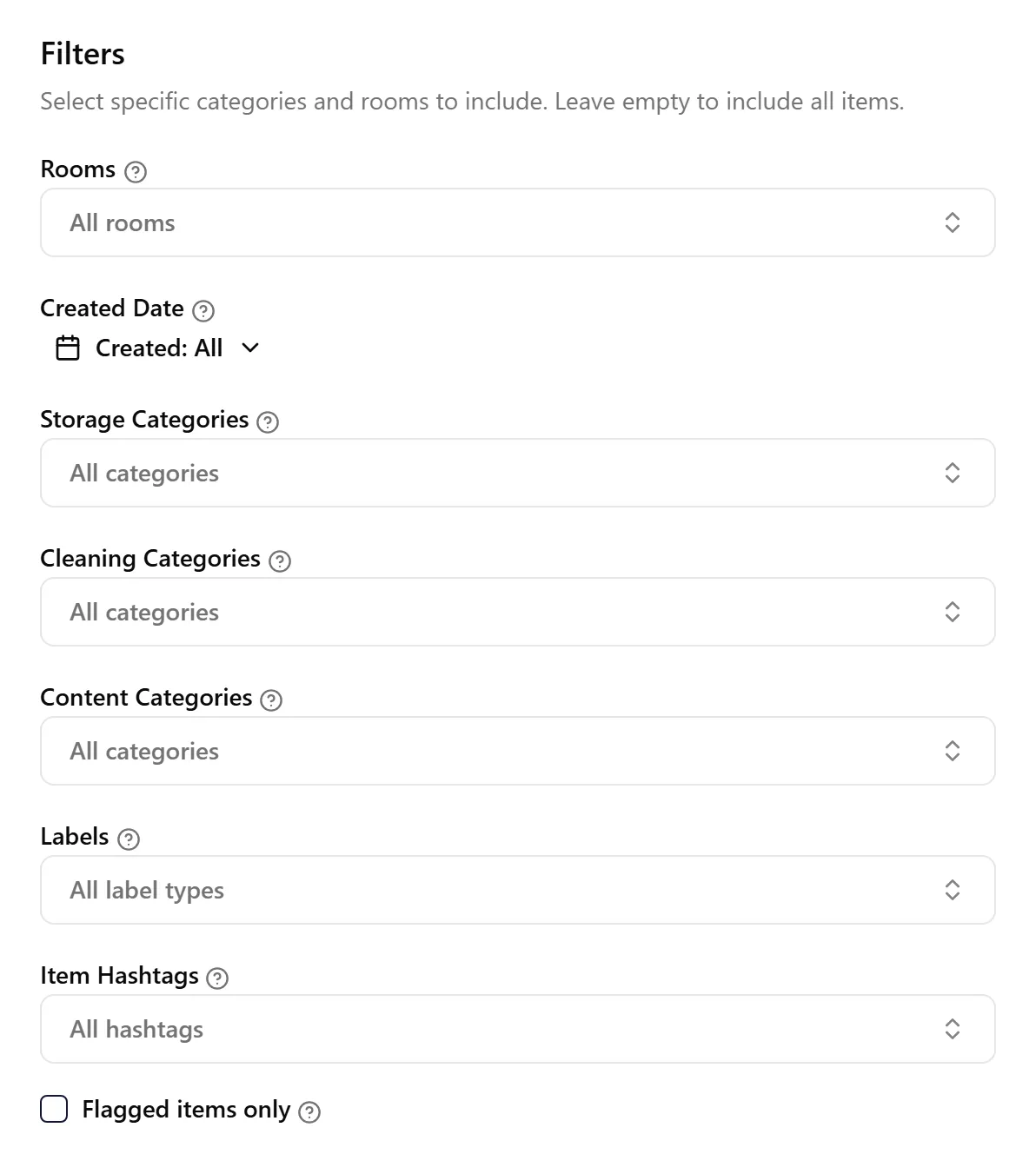
Section titled “Item Filters”Default: All items included
Use filters to include only specific items in the report. Leave filters empty to include all items.
Available filters:
-
Rooms: Filter by specific rooms. Select “No Room” to include unassigned items
-
Created Date: Only include items created within a date range
-
Storage Categories: Filter by where items are stored (Storage, Left On Site, Third Party, Non-Salvage, or Other)
-
Cleaning Categories: Filter by cleaning requirements (As Is, Needs Cleaning, Biohazard, etc.)
-
Content Categories: Filter by content type (Electronics, Antiques, Kitchenware, etc.)
-
Labels: Filter by label type (Box, Tag, Textile, Garment Bag, Non-Salvageable, Other, or No Label)
-
Item Hashtags: Only include items with at least one of the selected hashtags
-
Flagged items only: Only include items that have been flagged for review
When you select multiple options in a filter, the report includes items matching any of those selections.
Column Selection
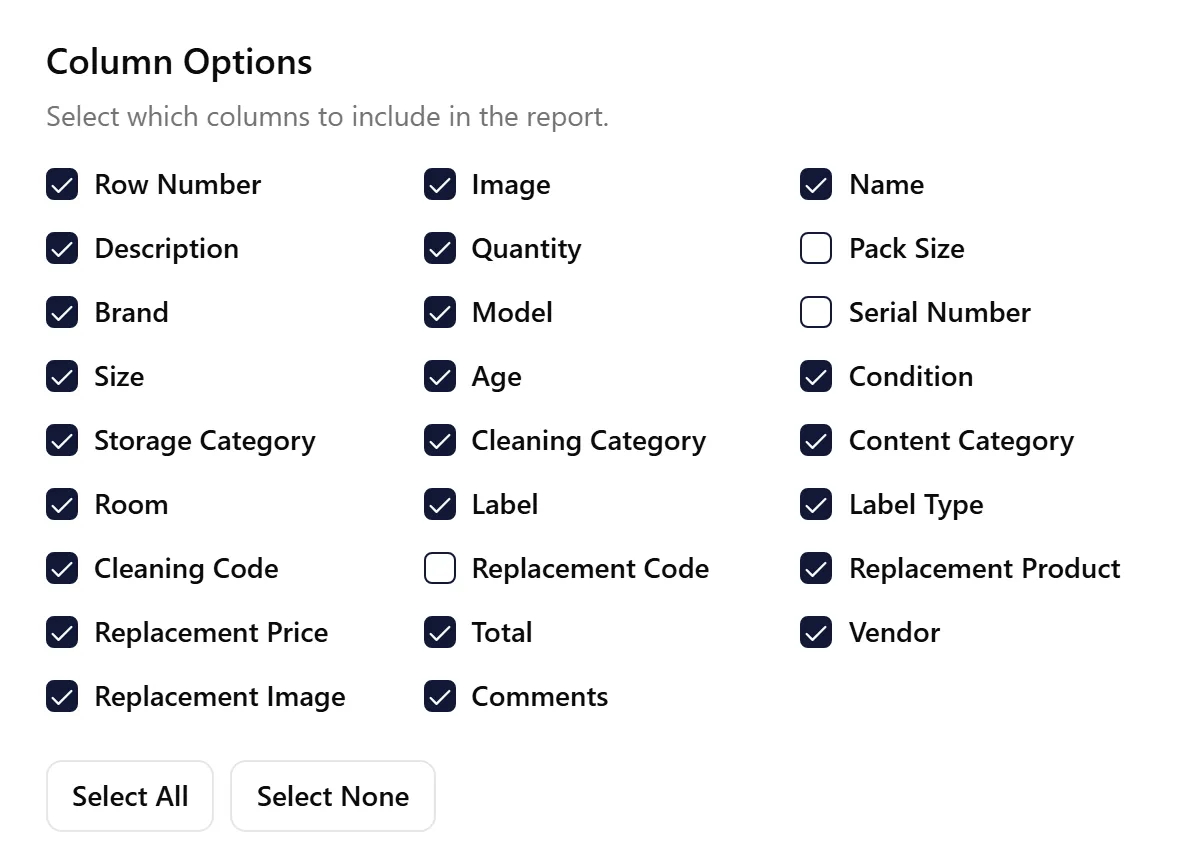
Section titled “Column Selection”Choose exactly which columns to include:
Available columns:
-
Row Number
-
Image
-
Name
-
Description
-
Quantity
-
Pack Size
-
Brand
-
Model
-
Serial Number
-
Size
-
Age
-
Condition
-
Storage Category
-
Cleaning Category
-
Content Category
-
Room
-
Label
-
Label Type
-
Cleaning Code
-
Replacement Code
-
Replacement Product
-
Replacement Price
-
Total
-
Vendor
-
Replacement Image
-
Comments
Use “Select All” or “Select None” buttons, then toggle individual columns.
Viewing Report History
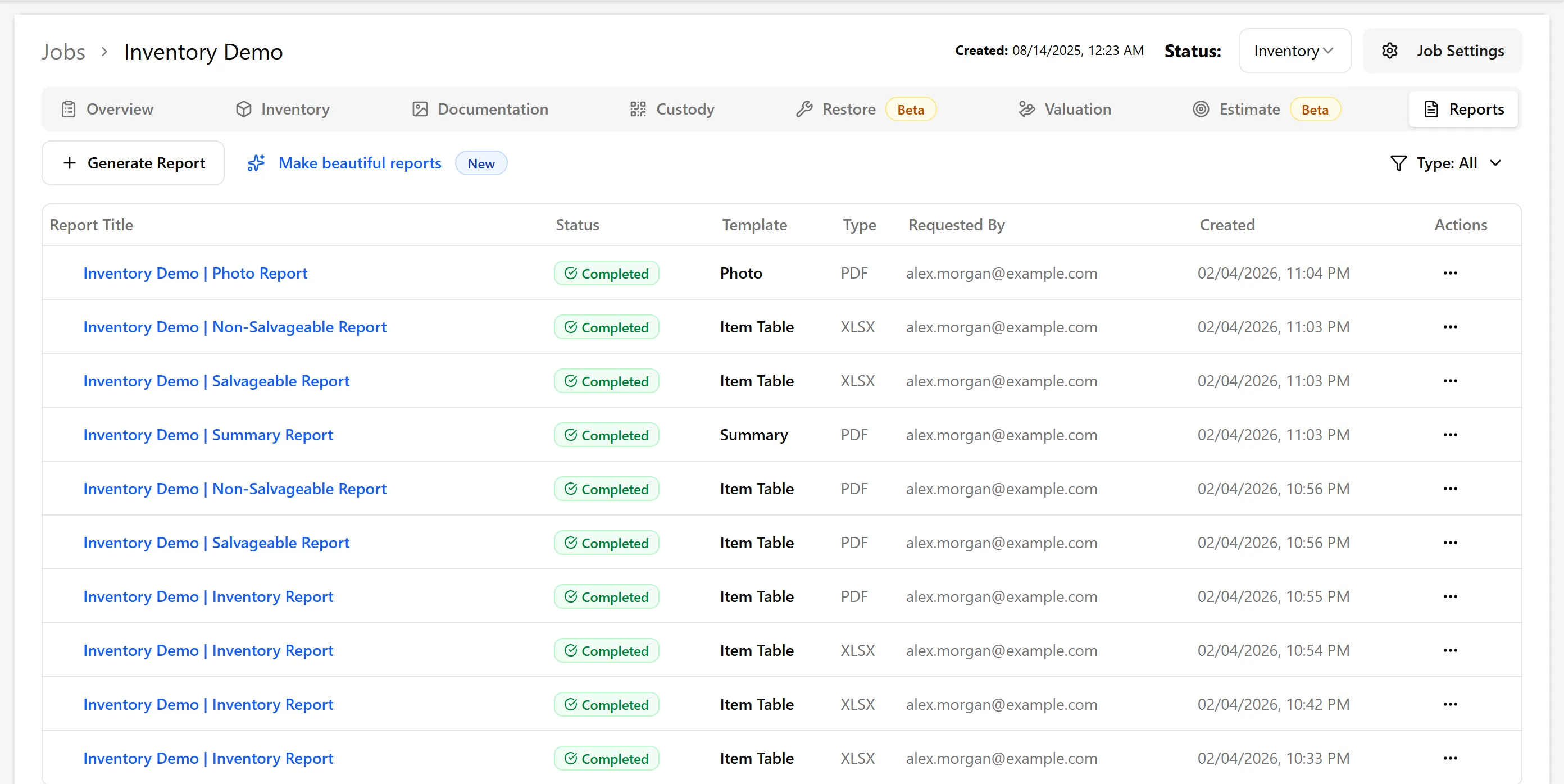
Section titled “Viewing Report History”All generated reports are stored in the Reports tab where you can:
-
Download reports again anytime
-
See generation status
-
View who requested each report
For Large Jobs
Section titled “For Large Jobs”-
Split by room to create manageable sections
-
Use filters to generate multiple targeted reports
-
Consider spreadsheet format for smaller file sizes
Separate Reports for Textiles and Hard Contents
Section titled “Separate Reports for Textiles and Hard Contents”To give the estimator one report with only textiles and one with everything else, generate the report twice:
-
Without textiles: In Labels, select every option except Textile and Garment Bag (that is, Box, Tag, Non-Salvageable, Other, and No Label). Set the Report Title to something like “Without Textiles”.
-
Only textiles: In Labels, select only Textile and Garment Bag. Set the Report Title to something like “Only Textiles”.
Troubleshooting
Section titled “Troubleshooting”Report shows unexpected items
-
Check applied filters
-
Verify salvage category filters aren’t too restrictive
-
Try generating without filters to see all items
Missing columns I need
-
Ensure the column is available in the custom report
-
Some columns may only be available in specific report types
-
Check if data is populated for those columns
Report is too large
-
Apply more specific filters
-
Split by room to create smaller reports
-
Use spreadsheet format instead of PDF
-
Remove image column if photos aren’t necessary
Can’t decide which columns to include
-
Start with a preset report (Salvageable, Non-Salvageable)
-
If it doesn’t fit your needs, use Custom Inventory
-
Test with a small filter first before generating the full report
Related Articles
Section titled “Related Articles”-
Salvageable Report - Pre-configured salvageable items
-
Non-Salvageable Report - Pre-configured non-salvageable items
-
Standard Format Spreadsheet - Fixed format for Xactimate or a specific carrier
-
Replacements Report - Replacement pricing focus