
Connect to AI Assistants with MCP
Ask your ContentsPal data questions and get instant answers — no exporting, no spreadsheets, no hunting through jobs.
🧭 Summary
Section titled “🧭 Summary”ContentsPal now supports MCP (Model Context Protocol), which lets you connect your account directly to AI assistants like Claude and ChatGPT. Once connected, you can ask the AI questions about your jobs, items, and reports — and it pulls the answers straight from your ContentsPal data in seconds.
Instead of manually running reports or scrolling through job lists, you just ask. The AI does the number crunching for you.
⚙️ Prerequisites
Section titled “⚙️ Prerequisites”-
You must be an owner or admin of your ContentsPal organization, or an owner or admin of a franchise
-
An MCP-compatible AI assistant — such as Claude (claude.ai) or ChatGPT
🚀 Step-by-Step Instructions
Section titled “🚀 Step-by-Step Instructions”1. Find your MCP URL in ContentsPal
Section titled “1. Find your MCP URL in ContentsPal”-
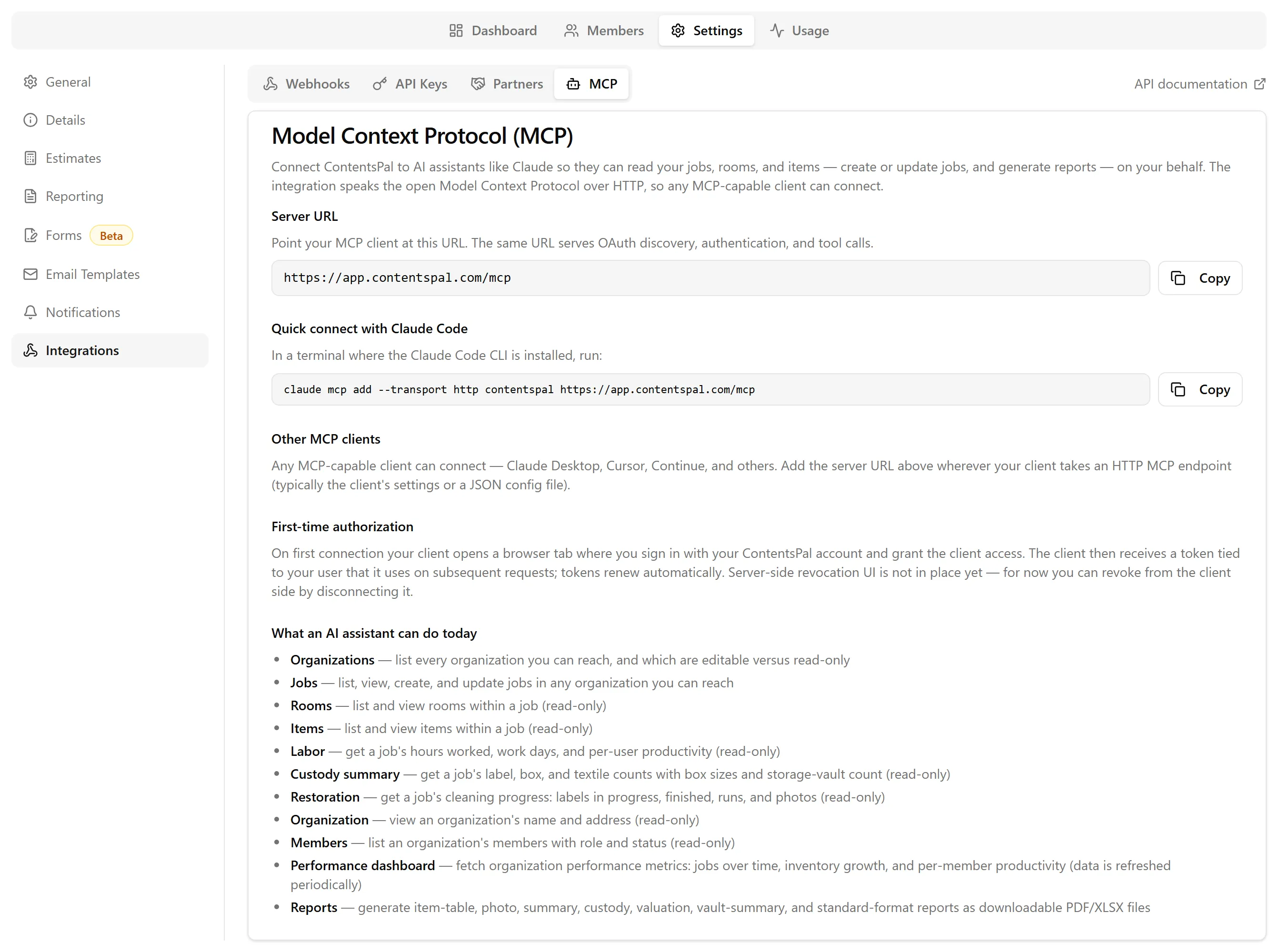
In ContentsPal, click Organization in the top navigation
-
Click Settings, then click Integrations
-
Click the MCP tab
You’ll see the ContentsPal MCP server URL here. Copy it — you’ll need it in the next step.
2. Connect your AI assistant
Section titled “2. Connect your AI assistant”Example with Claude (claude.ai)
Section titled “Example with Claude (claude.ai)”-
Open Claude and click Customize in the sidebar
-
Click Connectors
-
Click Add Connector, then choose Custom Connector
-
Give it a name — for example, ContentsPal
-
Paste your MCP URL into the Server URL field
-
Click Add
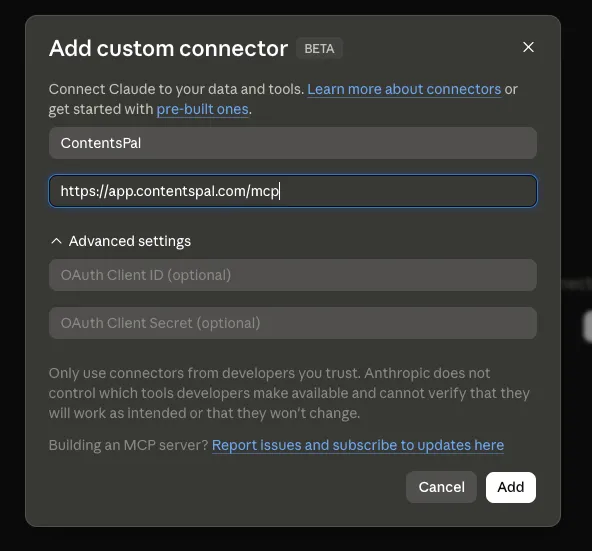
Claude will ask you to sign in to ContentsPal and approve the connection. Follow the prompts and click Allow on the ContentsPal authorization screen.
Example with ChatGPT (chatgpt.com)
Section titled “Example with ChatGPT (chatgpt.com)”-
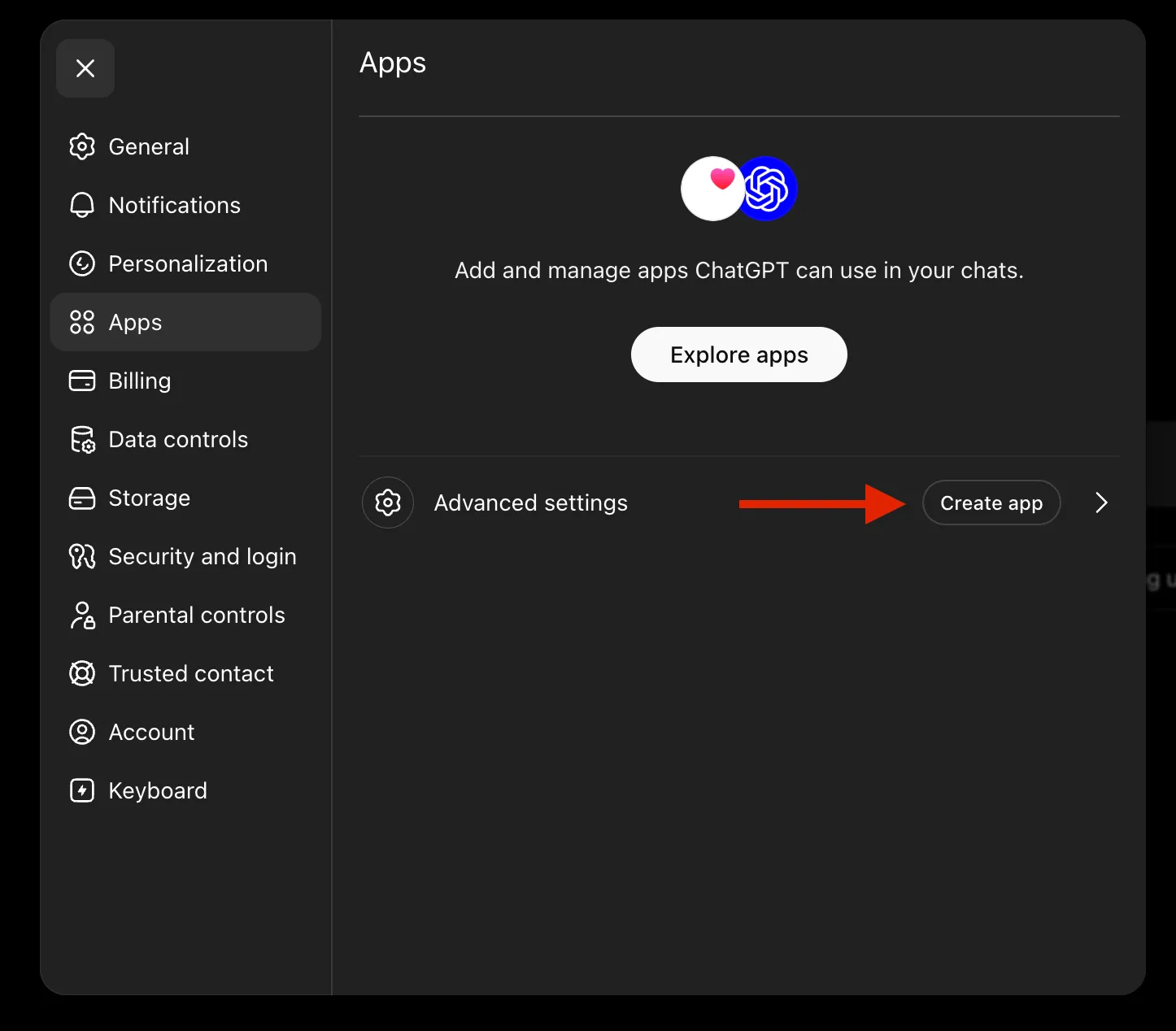
In ChatGPT, open Settings
-
Go to Apps
-
Enable Developer Mode — it’s required to add a custom MCP server
-
Click Create App
-
Paste your ContentsPal MCP URL — the one you copied from Organization → Settings → Integrations → MCP
-
Give it a name — for example, ContentsPal — and confirm
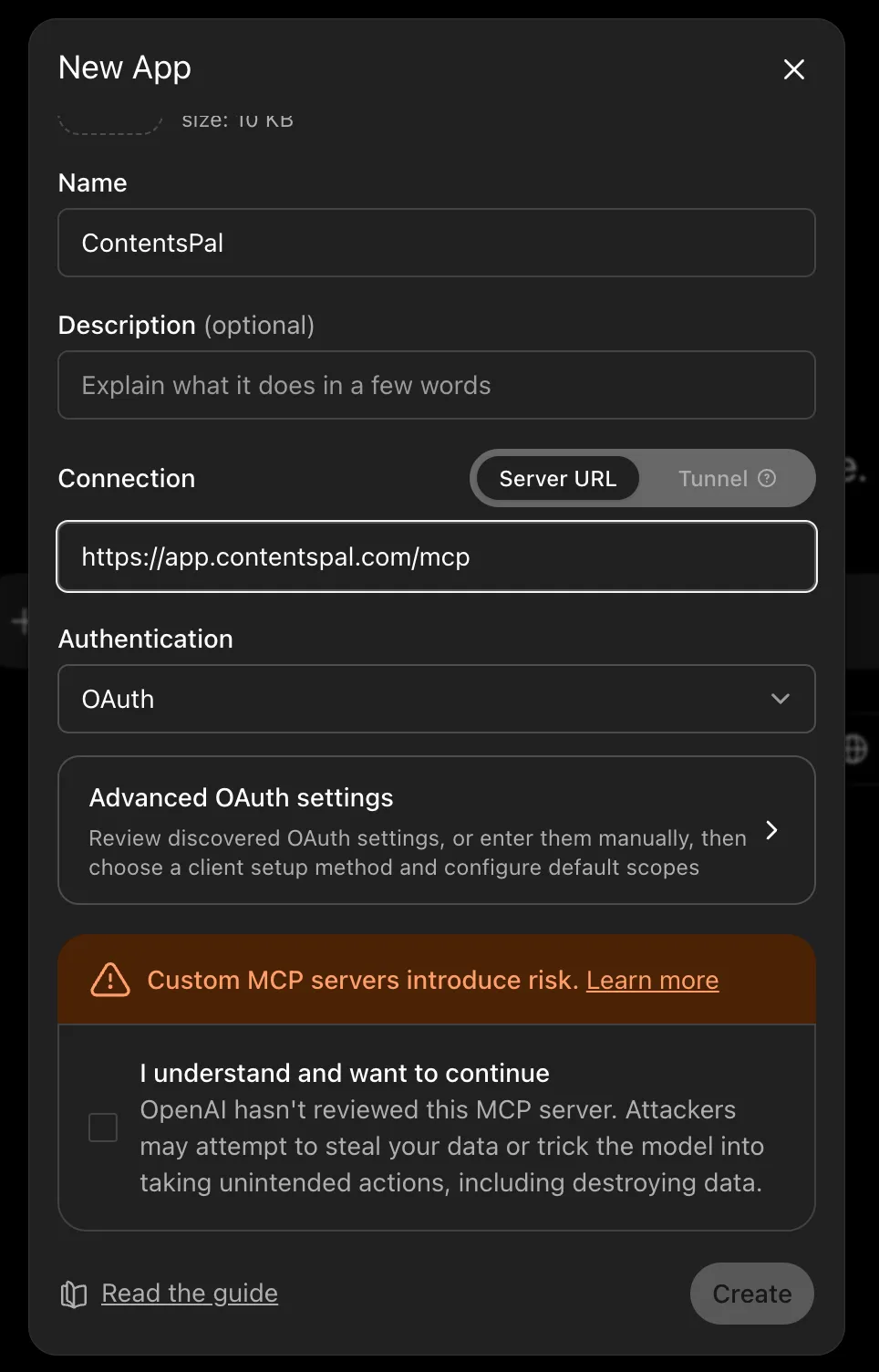
When prompted, sign in to ContentsPal and click Allow on the ContentsPal authorization screen. After connecting, refresh ChatGPT (or start a new chat) for the ContentsPal tools to appear in your conversations.
Other AI assistants
Section titled “Other AI assistants”For any other MCP-compatible assistant, look for a custom connector or MCP server option and paste in the same URL from the MCP tab in ContentsPal settings.
3. Start asking questions
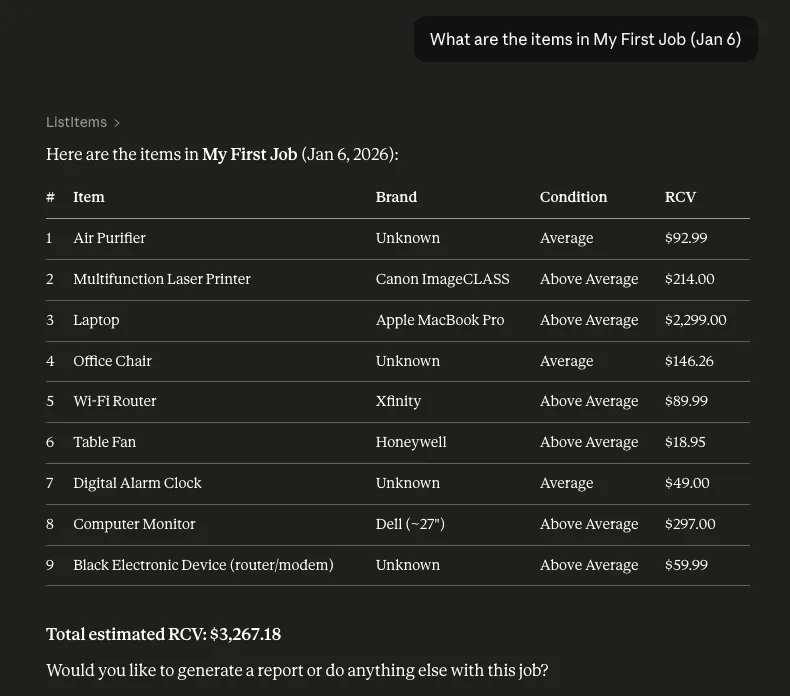
Section titled “3. Start asking questions”Once connected, just type your question in the AI chat. For example:
-
“Which jobs are currently open?”
-
“Which items in job ABC-123 still need identification?”
-
“Is the customer’s content currently in storage?”
-
“How many hours did we spend on job ABC-123?”
-
“Generate a valuation report for job ABC-123.”
-
“How many non-salvageable items did we log last month?”
-
“Send a test to our webhook endpoint and tell me if it worked.”
-
“Has the policyholder signed the work authorization on job ABC-123 yet?”
-
“What’s the estimate total for job ABC-123?”
The AI pulls live data from ContentsPal and responds instantly.
You can also ask it to make changes:
-
“Create 20 box labels for job ABC-123.”
-
“Rename location Vault 12 to Vault 12A.”
-
“Send the work authorization to the customer on job ABC-123.”
-
“Rebuild the estimate for job ABC-123 and send it to Xactimate.”
Changes take effect immediately and appear in ContentsPal like any other edit, so it’s worth confirming what the assistant is about to do before you approve it — especially for anything it’s deleting.
The assistant can also handle e-signature forms. It can list the form templates your organization has built, send one to a job’s signers, email or re-email an individual signer their invitation, tell you where a form has got to and who is still outstanding, hand you the signed PDF once it’s done, and cancel a form that went out wrong. Sending a form is deliberately two steps — the assistant creates it first and only emails the signers when you ask it to — so you get a chance to check the details before anything reaches a customer. Templates themselves are built in the ContentsPal web app; the assistant can read them but not create or edit them.
The assistant can also work with a job’s estimates. It can create the job estimate from the inventory, rebuild it after the inventory changes (lines you added by hand are kept), read back its lines and totals, and send it to Xactimate — either to a XactNet address or as an ESX file emailed to you. It can also run a new initial scope from the job’s room photos and read the latest one; an initial scope takes a few minutes, so the assistant checks back until it’s done. It can’t edit or delete estimate lines — make those changes on the job’s Estimate tab.
The assistant can also manage your storage sites and locations (warehouses and vaults) with these tools:
-
listStorageSites, listStorageLocations and getStorageLocation: list your sites and their locations, and see which jobs have labels in a location and how many.
-
createStorageSite, updateStorageSite and deleteStorageSite: create a site, change its name, address or grid size (aisles, bays and levels), or delete it.
-
createStorageLocation, updateStorageLocation and deleteStorageLocation: add a location to a site, change its name, type, code, note or coordinates, take it off the grid, or delete it.
For example: “Add Vault 21 to Vault 30 to Main Warehouse.” The assistant can’t set a location’s Status for contents, draw walkways or block cells on the grid; do those on the Sites page in the web app. Deleting a location is permanent and a deleted site can’t be restored from the app, so check what the assistant is about to delete before you approve it.
If you’re an owner or admin, the assistant can also set up your webhook for you — point it at a new endpoint, turn delivery on or off, or send a test. For security it can set or replace the signing secret but can never read one back, so it will only ever tell you the last four characters of the secret you have stored.
🏢 Franchises: working across every location
Section titled “🏢 Franchises: working across every location”If you’re an owner or admin of a franchise, a single connection reaches every organization in your franchise — you don’t need to switch organizations in ContentsPal first, and you don’t need to connect more than once.
Start by asking which organizations the assistant can see:
- “Which ContentsPal organizations can you access?”
You’ll get each organization by name, along with whether it’s editable or read-only. From there you can ask about one location or all of them at once:
-
“How many open jobs does each of our locations have?”
-
“List the jobs at our Riverside branch.”
-
“Generate a summary report for job ABC-123 at the Northgate location.”
What you can change: in organizations you own or administer directly, the assistant can create and update jobs, create and edit custody labels, set up storage sites and locations, and build estimates and initial scopes. Every other organization in your franchise is read-only: the assistant can read jobs, rooms, items, estimates, initial scopes, and statistics, and it can generate reports, but it can’t create or edit anything. This matches what you can do elsewhere in ContentsPal, where franchise access is view-only. If you ask for a change in a read-only organization, the assistant will tell you which organization it was and suggest asking an admin there.
A few things stay limited to your own organizations, because they are not visible to franchise users elsewhere in ContentsPal either: storage sites and locations (warehouses and vaults), custody and restoration statistics, and webhook settings. Everything else — jobs, rooms, items, custody labels, labor statistics, members, performance metrics, form templates and form status, and every report — is available read-only across the franchise. Sending, chasing or cancelling a form is a change, so it works only in the organizations you own or administer.
✅ Best Practices
Section titled “✅ Best Practices”-
Ask in plain language — you don’t need to use any special commands. Describe what you want to know as you would ask a colleague.
-
Be specific about the job — if you have many jobs, mention the job name or number so the AI finds the right one faster.
-
Use it for reports — generating a PDF or spreadsheet report is as easy as asking for one. You’ll get a download link back.
-
Check back as we add more — we’re continuously adding new data and capabilities to the MCP integration. The more metrics we add, the more useful your AI assistant becomes.
🧩 Troubleshooting
Section titled “🧩 Troubleshooting”I don’t see the MCP tab in Integrations: Make sure you’re signed in as an owner or admin. Team members without admin access can’t see or manage integrations.
The AI says it can’t connect or find data: Double-check that you pasted the full MCP URL correctly. Go back to Organization → Settings → Integrations → MCP to copy it again.
I connected but the AI shows data from the wrong organization: By default ContentsPal uses your active organization — the one shown in the top of the web app. Either switch to the correct organization in ContentsPal, or simply name the organization you mean in your question. Franchise owners and admins can ask the assistant to list their organizations and then ask about any of them by name, without switching or reconnecting.
The assistant says an organization is read-only: You’re reaching that organization through your franchise rather than as one of its own owners or admins, so it’s view-only — reading data and generating reports work, but creating or editing doesn’t. Ask an owner or admin of that organization to make the change.
I’m a franchise member but can’t connect: Connecting requires the owner or admin franchise role. Plain franchise members can’t connect an MCP client; ask your franchise owner to change your role.